How to call using Tuco AI Calling Extension inside of Go High Level using the same iMessage Number
How to Install and Use the Tuco Calling Extension inside of Go High Level
Made by Tuco Support with Scribe
Learn how to effectively find, install, and configure the Tuco Calling Chrome extension for your browser. This guide provides step-by-step instructions for managing your account, checking conversations, and adjusting call settings for a seamless communication experience.
Extension Installation
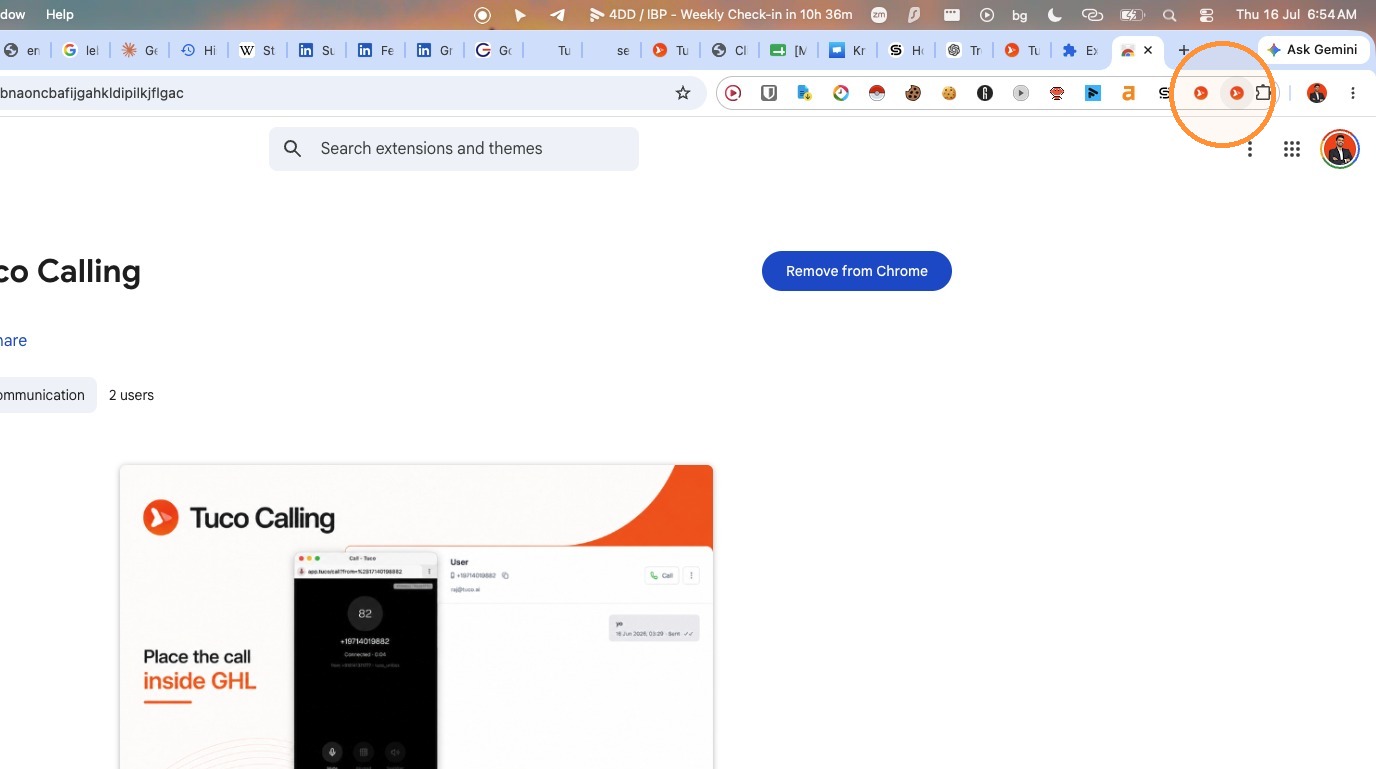
- Search for the "Tuco Calling" Chrome extension or directly go to https://chromewebstore.google.com/detail/tuco-calling/penfbnaoncbafijgahkldipilkjflgac
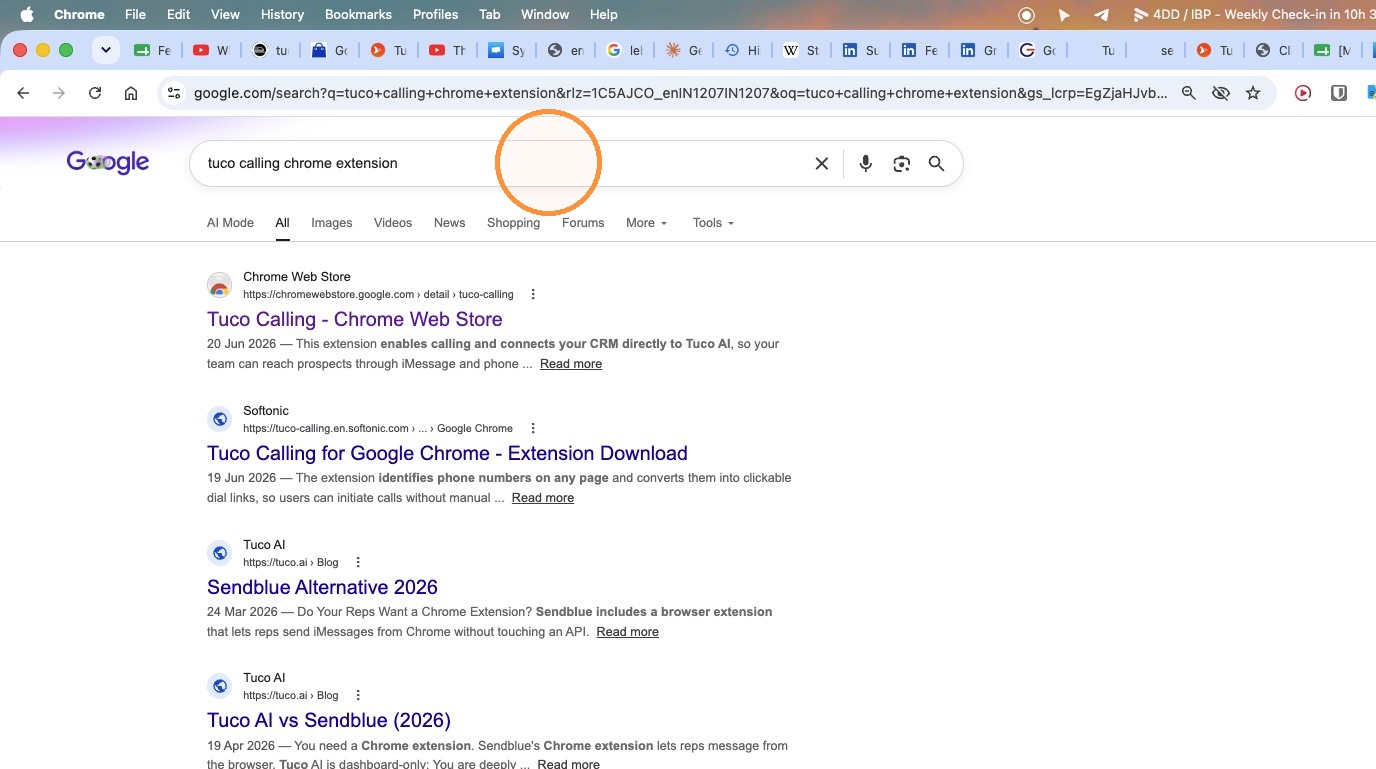
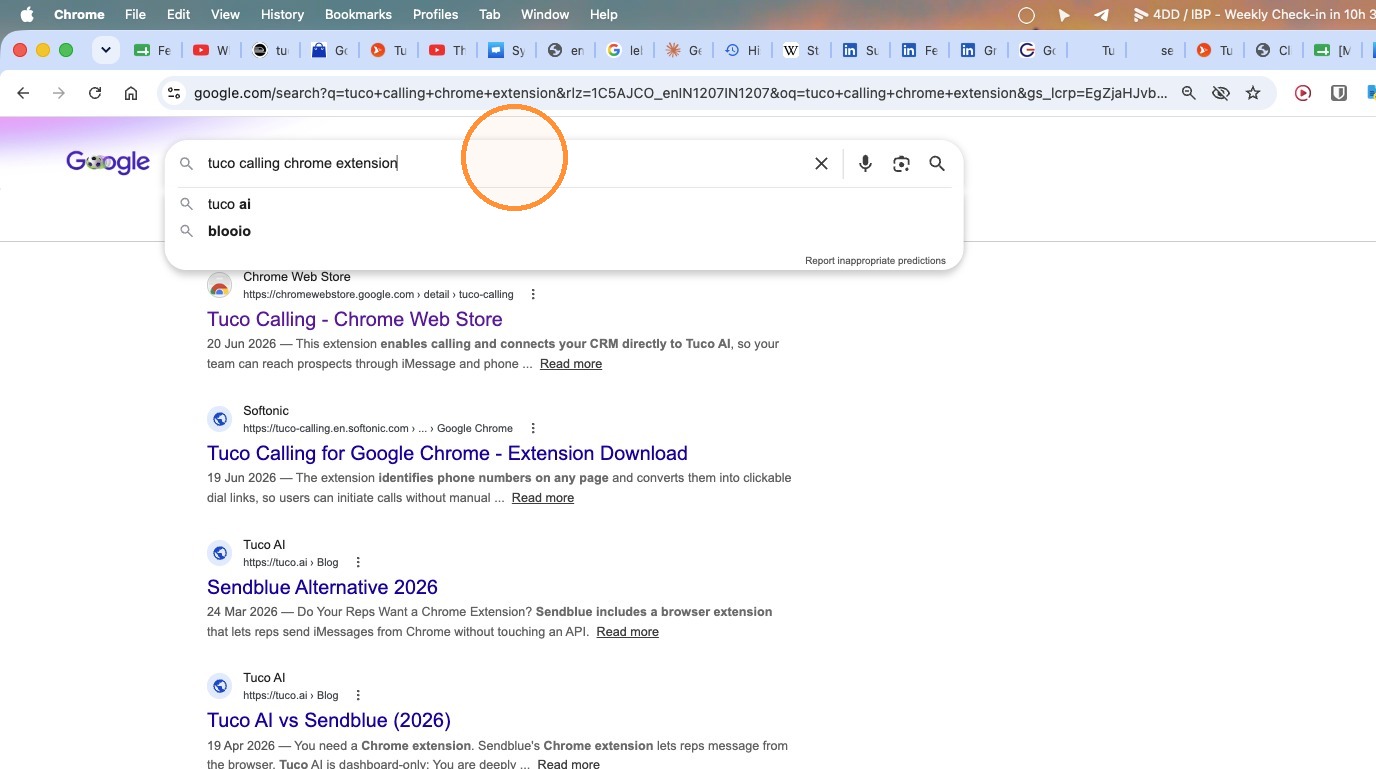
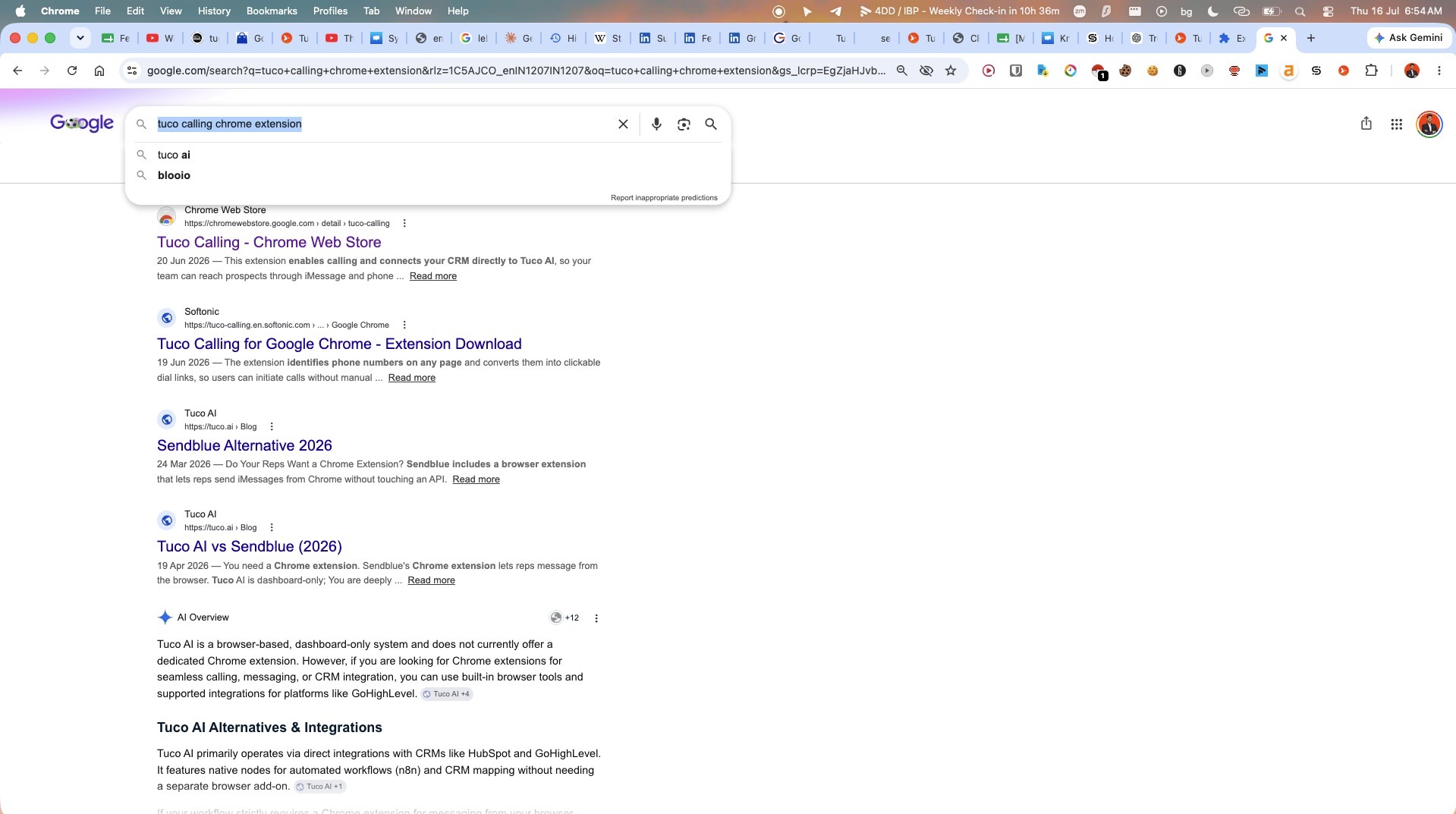
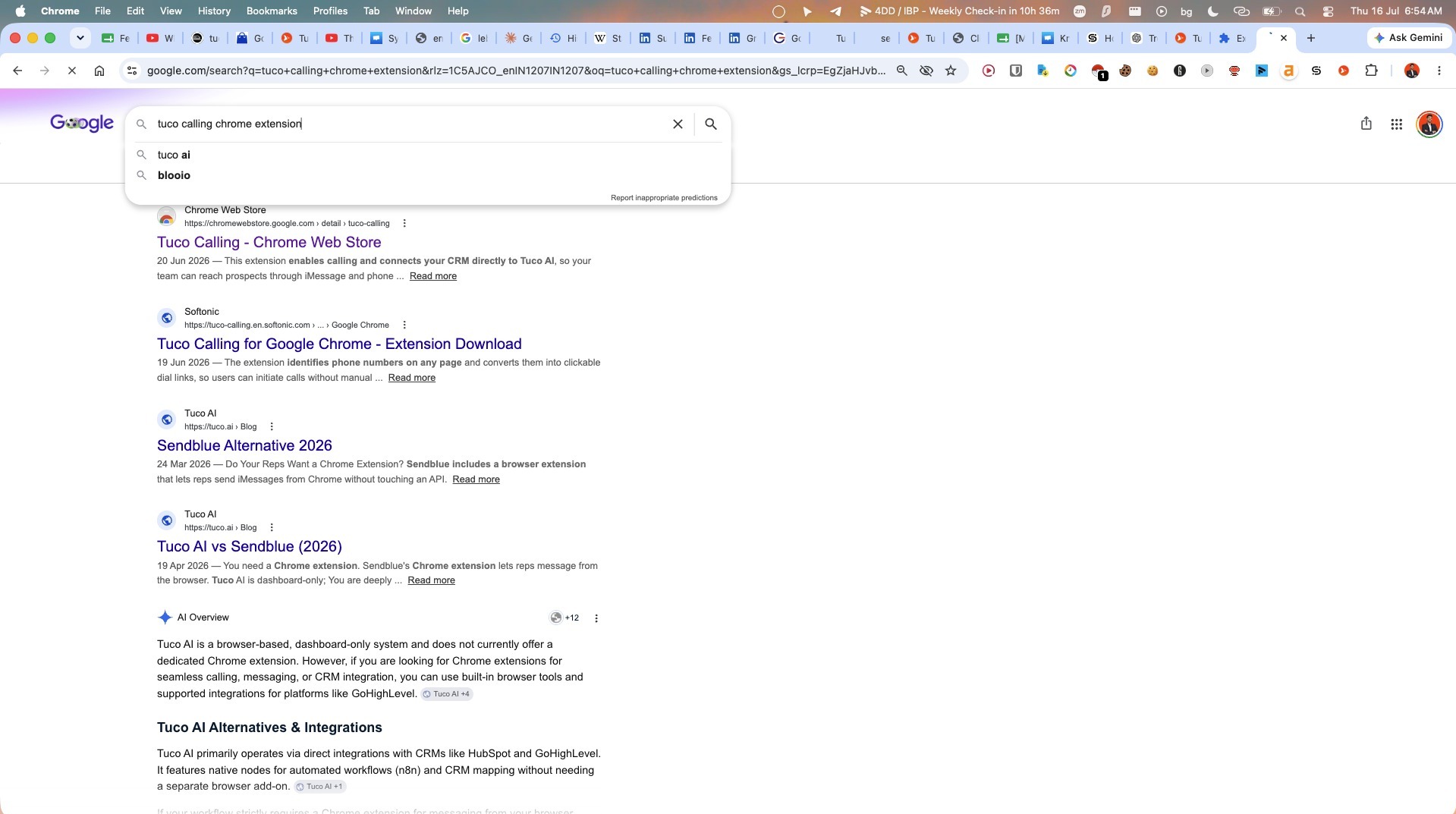
- Click the Tuco Calling link to open the Chrome Web Store page.
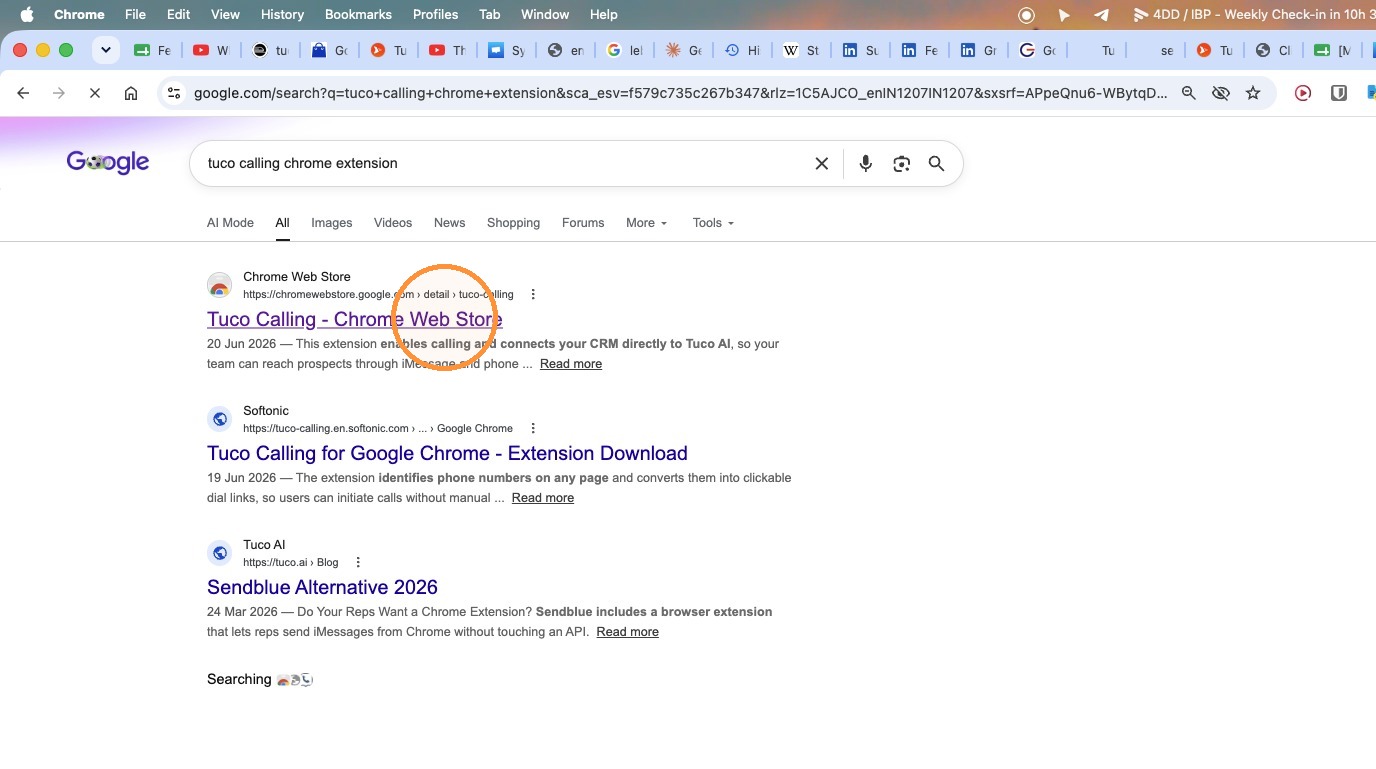
- Click Install (Blue button)
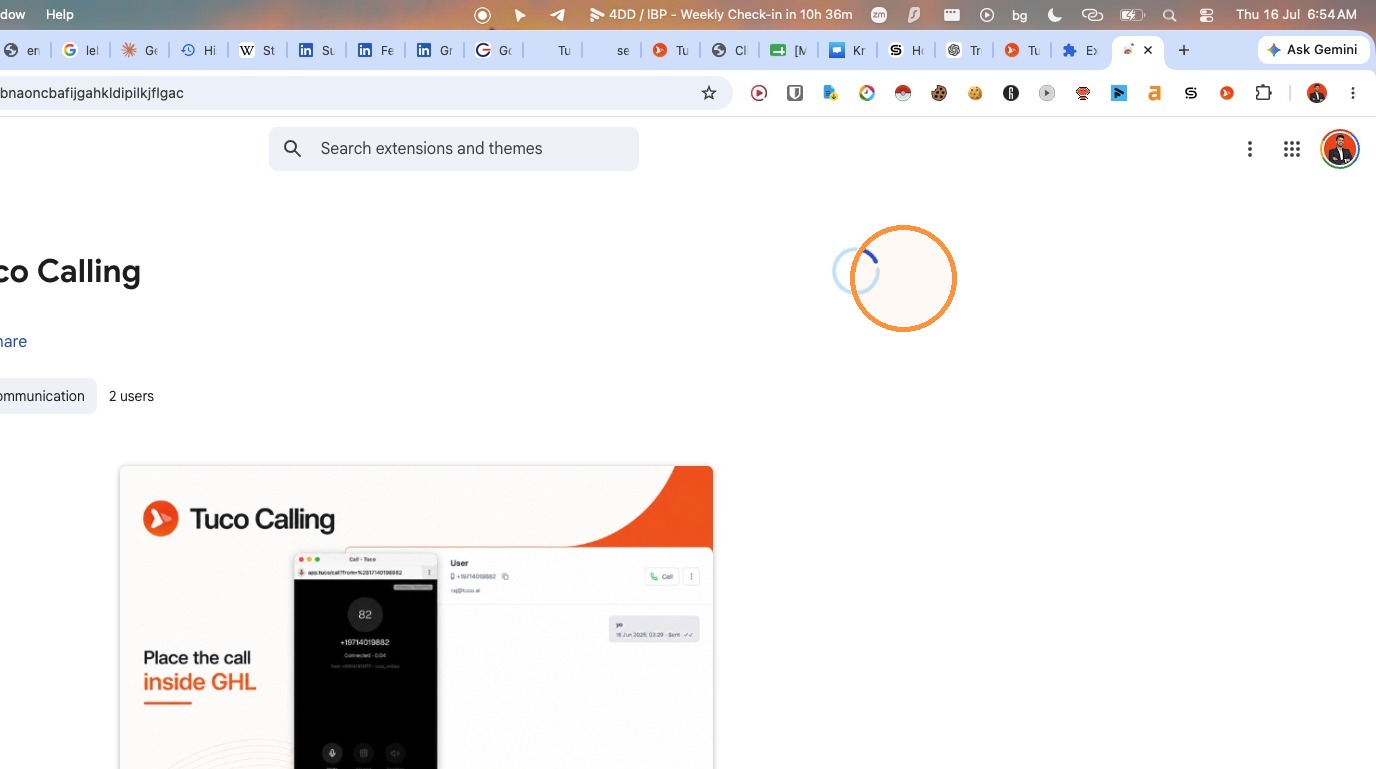
- Click "Add to Chrome" and conitnue to install
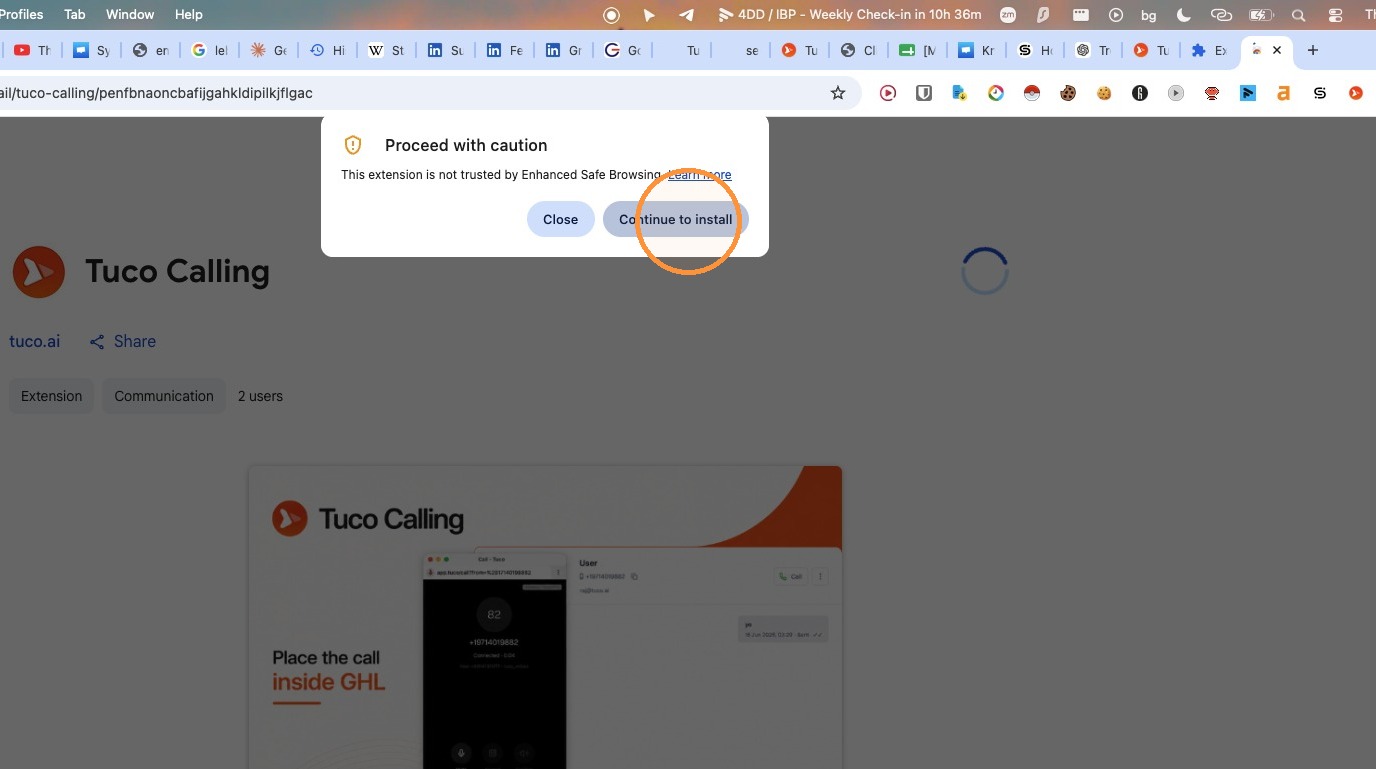
- Click "Continue to install" to bypass the safety warning.
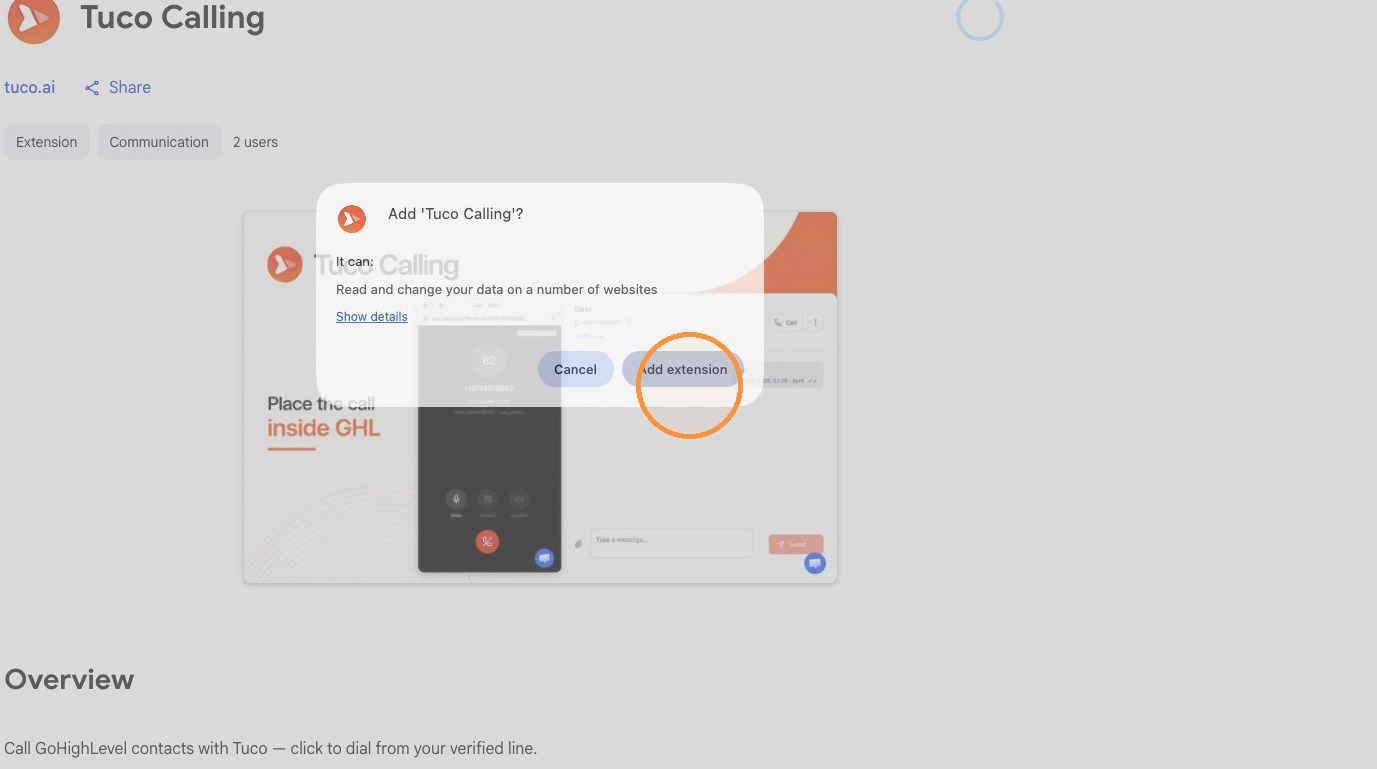
- Click "Add extension" in the browser confirmation prompt.
CRM Configuration
- Navigate to the Agency Dashboard.
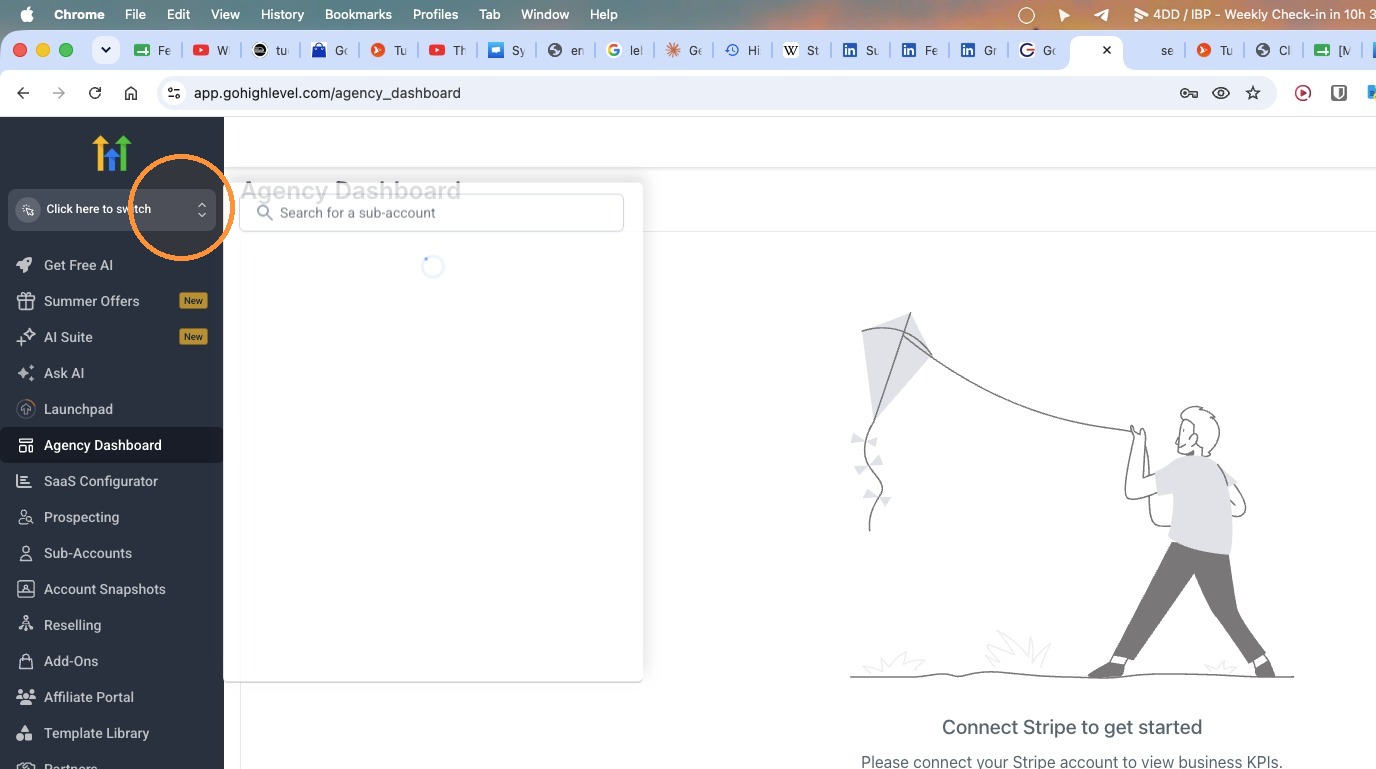
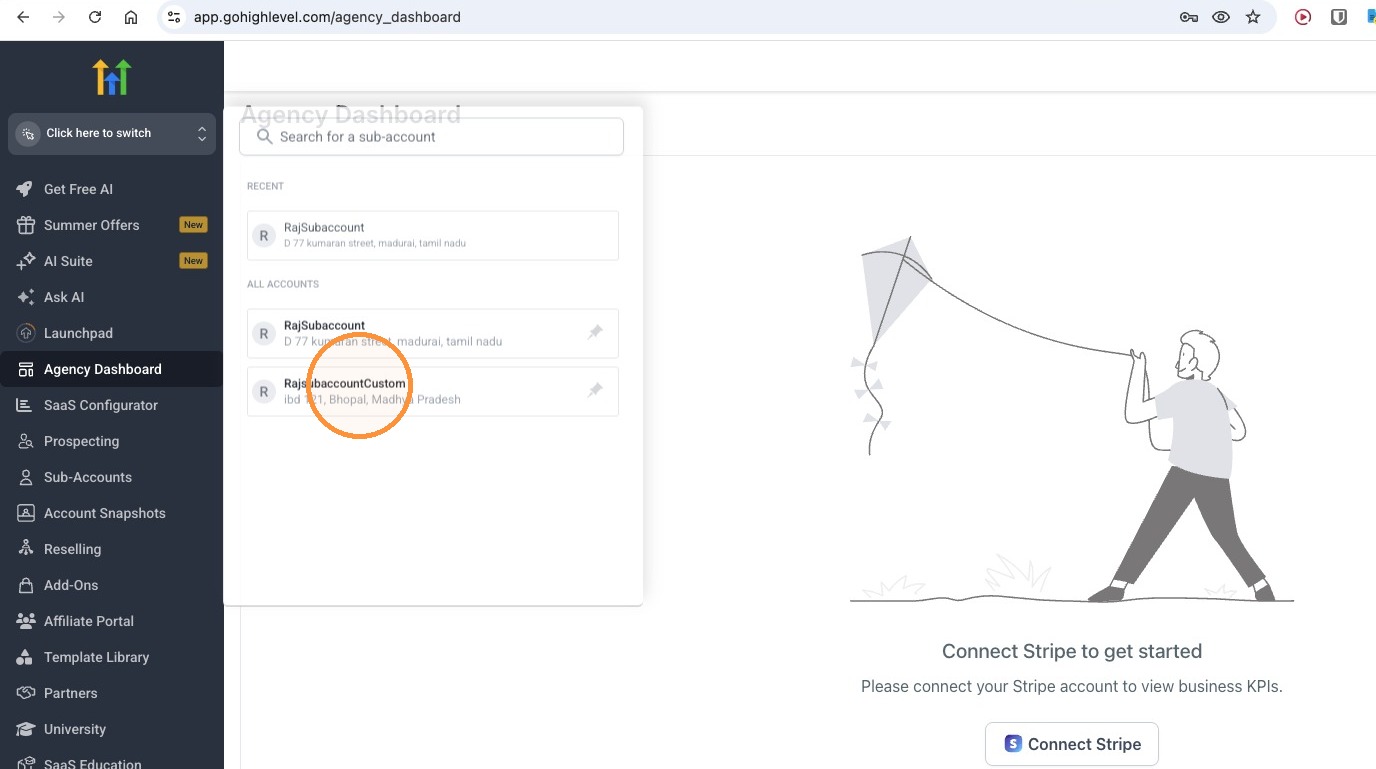
- Select the desired sub-account from the list.
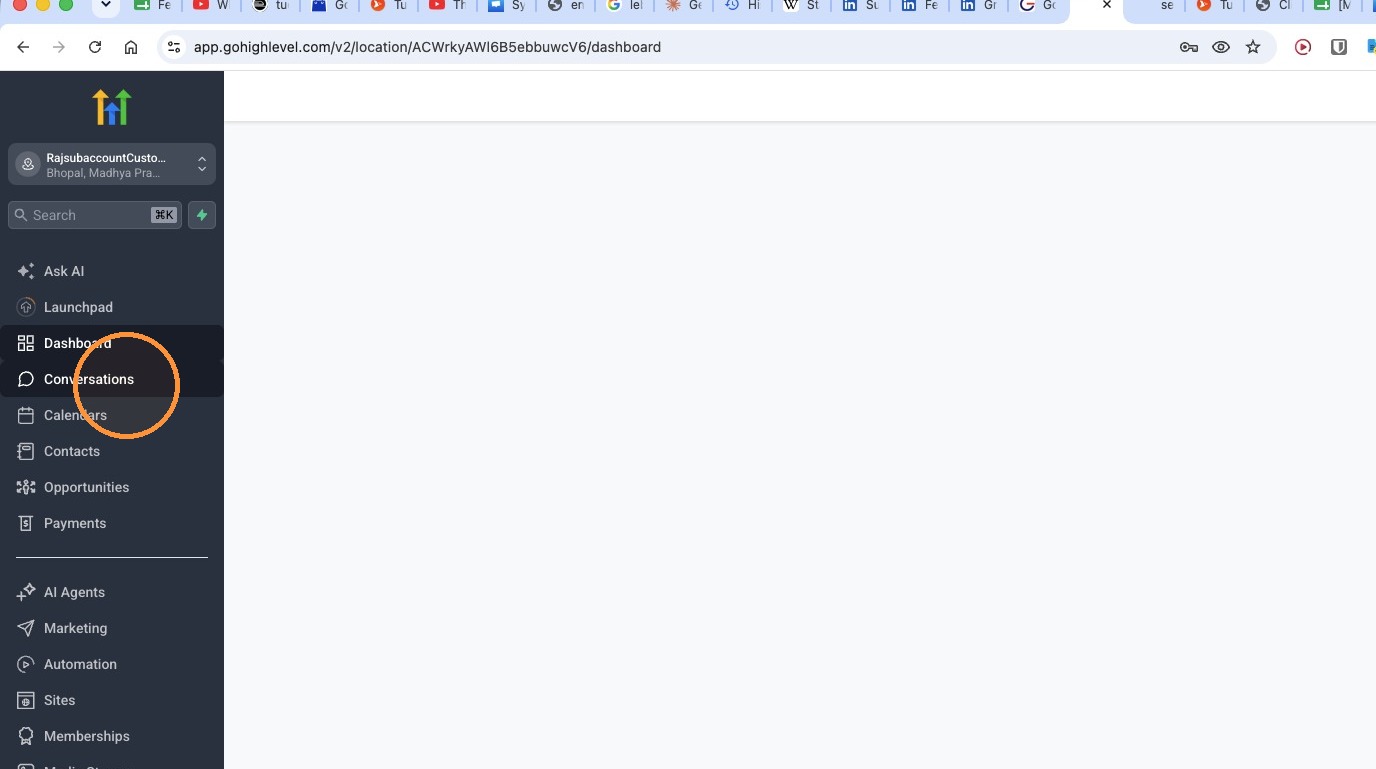
- Click "Conversations" in the sidebar navigation.
Activating the Extension
- Navigate to the Chrome Extensions management page, go to chrome://extensions with no https:// on the front
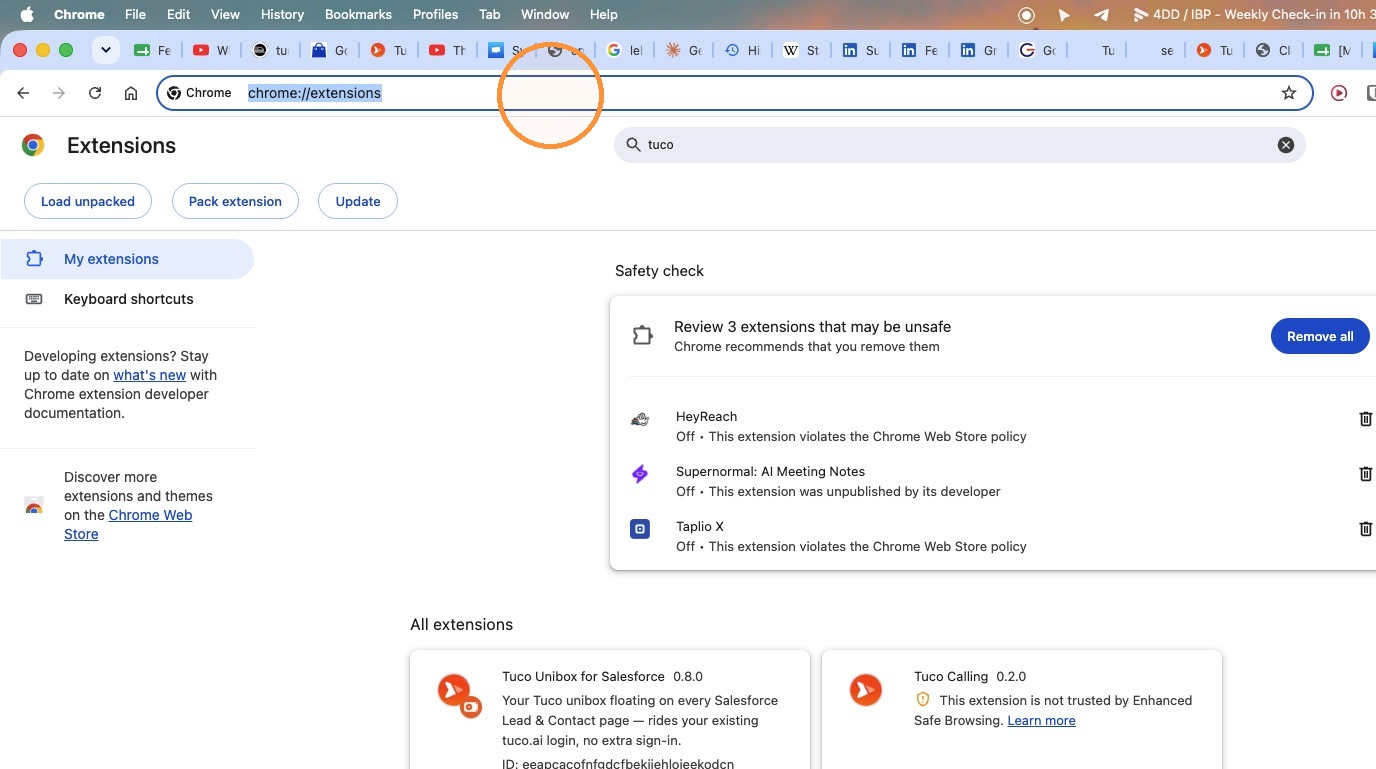
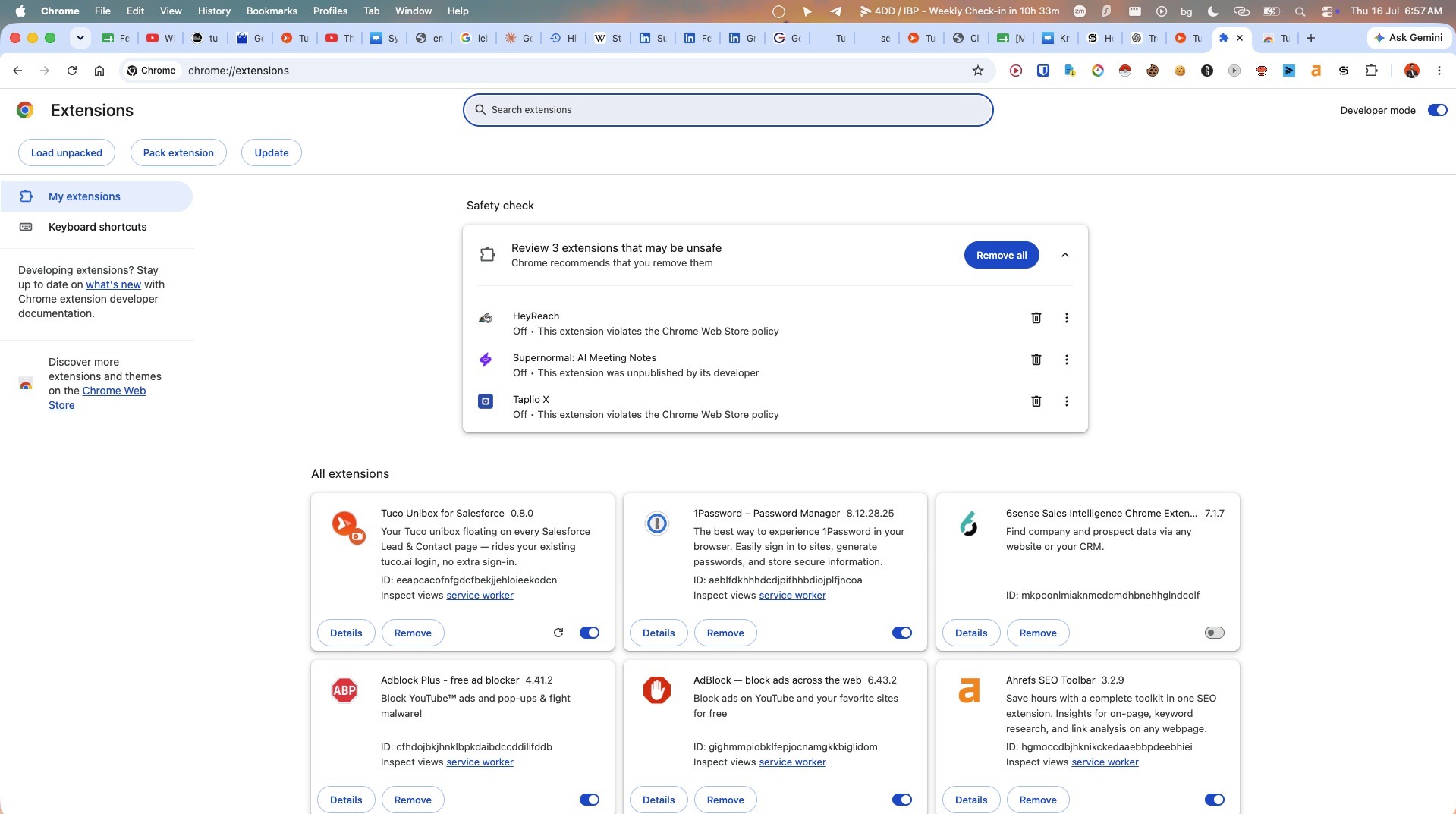
- Type "tuco" into the extension search bar.
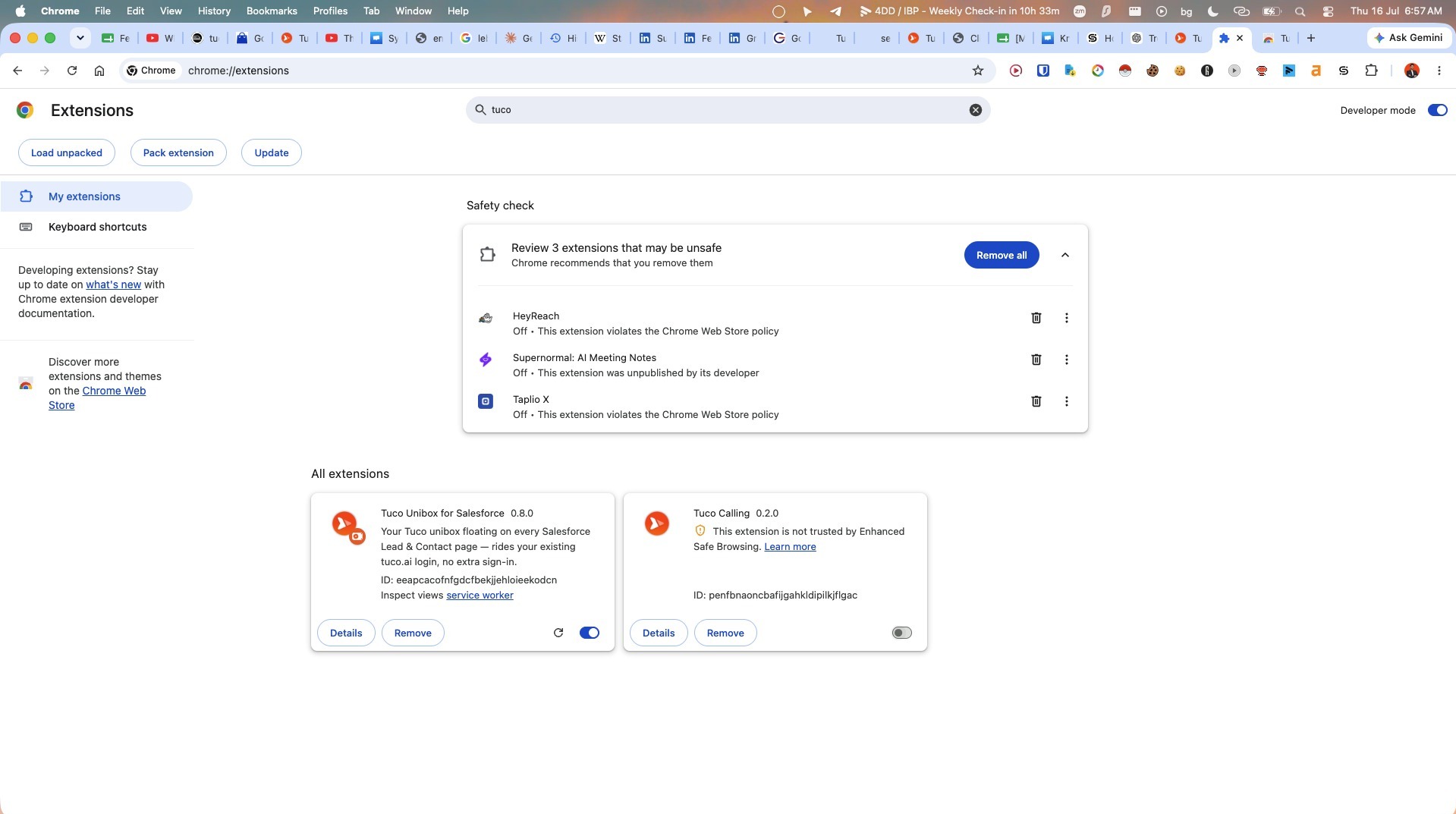
- Toggle the extension on and click "Re-enable" if prompted.
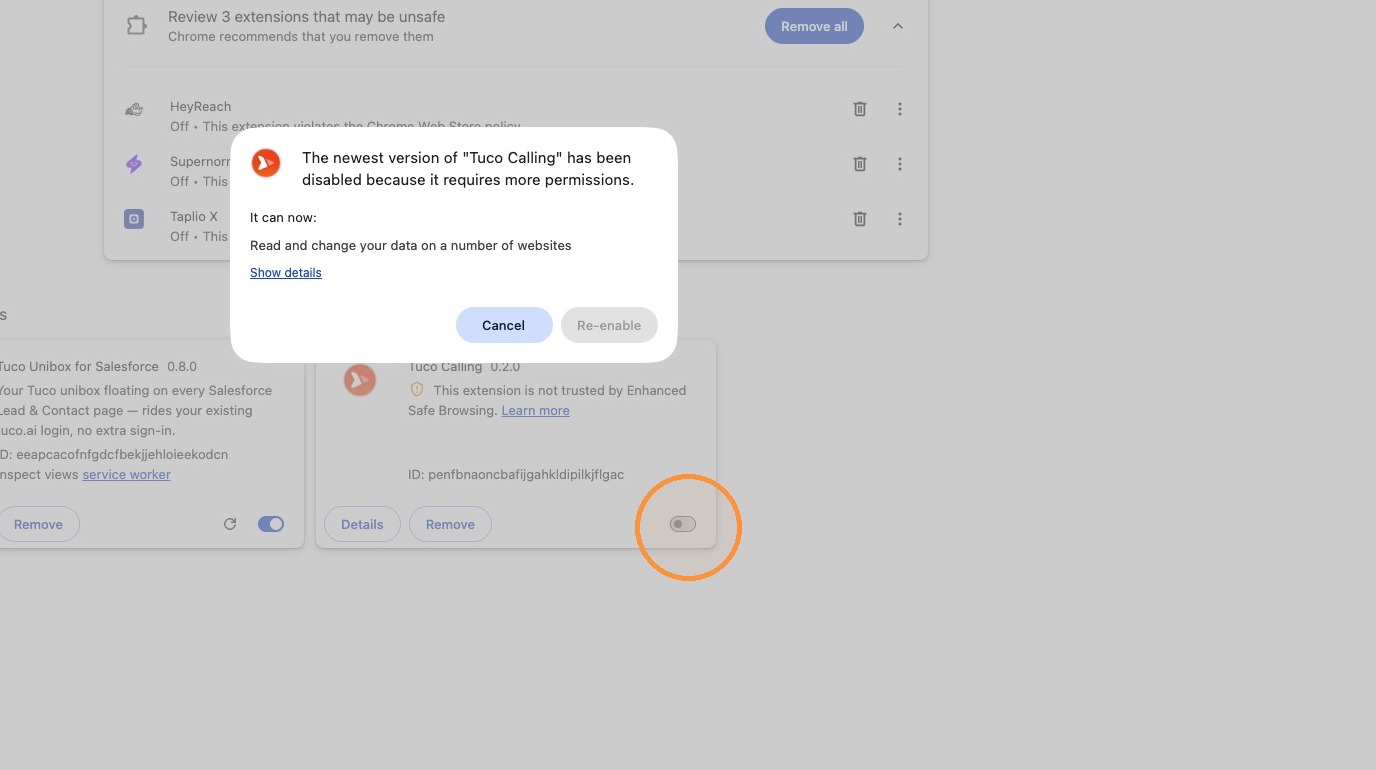
- Click here
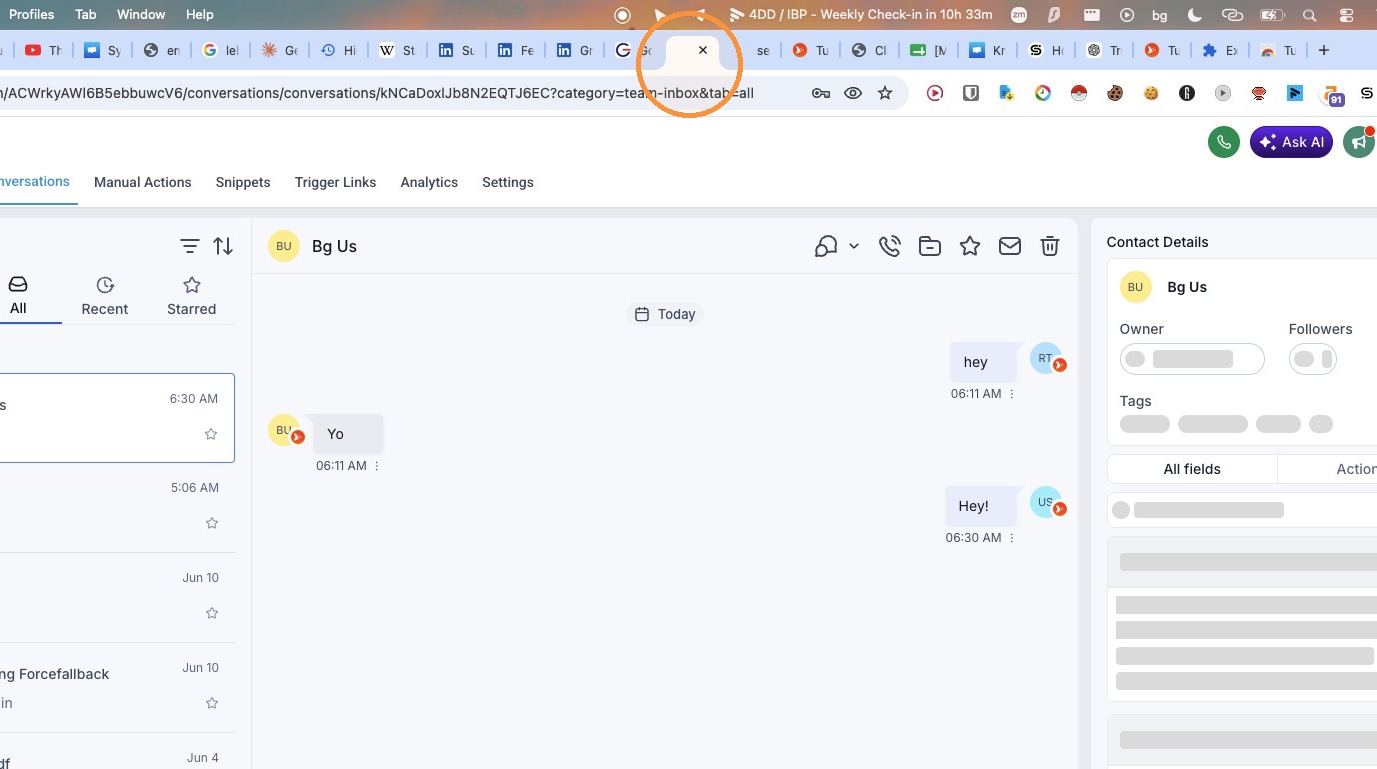
- Perform a hard refresh of the page using [[Shift]] + [[Cmd]] + [[R]]. or log out and log back in (make sure when you visit chrome://extensions tuco is enabled fully)
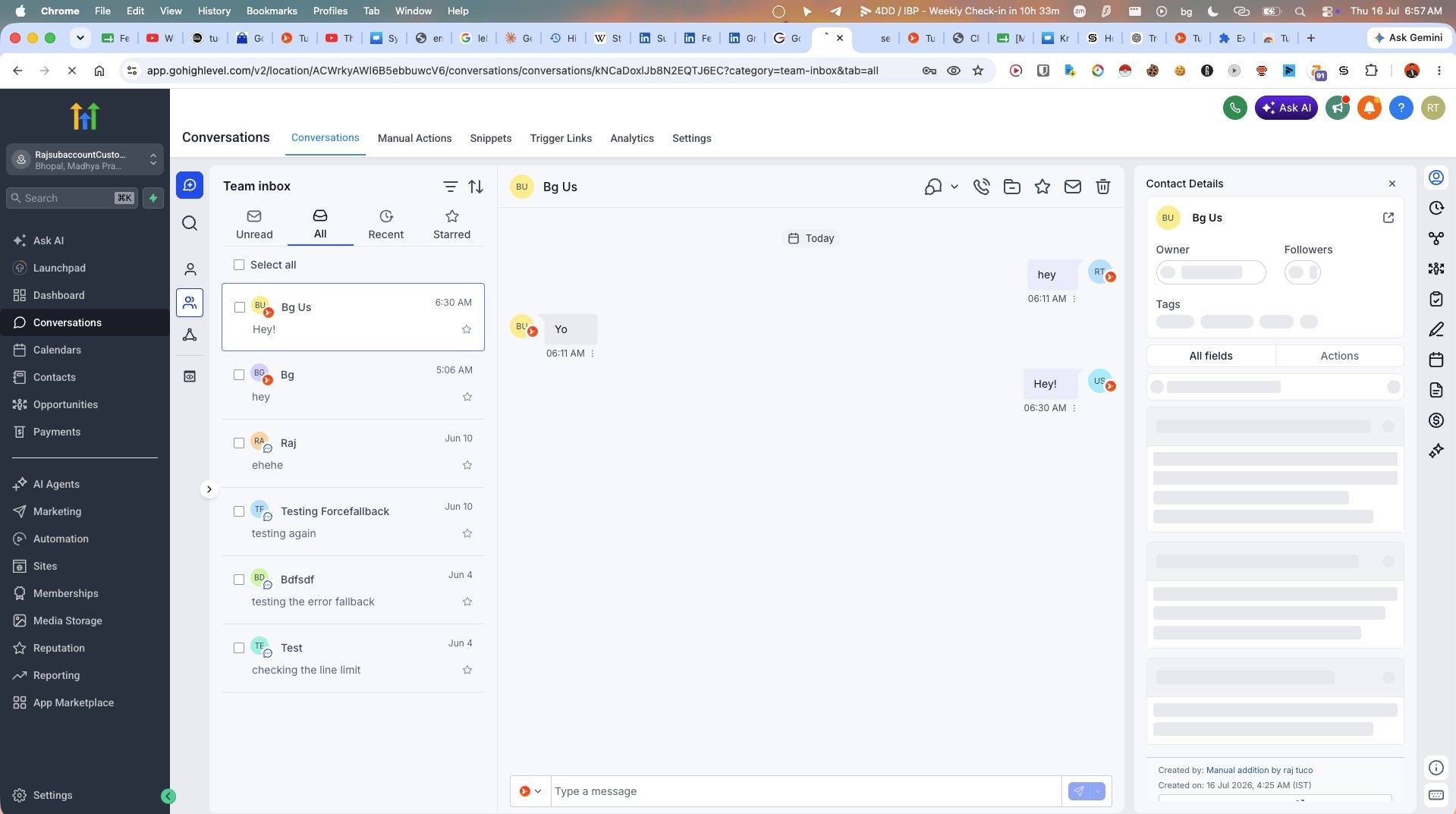
Using the Dialer
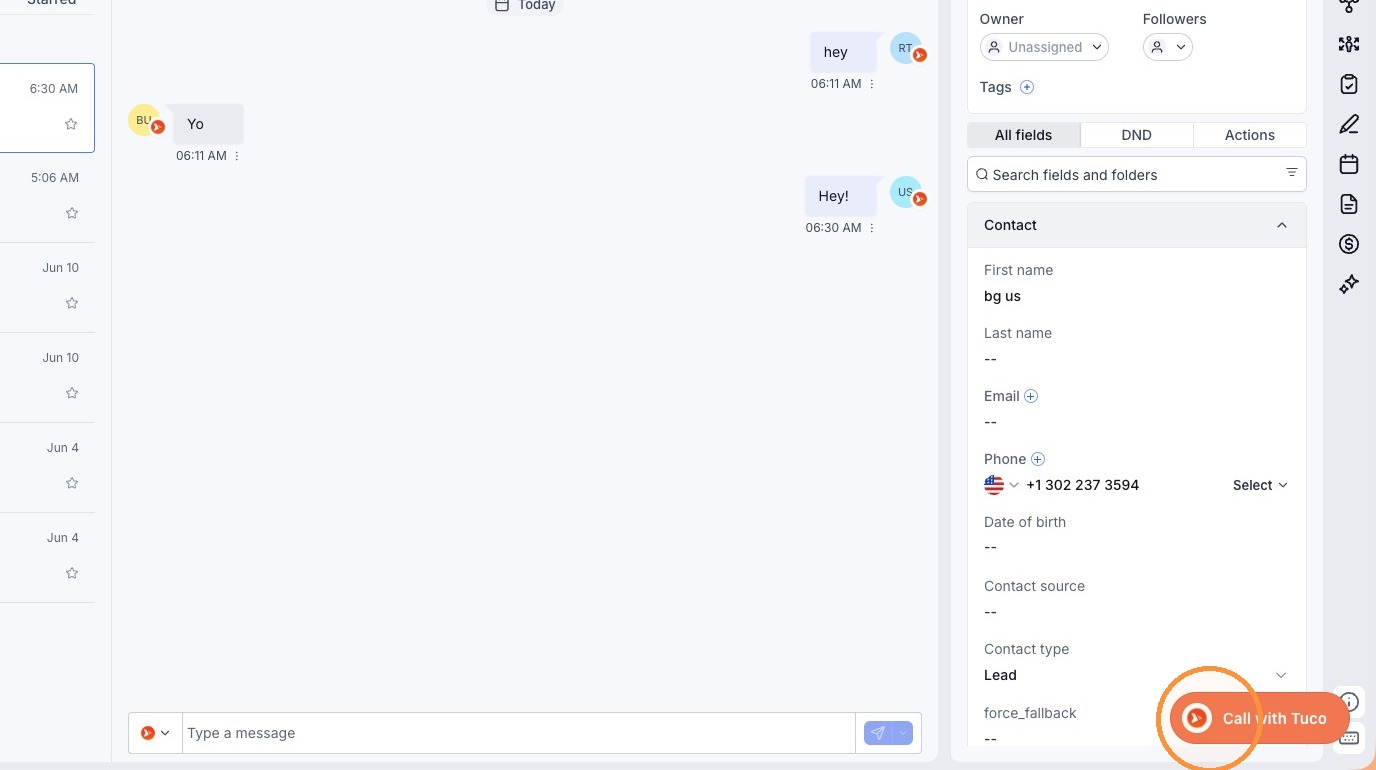
- Click "Tuco Call with Tuco" (on th ebottom right orange button)
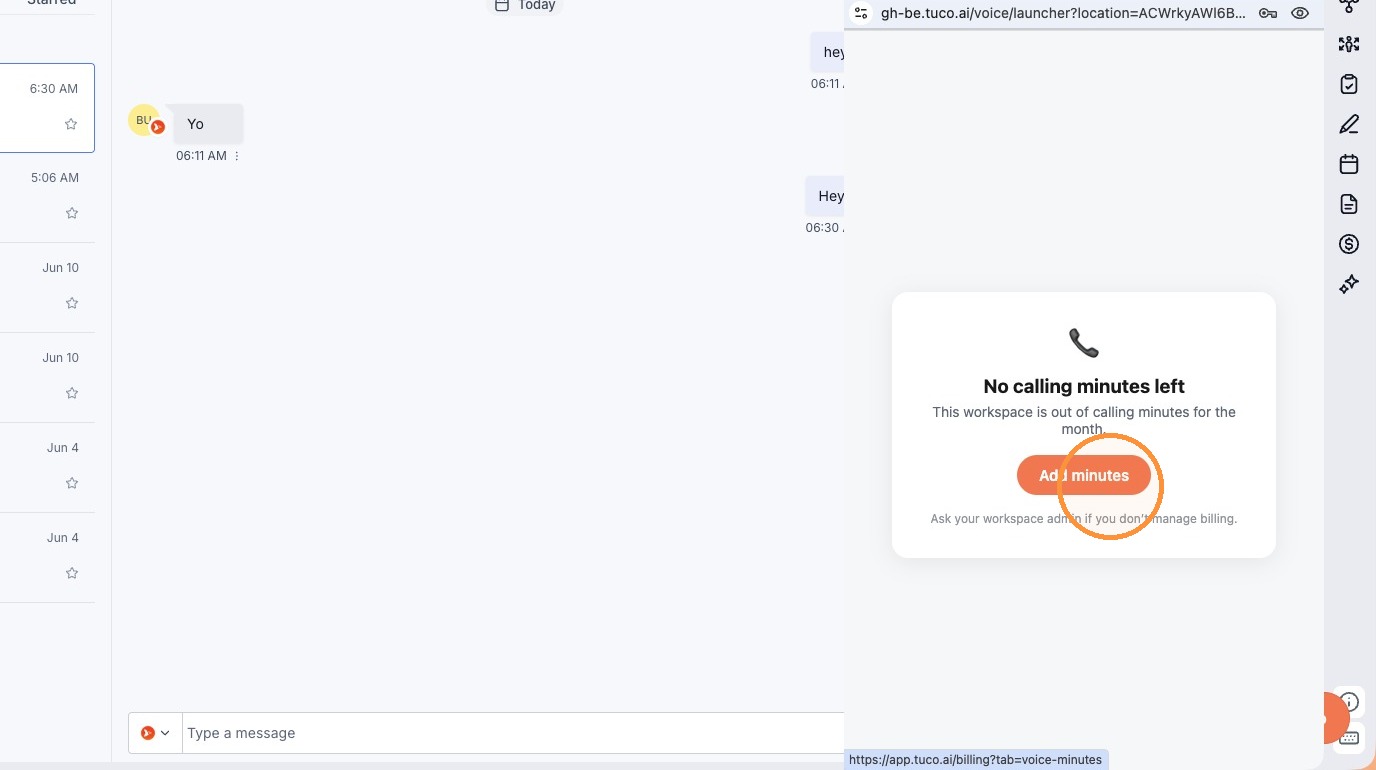
- Click "Add minutes" if the calling interface indicates no remaining credit.
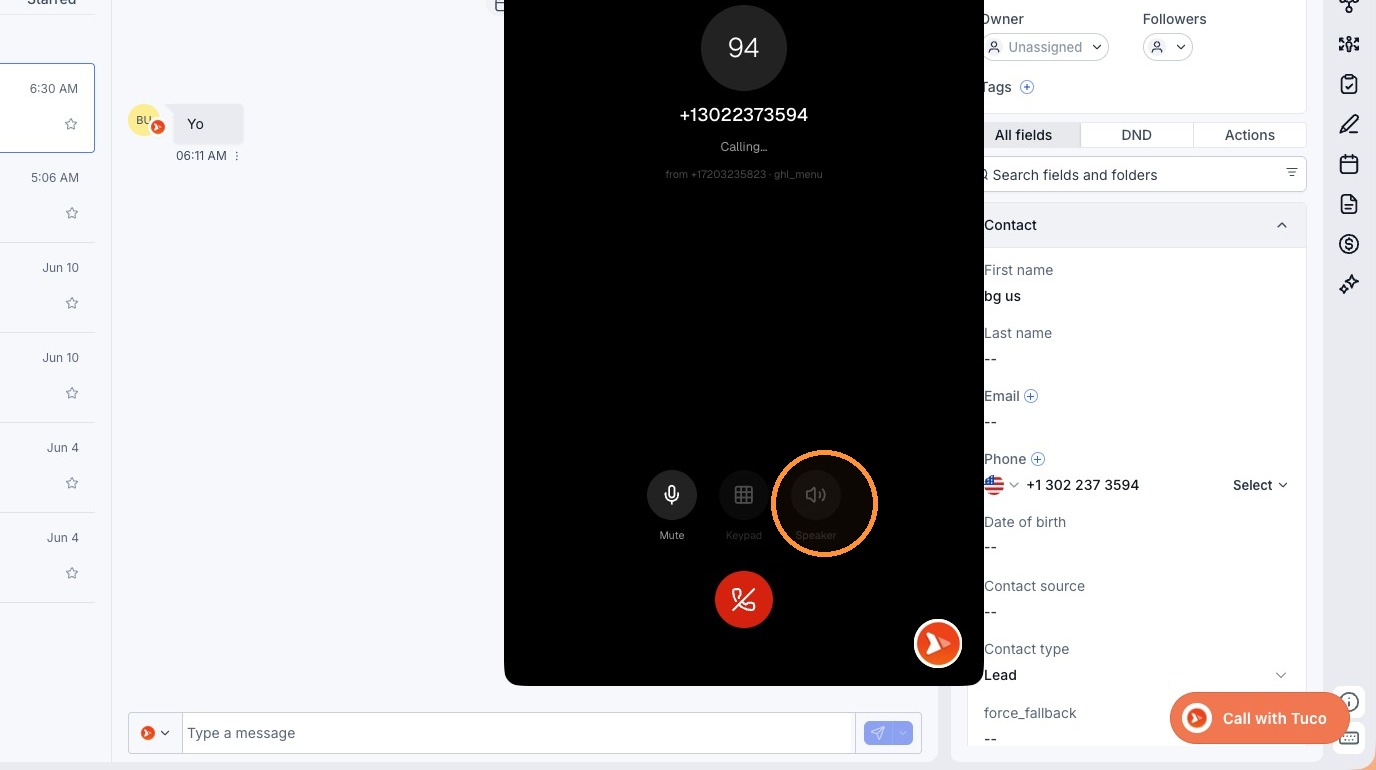
- Select the "Speaker" icon to adjust audio output during the call.
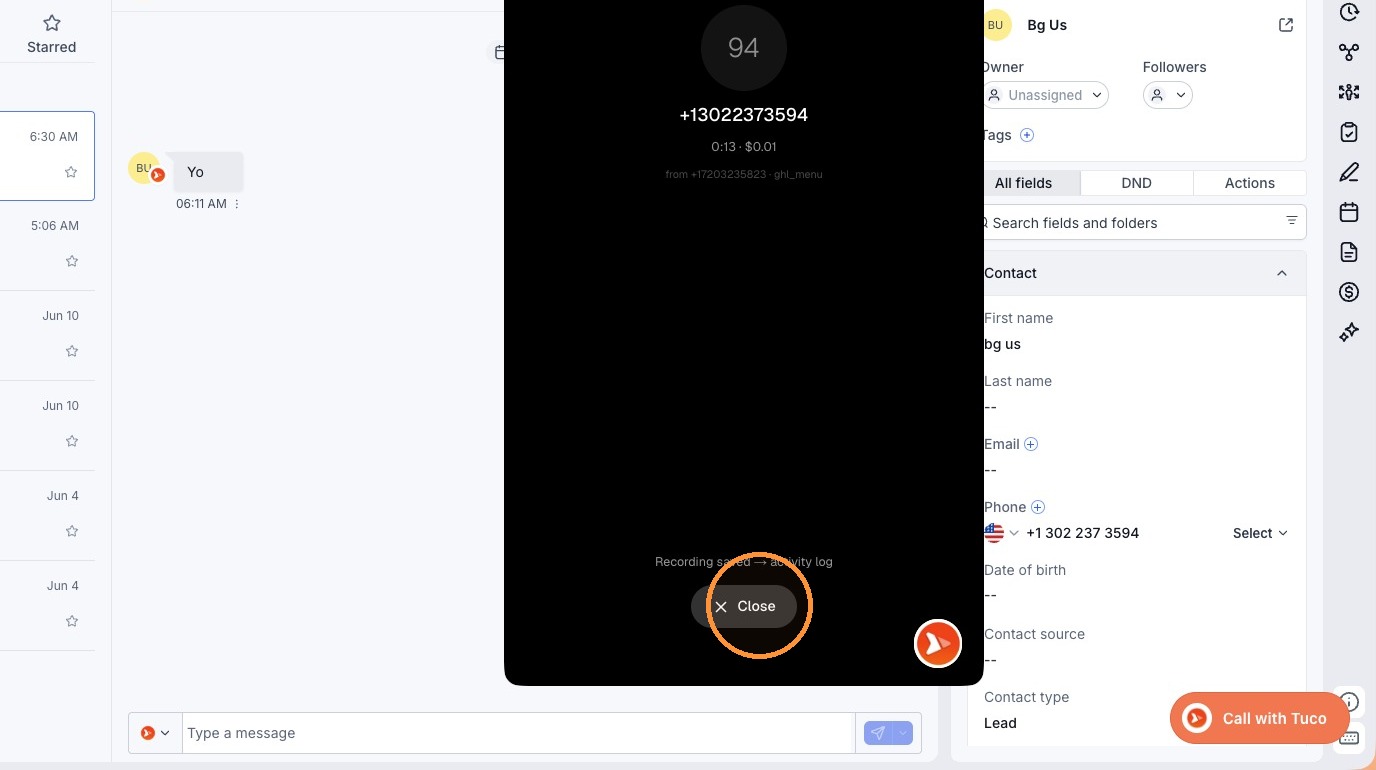
- Click "Close" to end the call or exit the dialer.
Made with Scribe
Updated on: 16/07/2026
Thank you!