How to install Tuco AI for iMessage automation inside Go High Level (GHL)
How To Integrate or Connect GoHighLevel Integration with Tuco AI - iMessage Automation Software through GHL
Made by Tuco Support with Scribe
Learn how to configure your GoHighLevel integration to streamline your marketing automation using Tuco AI. This guide walks you through the essential steps to connect your API keys and location settings successfully.
Integration Initiation
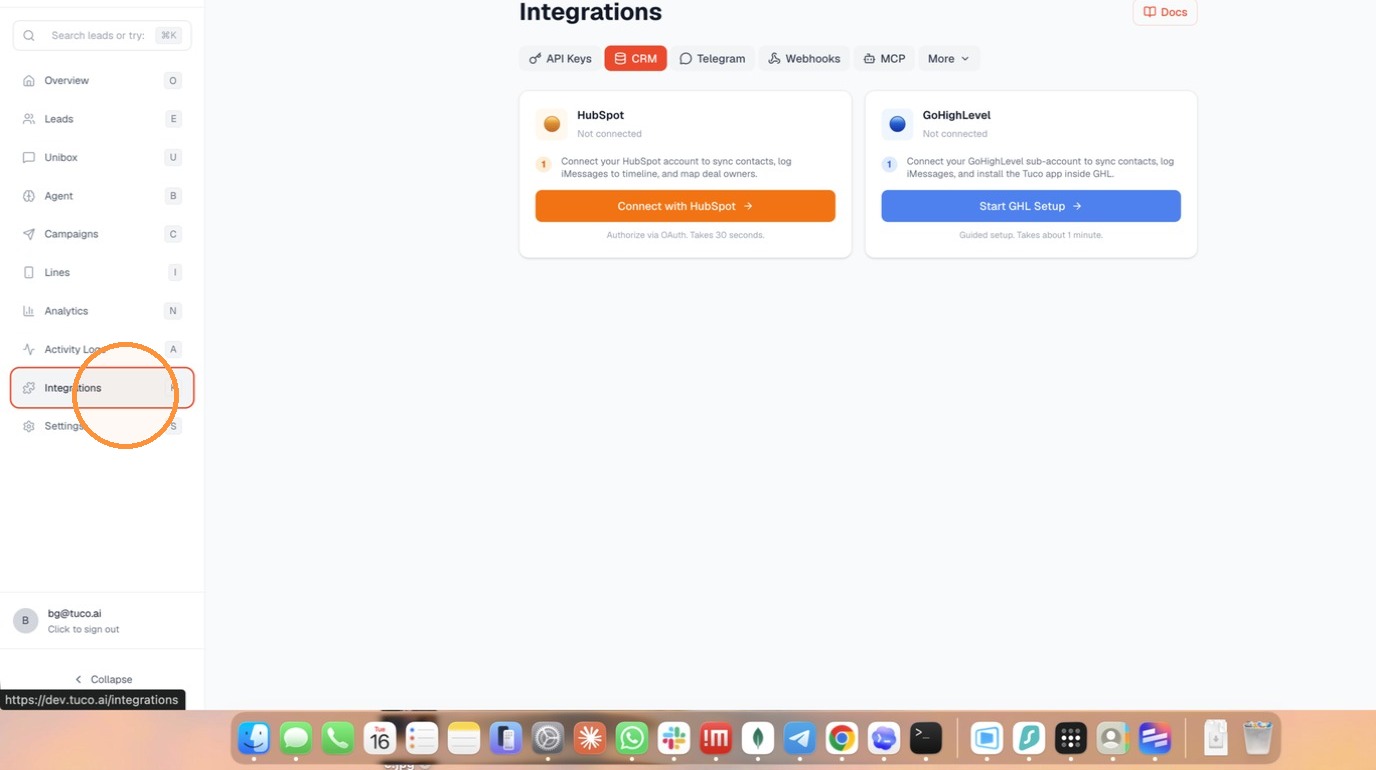
- Select Integrations from the sidebar menu after logging into app.tuco.ai
If you see Lead Connector instead of Go High Level do not worry! Go High Level is a trademark and hence we were requested to use the name "Lead Connector" instead of Go High Level
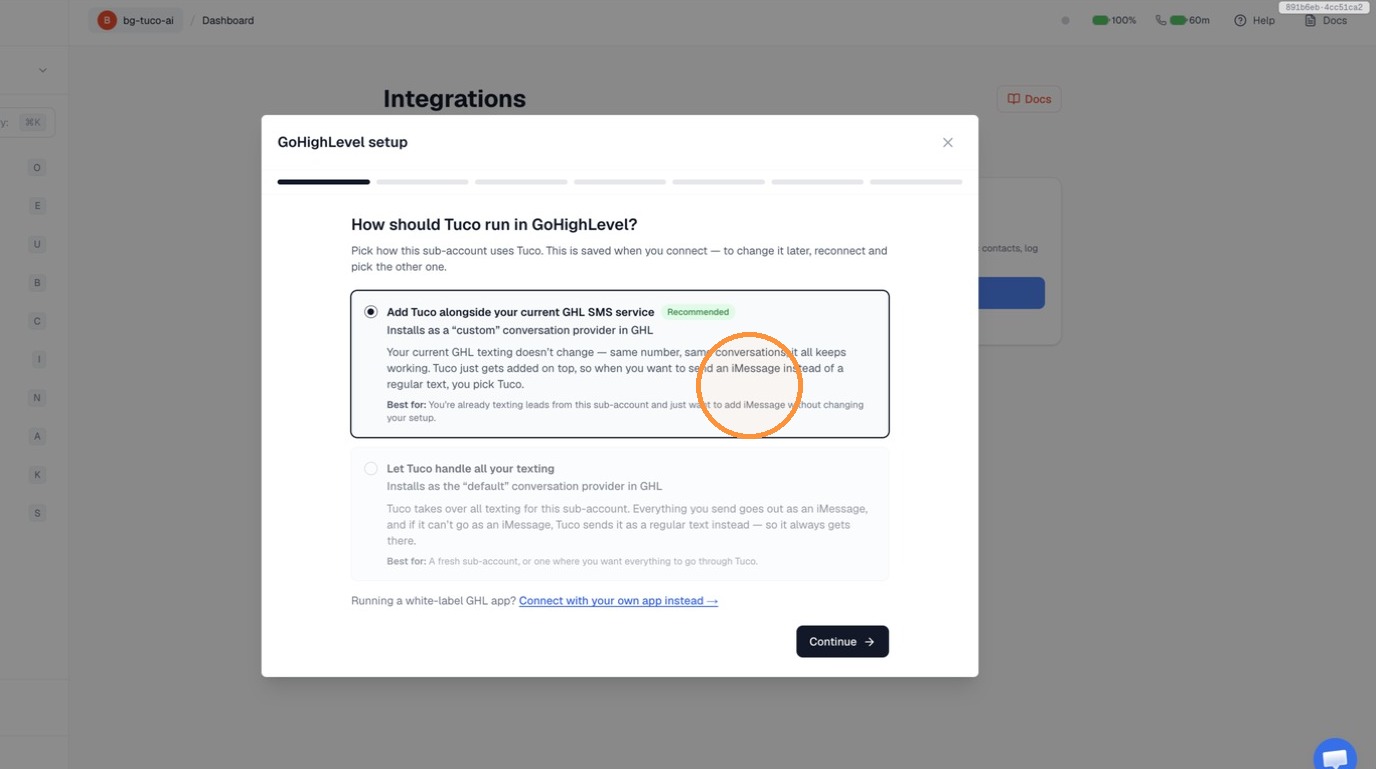
- Choose the run mode for Tuco and click Continue.
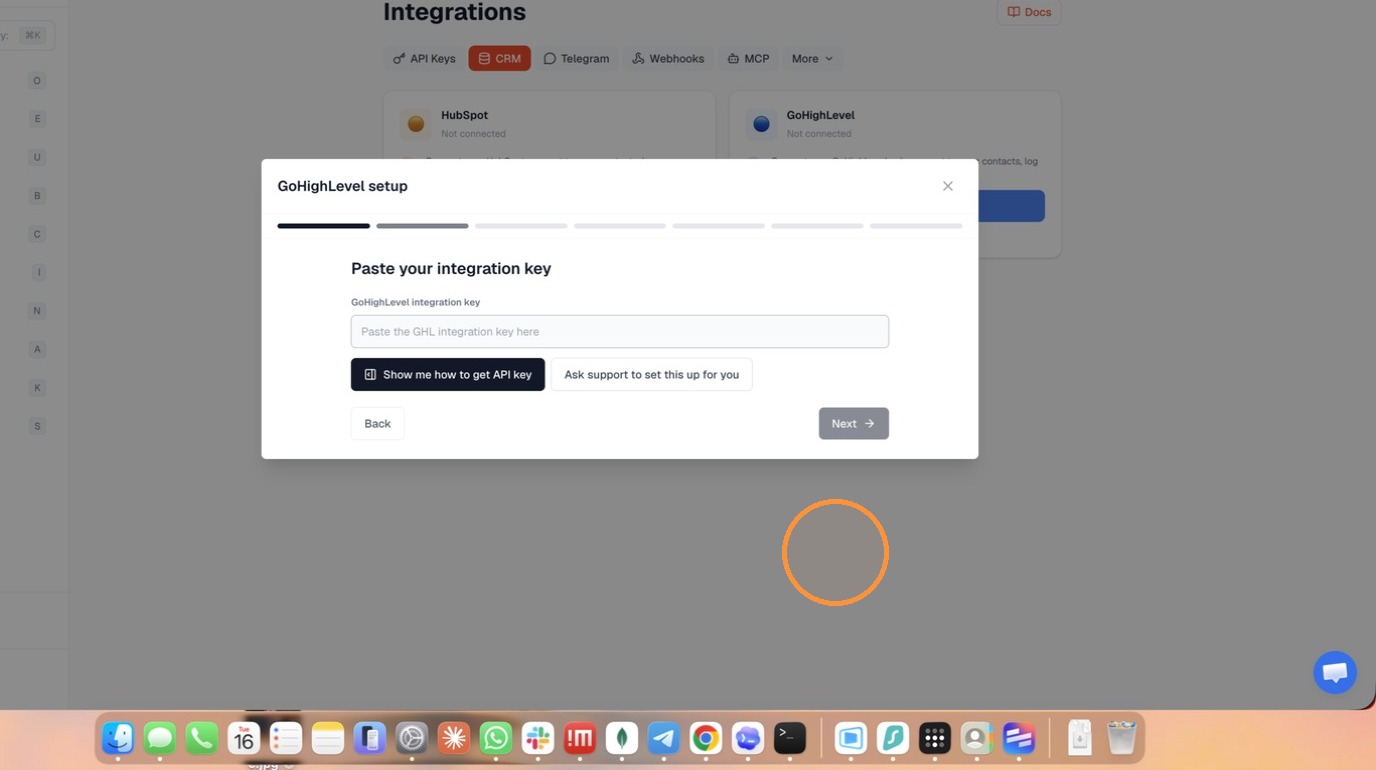
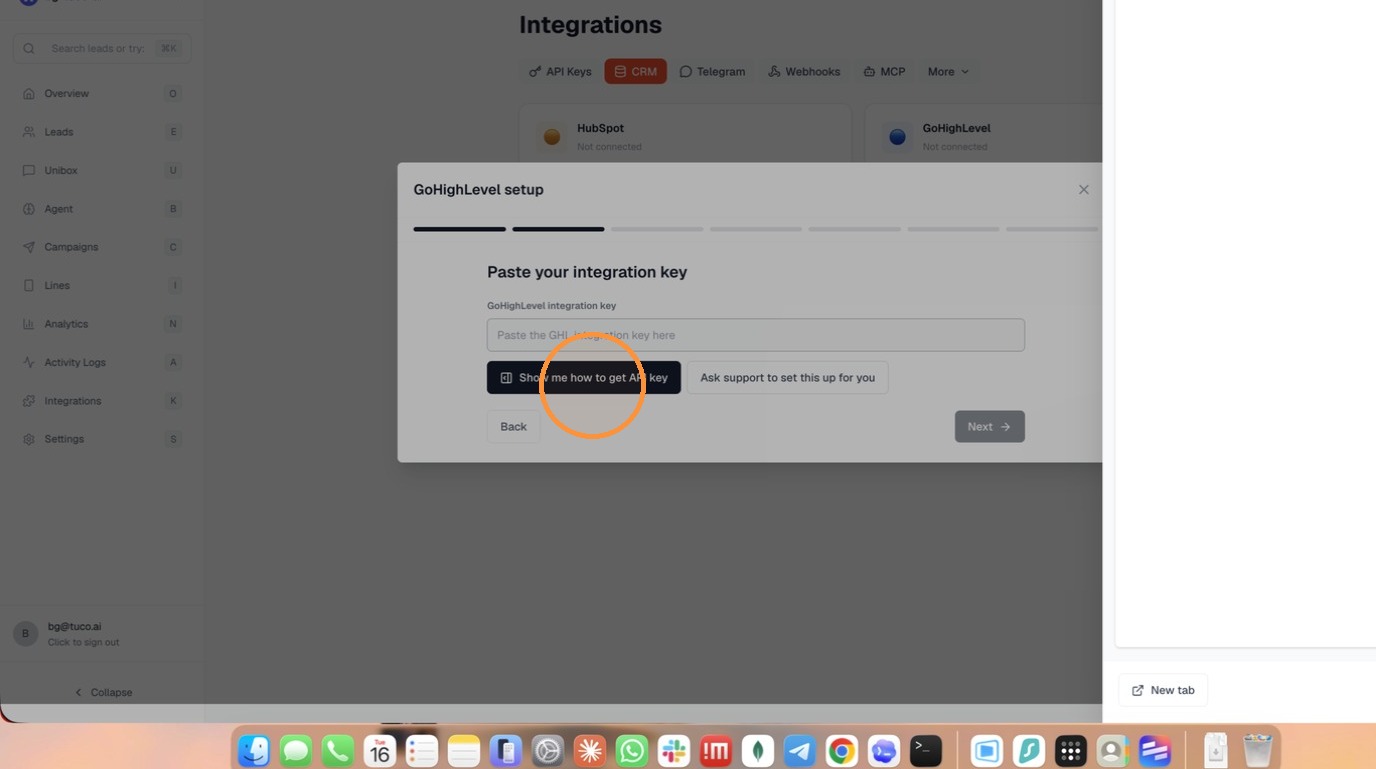
- Click Show me how to get API key to view setup instructions.
GoHighLevel API Configuration
- Navigate to the Settings section of your GoHighLevel account.
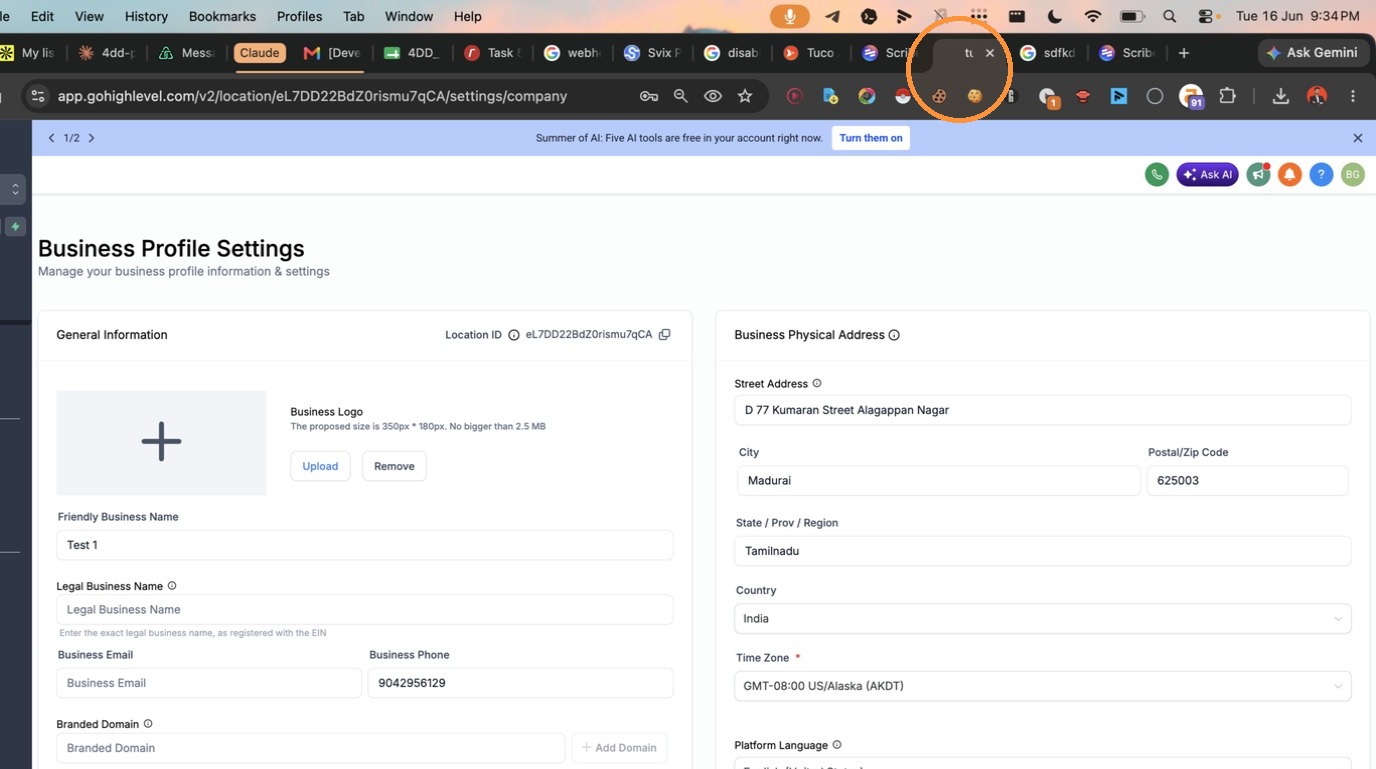
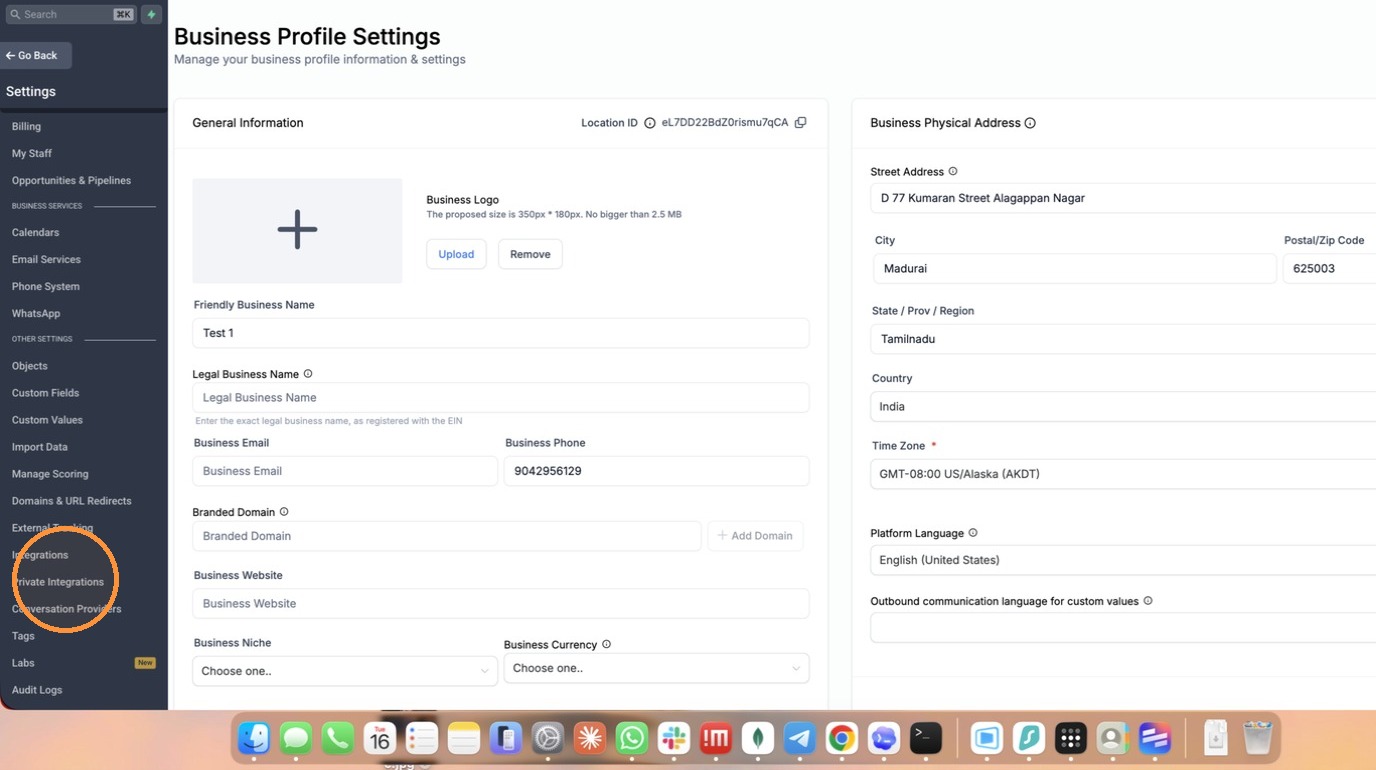
- Click "Private Integrations"
- Click "Create new integration"
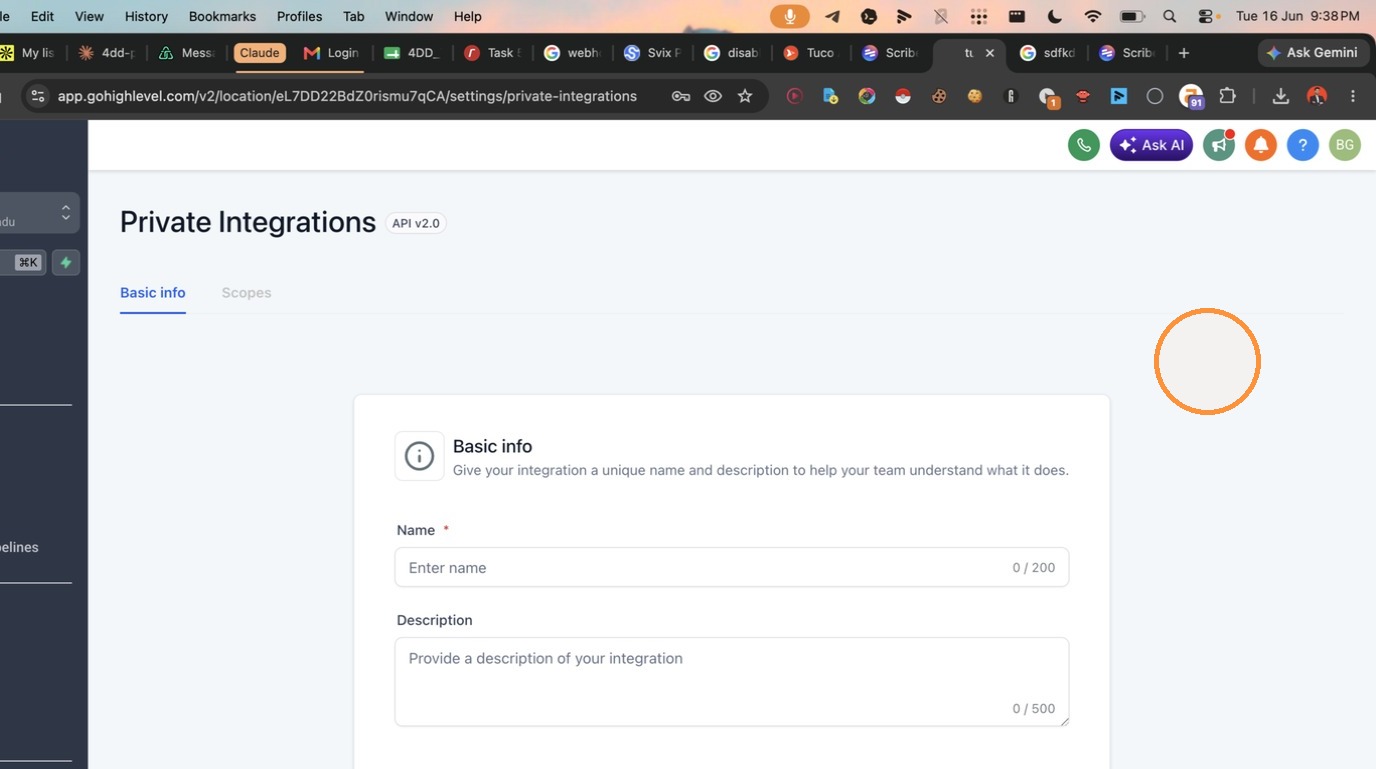
- Type 'tuco' into the Name field.
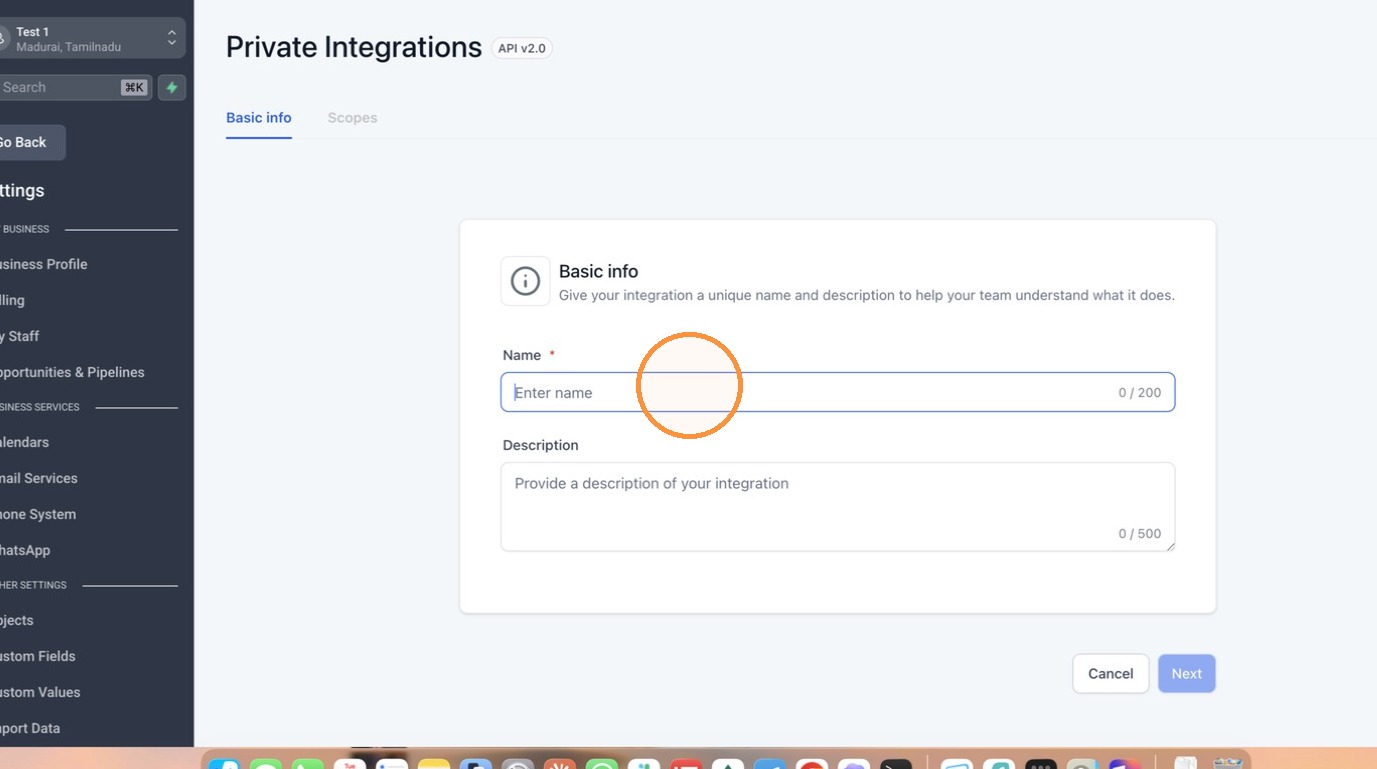
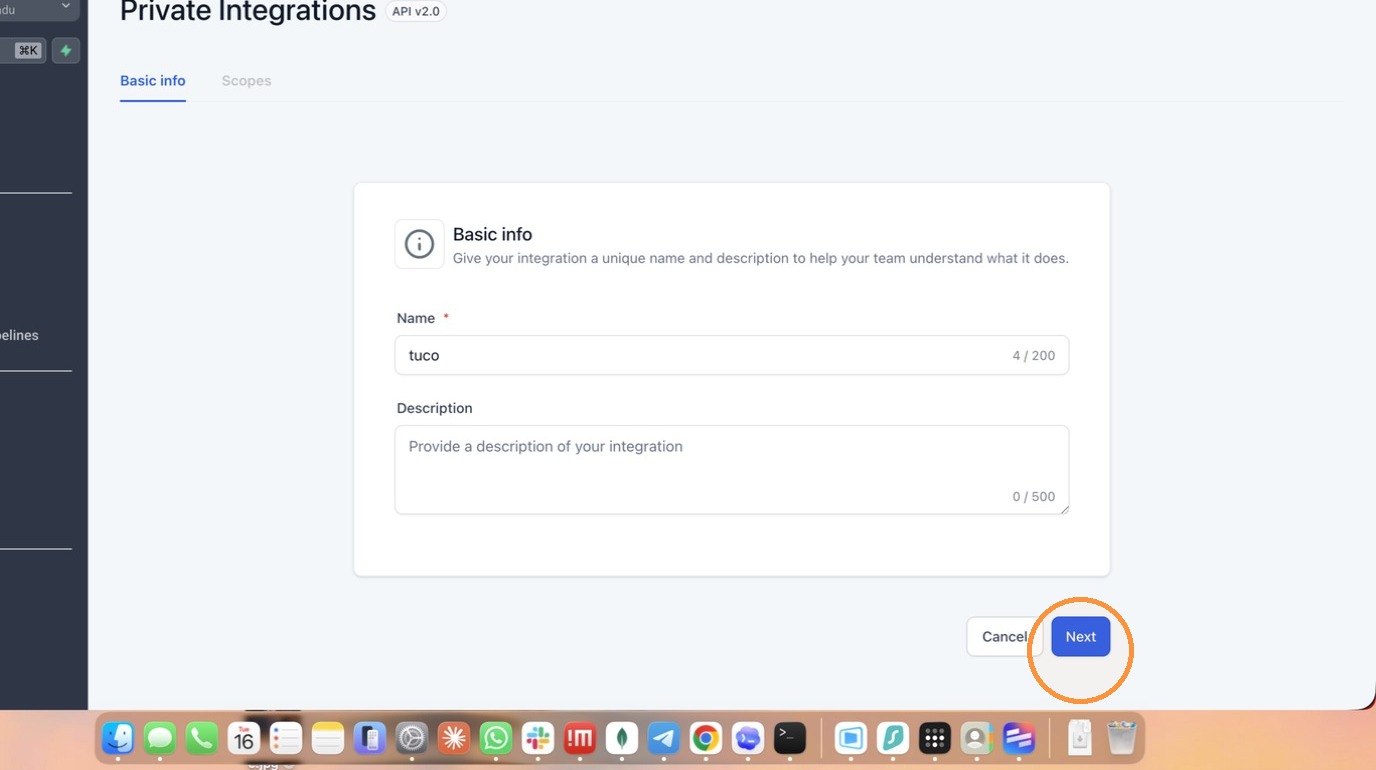
- Click Next to proceed to the permissions setup.
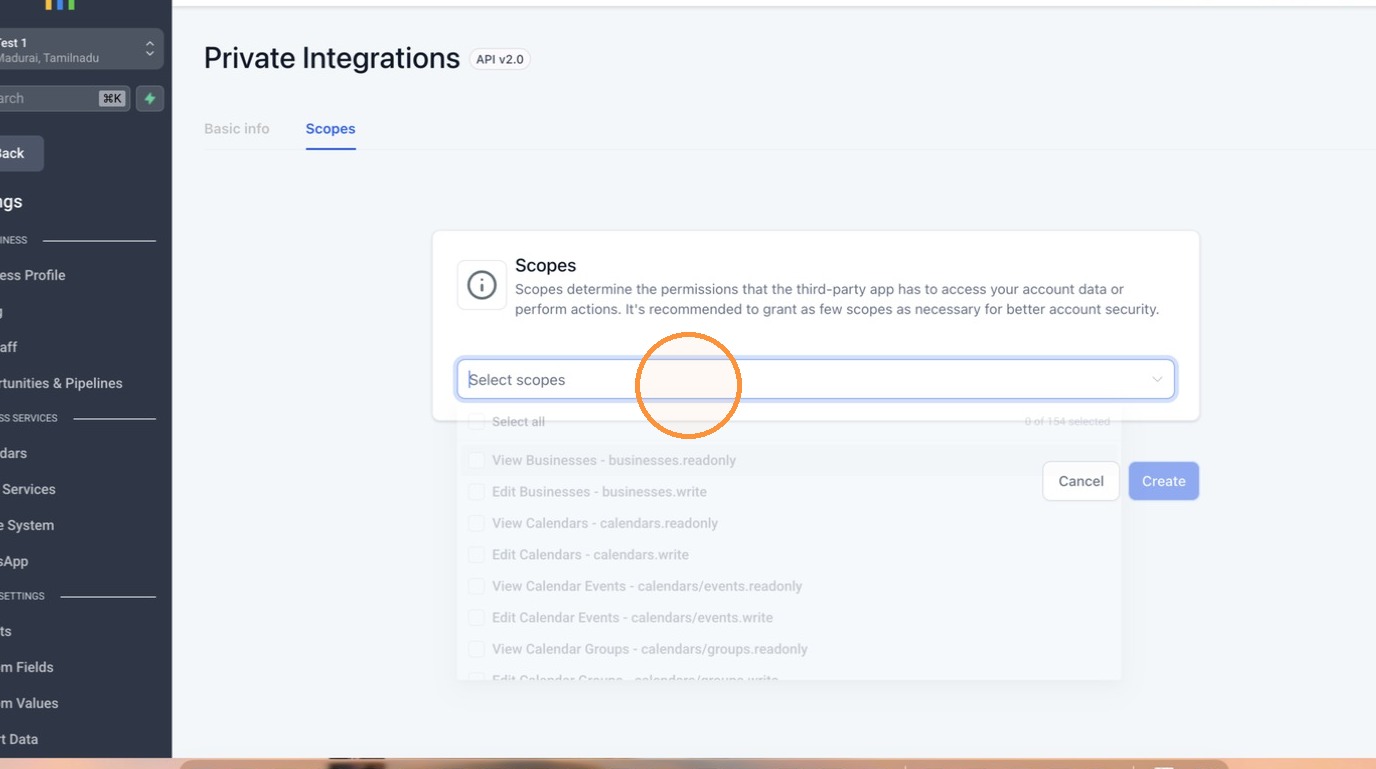
- Check Select all to grant all necessary permission scopes.
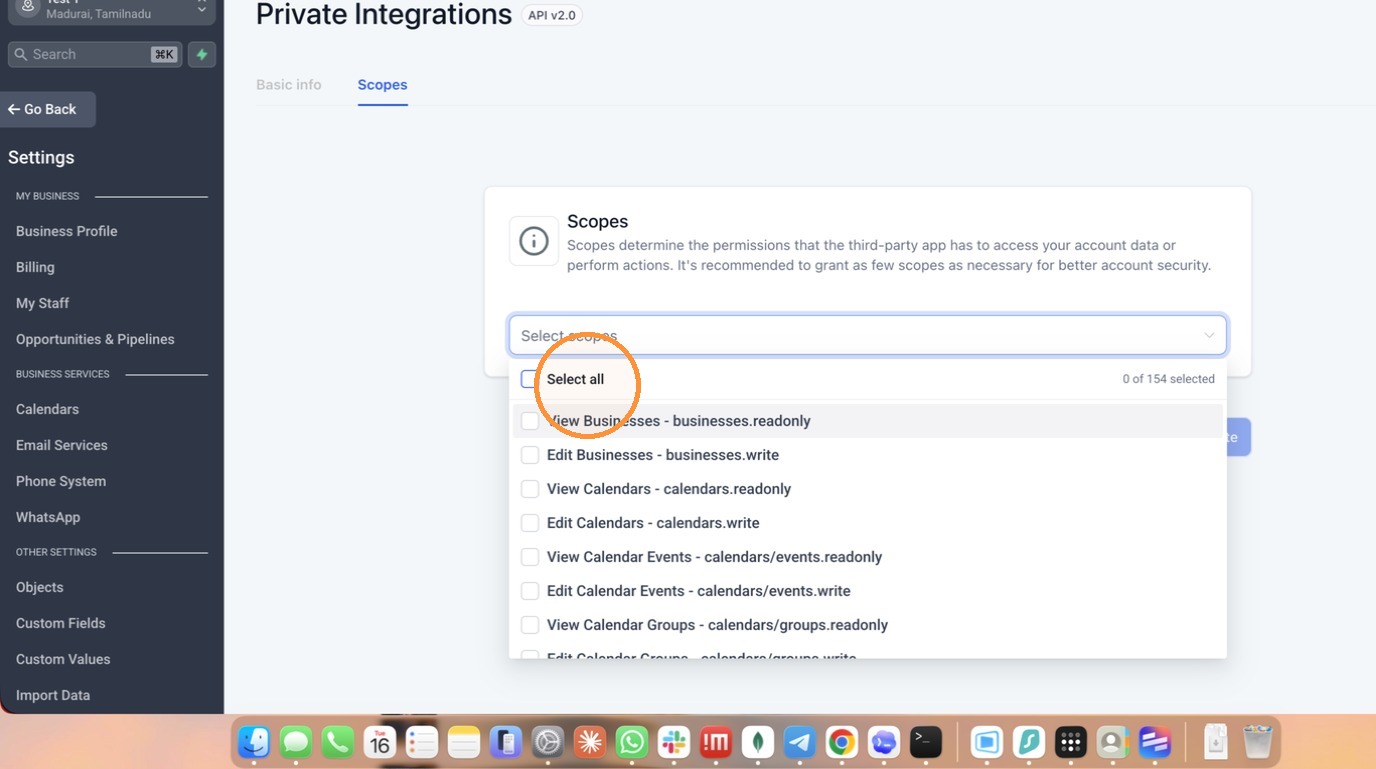
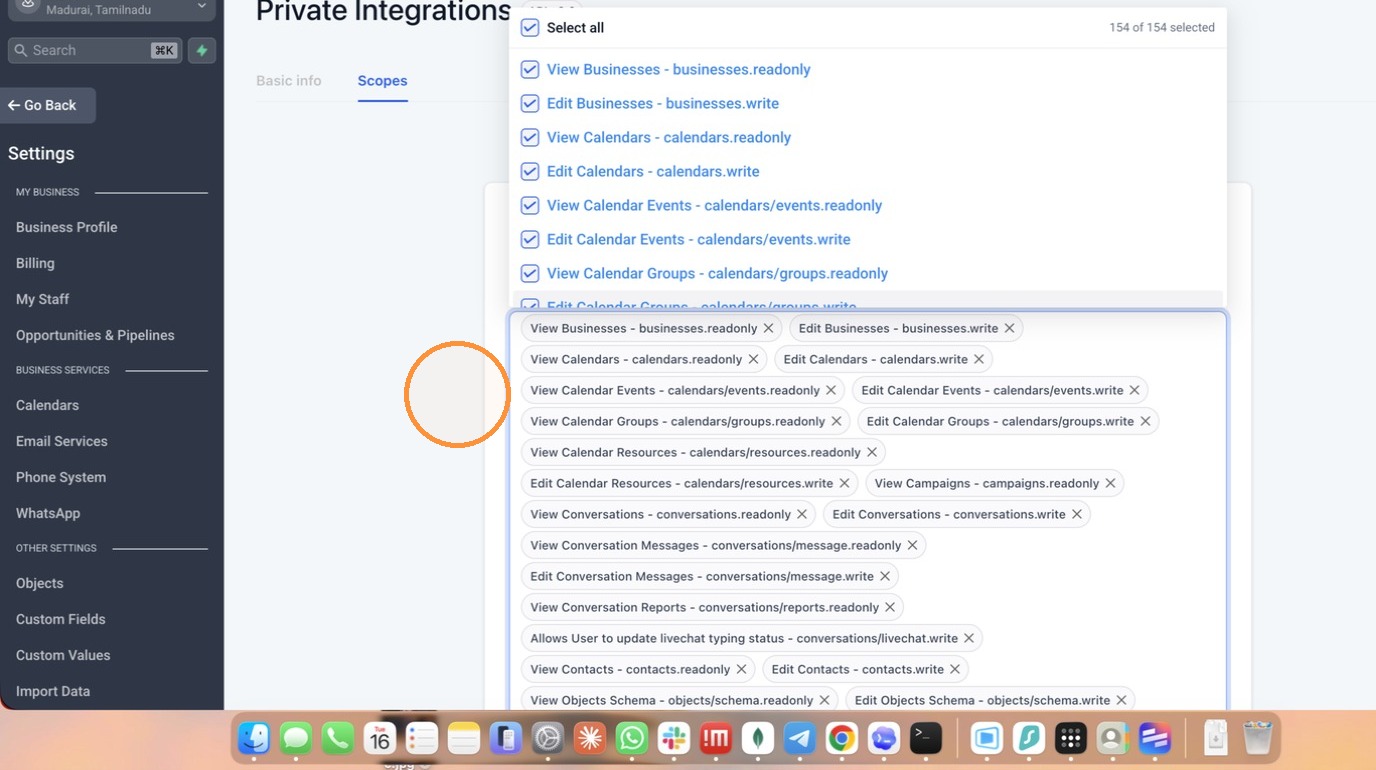
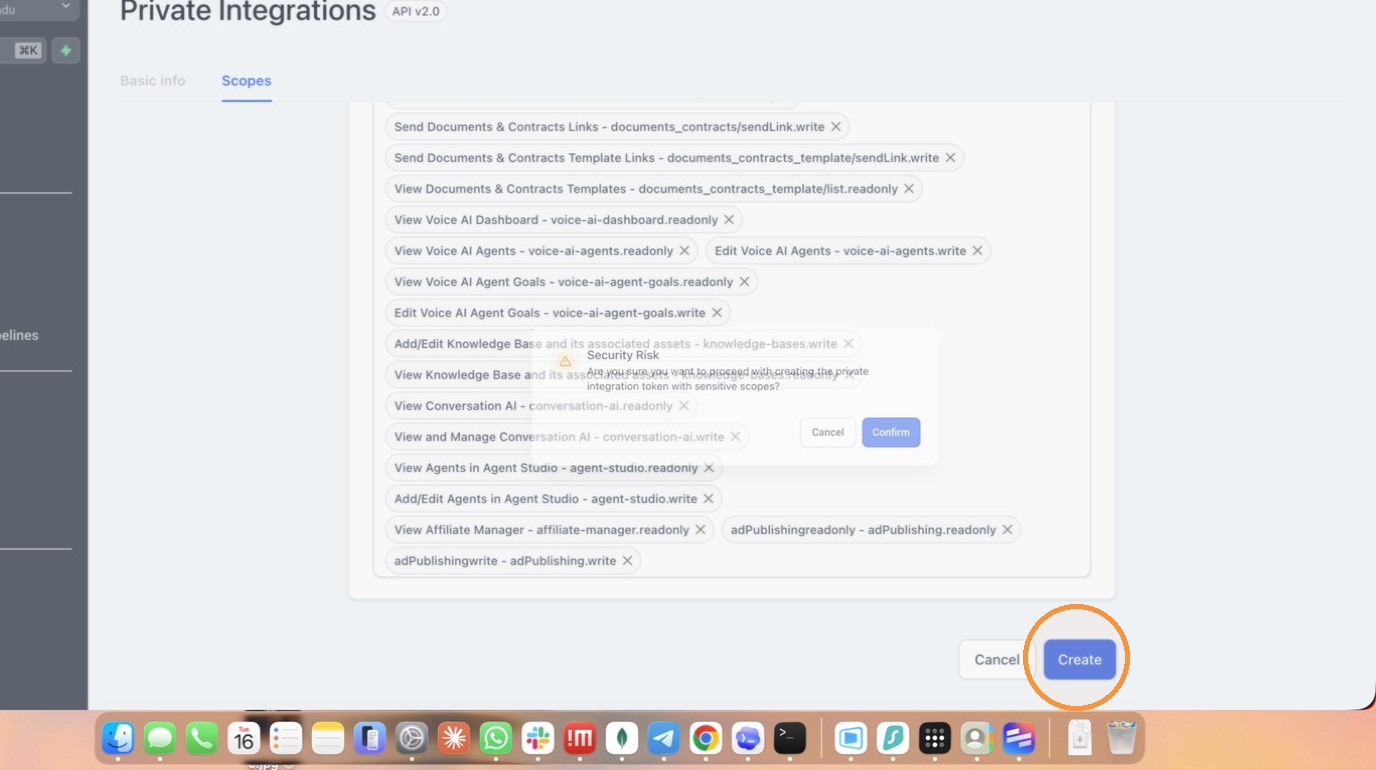
- Click Create to generate the private integration.
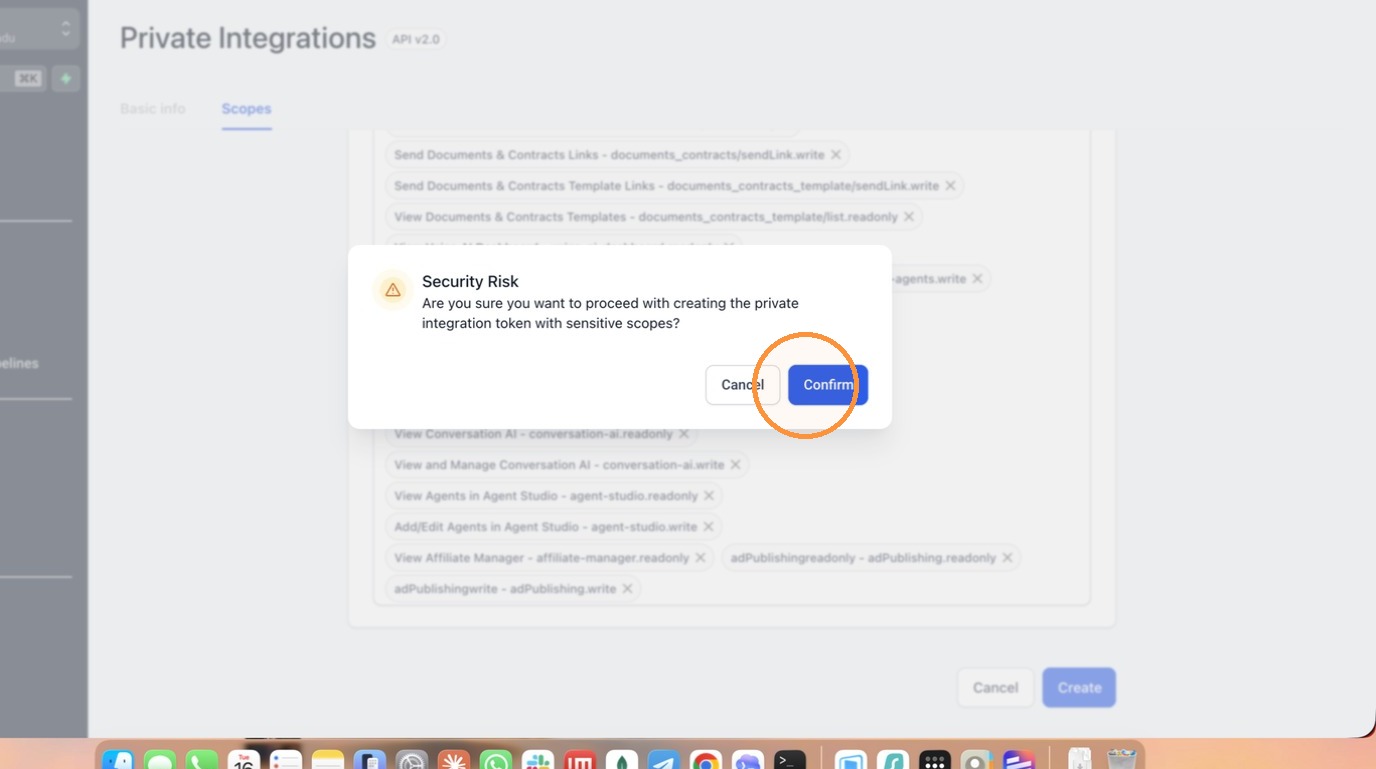
- Click Confirm to bypass the security risk warning.
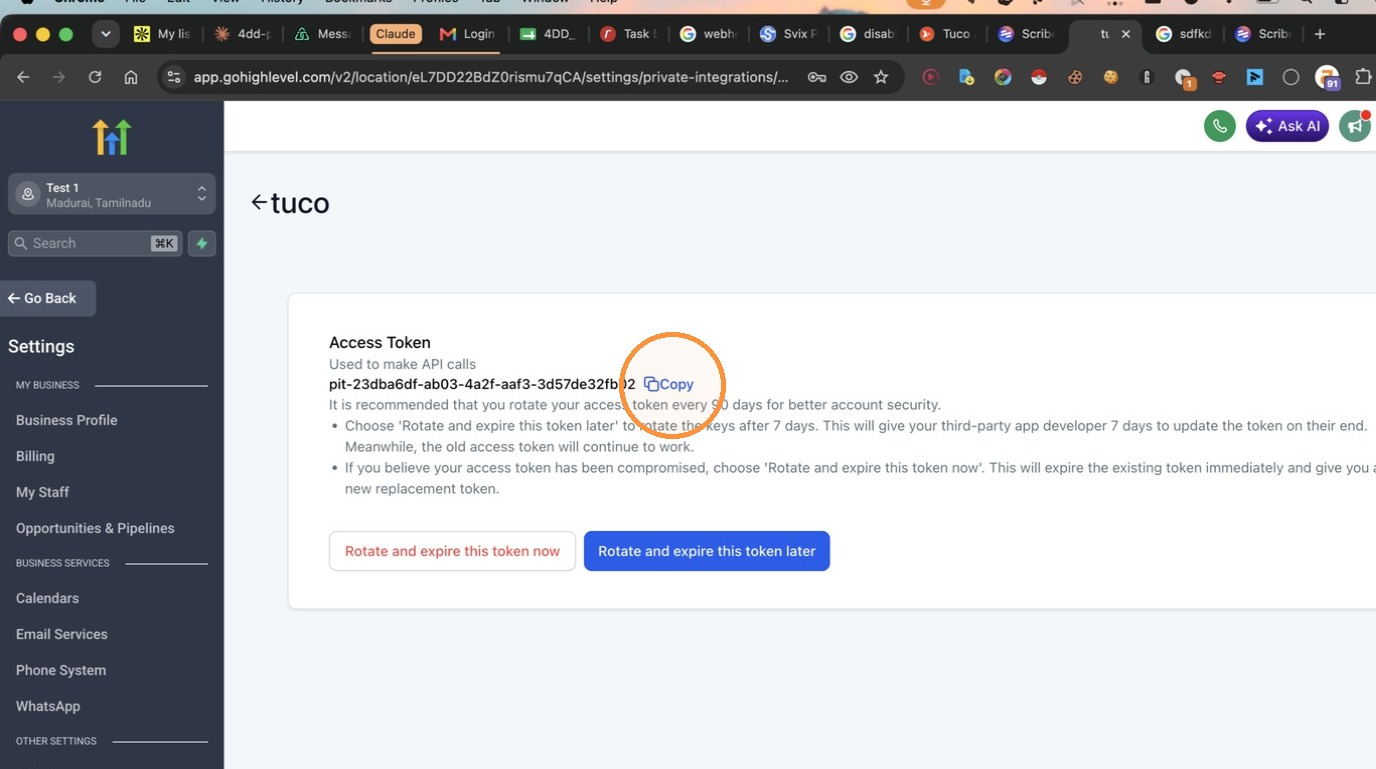
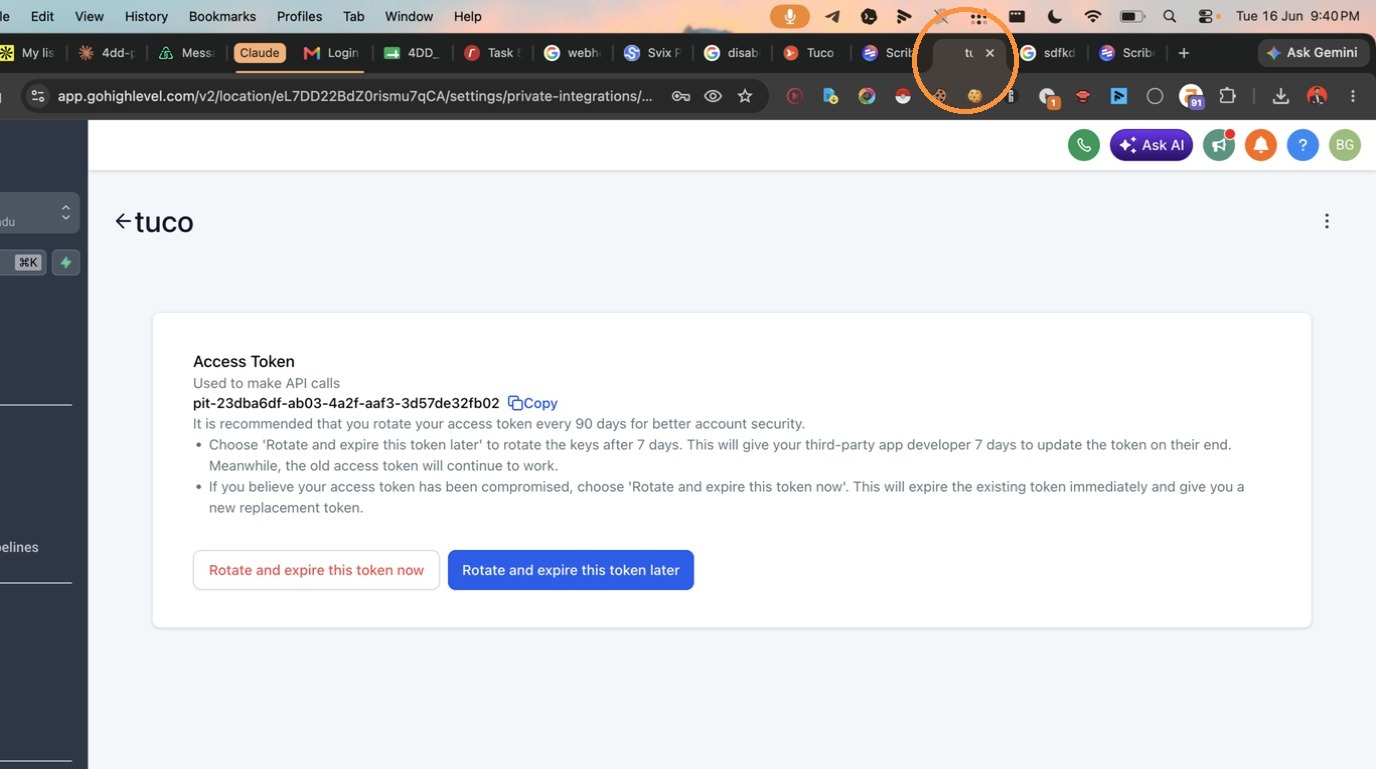
- Copy the generated Access Token.
Tuco AI Account Connection
- Return to the Tuco AI setup browser tab.
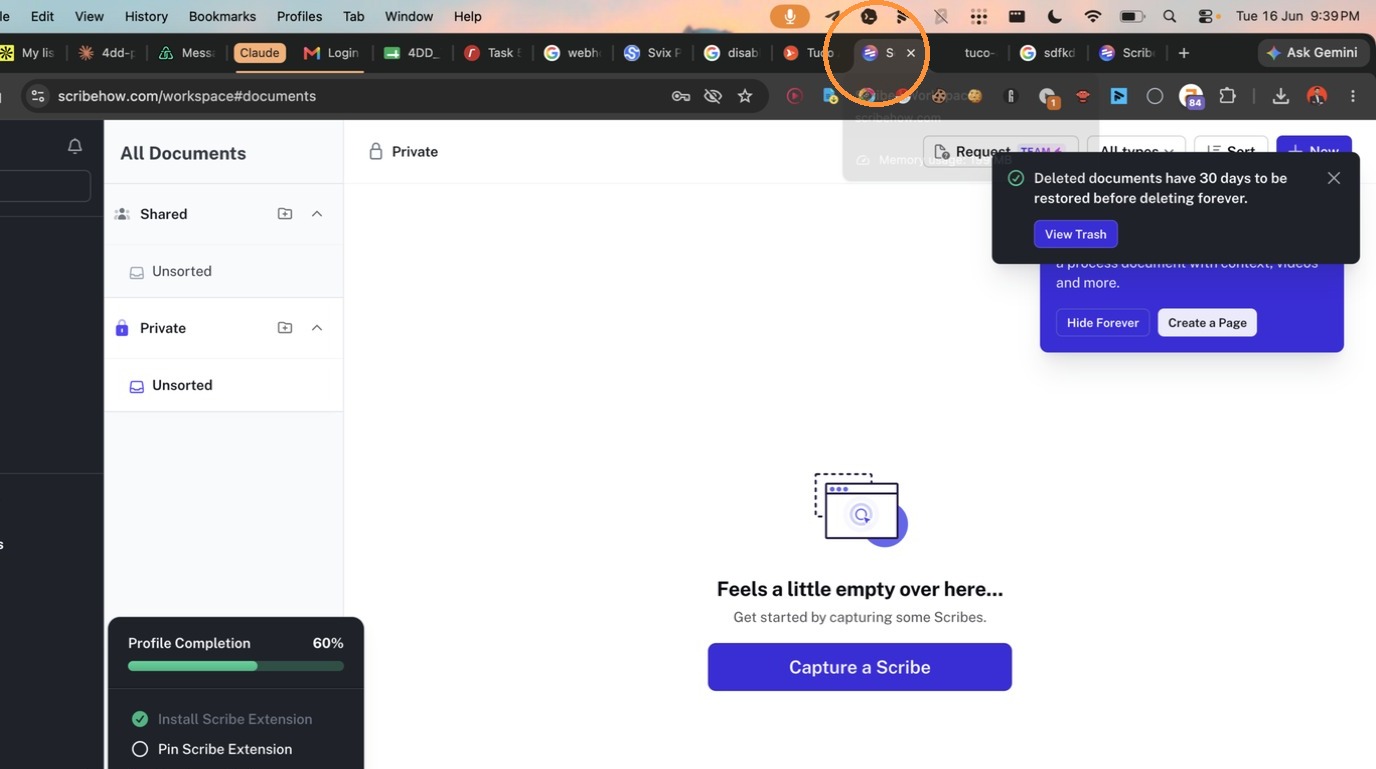
- Paste the GoHighLevel integration key into the input field.
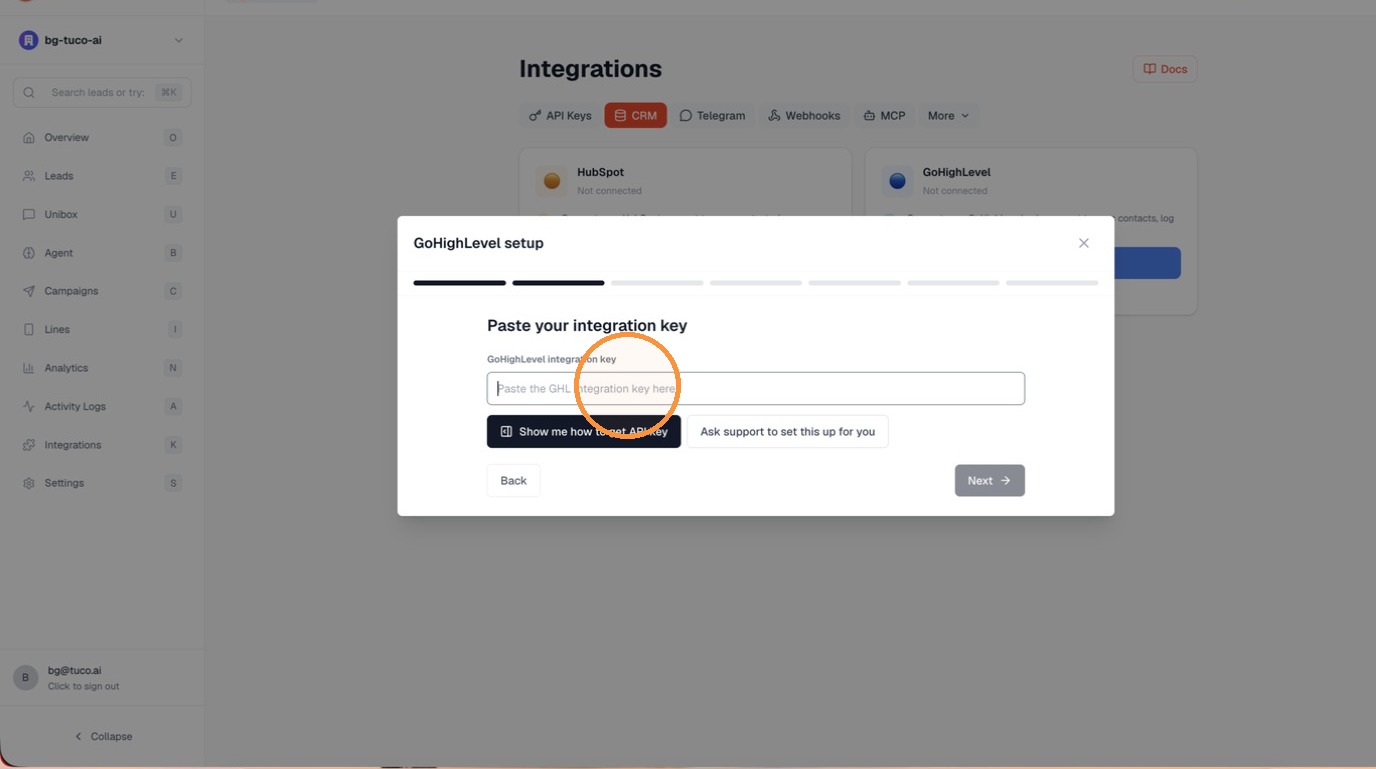
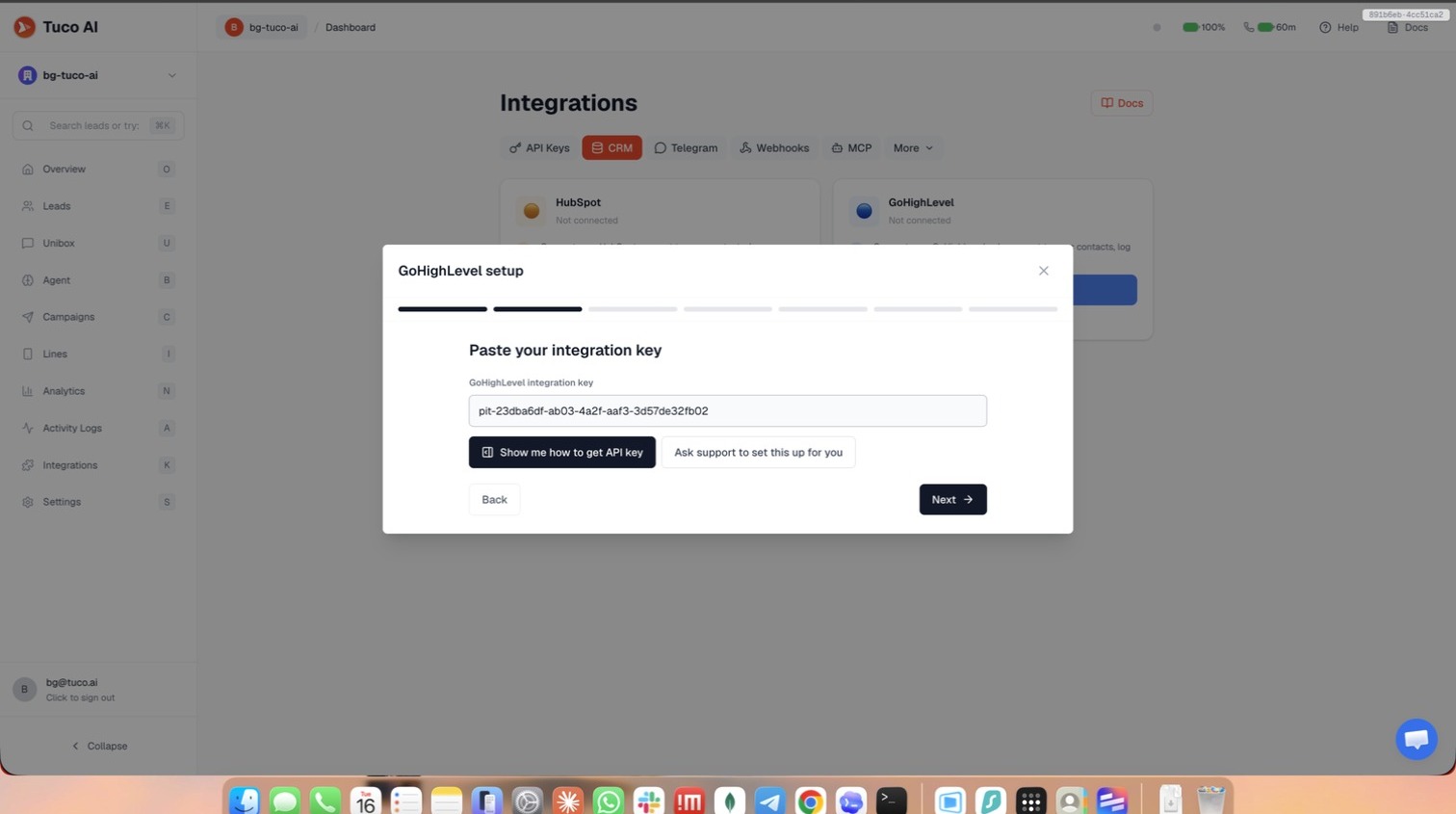
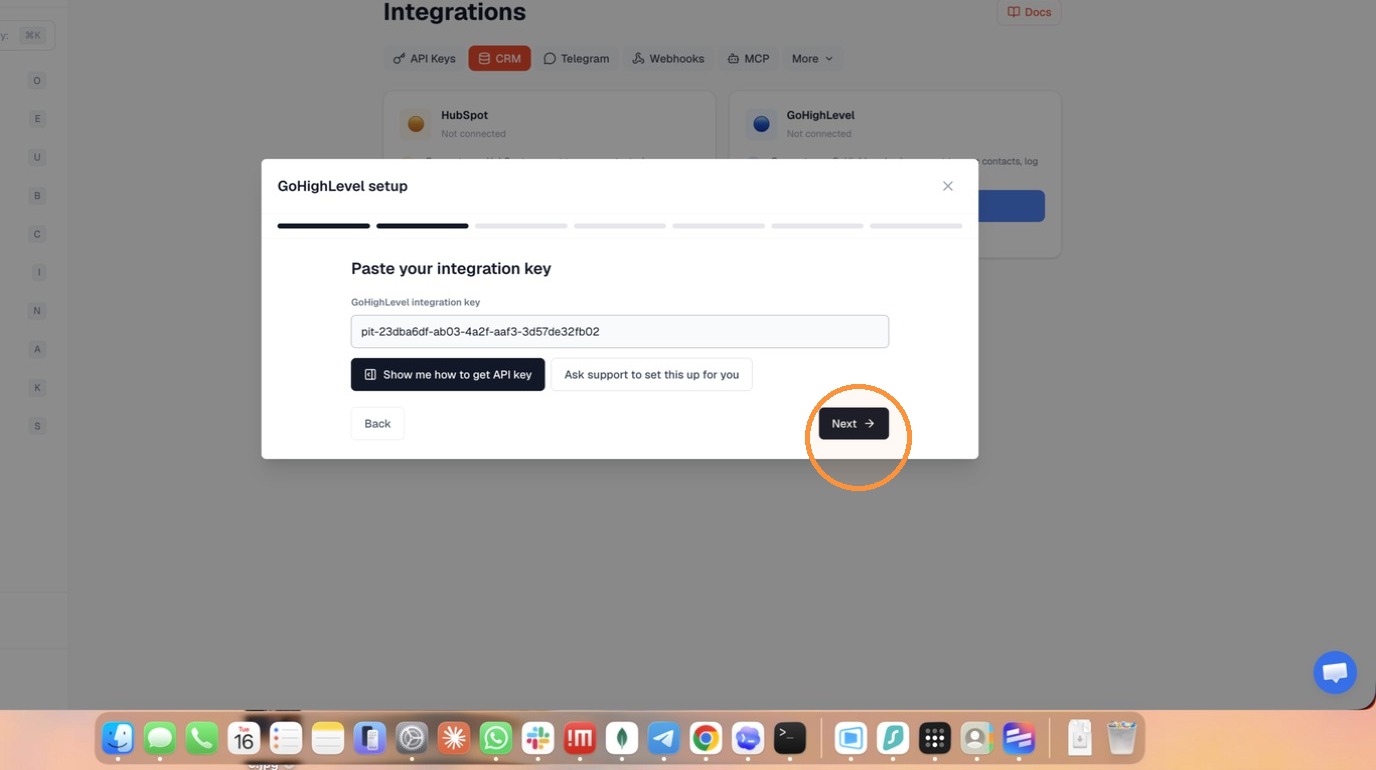
- Click Next after pasting your integration key.
- Switch back to the GoHighLevel Settings browser tab.
- Select Business Profile from the settings sidebar.
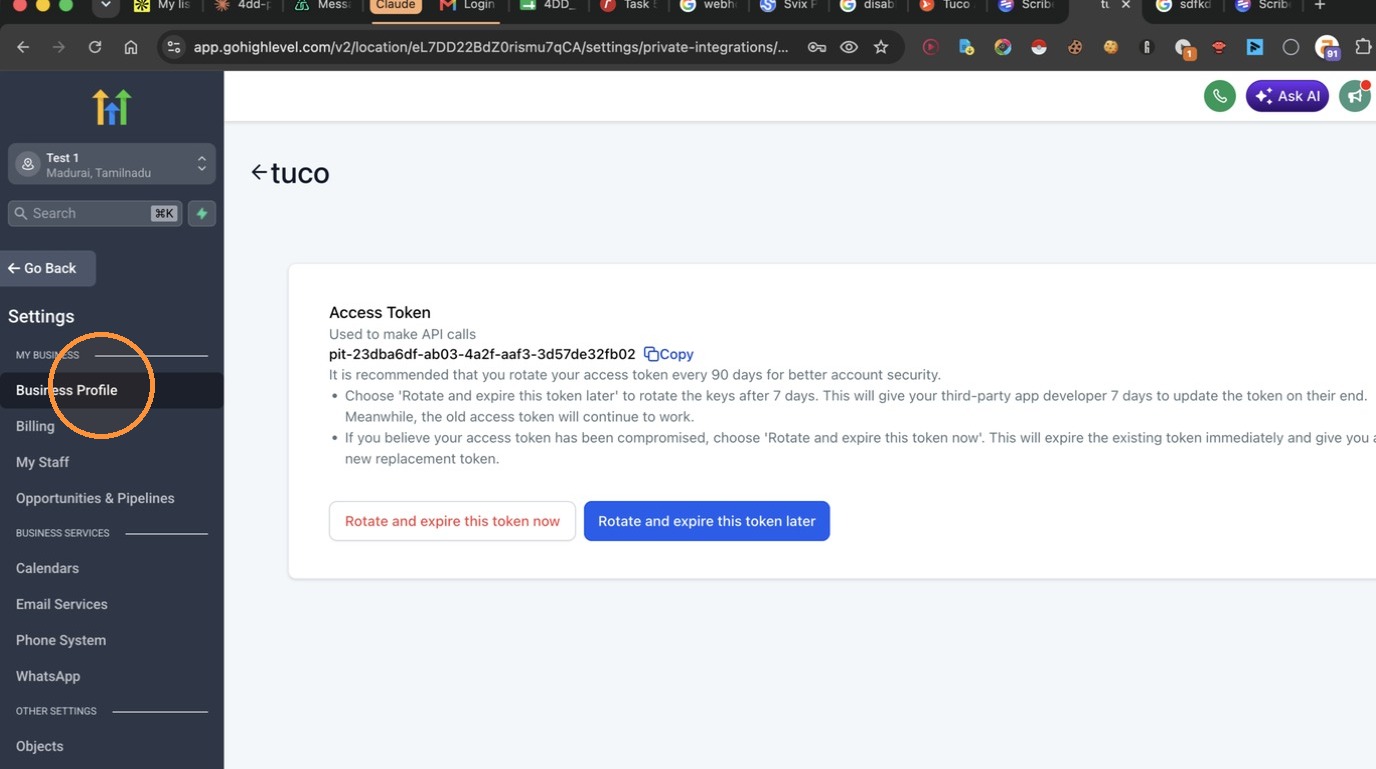
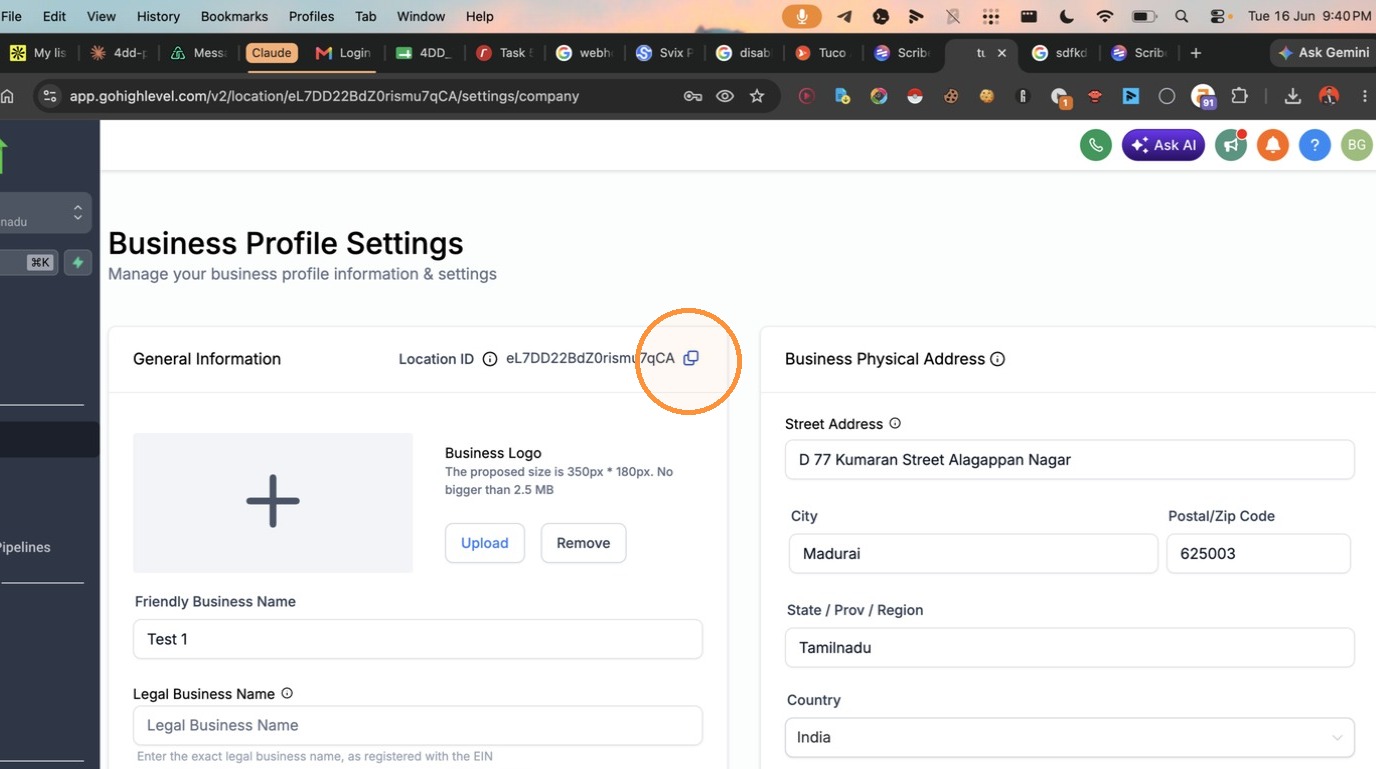
- Copy the Location ID from the General Information section.
- Paste the GHL location ID into the input field.
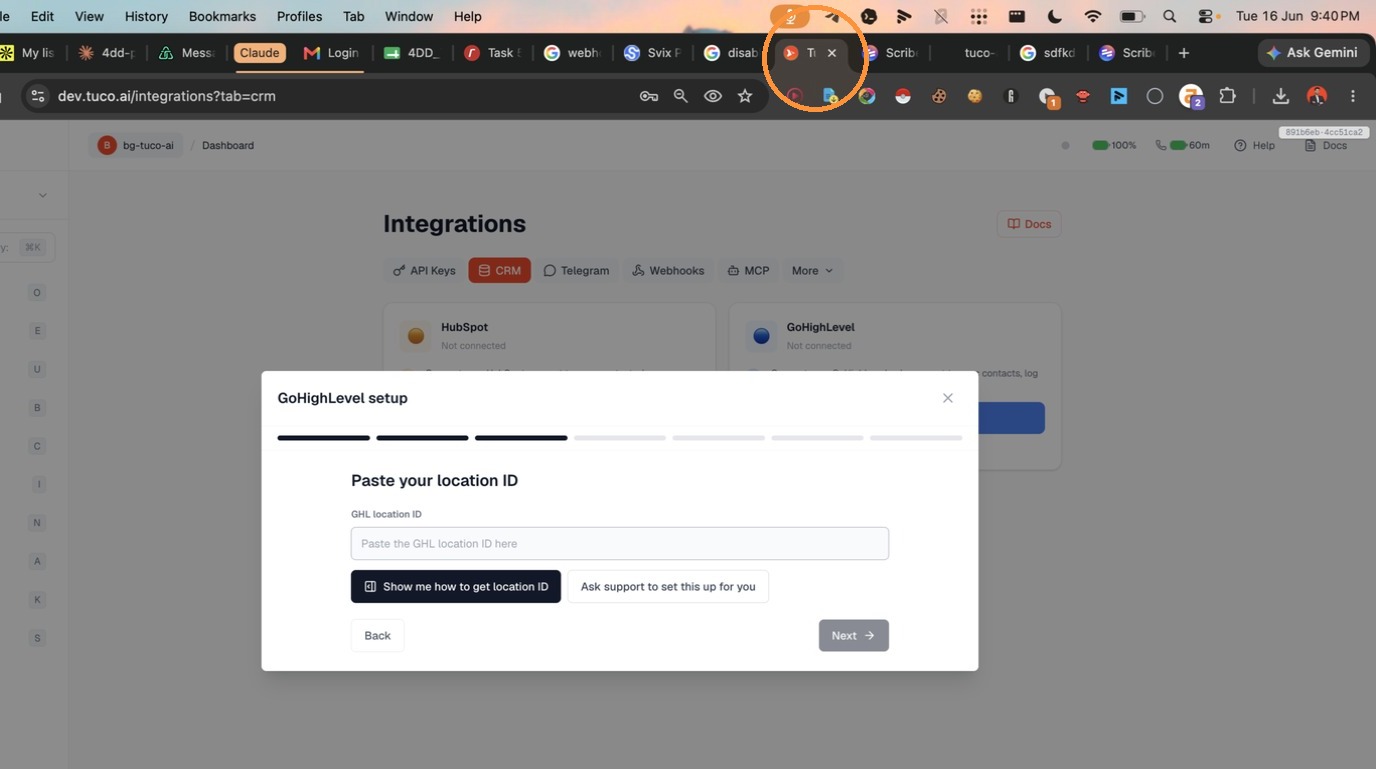
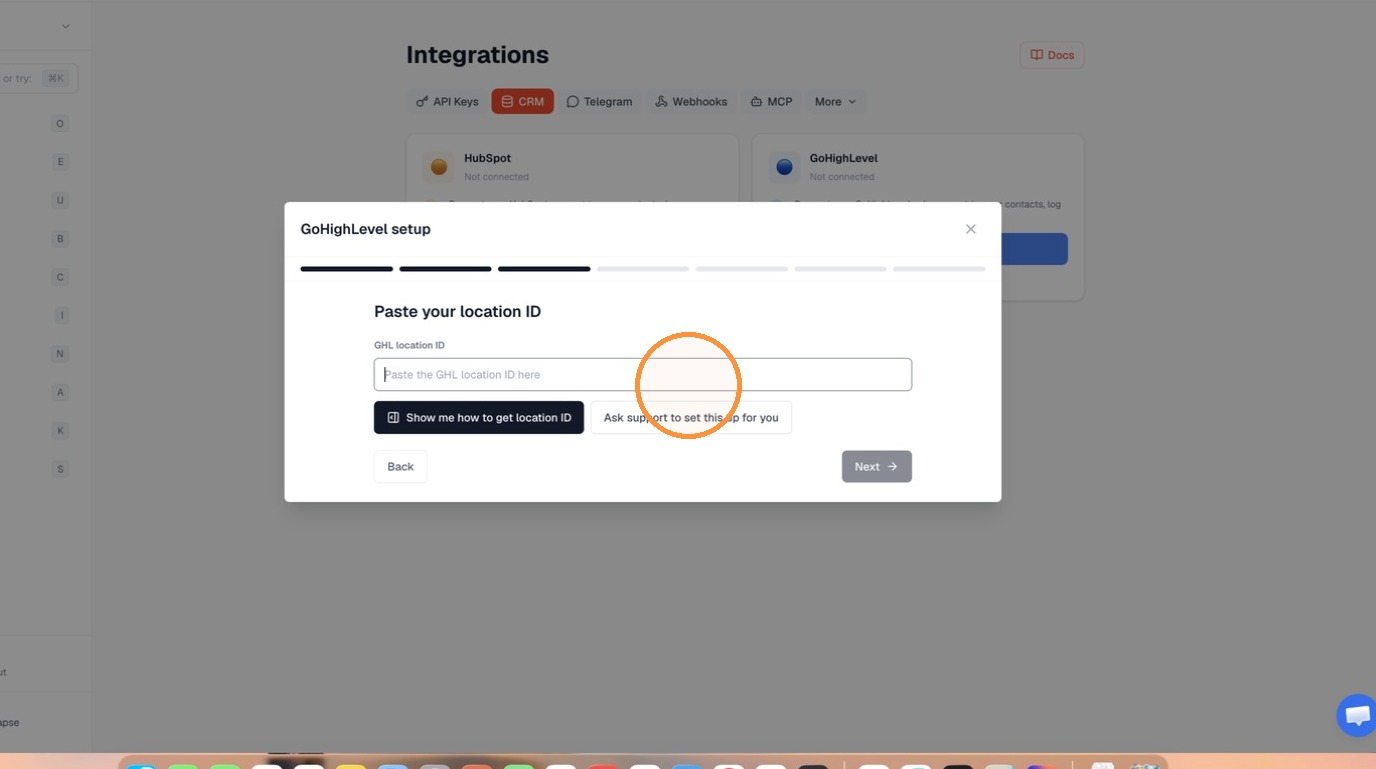
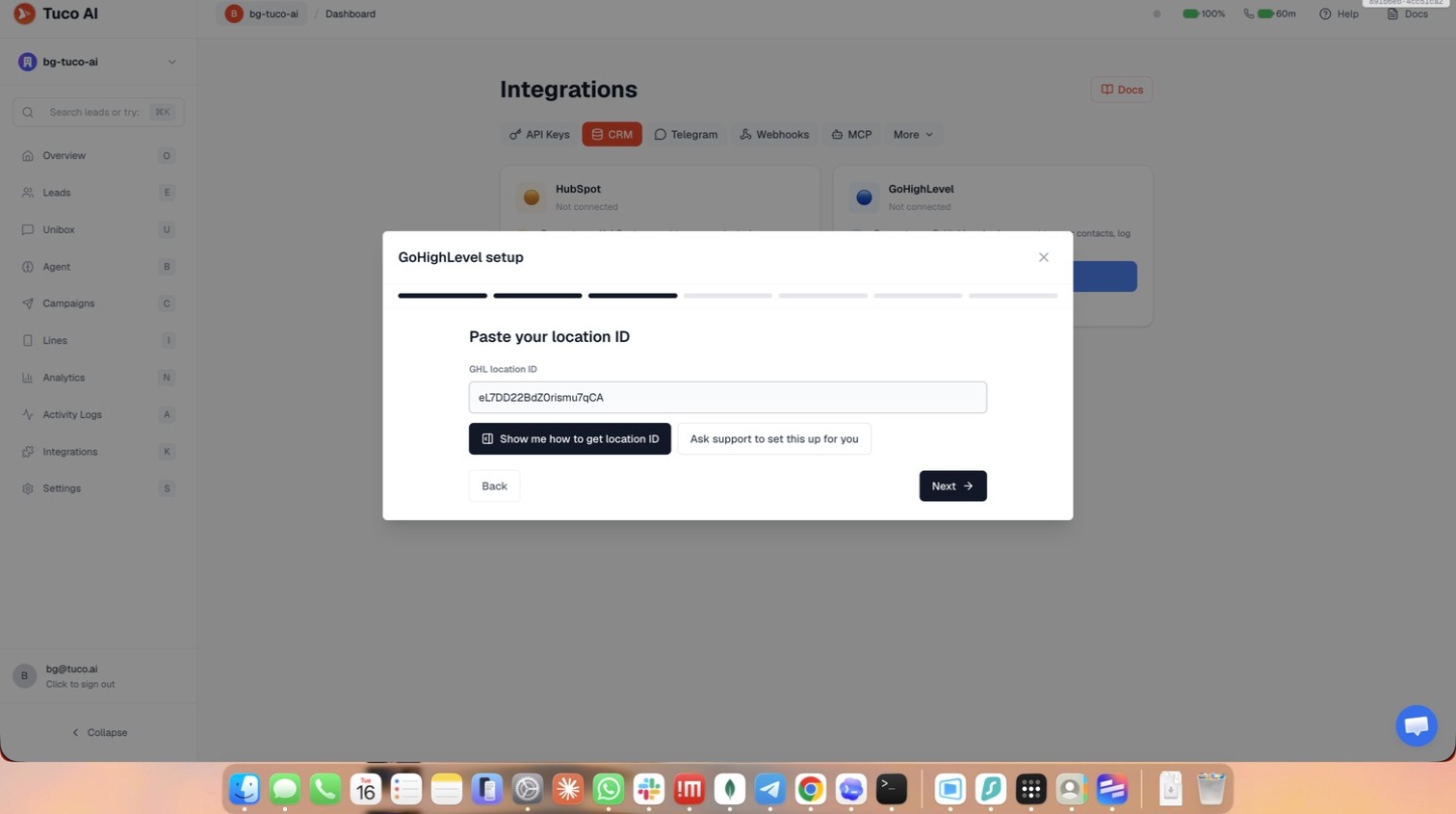
- Click Next after entering the Location ID.
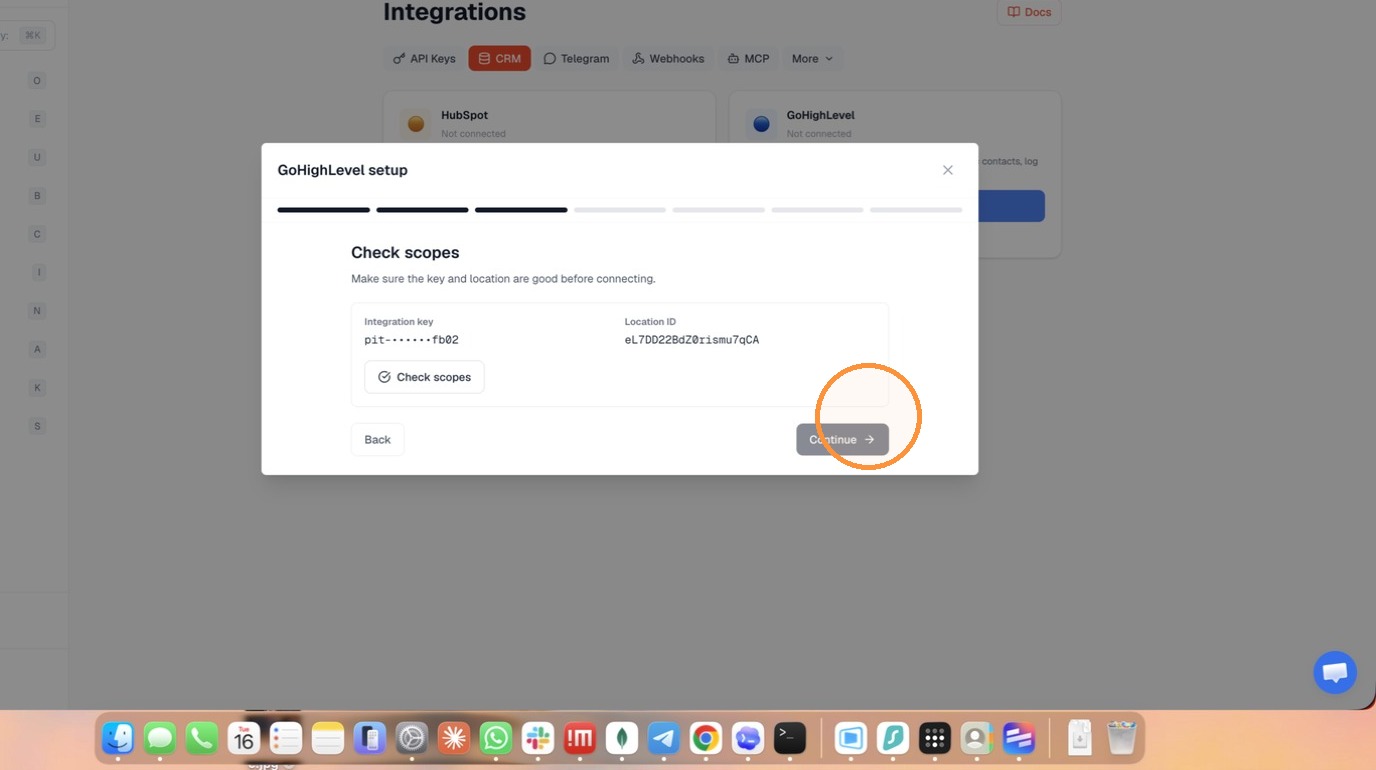
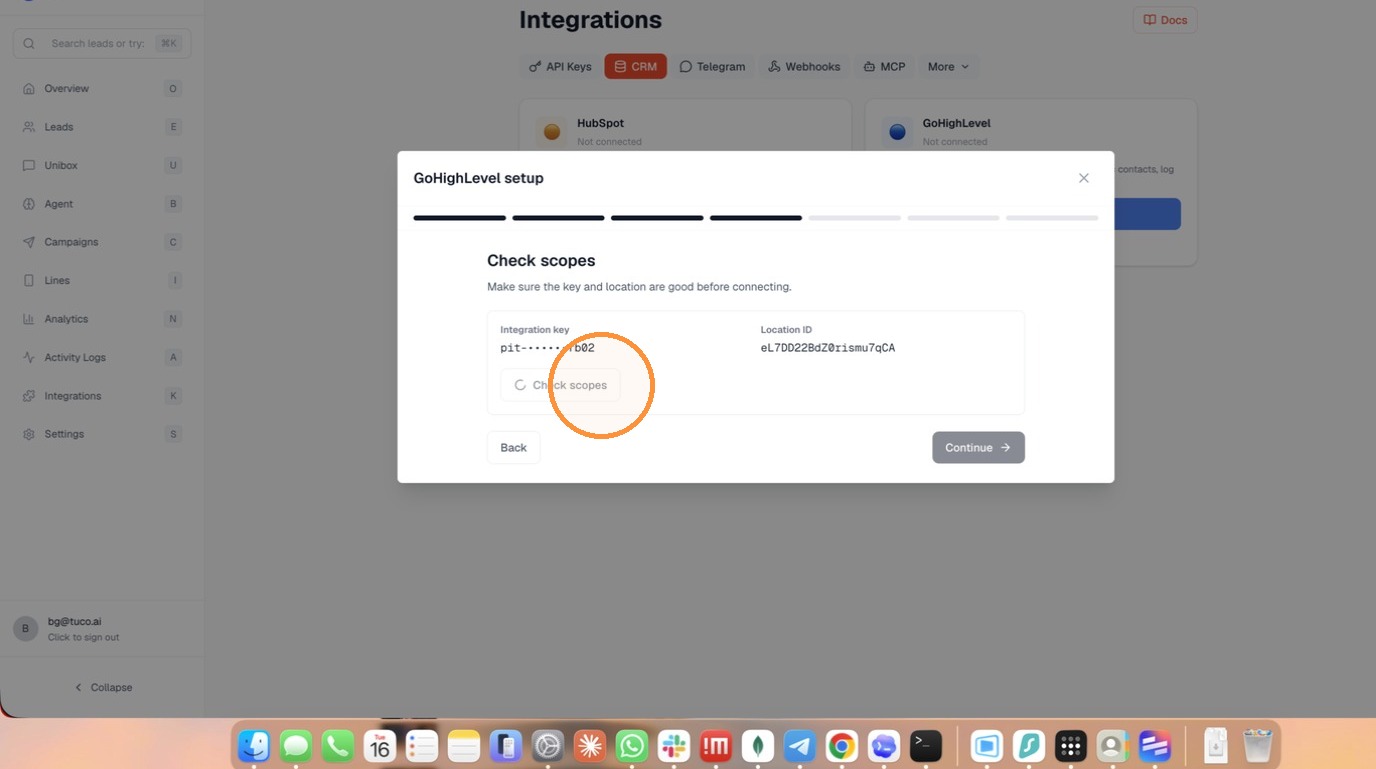
- Click Check scopes to verify integration permissions.
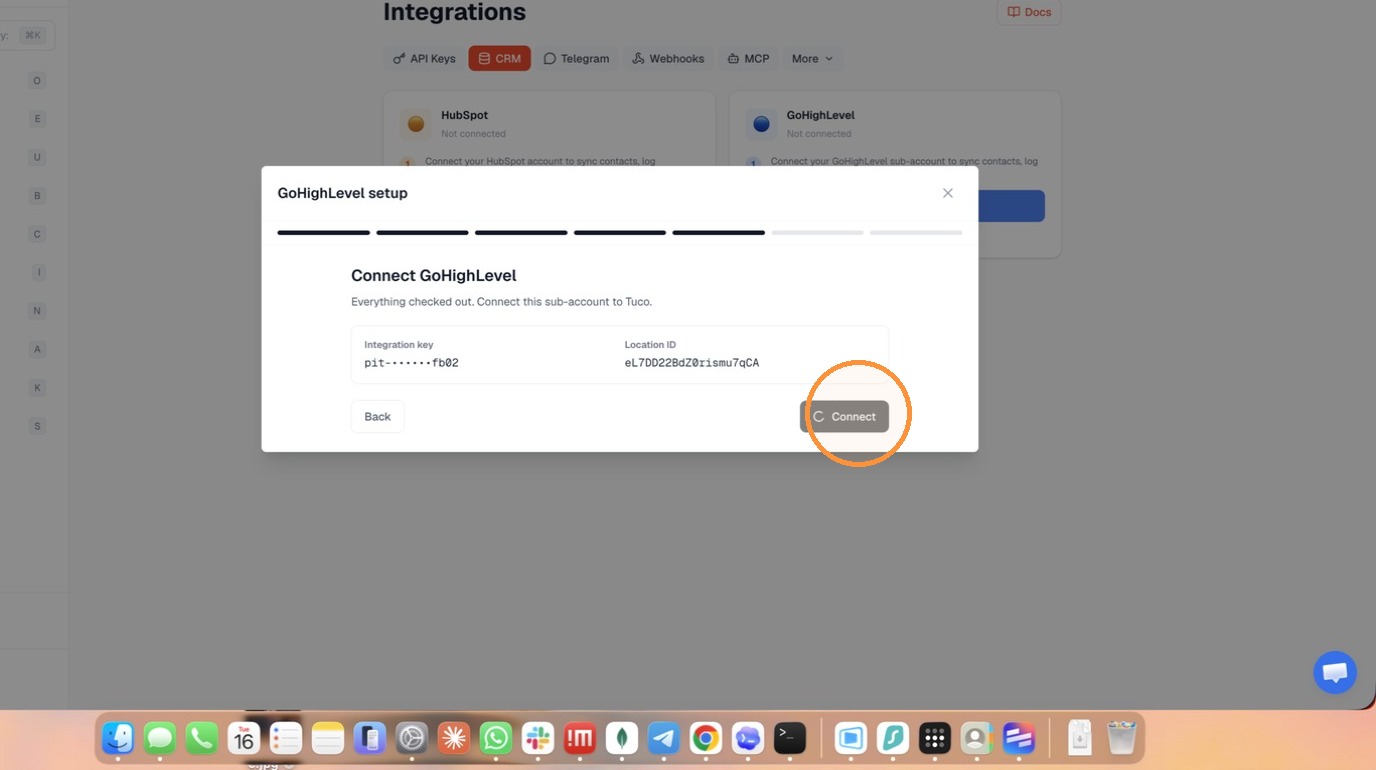
- Click Connect to finalize the link between accounts.
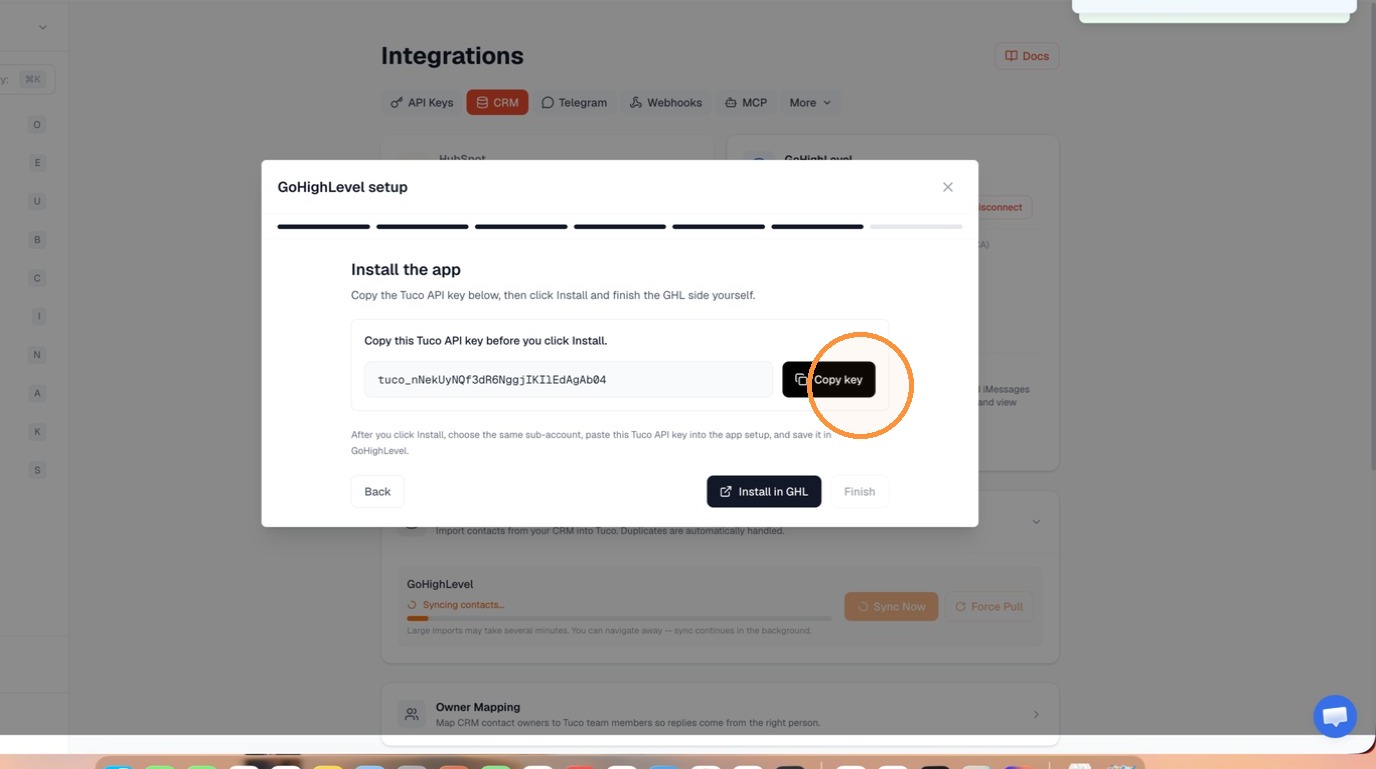
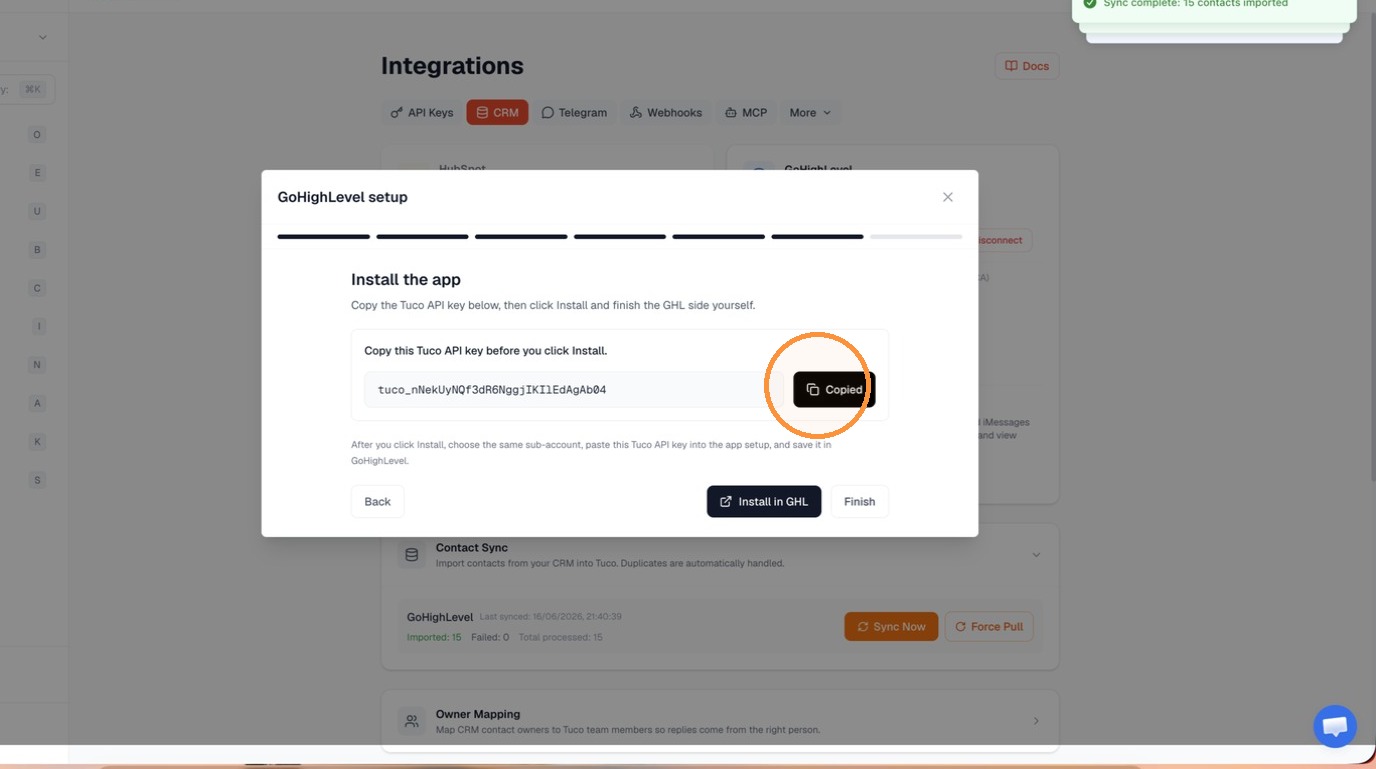
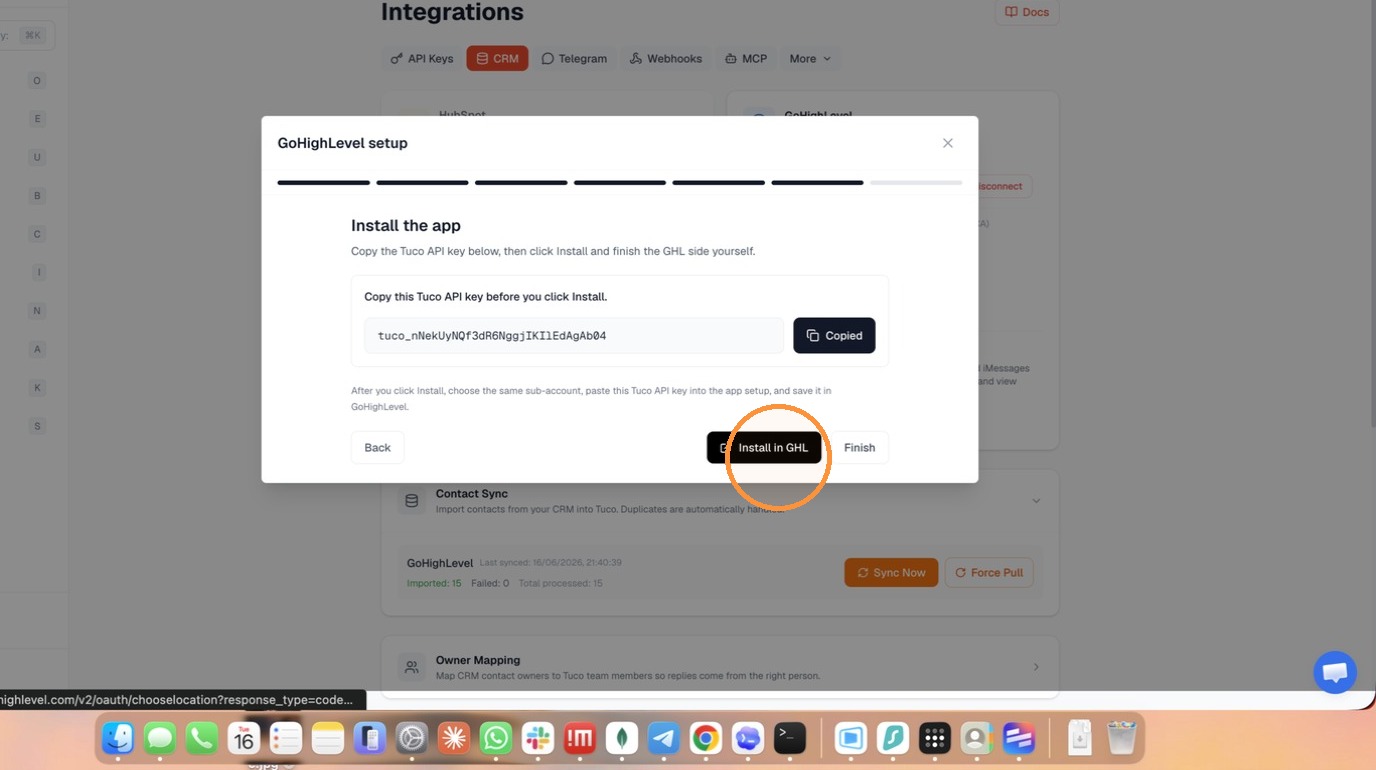
- Copy the Tuco API key provided on the screen.
Marketplace App Installation
- Click Install in GHL to initiate the final app installation.
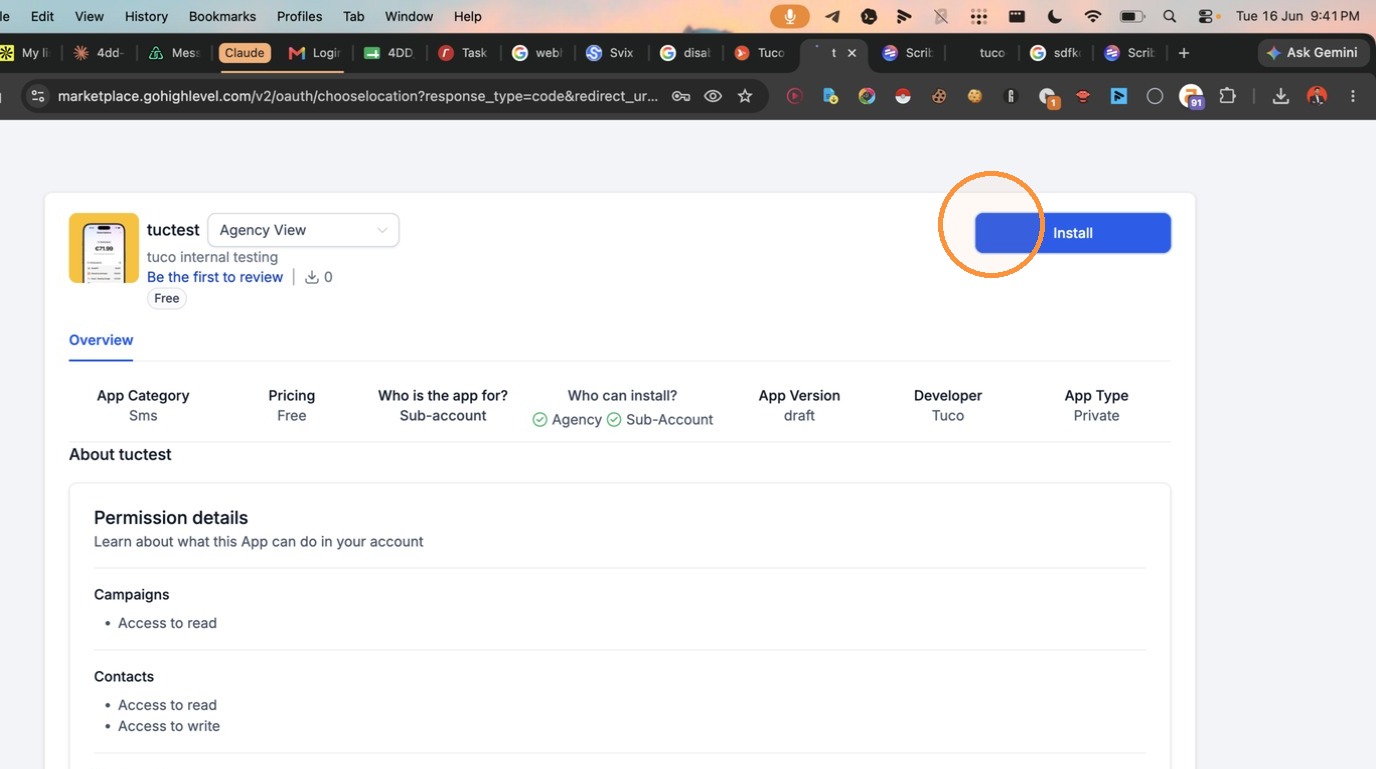
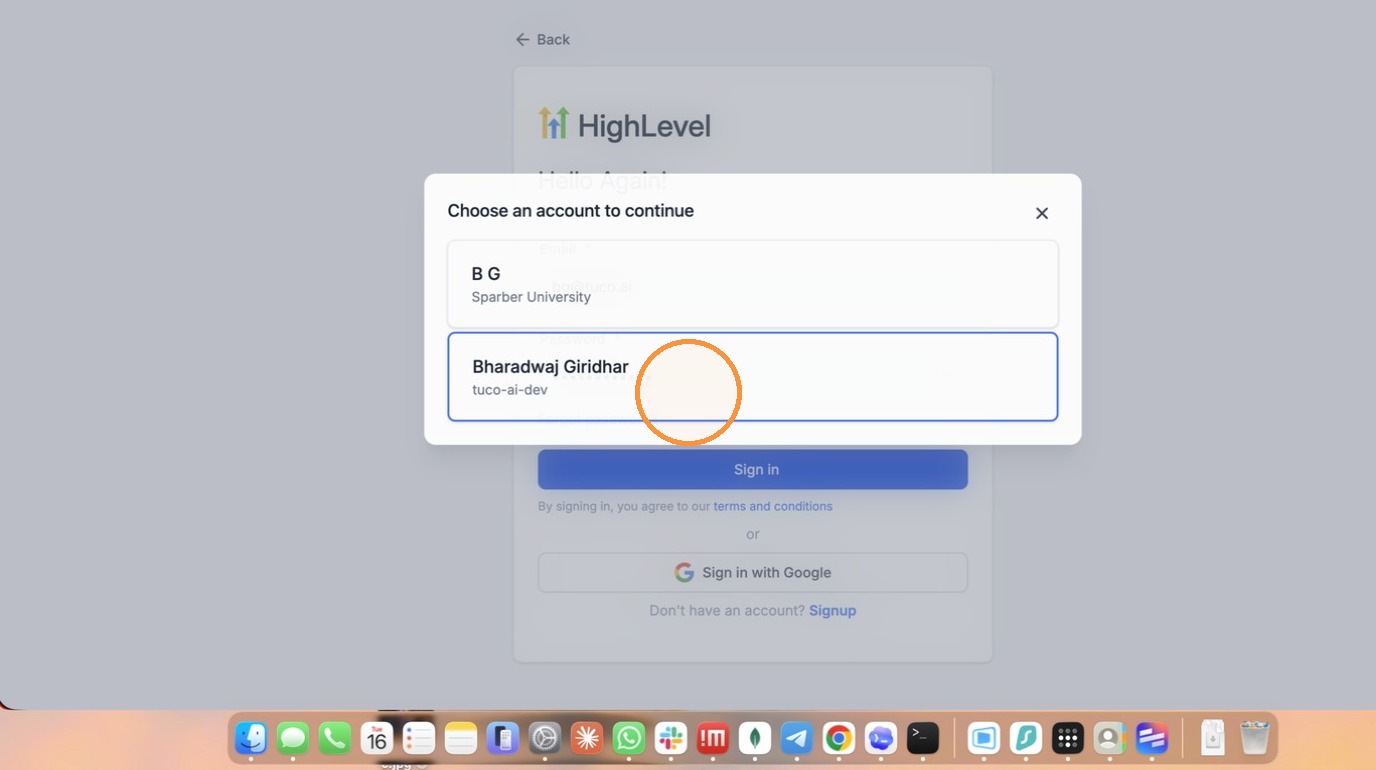
- Select the appropriate GoHighLevel account to complete installation.
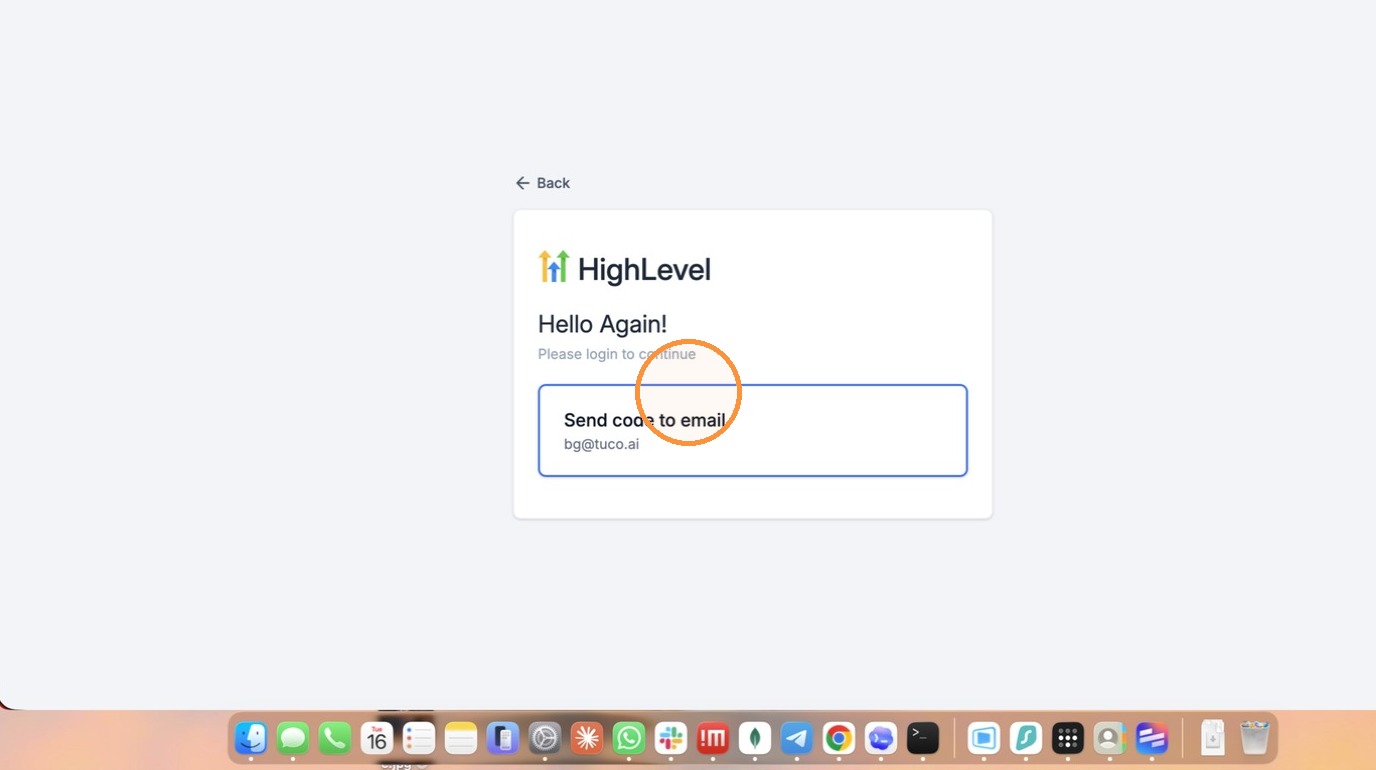
- Click here
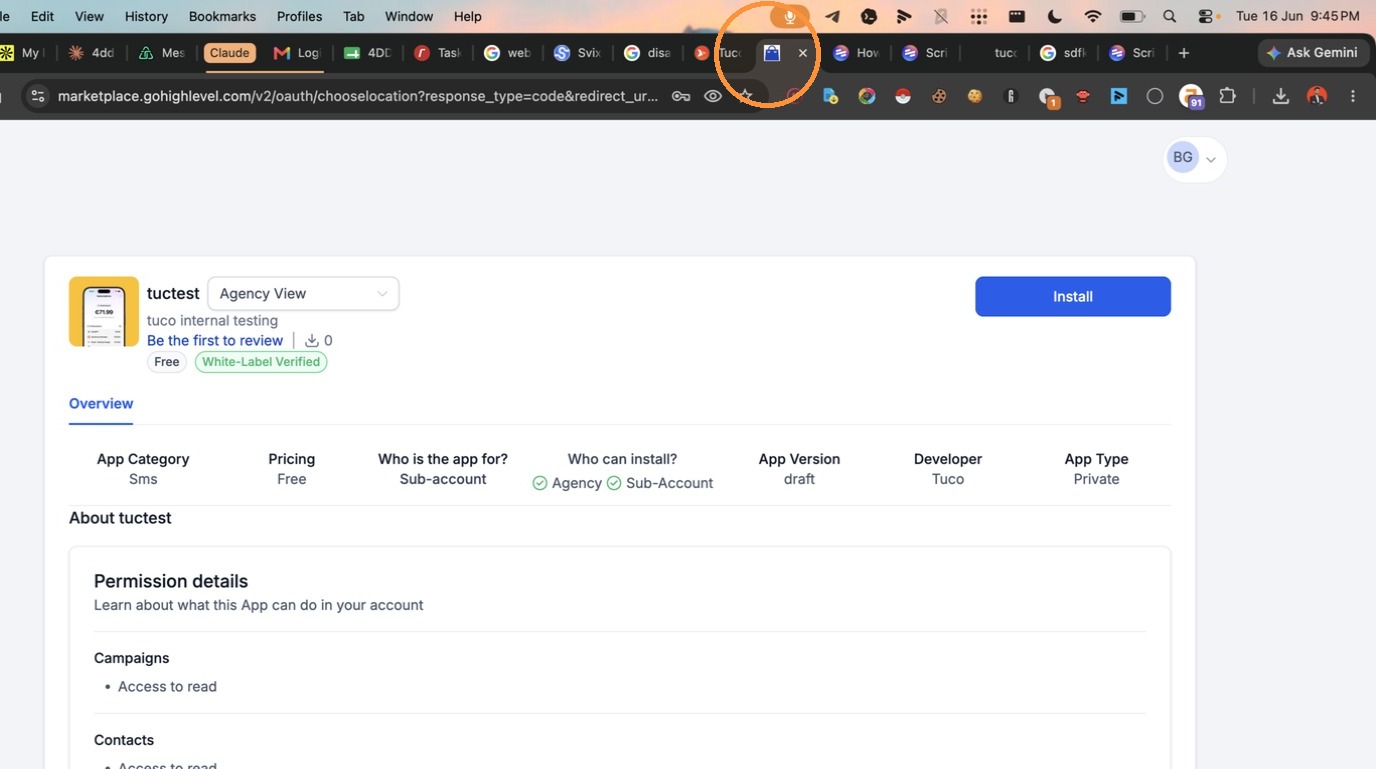
- Click "Install"
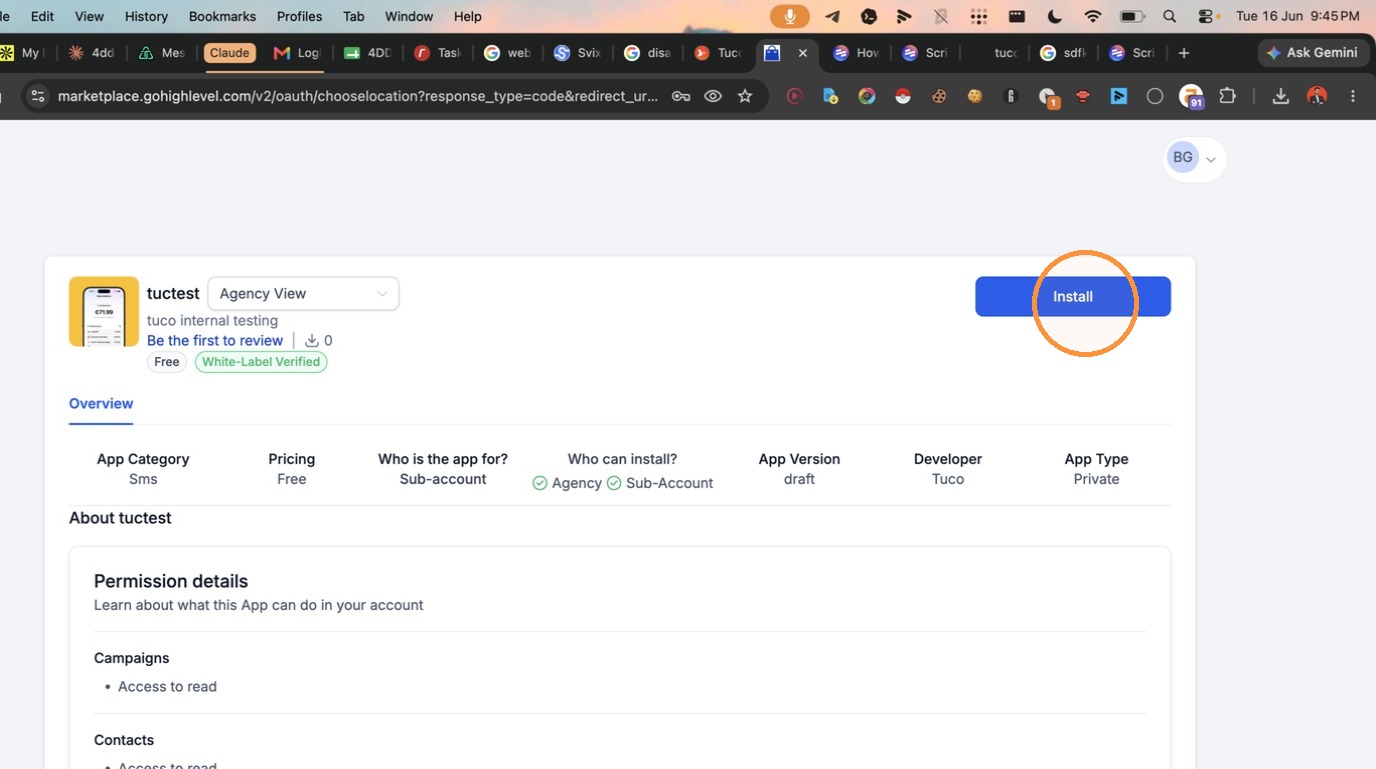
- Click "Install"
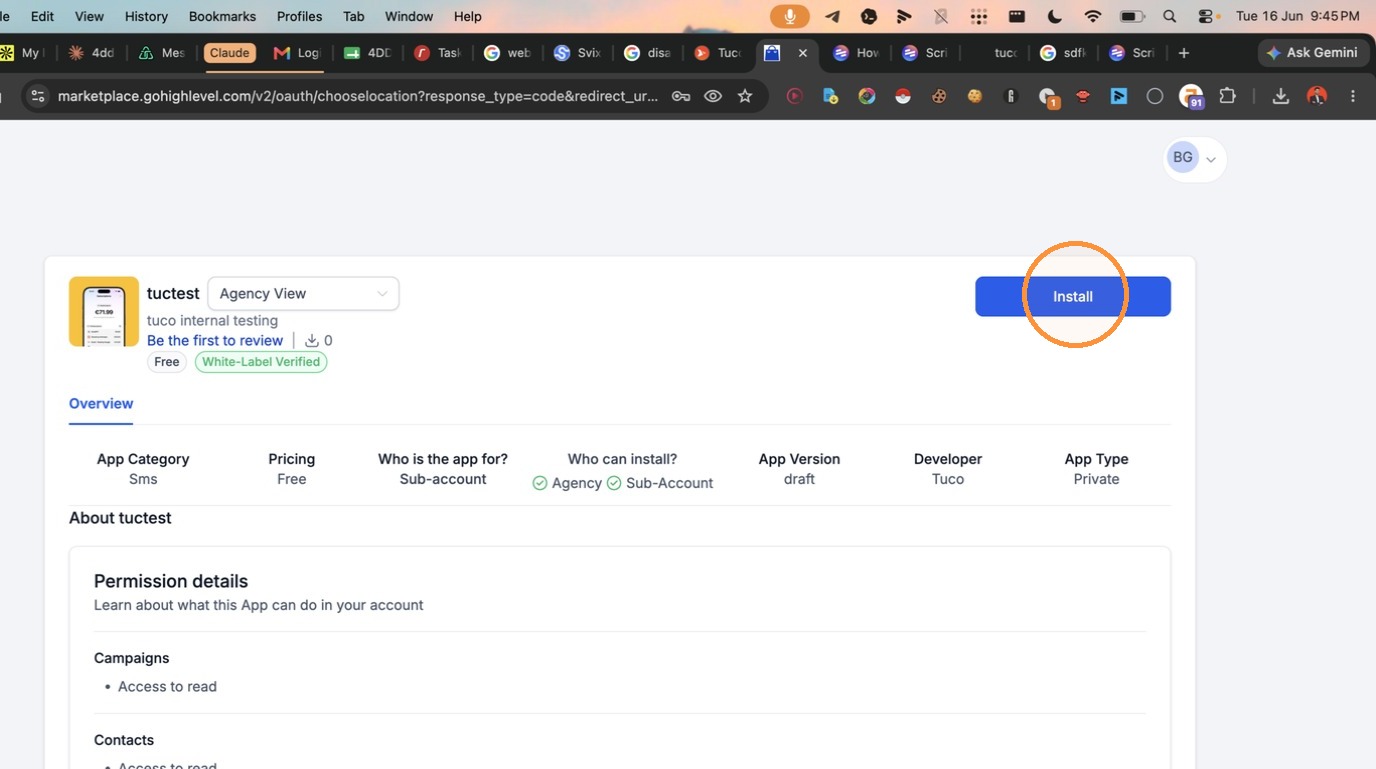
- Click "Install"
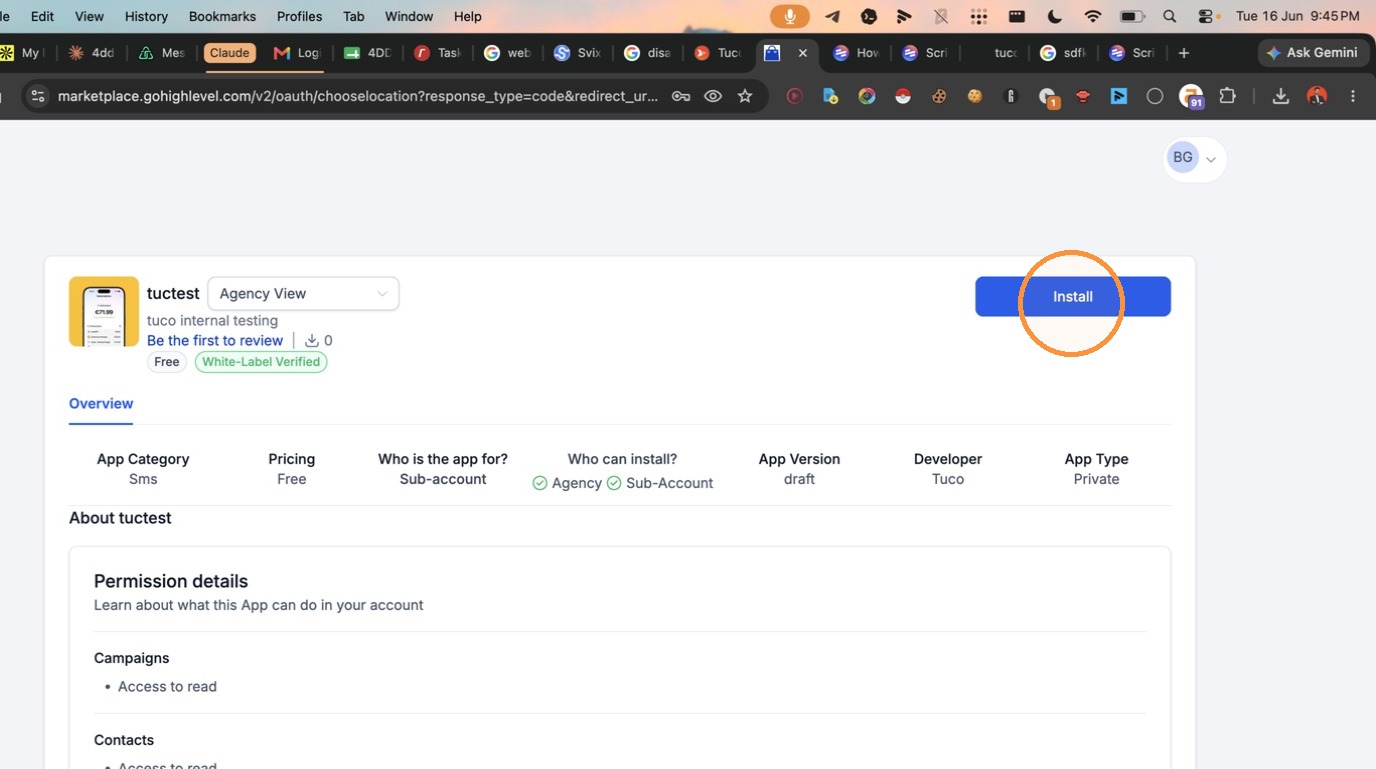
- Click here
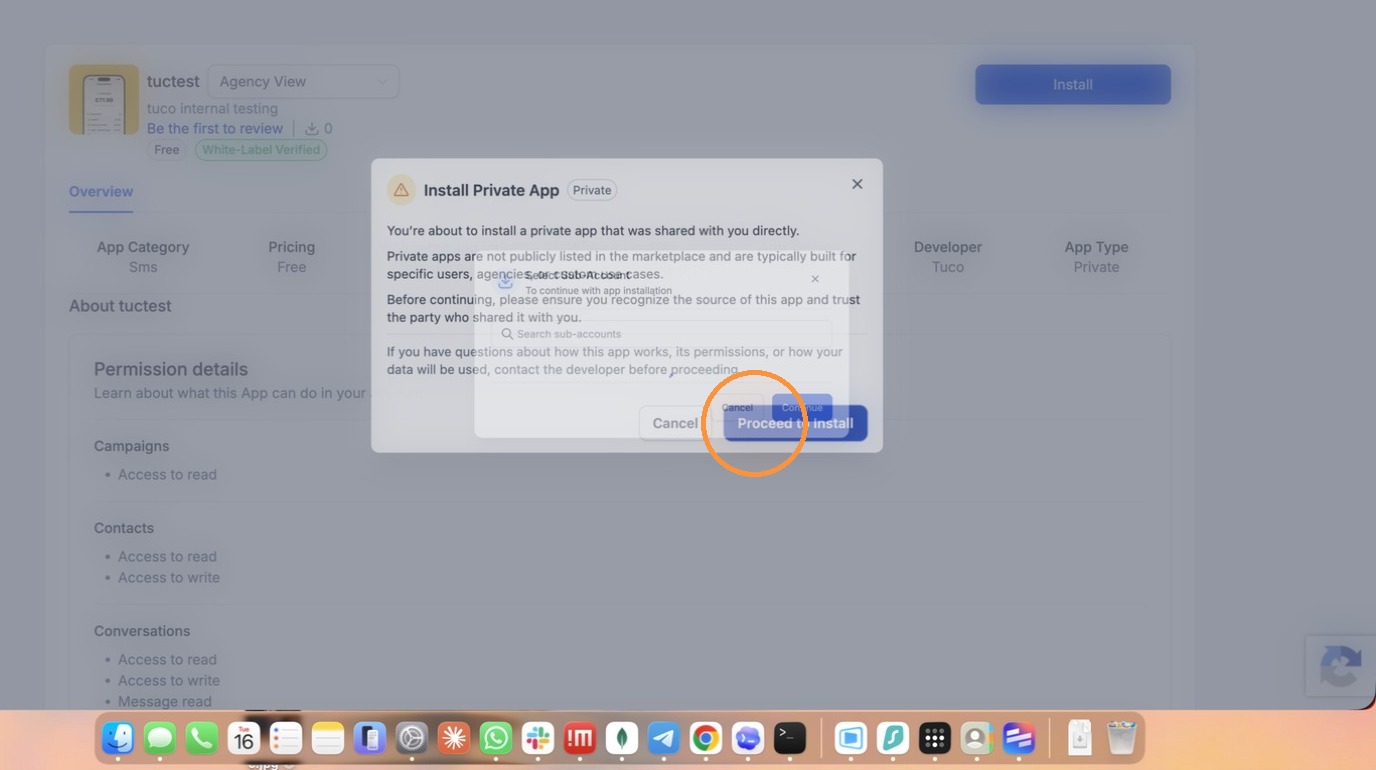
- Install into 1 sub-account at a time!
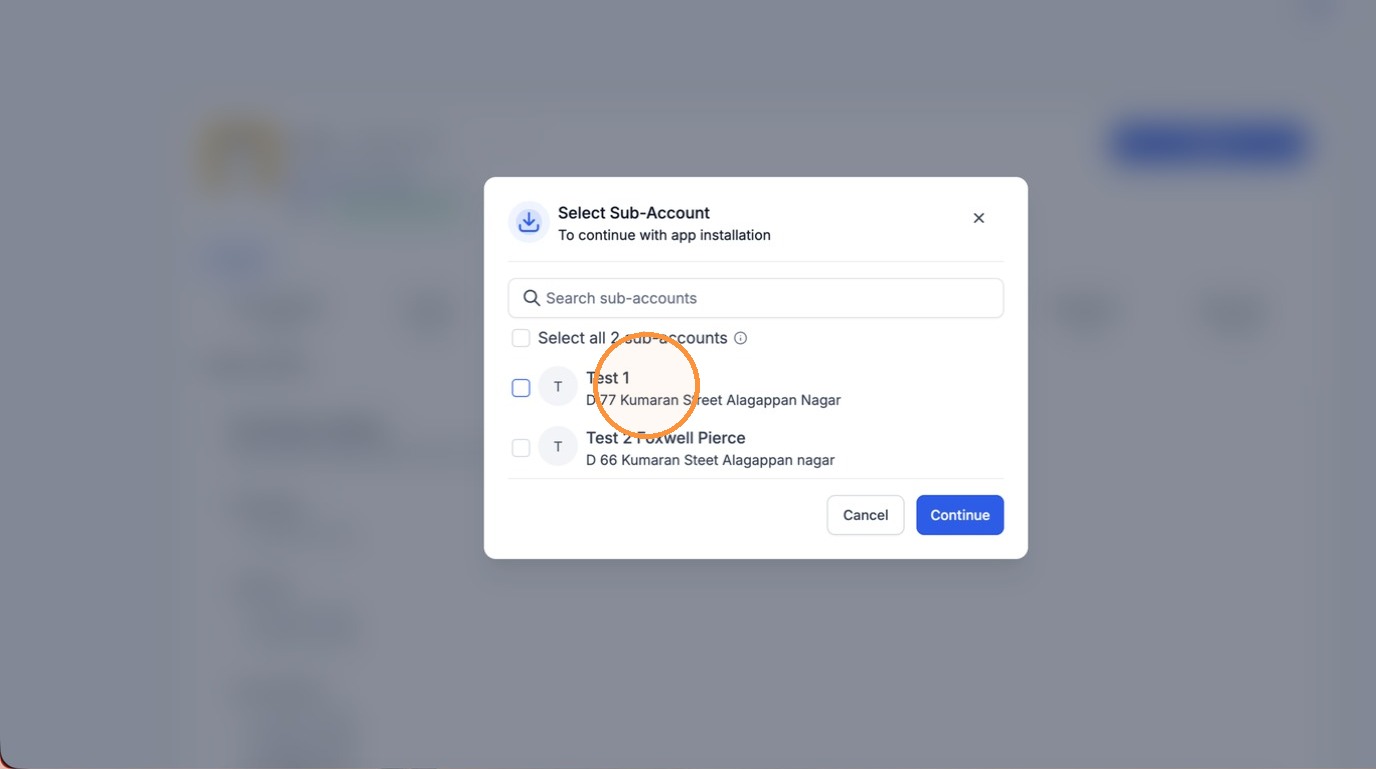
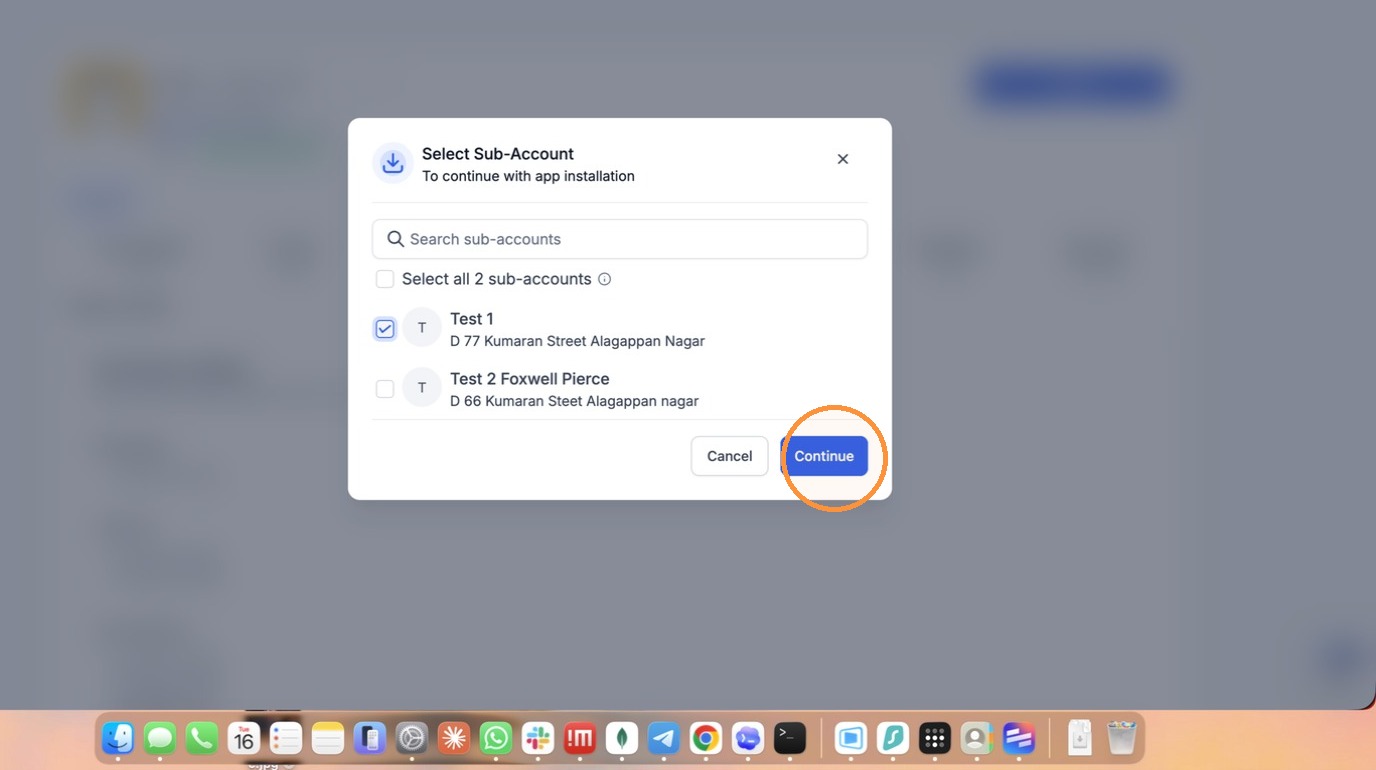
- Click on continue
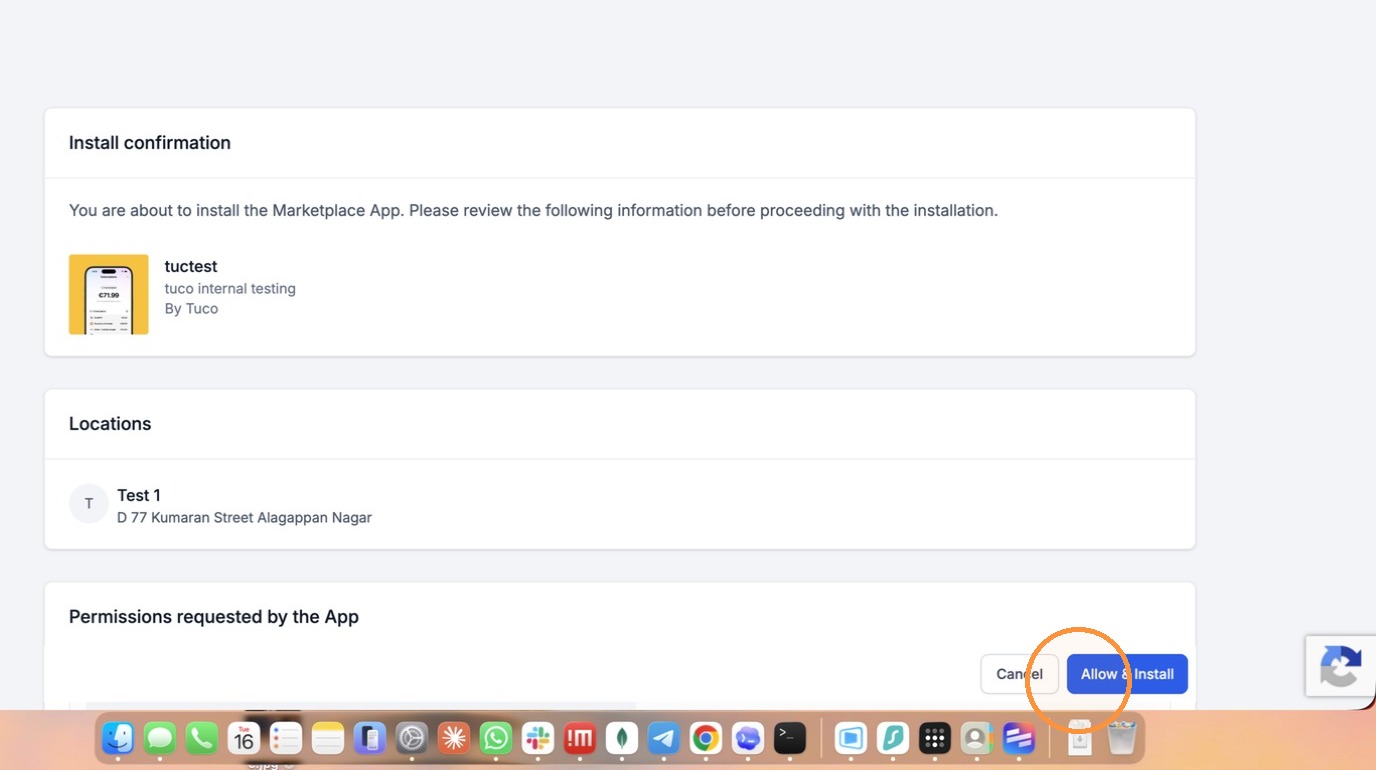
- Click "Allow & Install"
- Click here
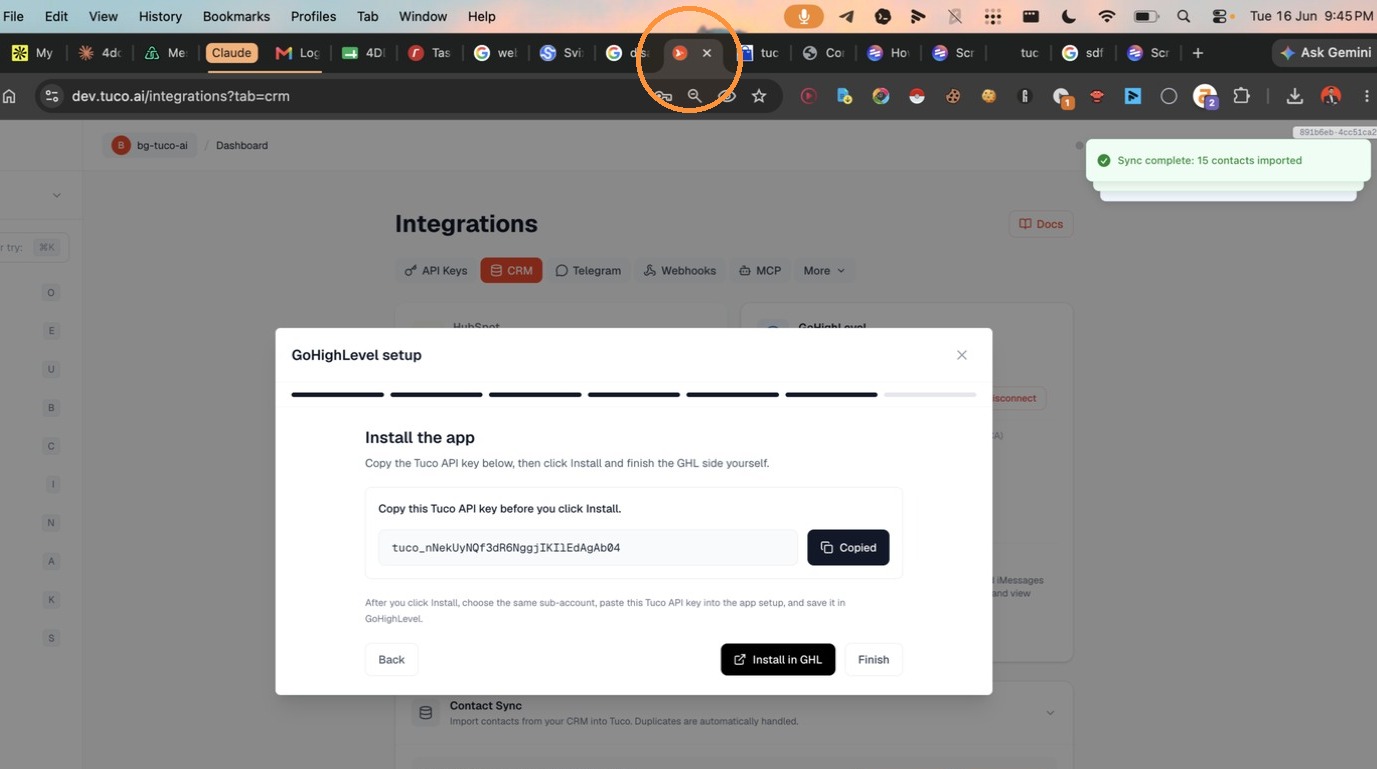
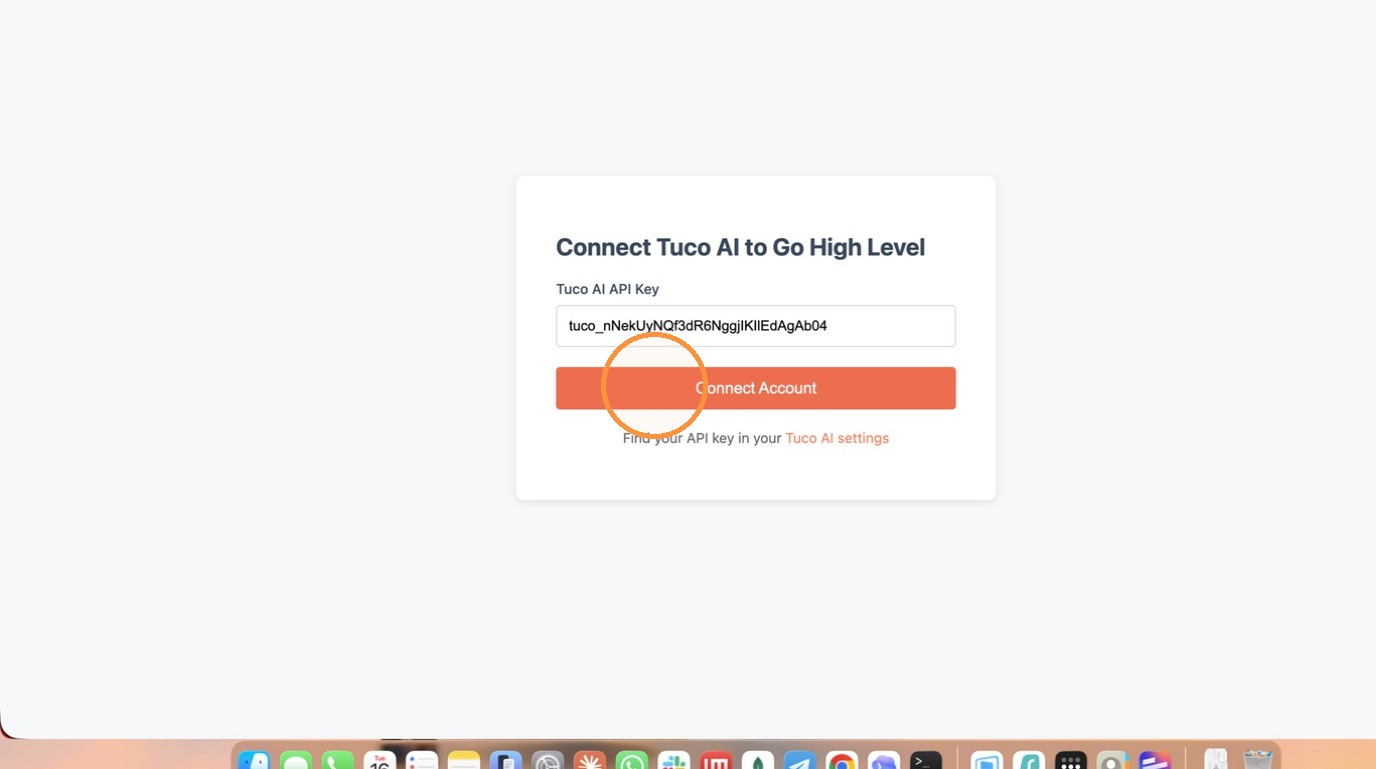
- Copy the API key from Tuco
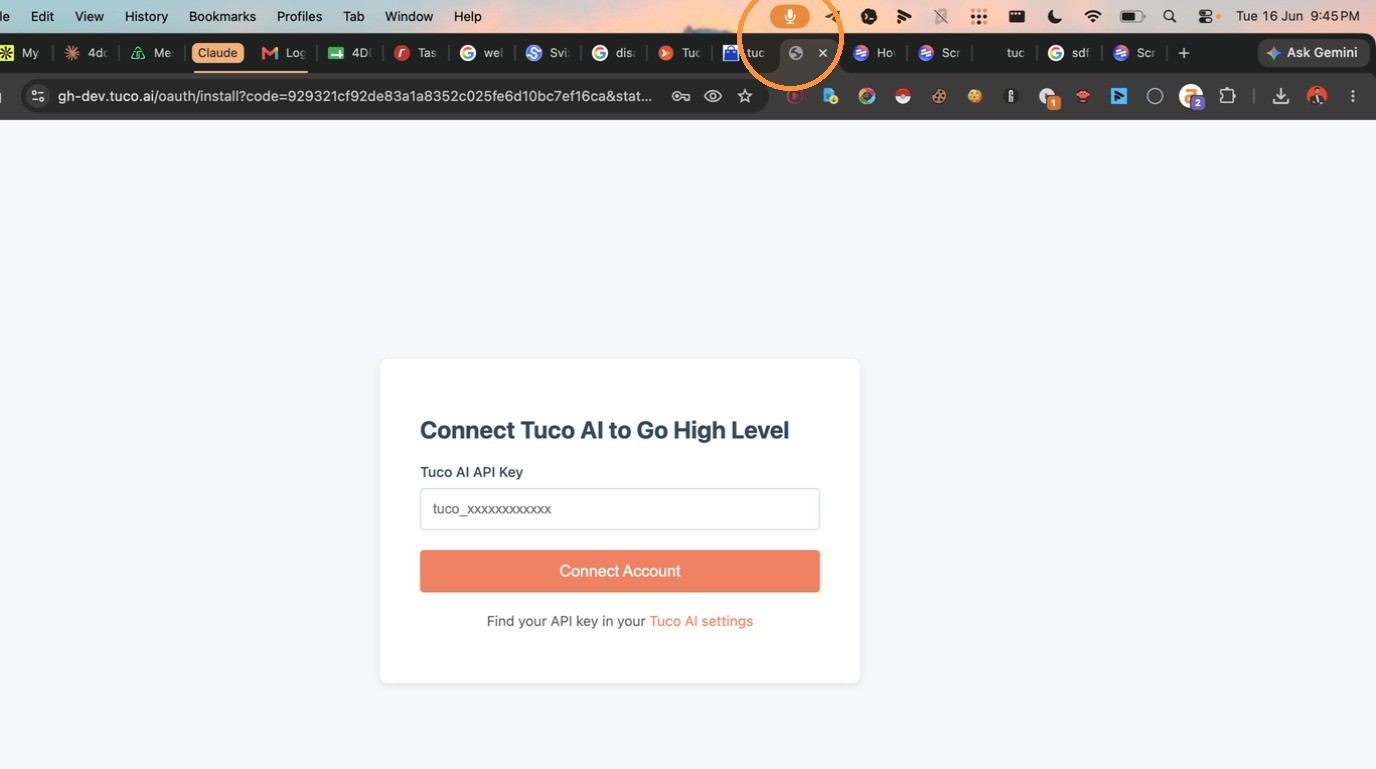
- Go back to the "Connect Tuco AI to Go High Level" page
- Press [[Cmd]] + [[V]]
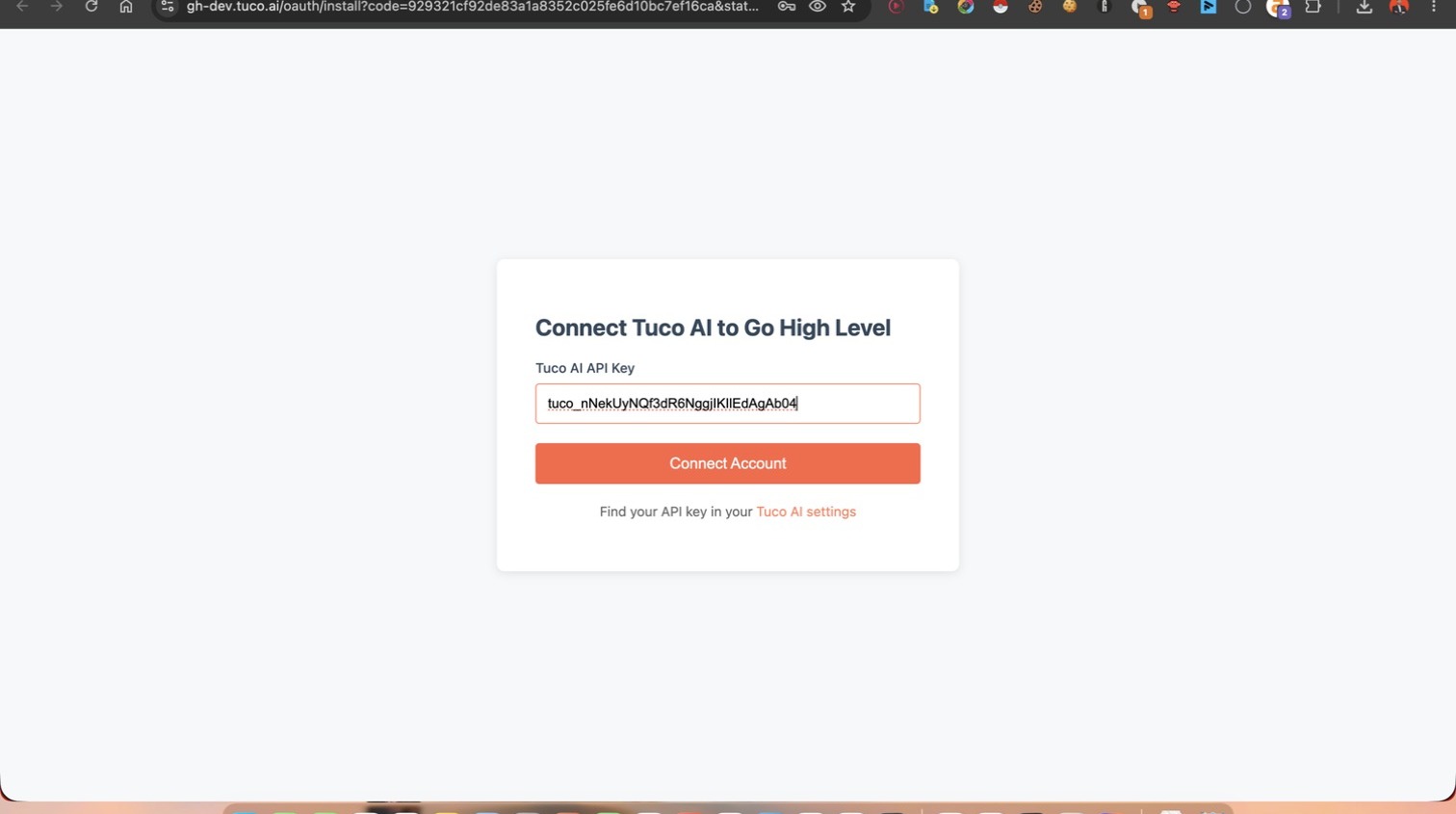
- Click "Connect Account"
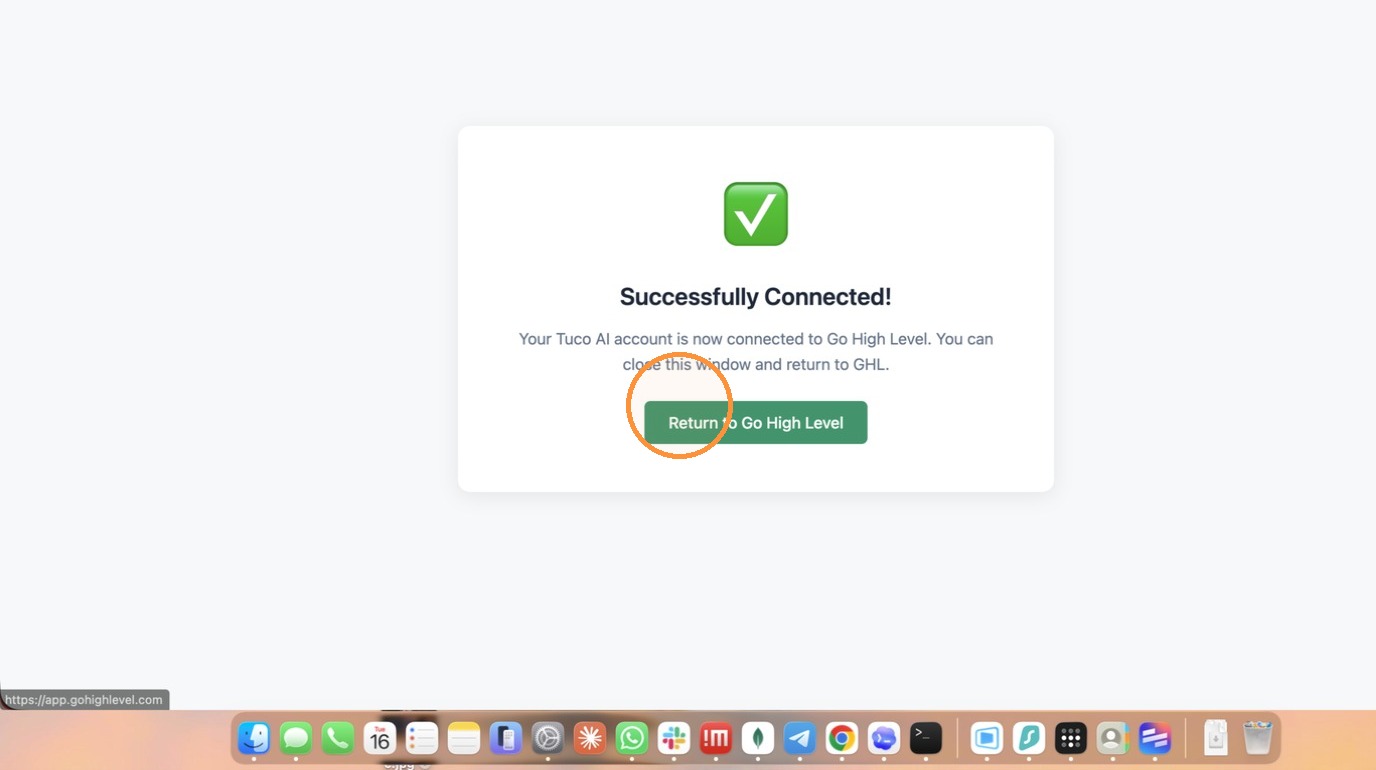
- Click "Return to Go High Level"
- Click here
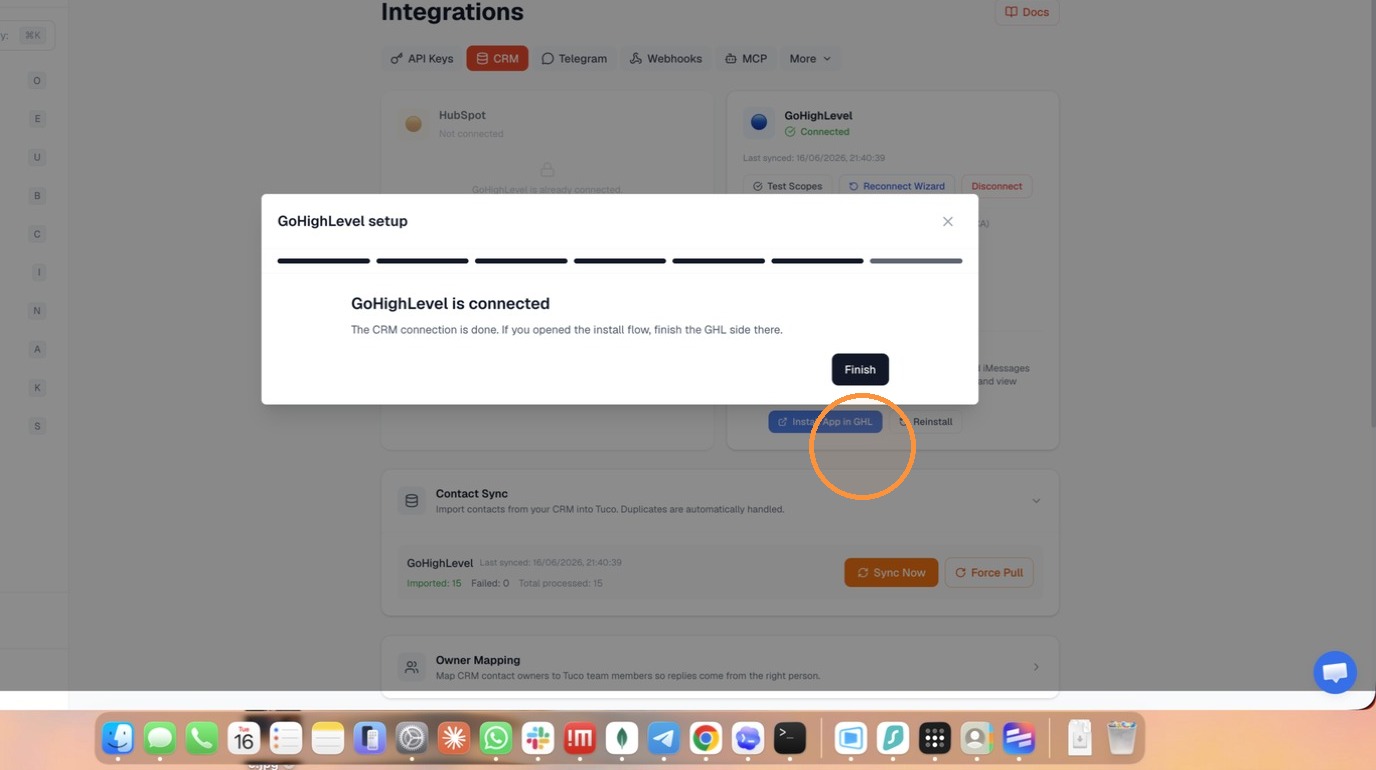
- Click here
Made with Scribe
Updated on: 14/07/2026
Thank you!