How to uninstall and reinstall Go HIgh Level app for Tuco AI
How to Uninstall and ReInstall GoHighLevel with Tuco AI
Made by Tuco Support with Scribe
Learn how to seamlessly remove and re-install
your GoHighLevel account to the Tuco AI platform. This guide walks you through the necessary steps to reinstall the integration and configure your API keys for a successful connection.
Uninstall Current App
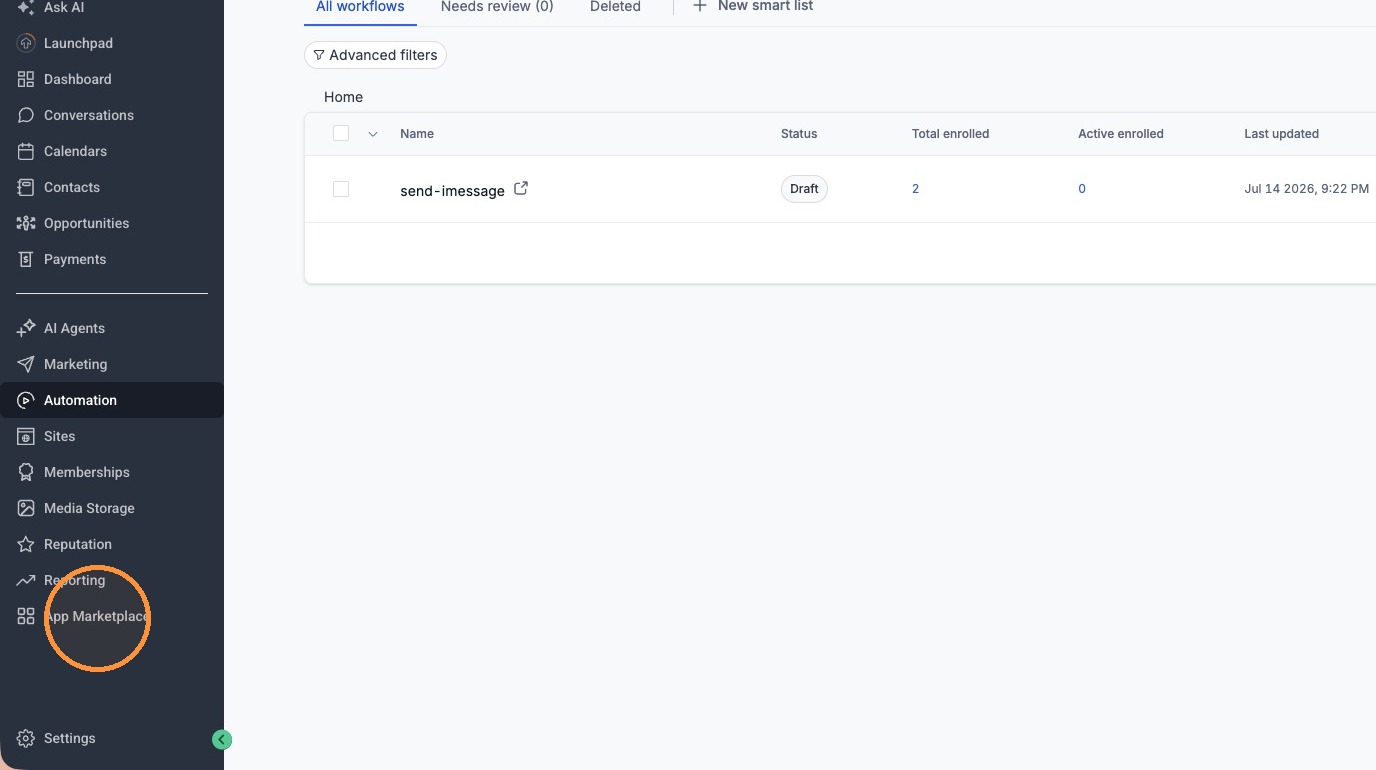
- Navigate to App Marketplace
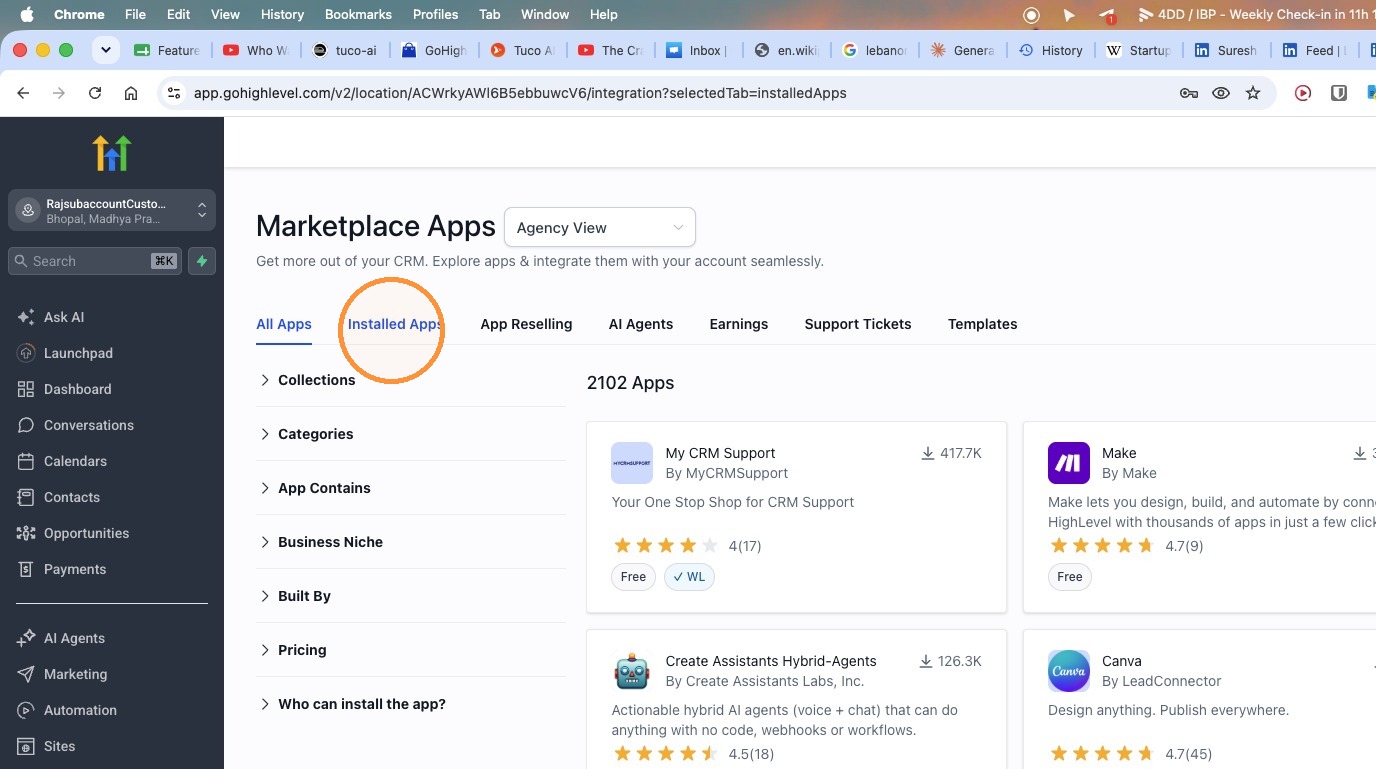
- Select the "Installed Apps" tab
- Click the options menu (three dots) for the app
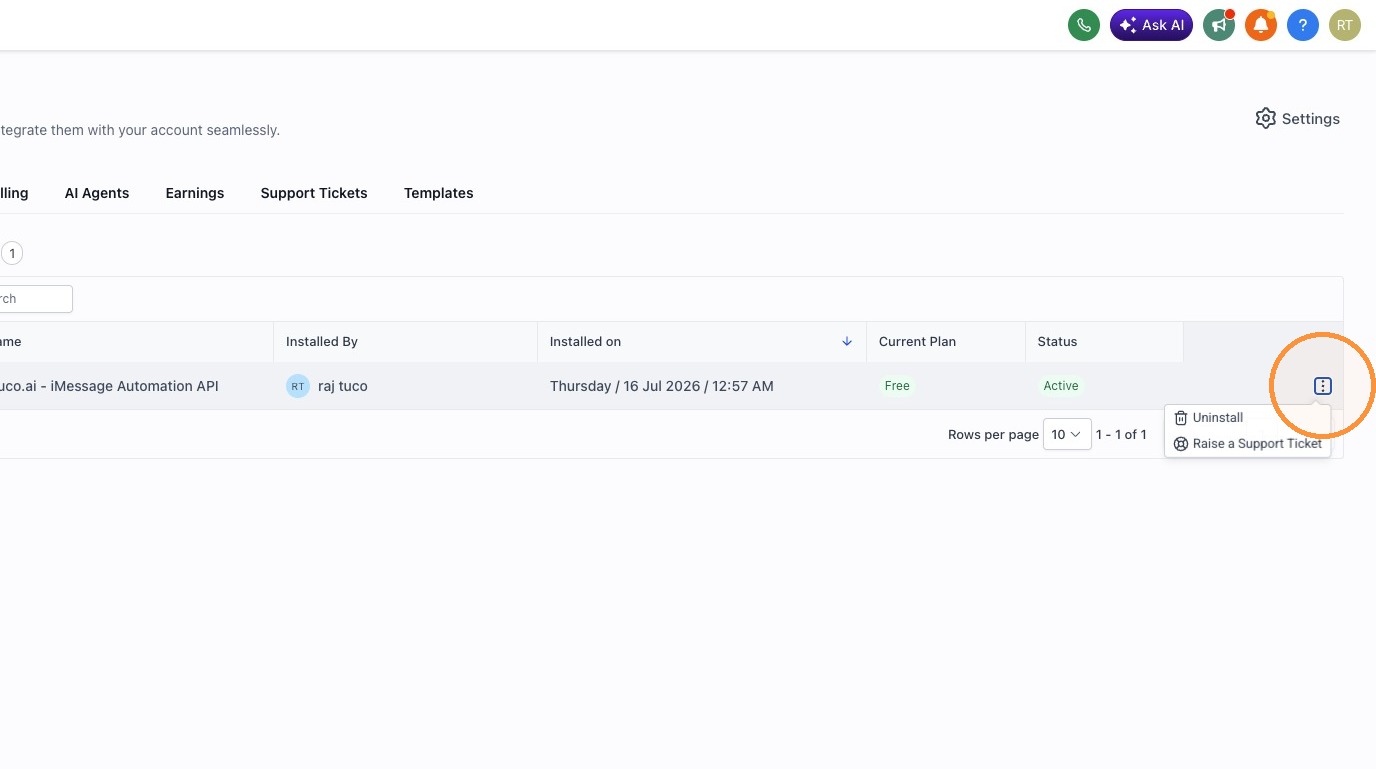
- Select "Uninstall"
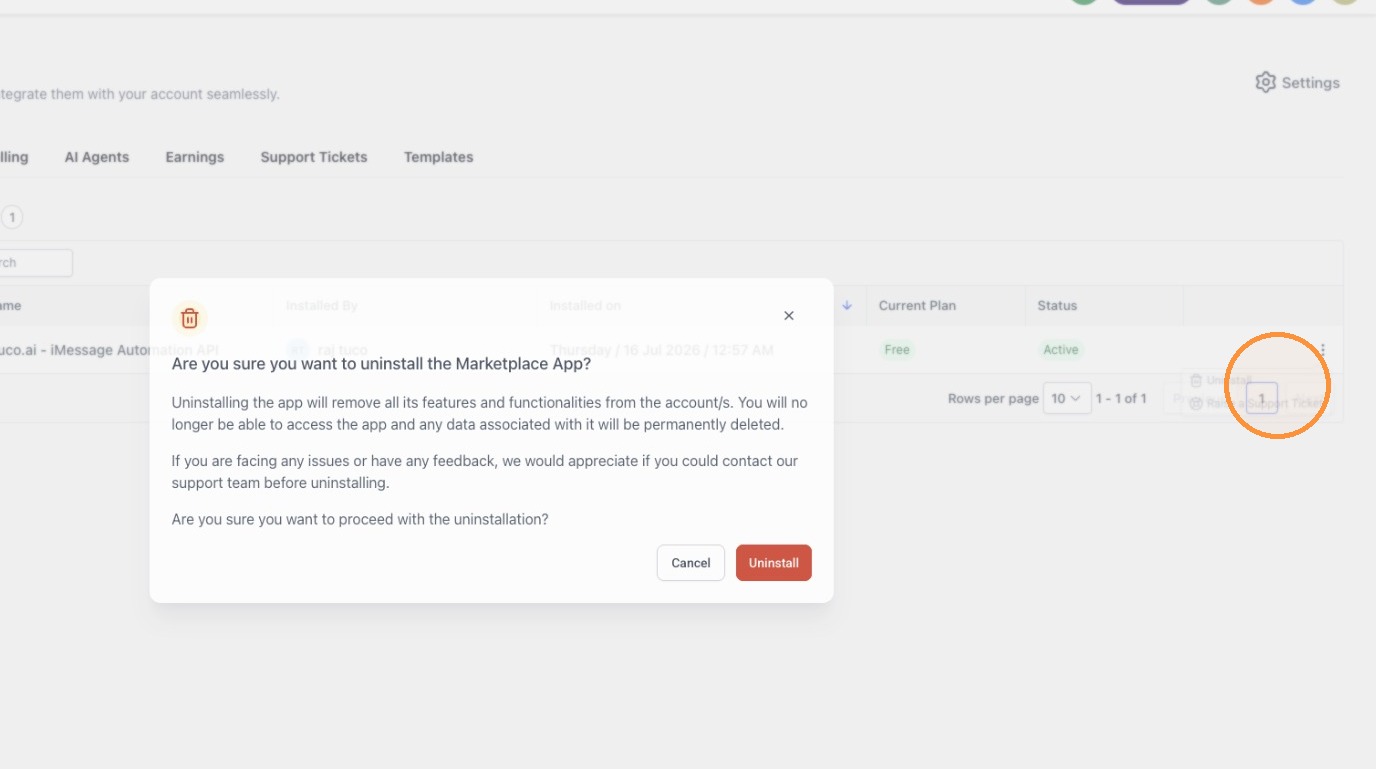
- Confirm uninstallation by clicking "Uninstall"
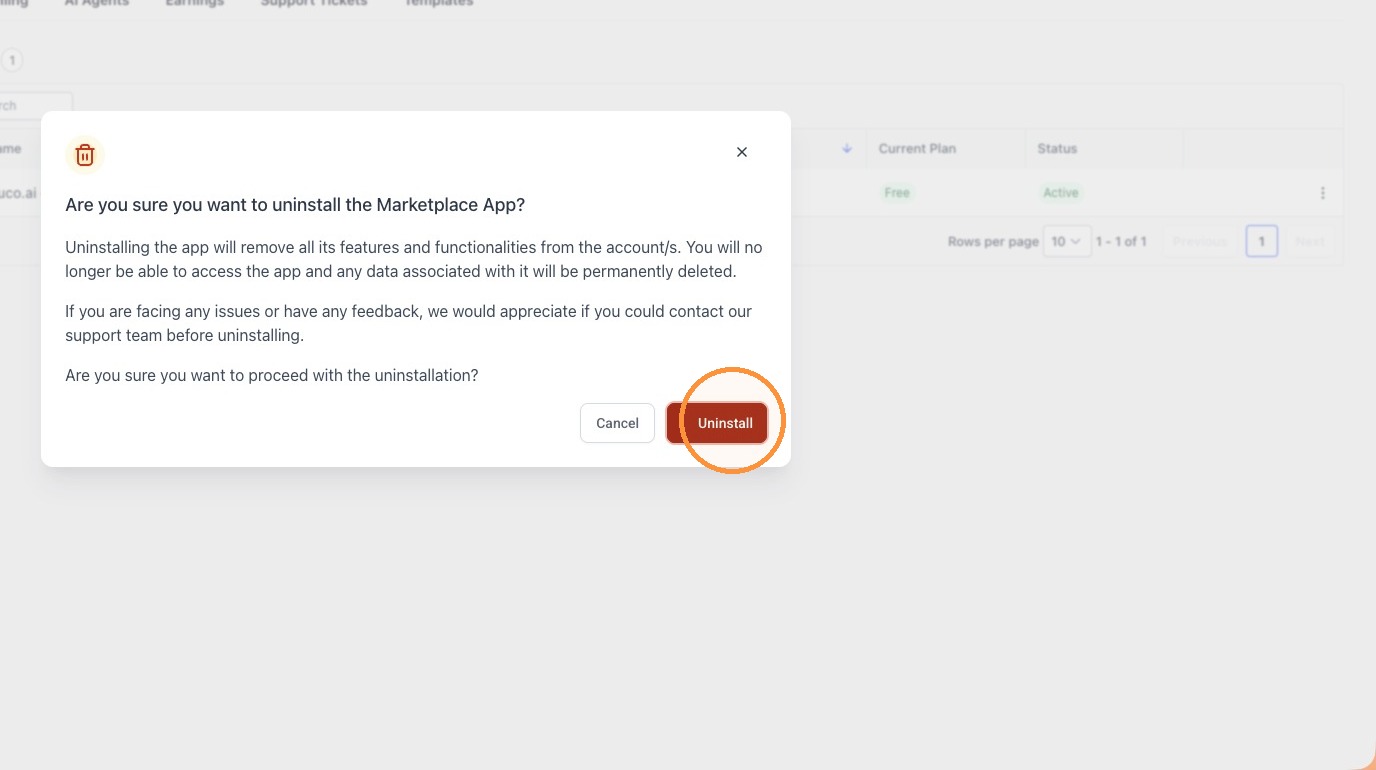
Access Integrations
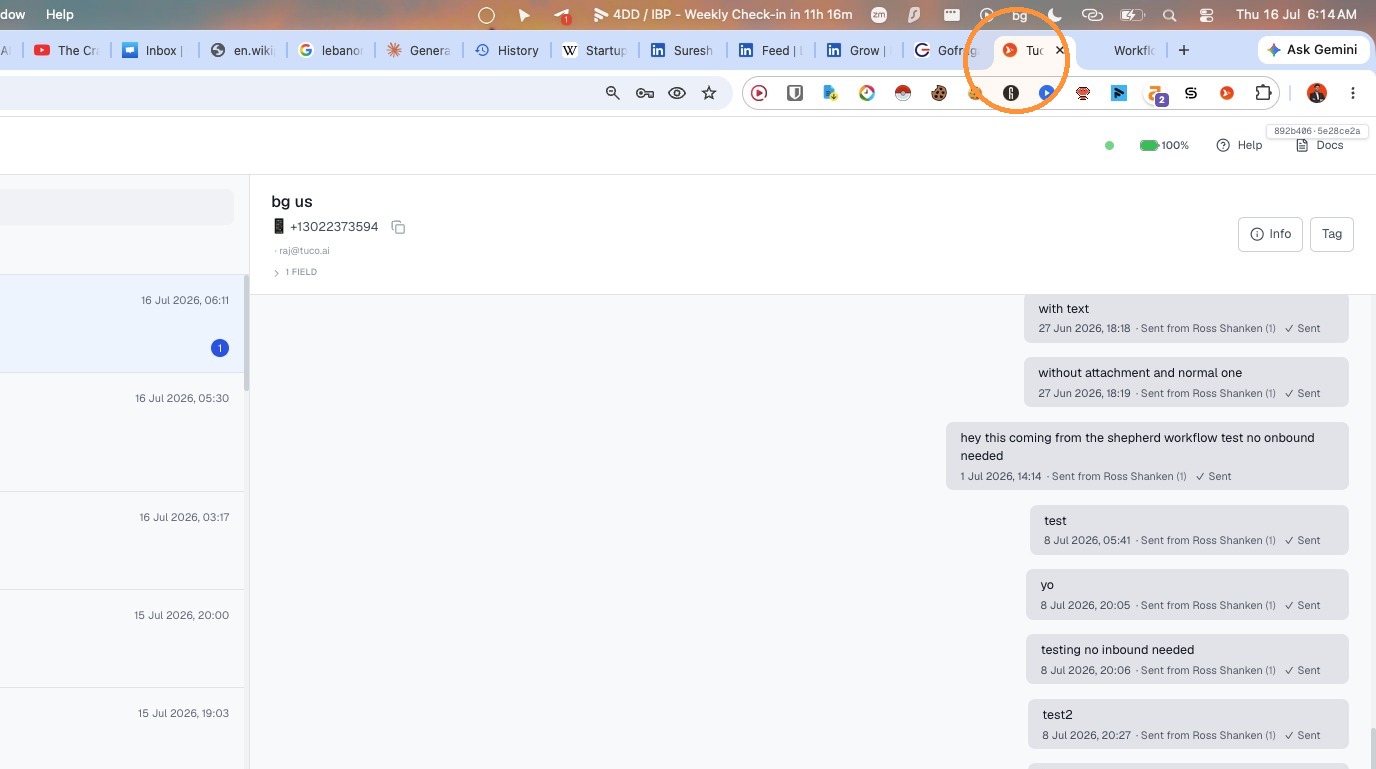
- Switch to the Tuco AI dashboard tab
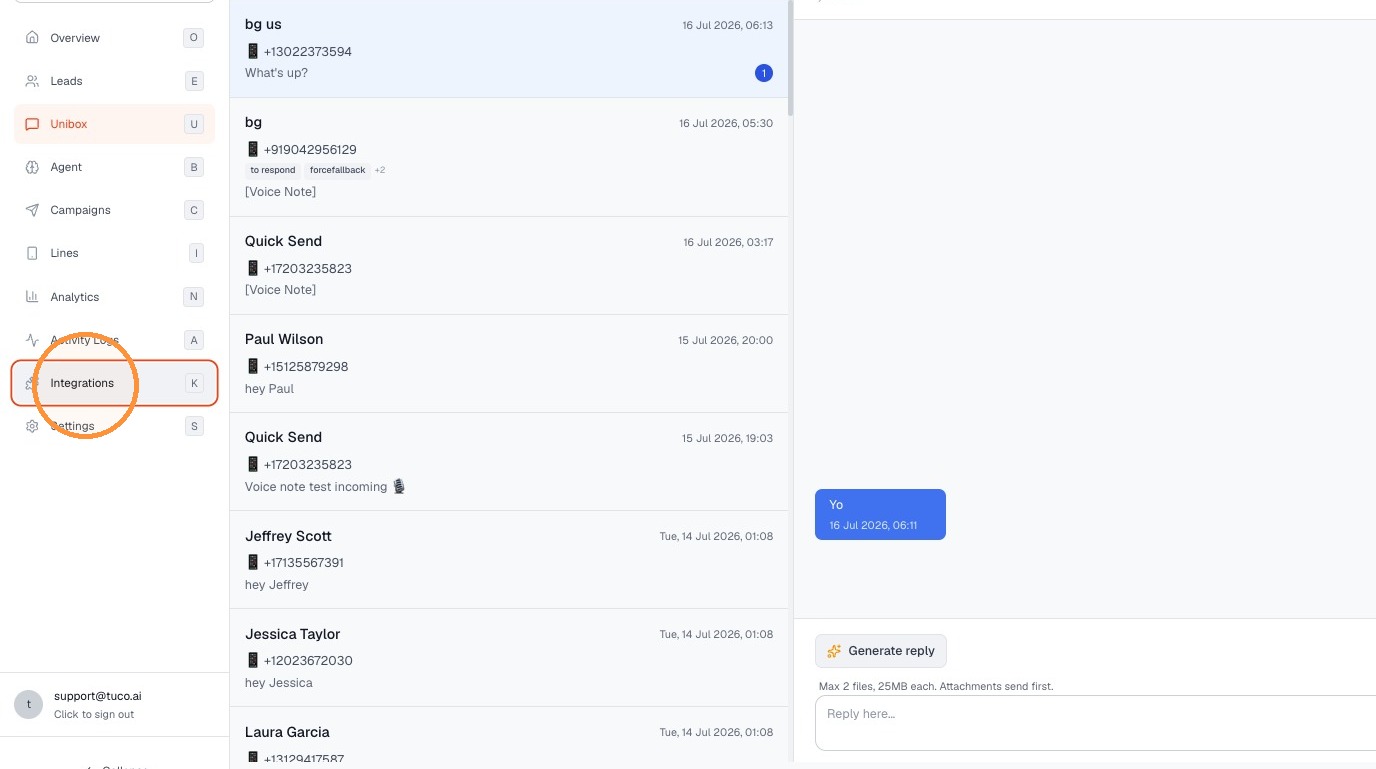
- Click "Integrations"
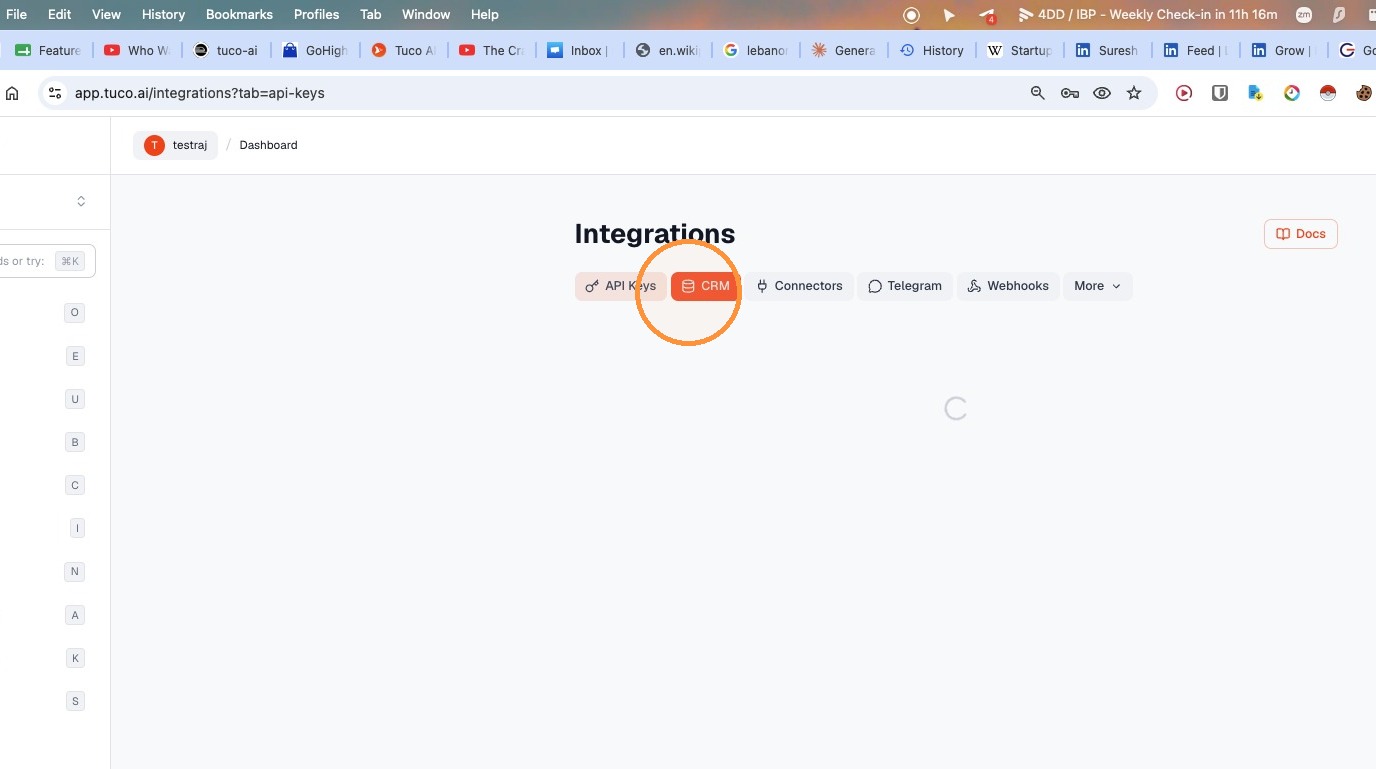
- Click "CRM"
- Click "Install App in LeadConnector"
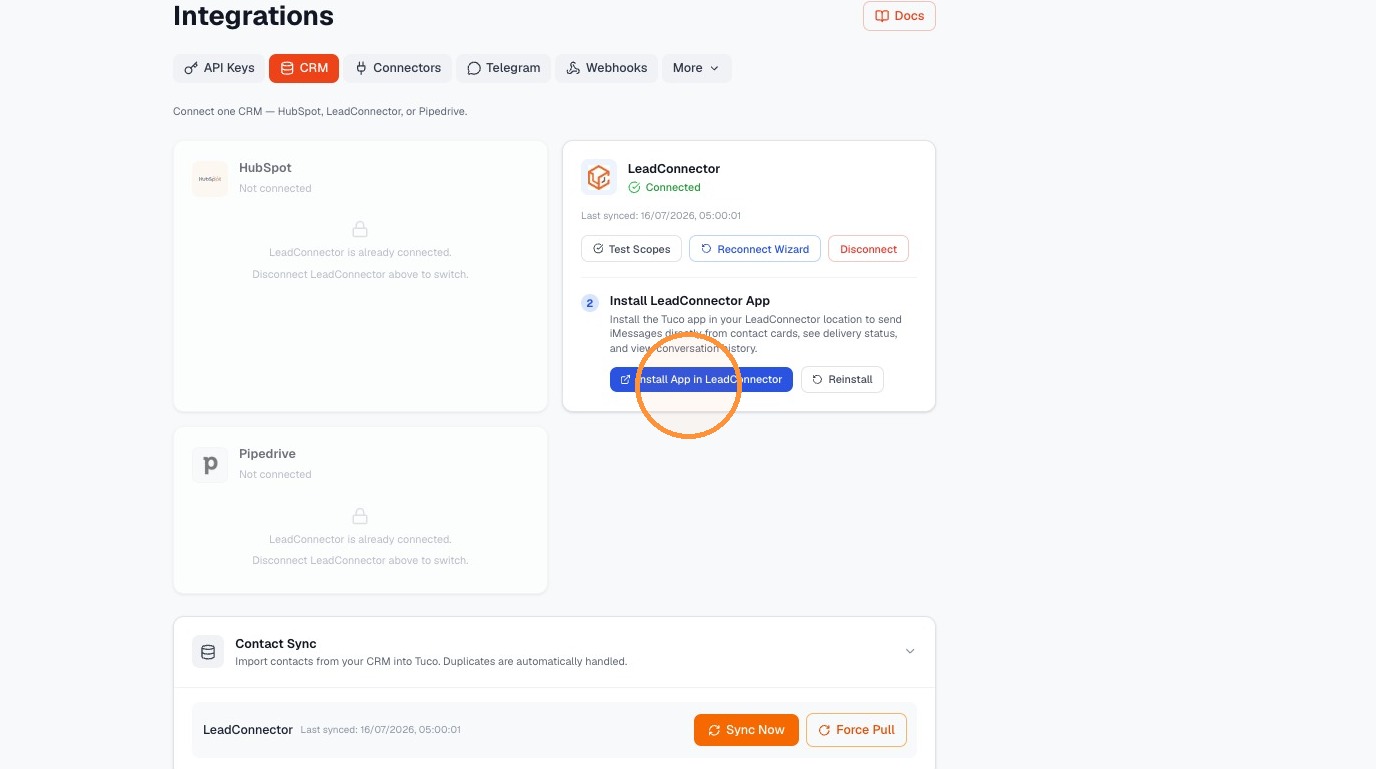
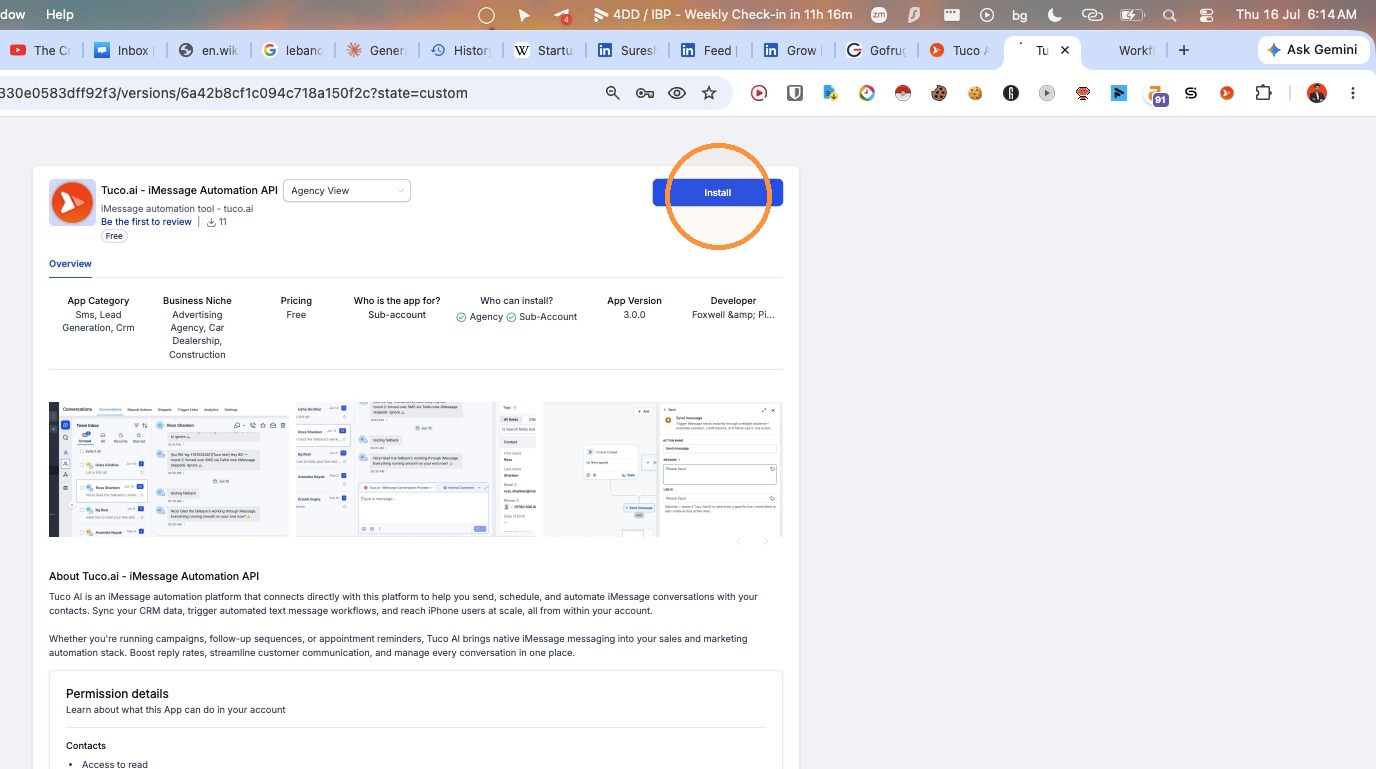
- Click "Install"
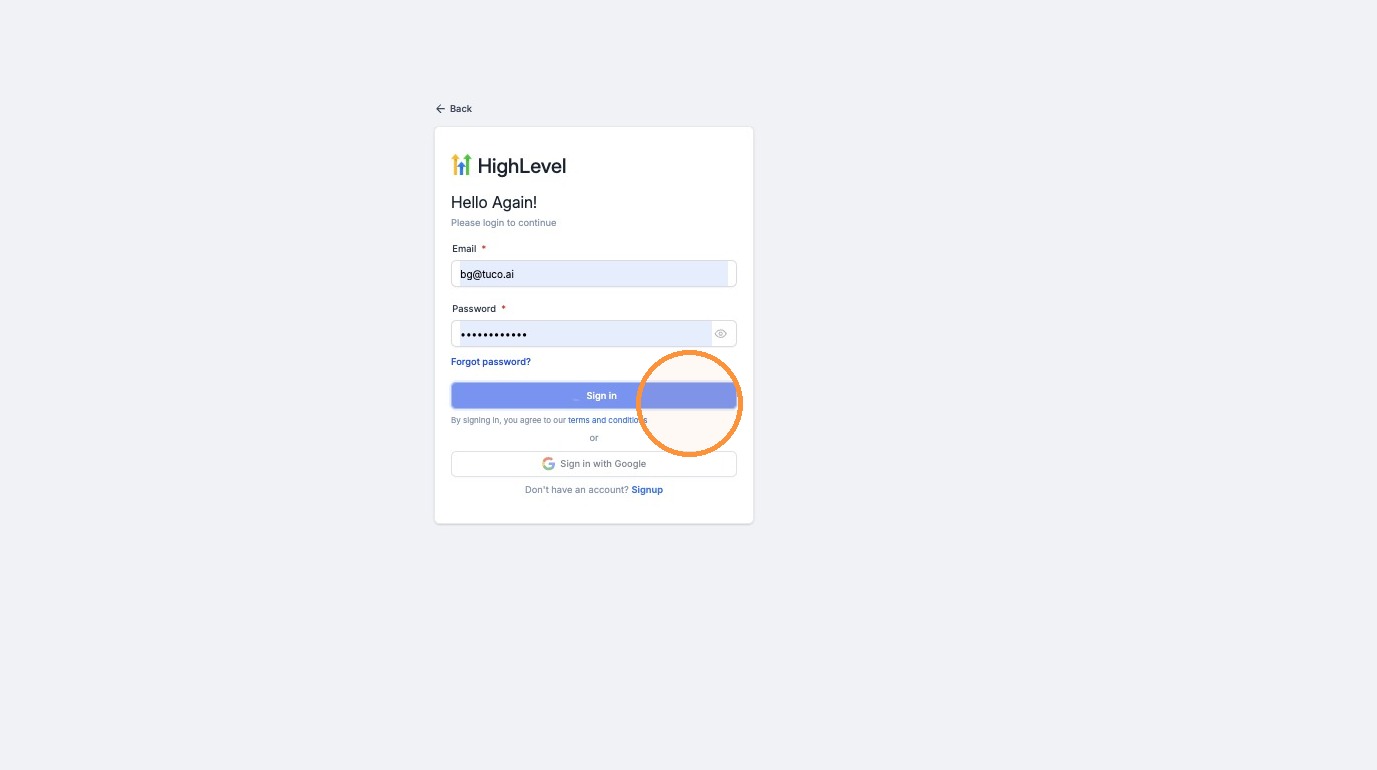
- Click "Sign in"
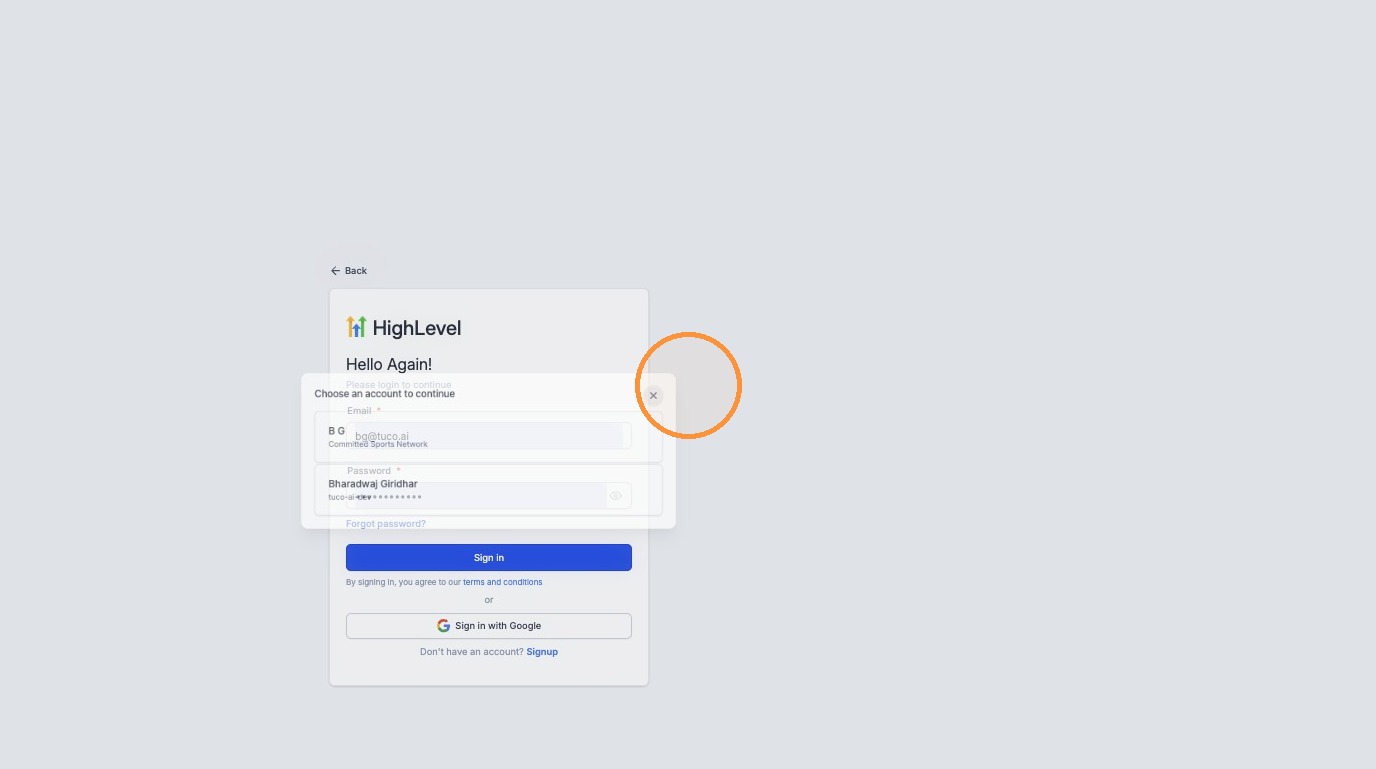
- Close the account selection modal
- Navigate back to the Tuco AI Integrations page
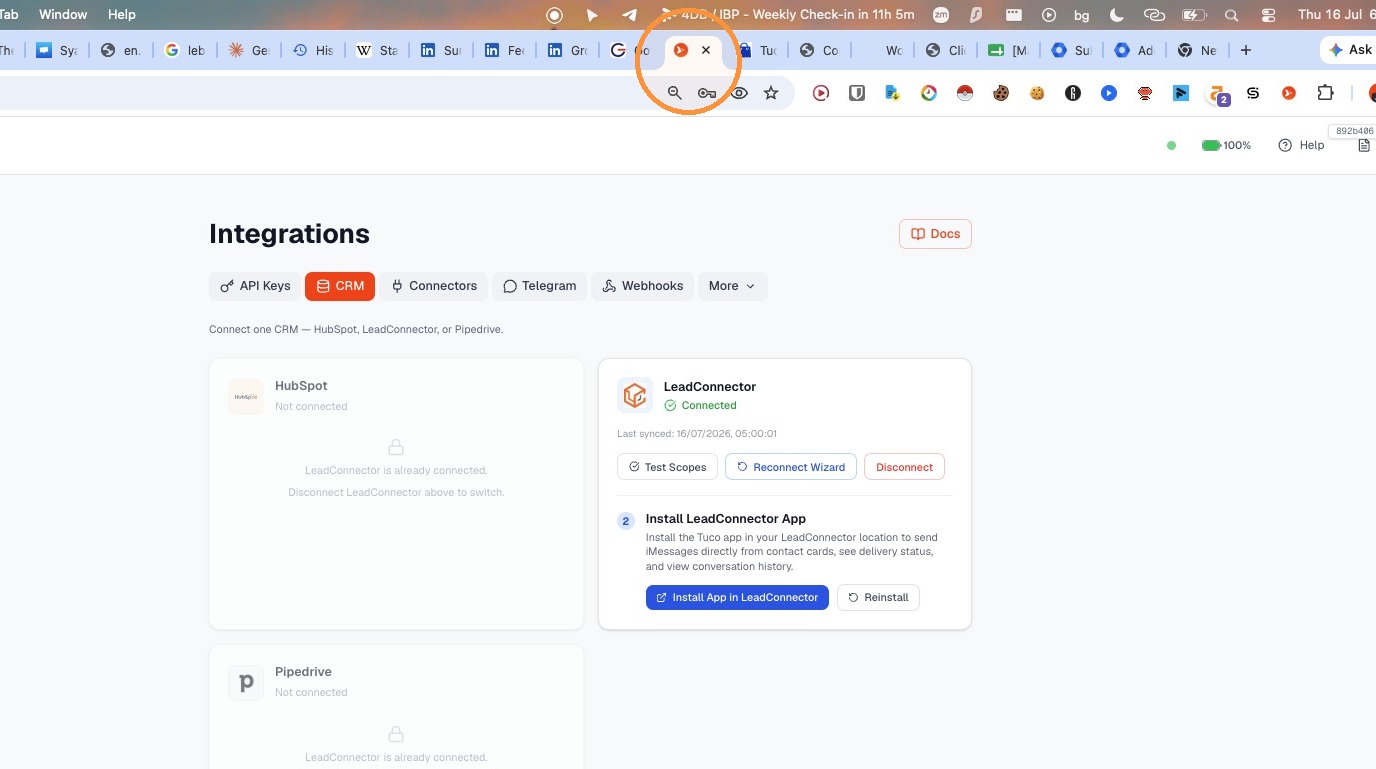
Generate API Key
- Click "API Keys"
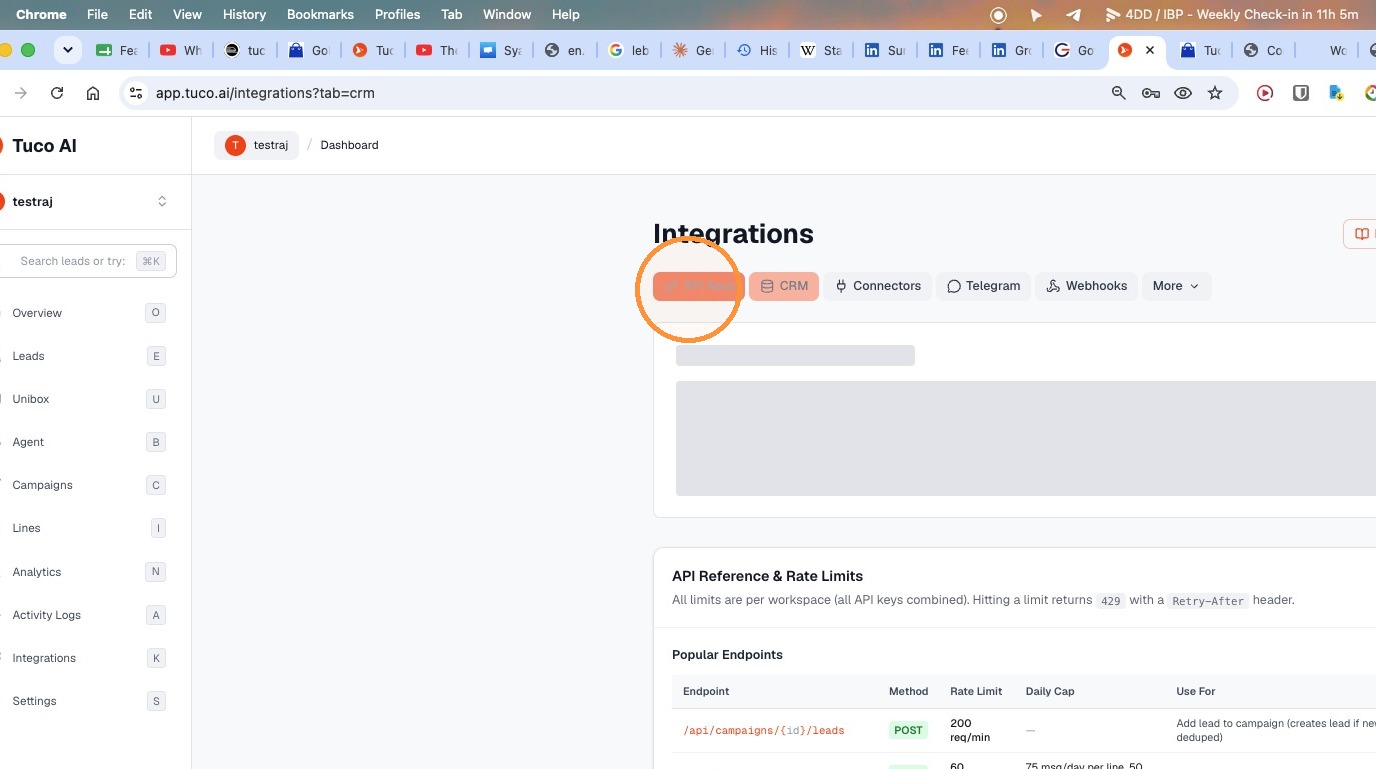
- Click "Create API Key"
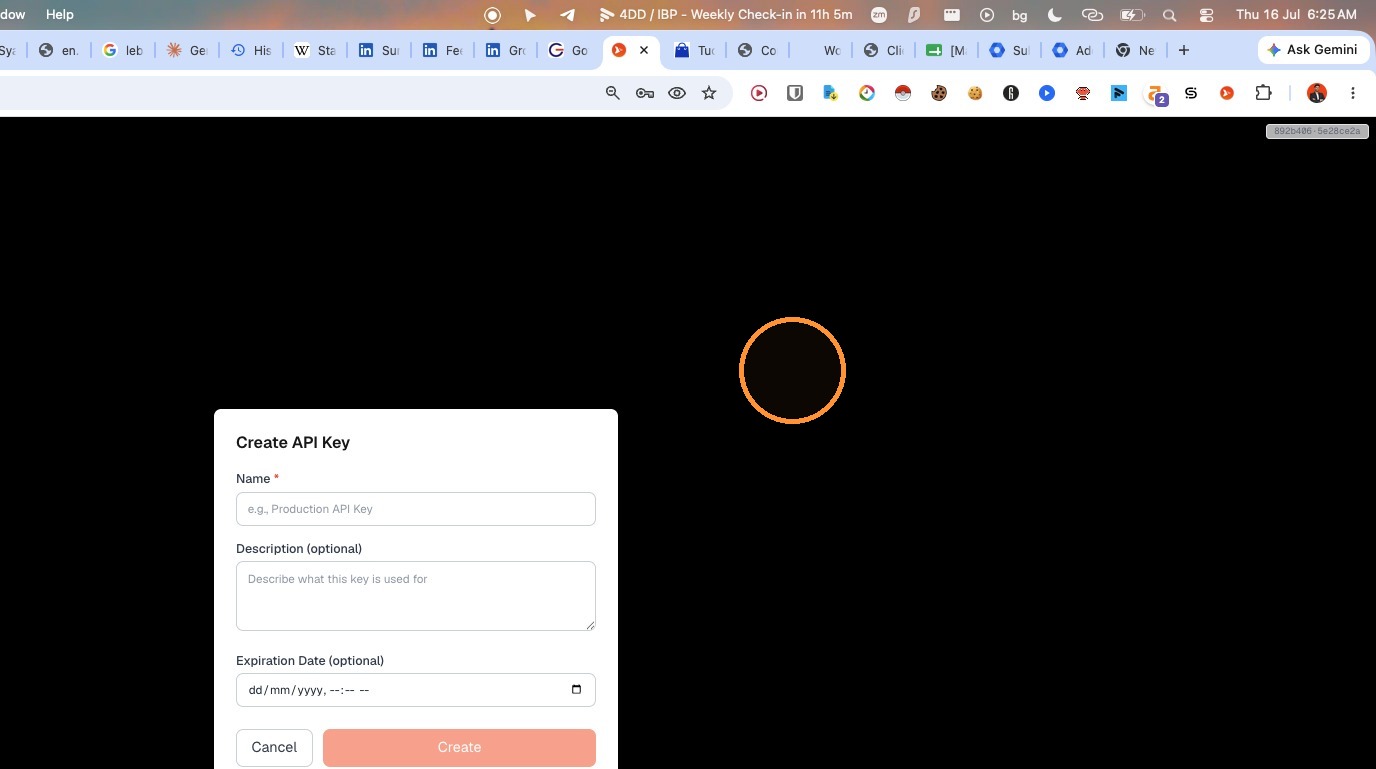
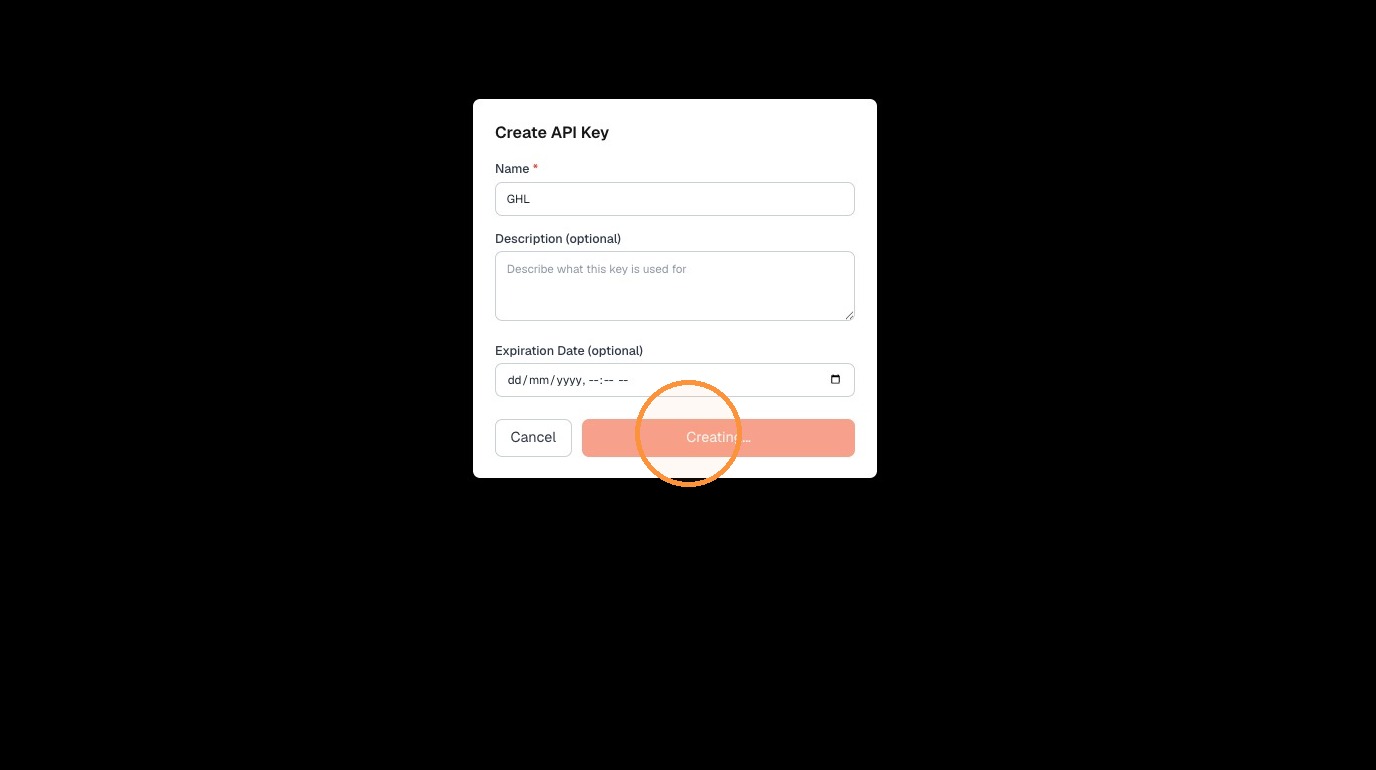
- Type "GHL" into the Name field
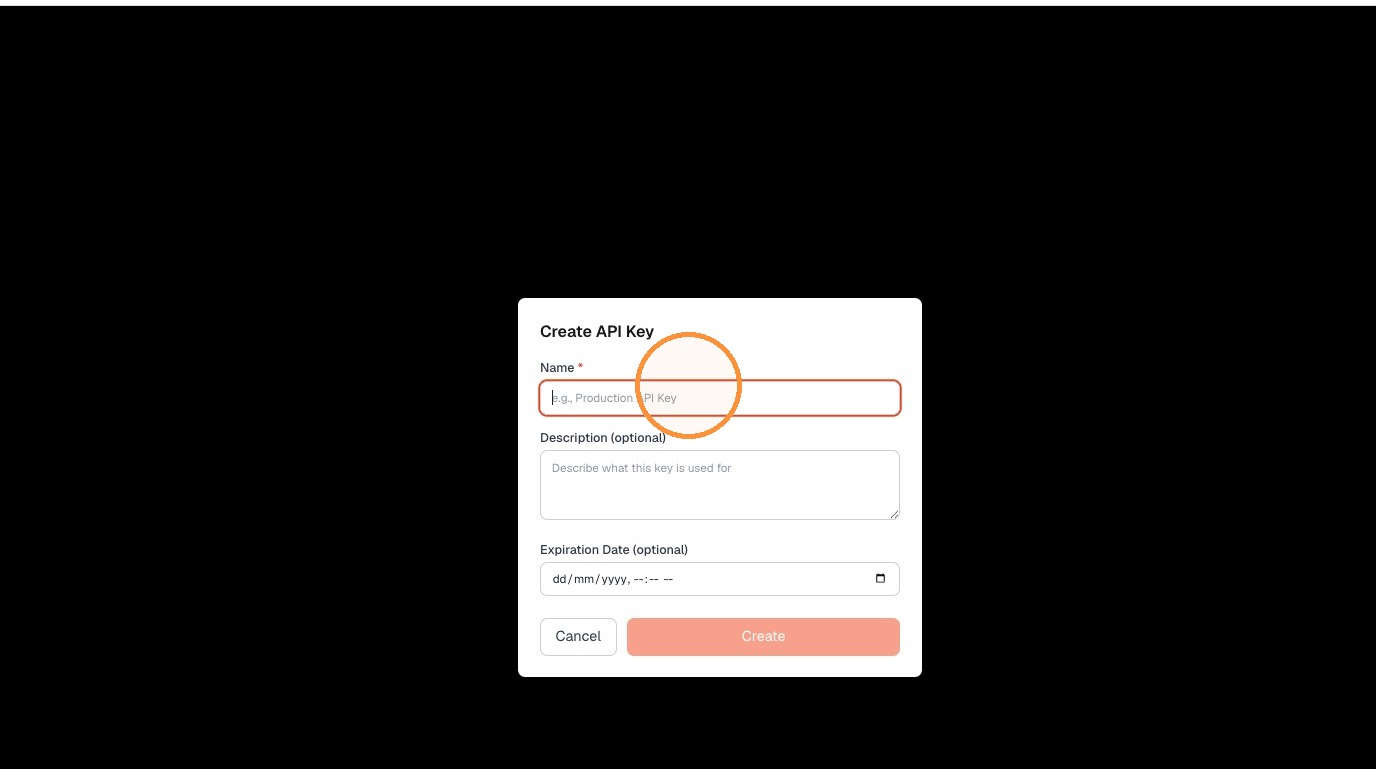
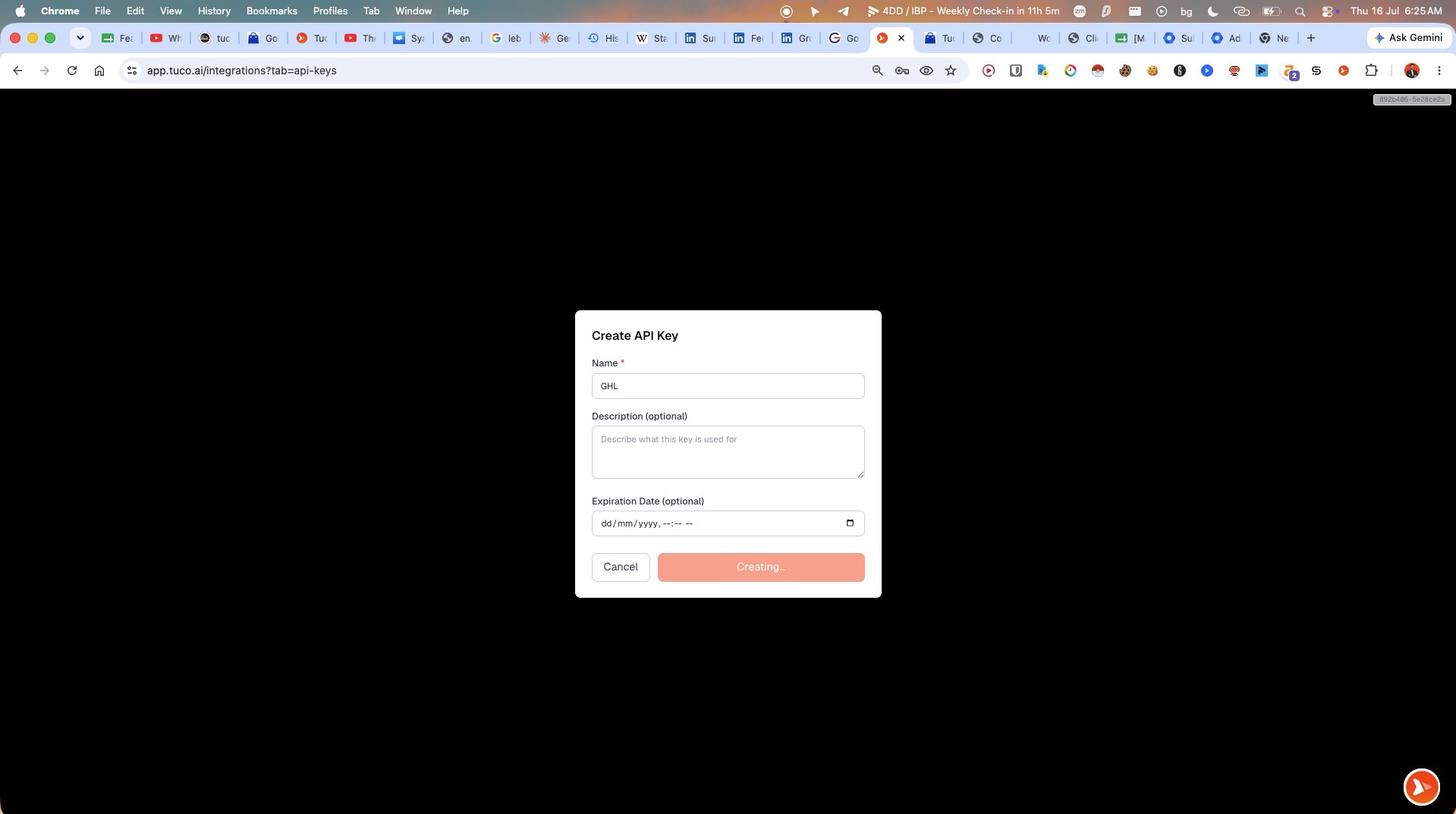
- Click "Create"
- Click "Copy"
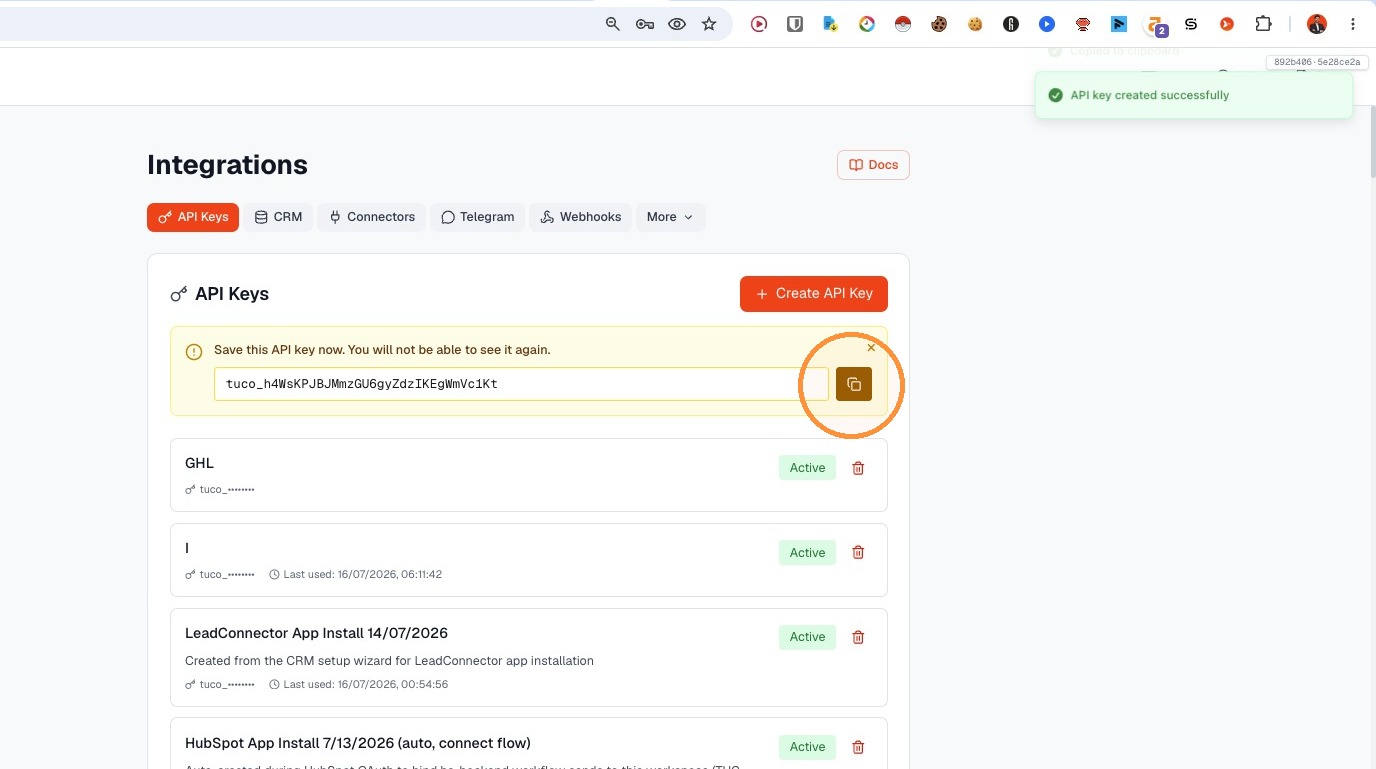
Connect LeadConnector
- Navigate to the account connection page
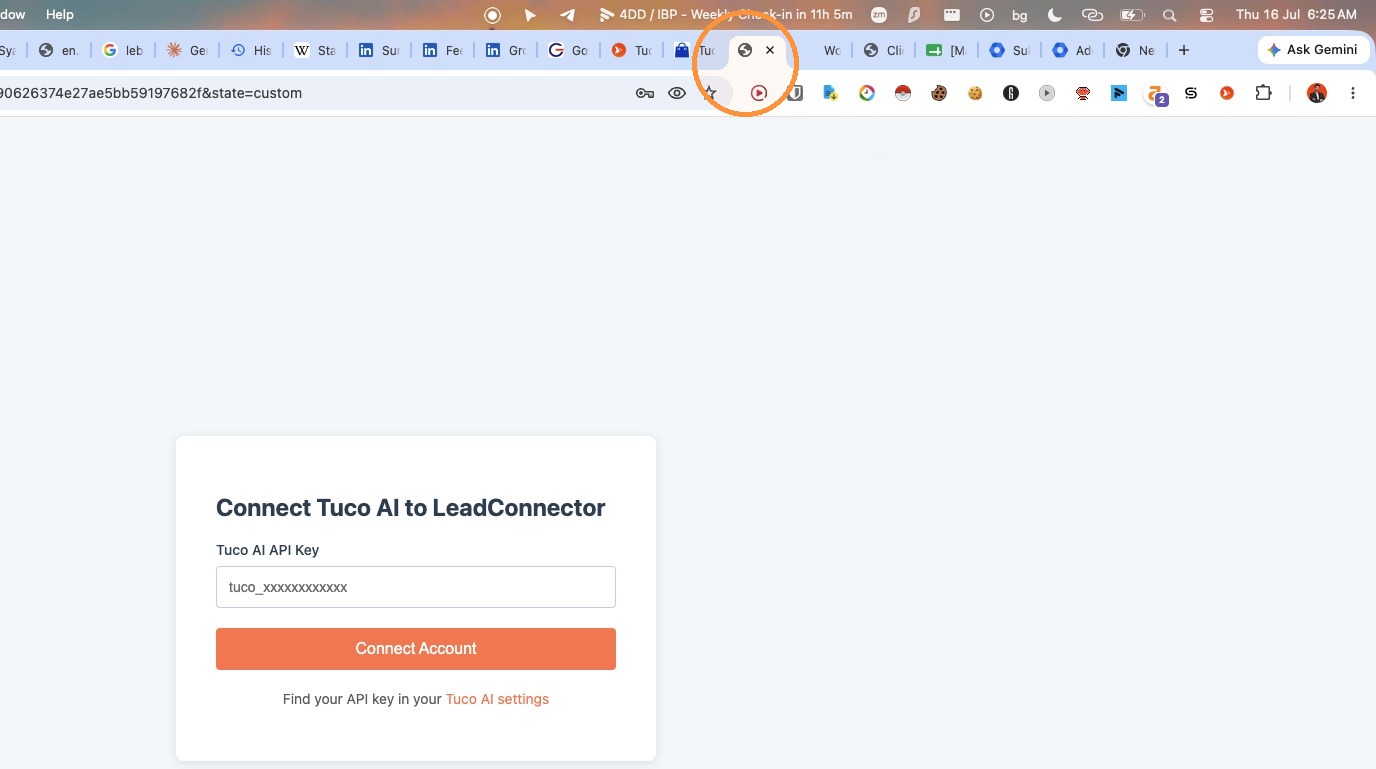
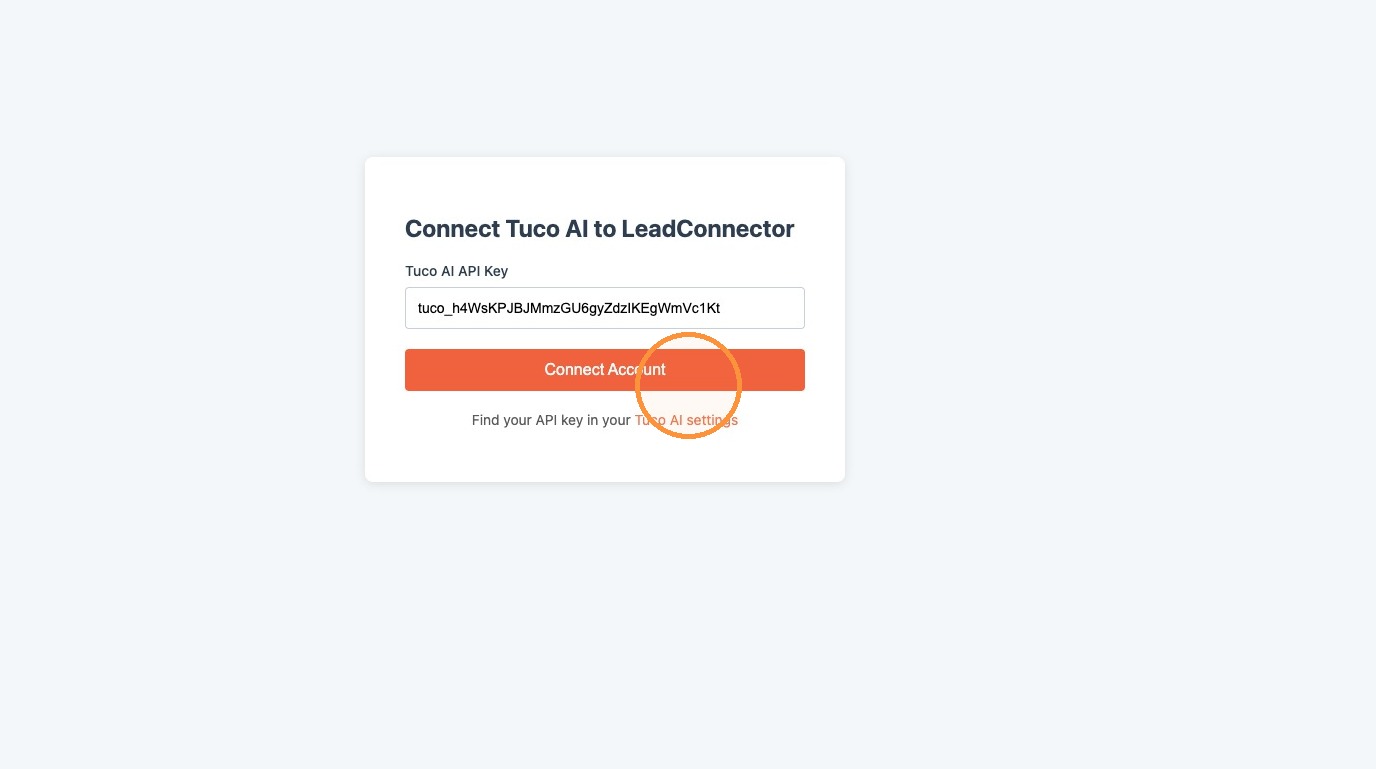
- Paste the API key into the "Tuco AI API Key" field
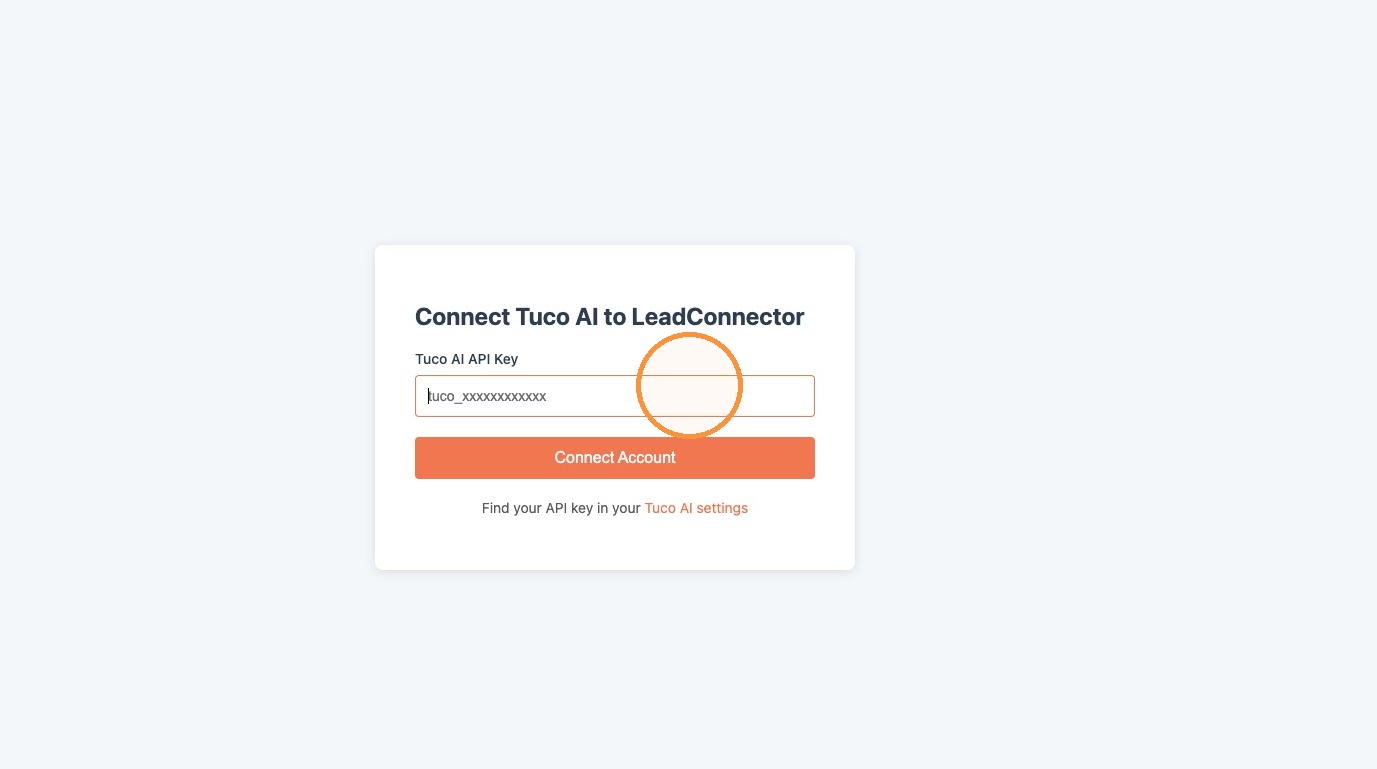
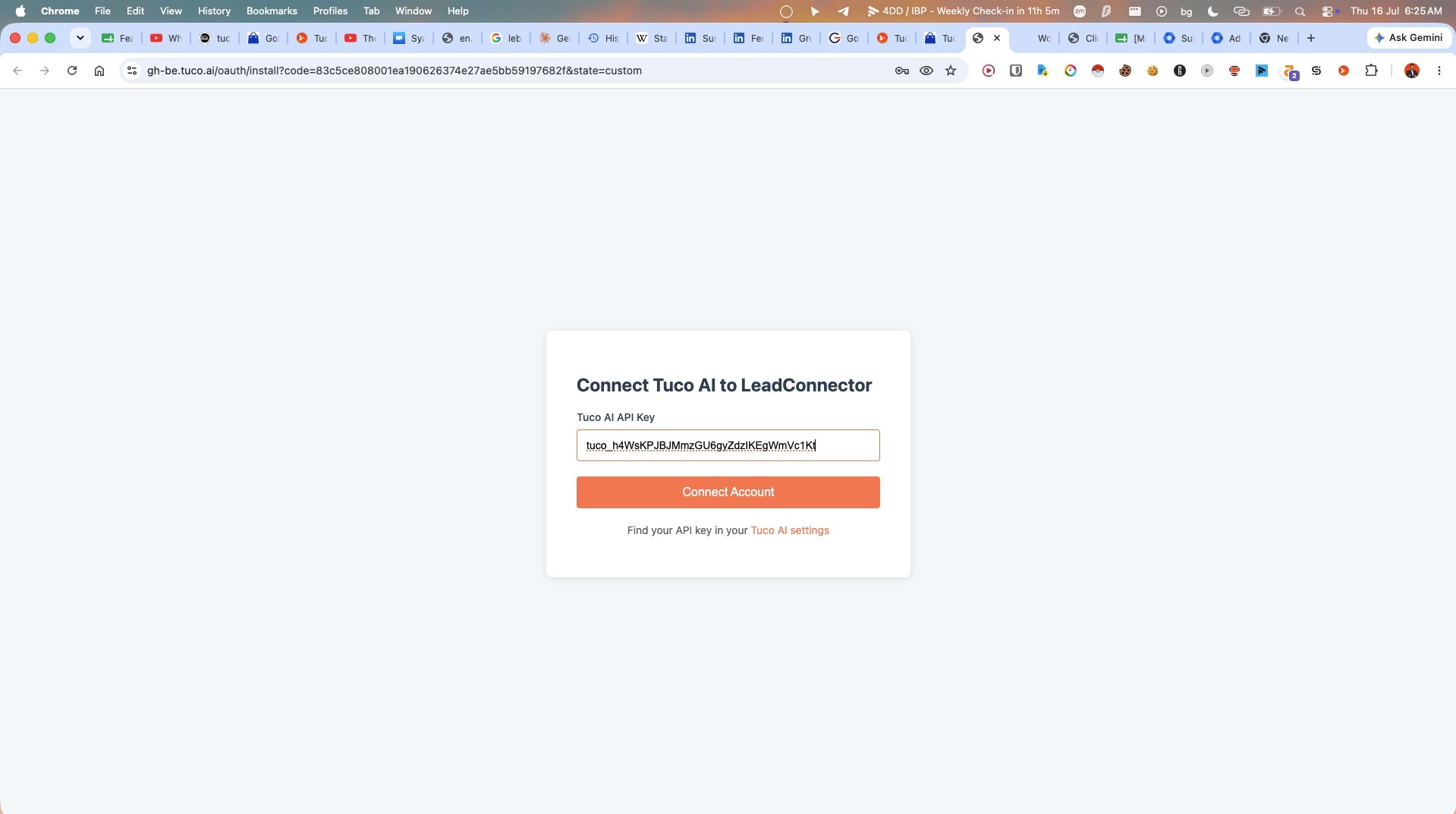
- Click "Connect Account"
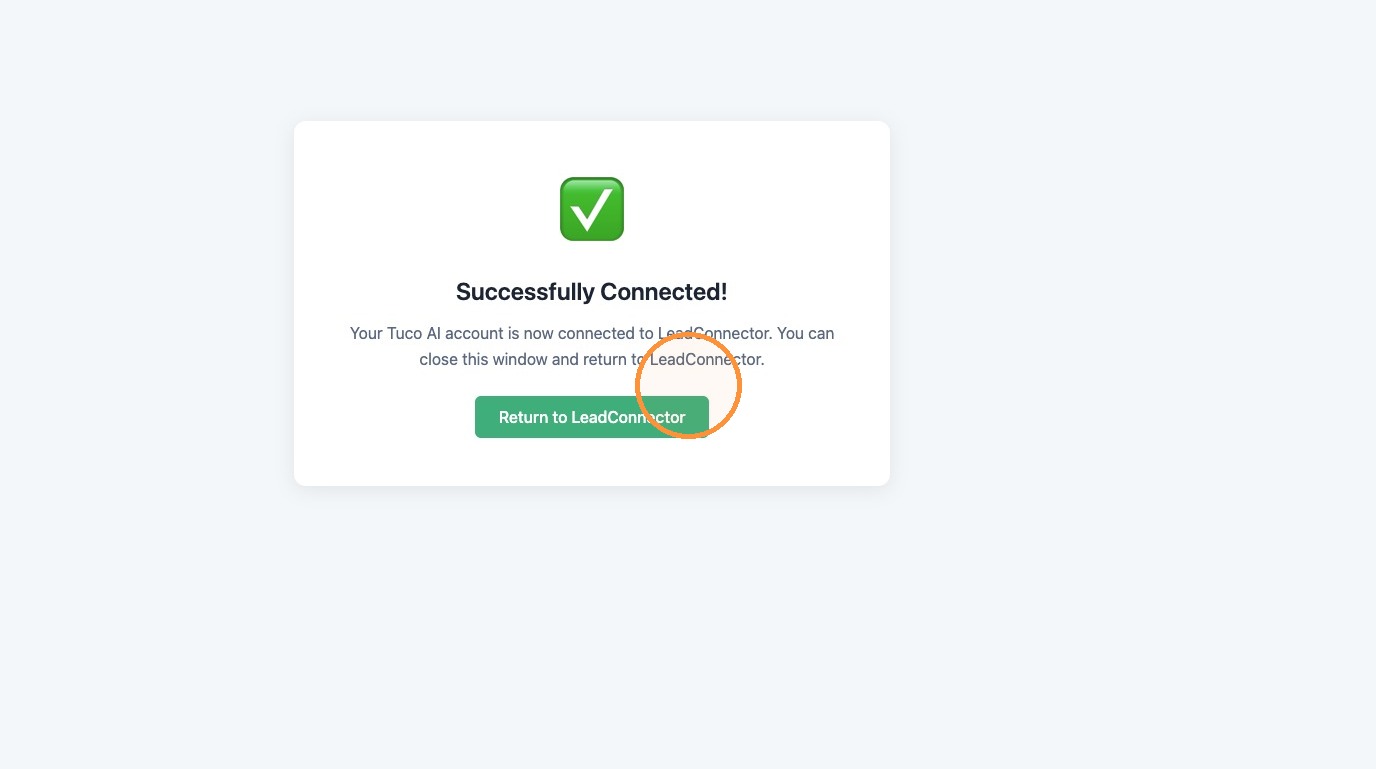
- Click "Return to LeadConnector"
Made with Scribe
Updated on: 16/07/2026
Thank you!