How to send native apple waveform voice memos (voice notes) using Tuco AI
How to send native apple waveform voice memos (voice notes) using Tuco AI
Action Setup
- Click the "+" icon to add a new step to the workflow.
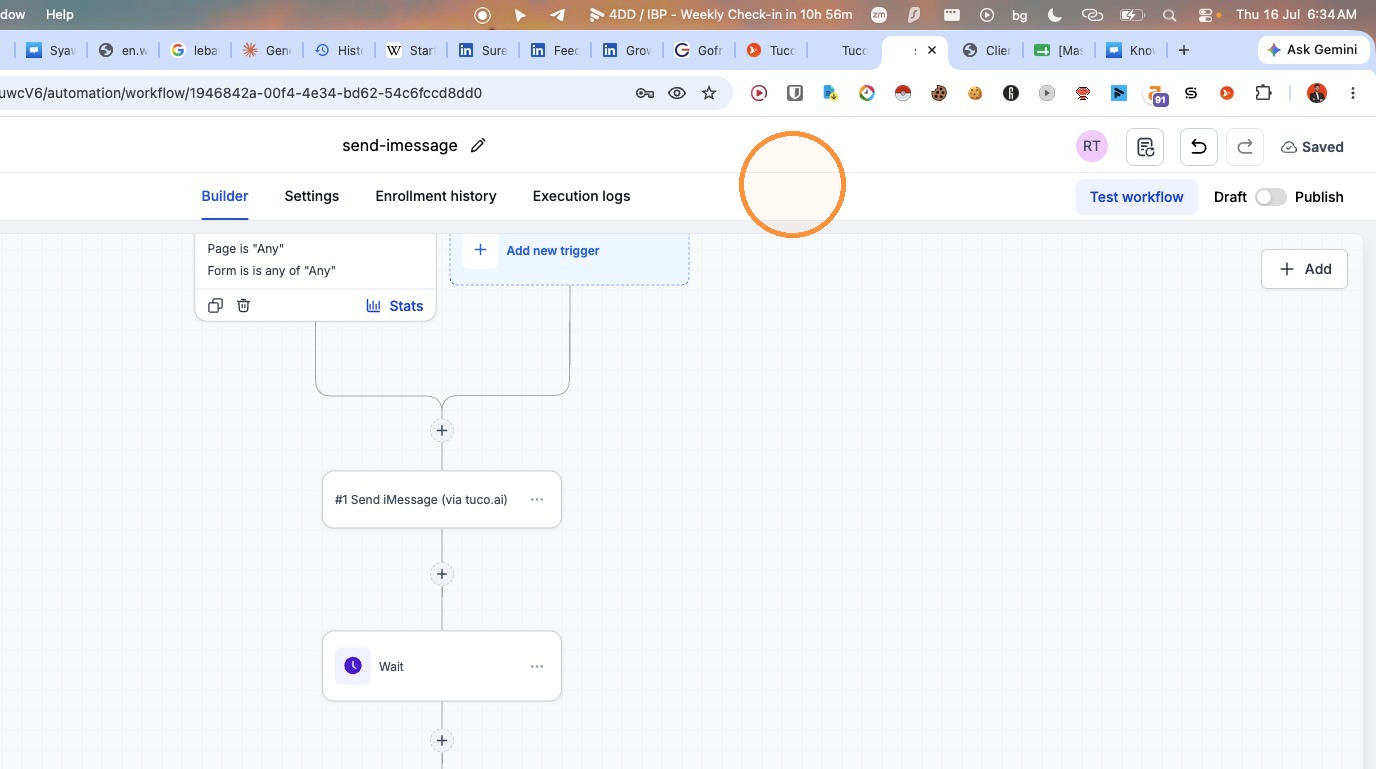
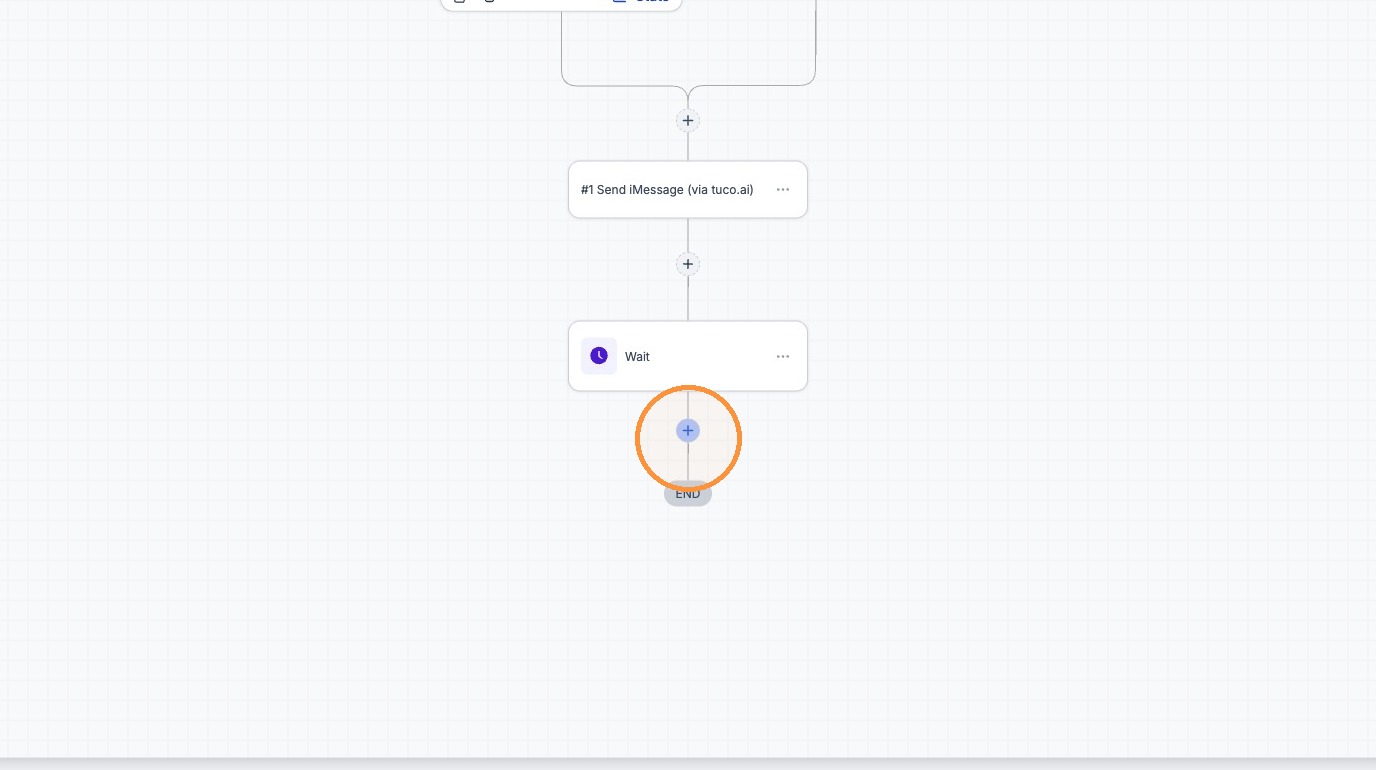
- Click the "+" icon below the "Wait" action.
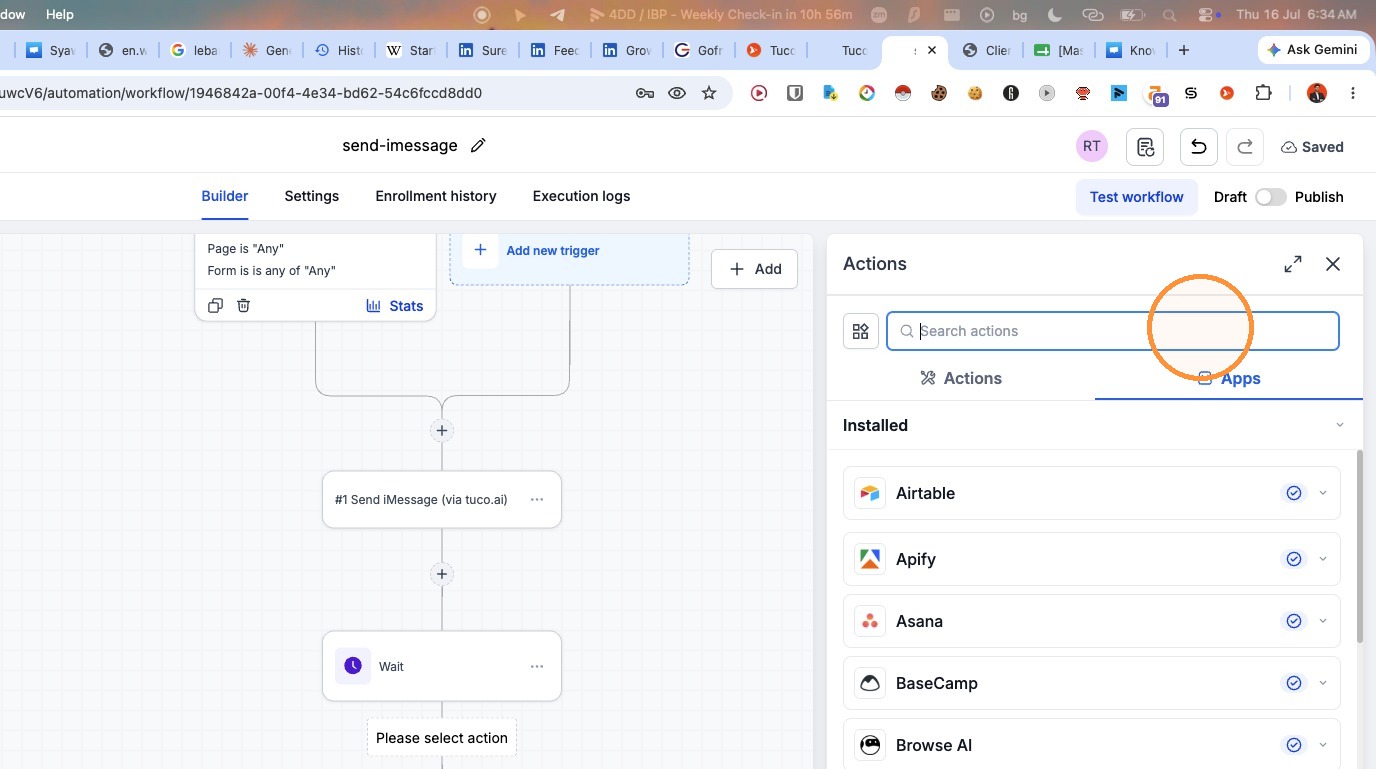
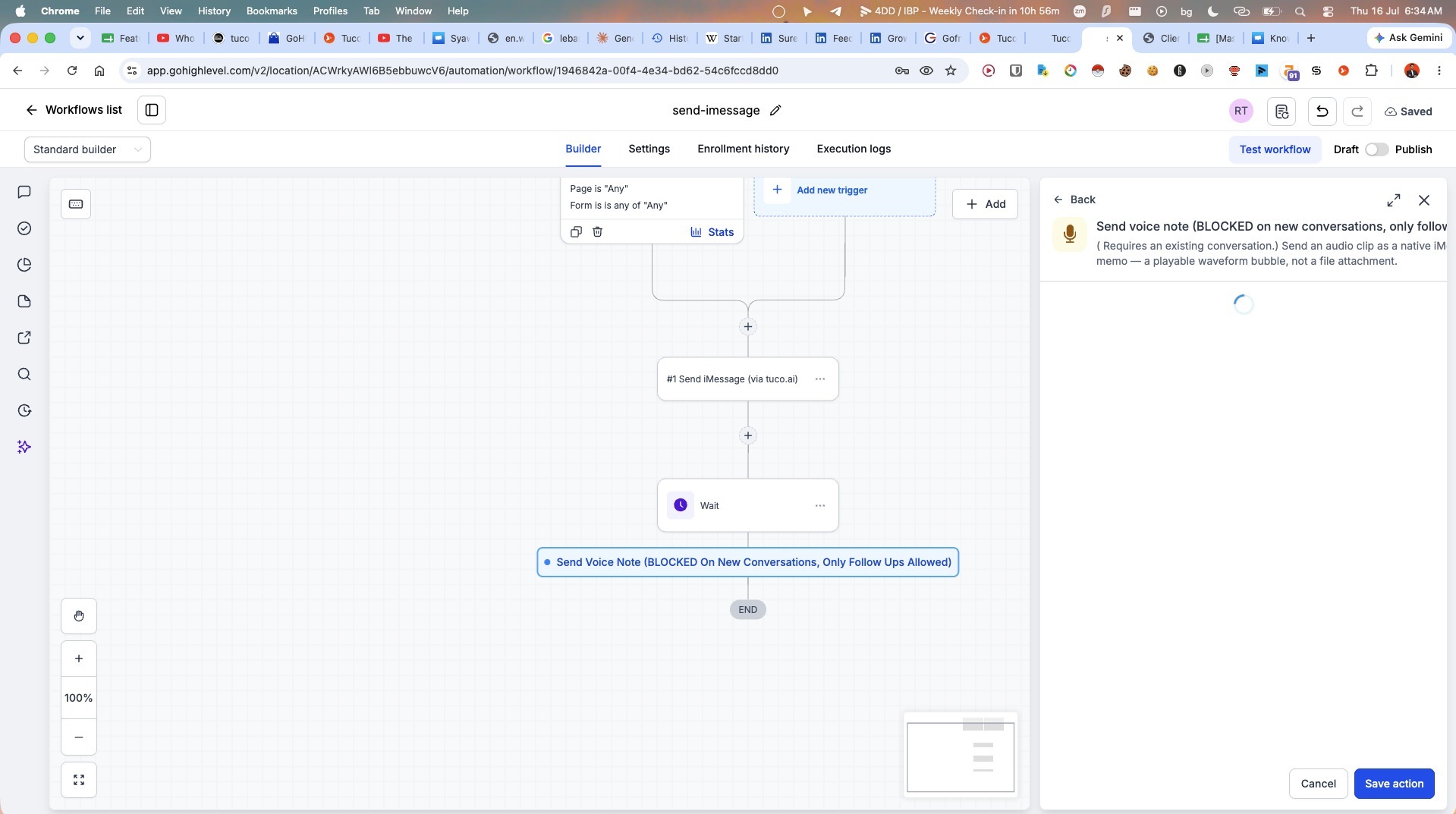
- Search for "tuco" and select the "Send voice note" action.
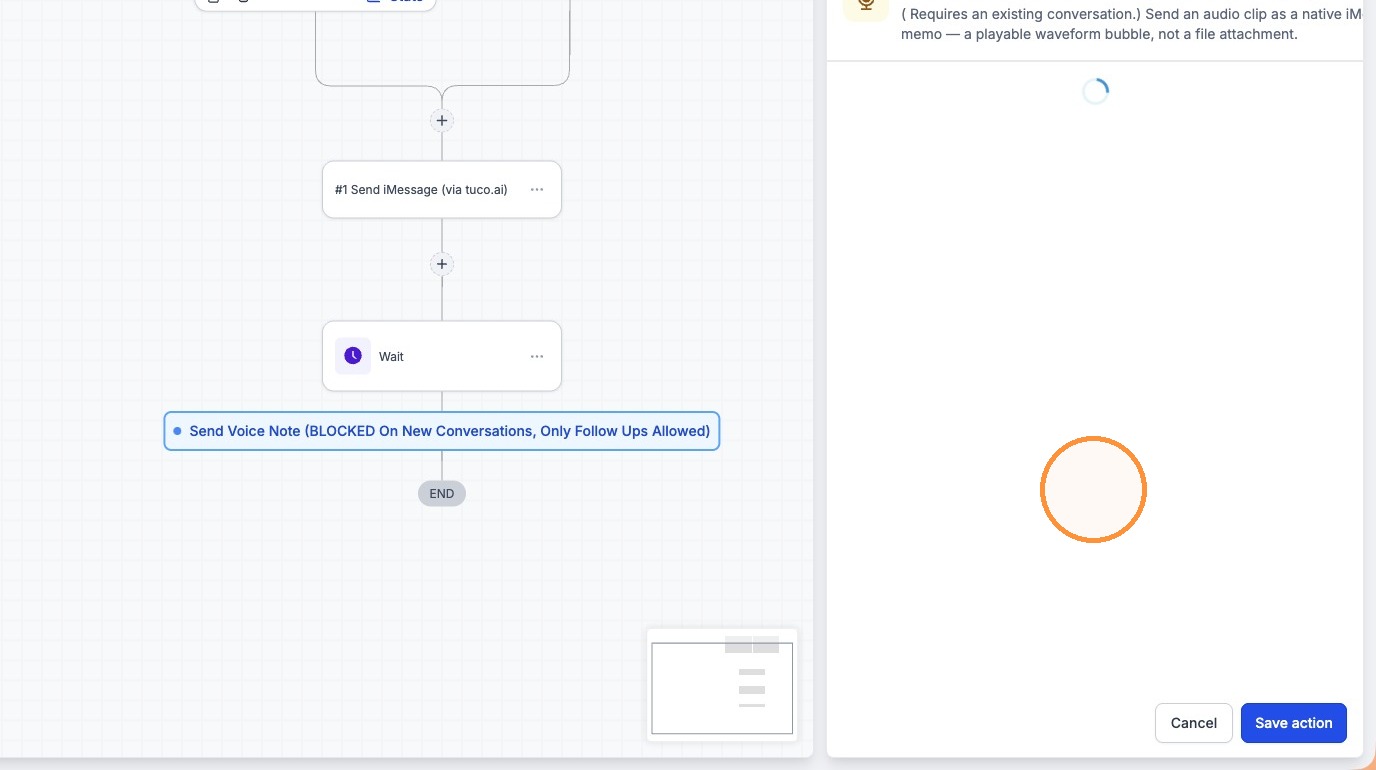
Asset Retrieval
- Open the Tuco AI Integrations dashboard.
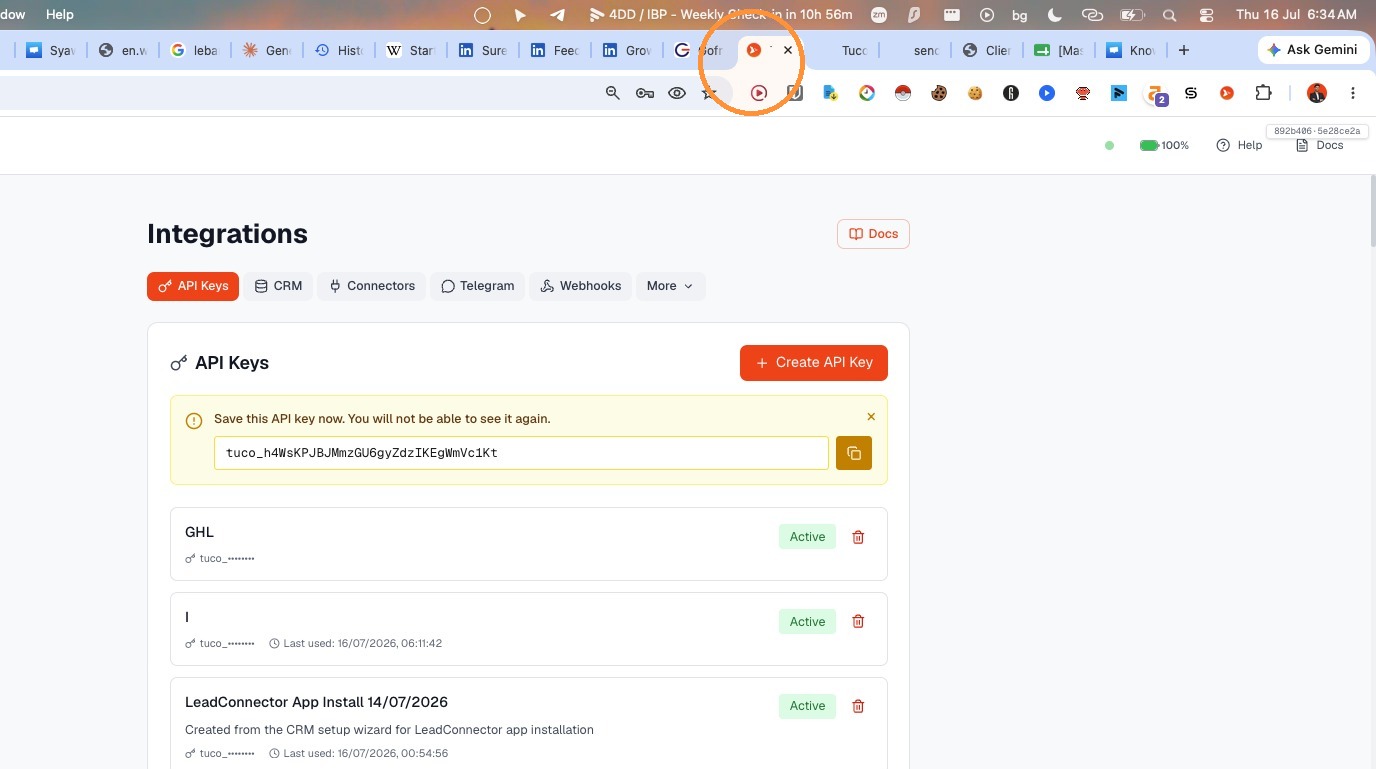
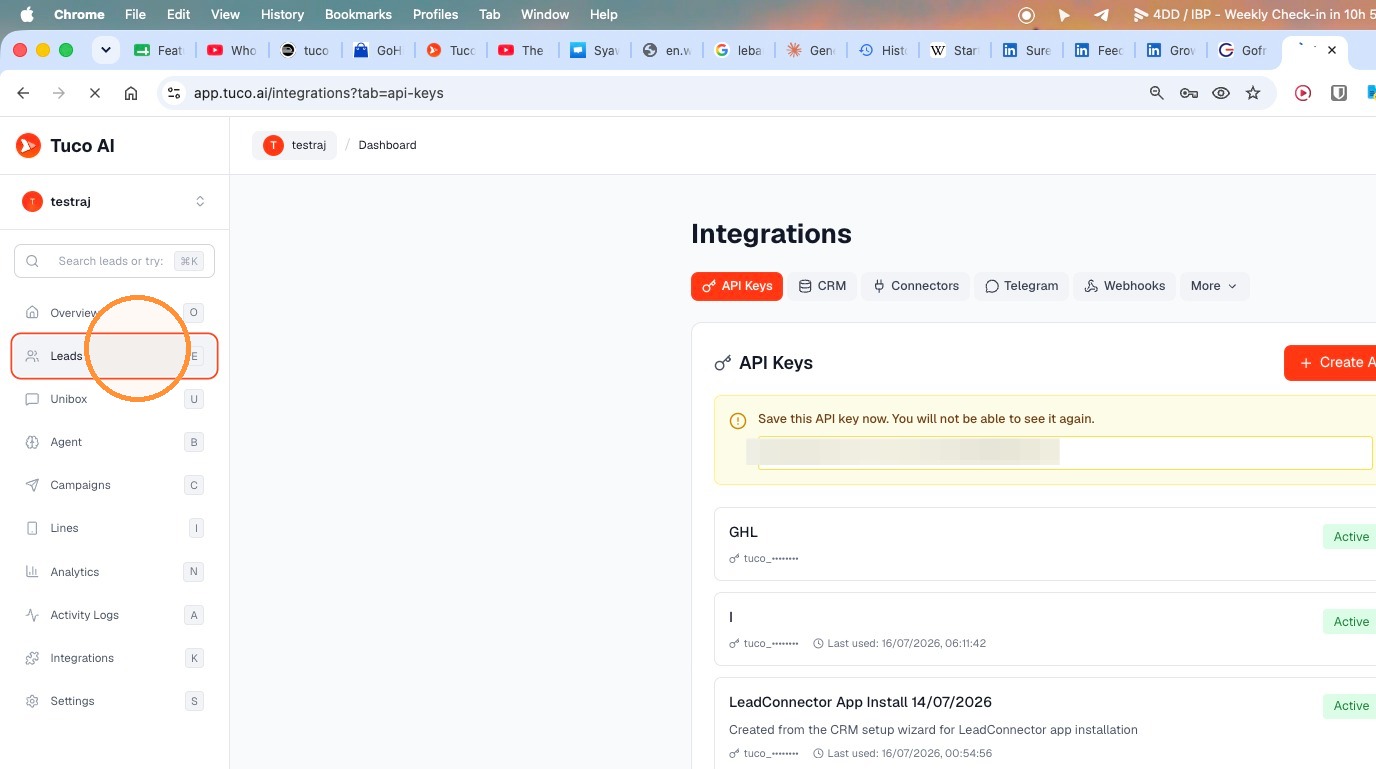
- Click "Leads"
- Click "Upload audio etc"
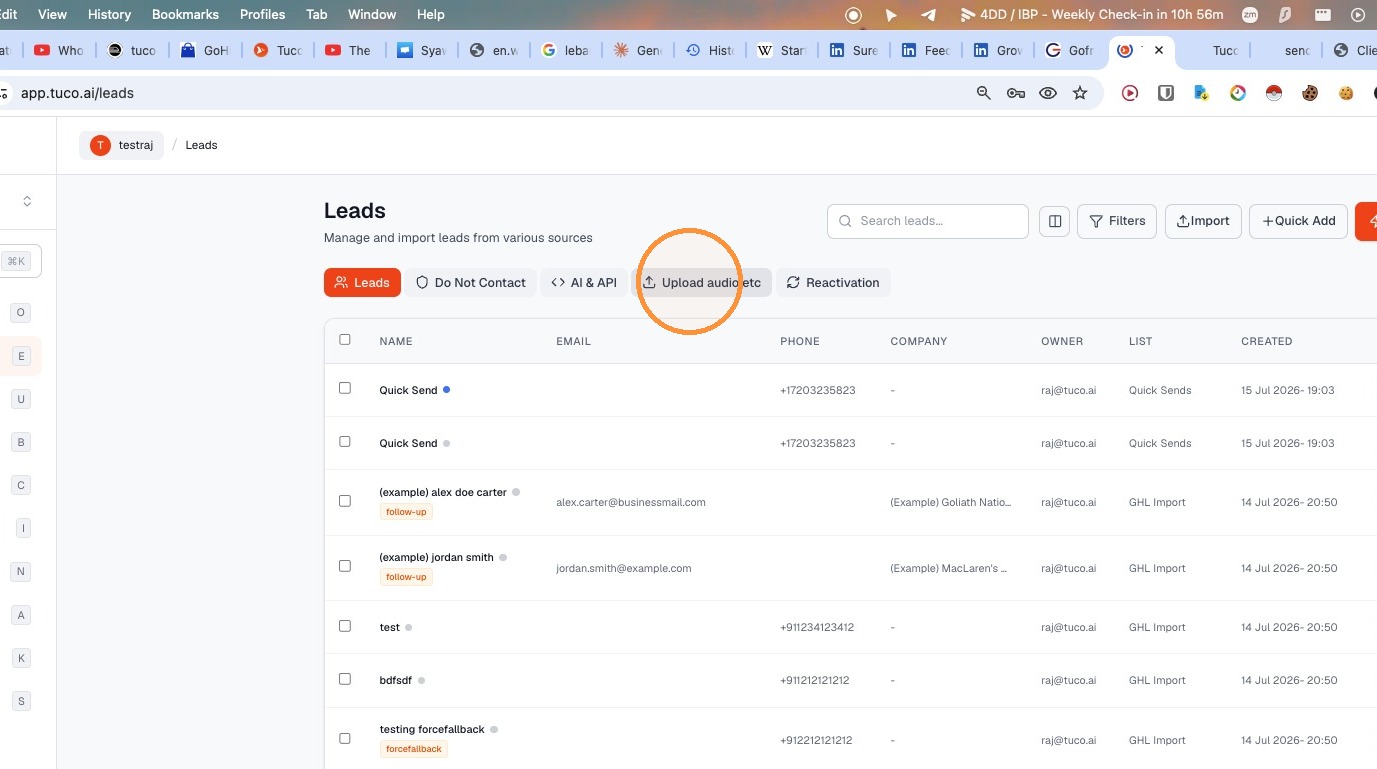
- Drag an audio
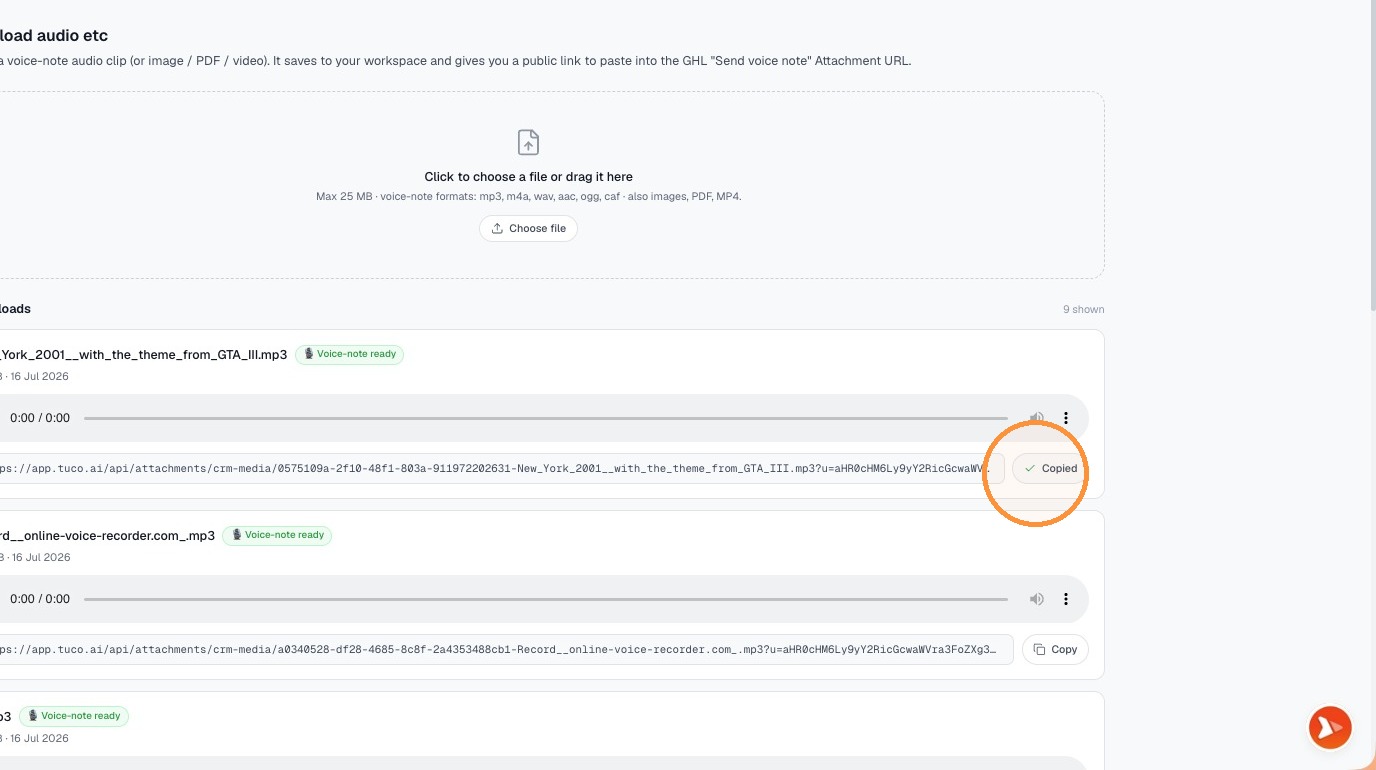
Field Configuration
- Navigate back to the Workflow Builder tab.
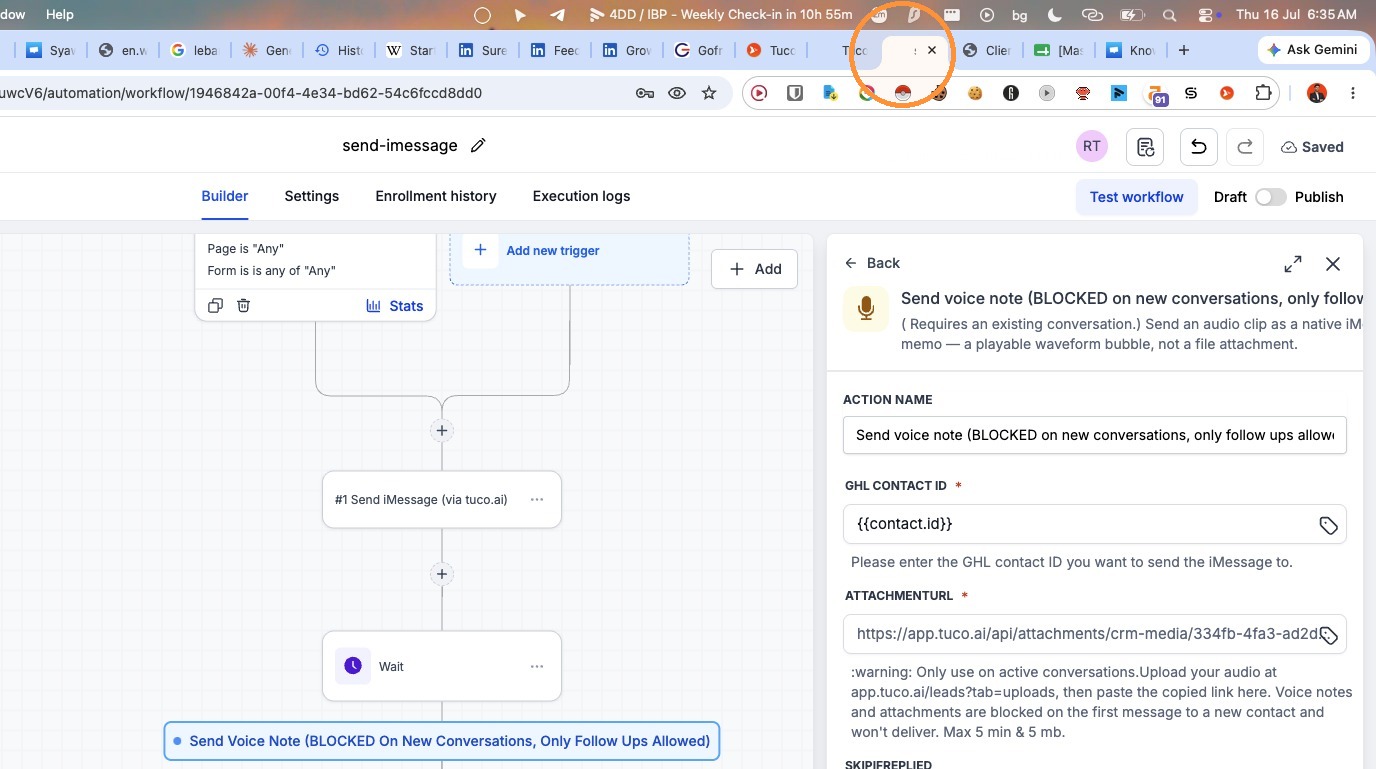
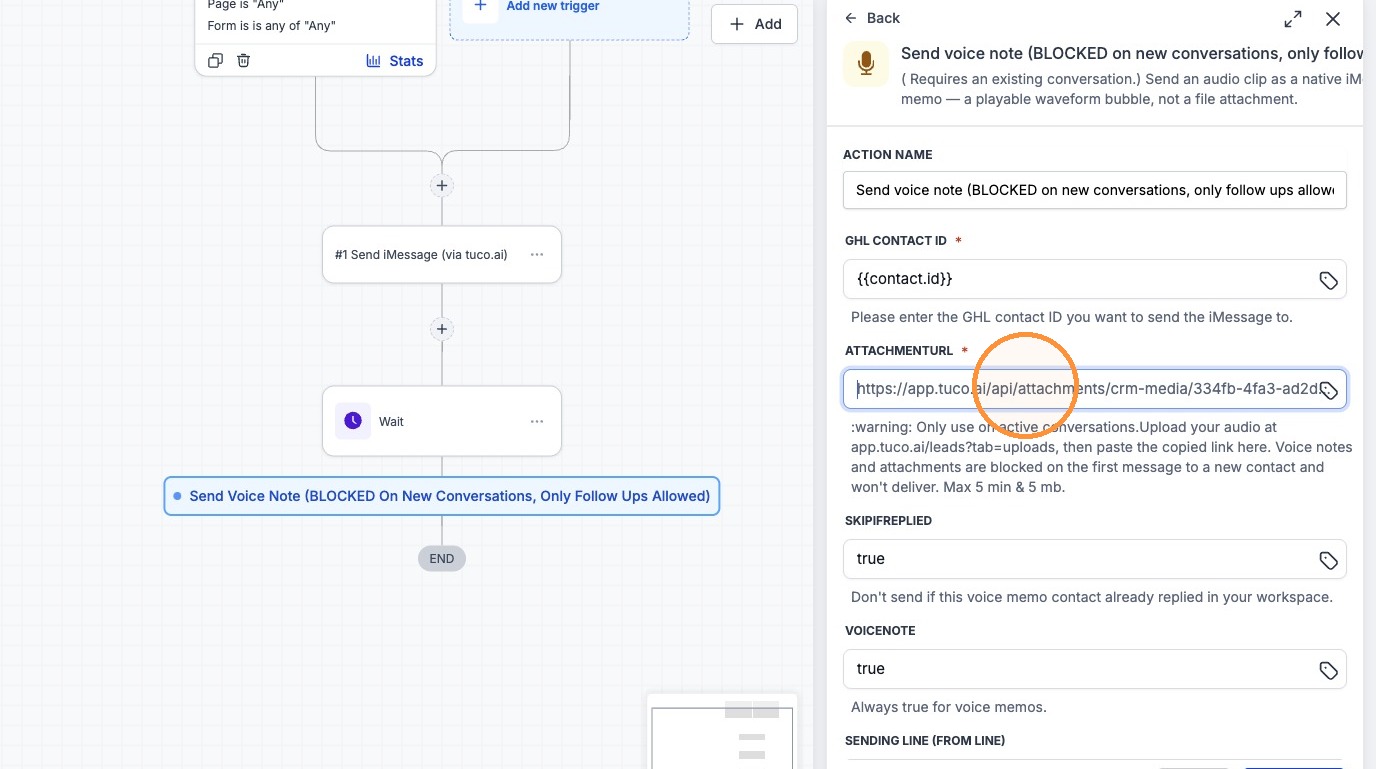
- Paste the copied attachment URL into the "ATTACHMENTURL" field.
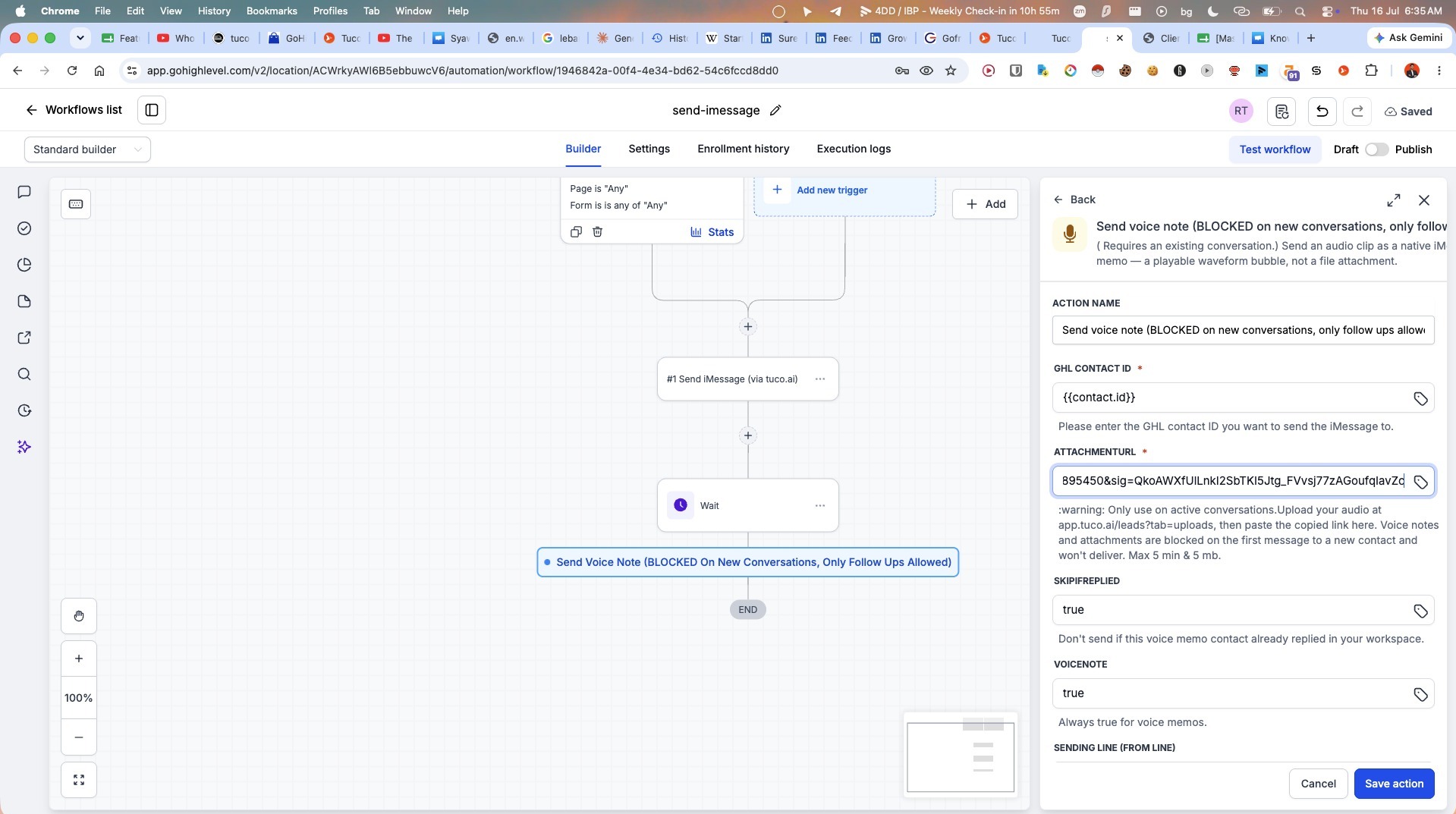
- Switch back to the Tuco AI browser tab.
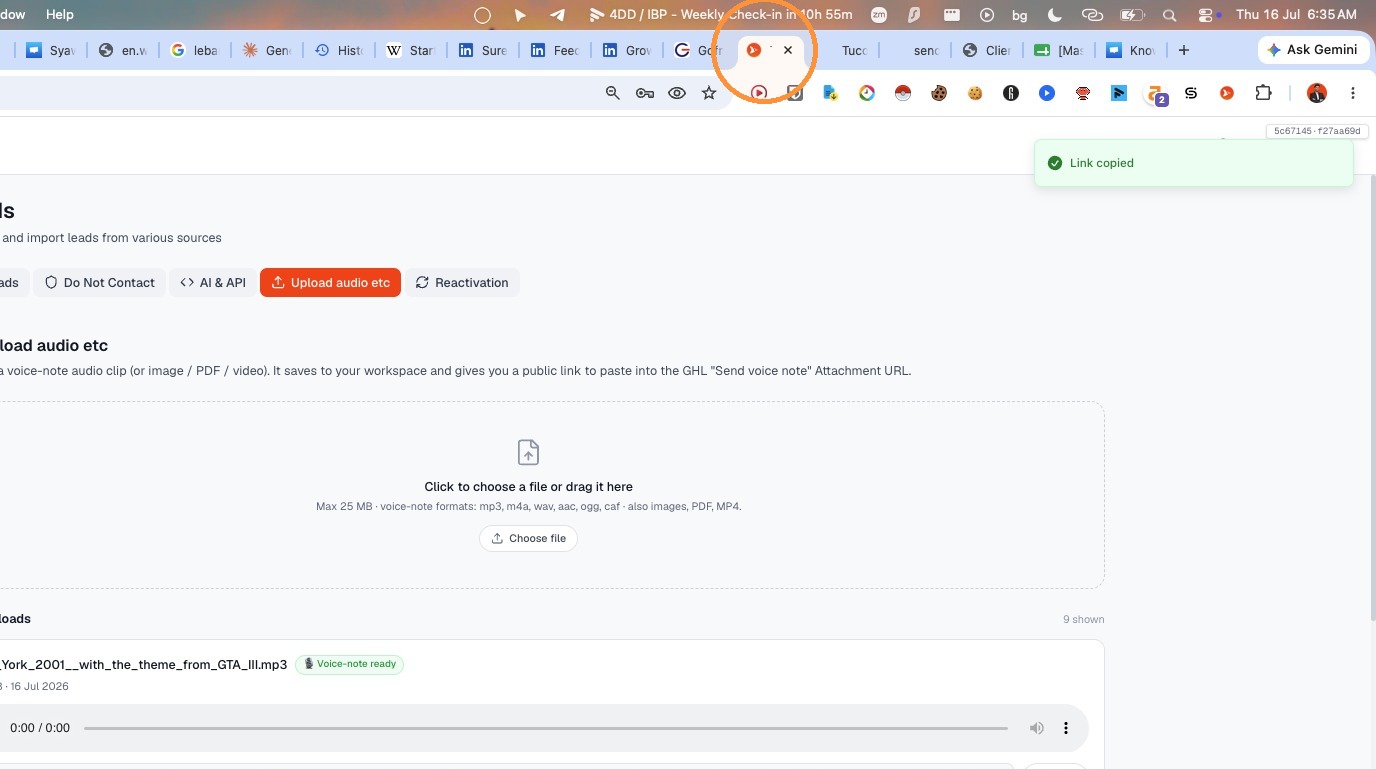
- Click "Lines"
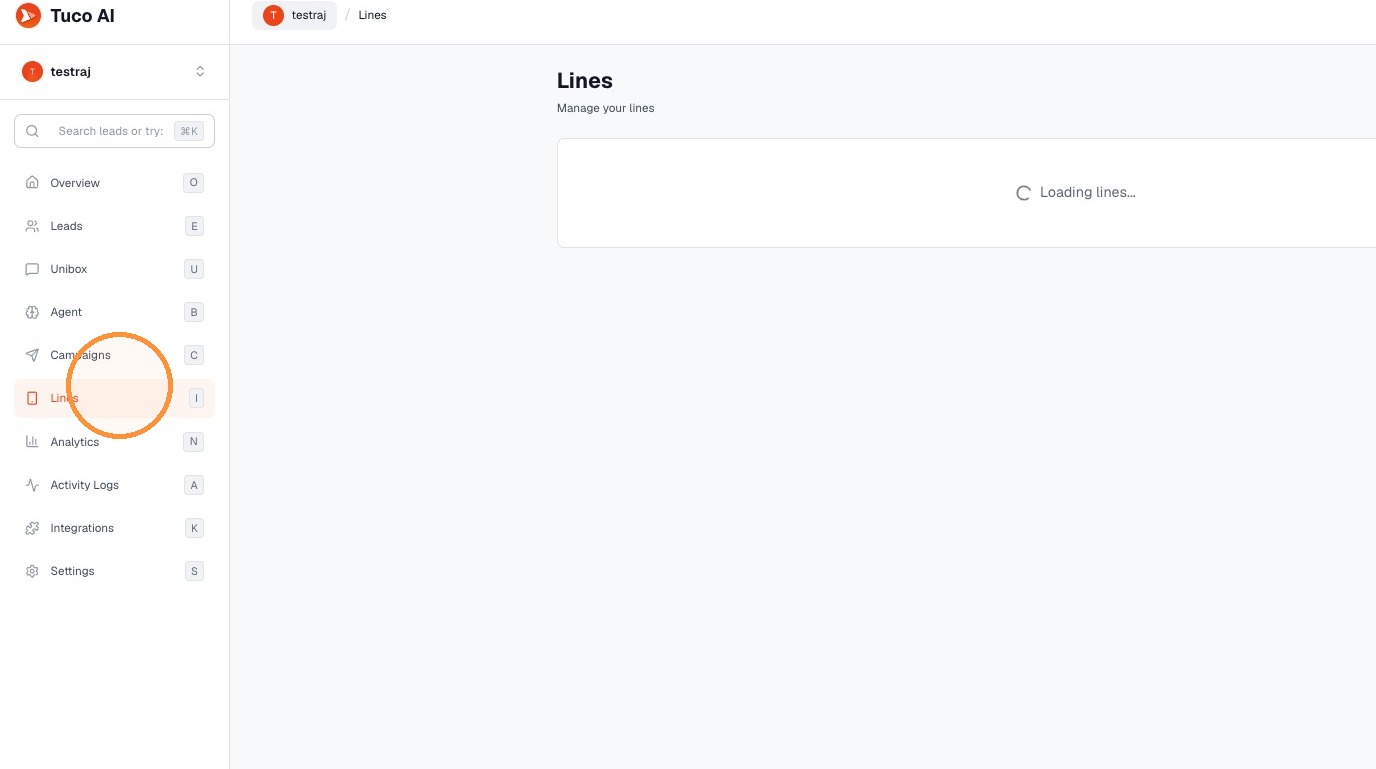
- Locate the specific line you wish to use.
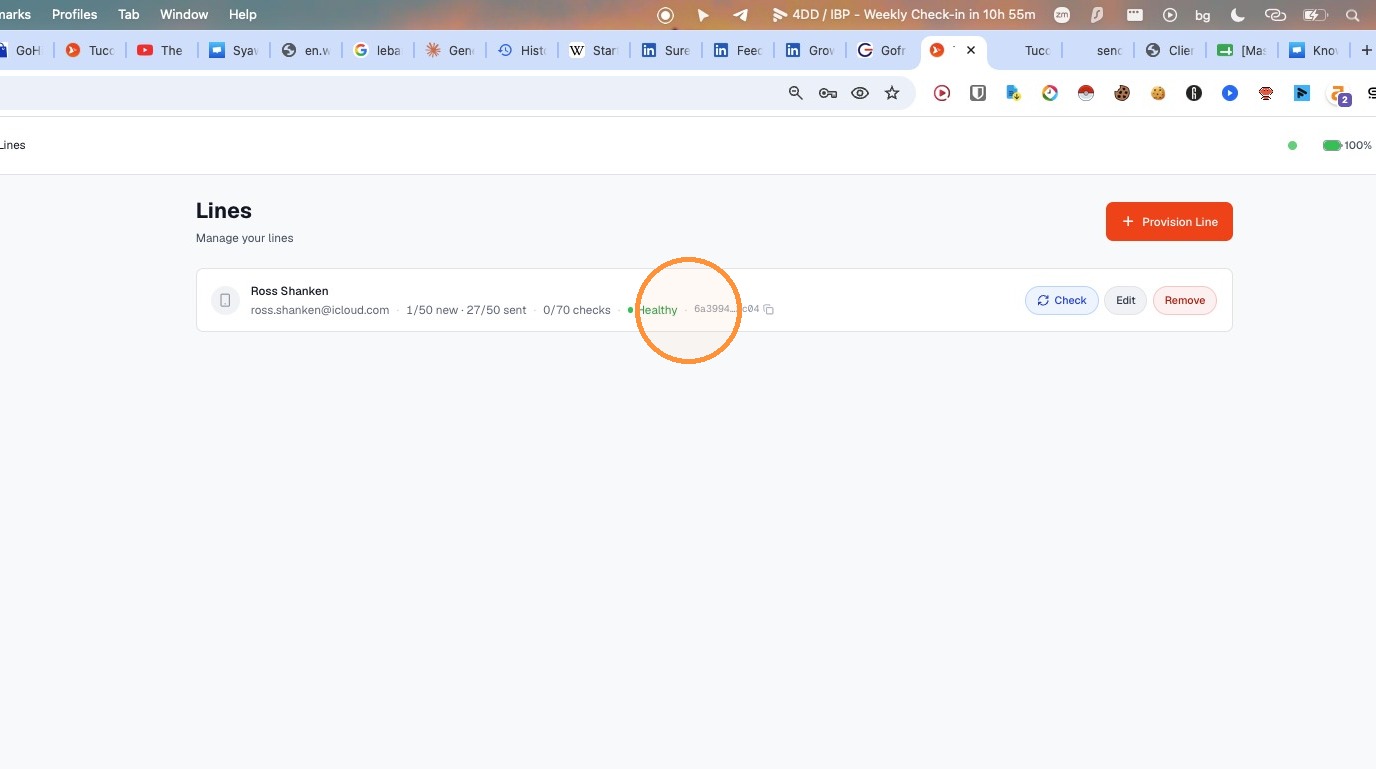
- Click "Copy Line ID"
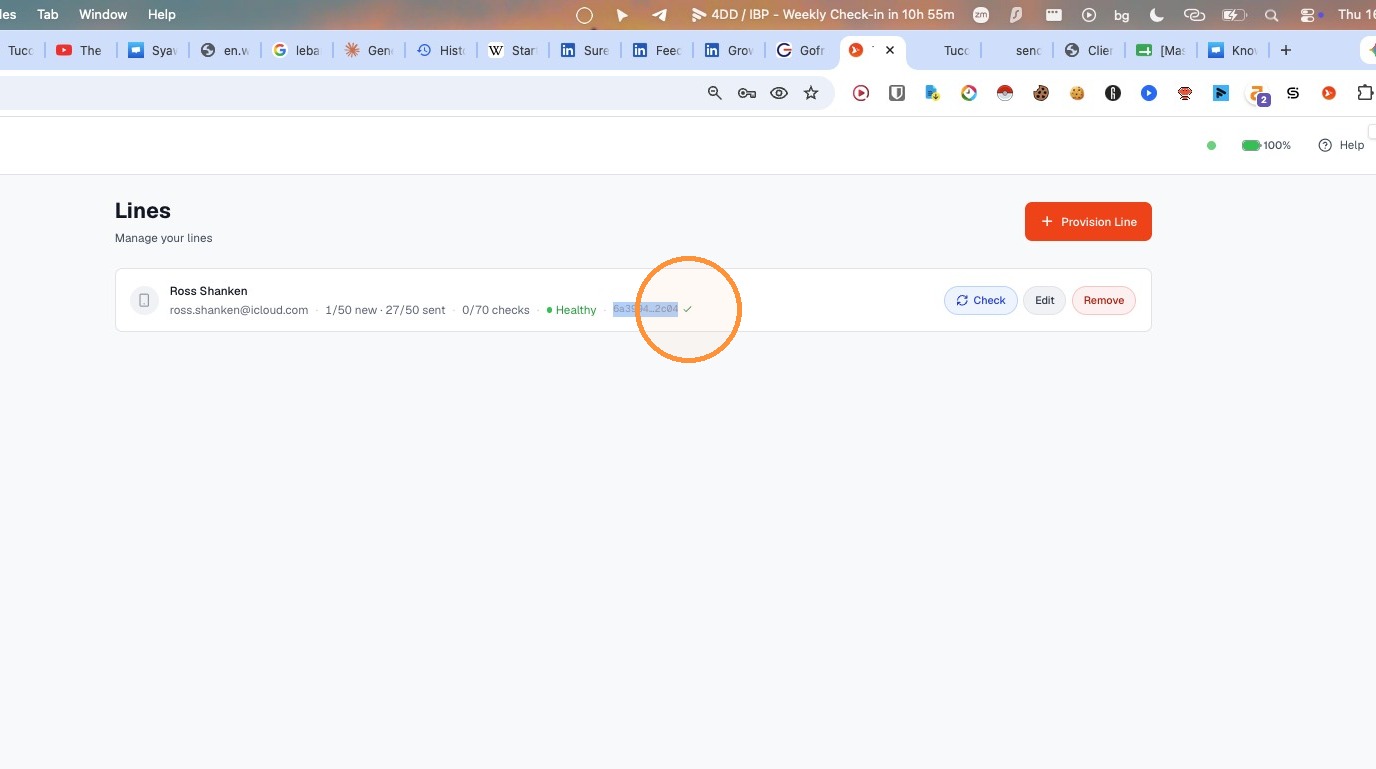
- Paste the copied Line ID into the "SENDING LINE" field.
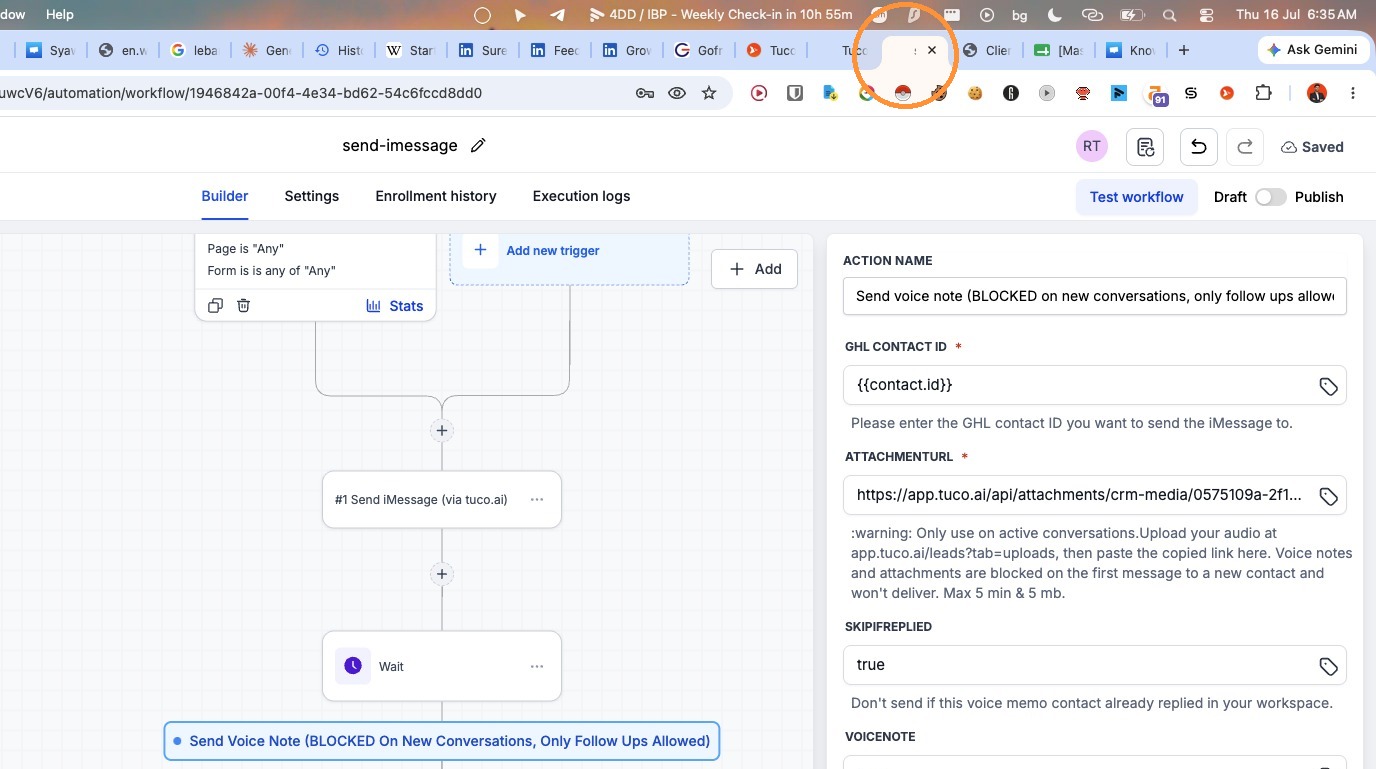
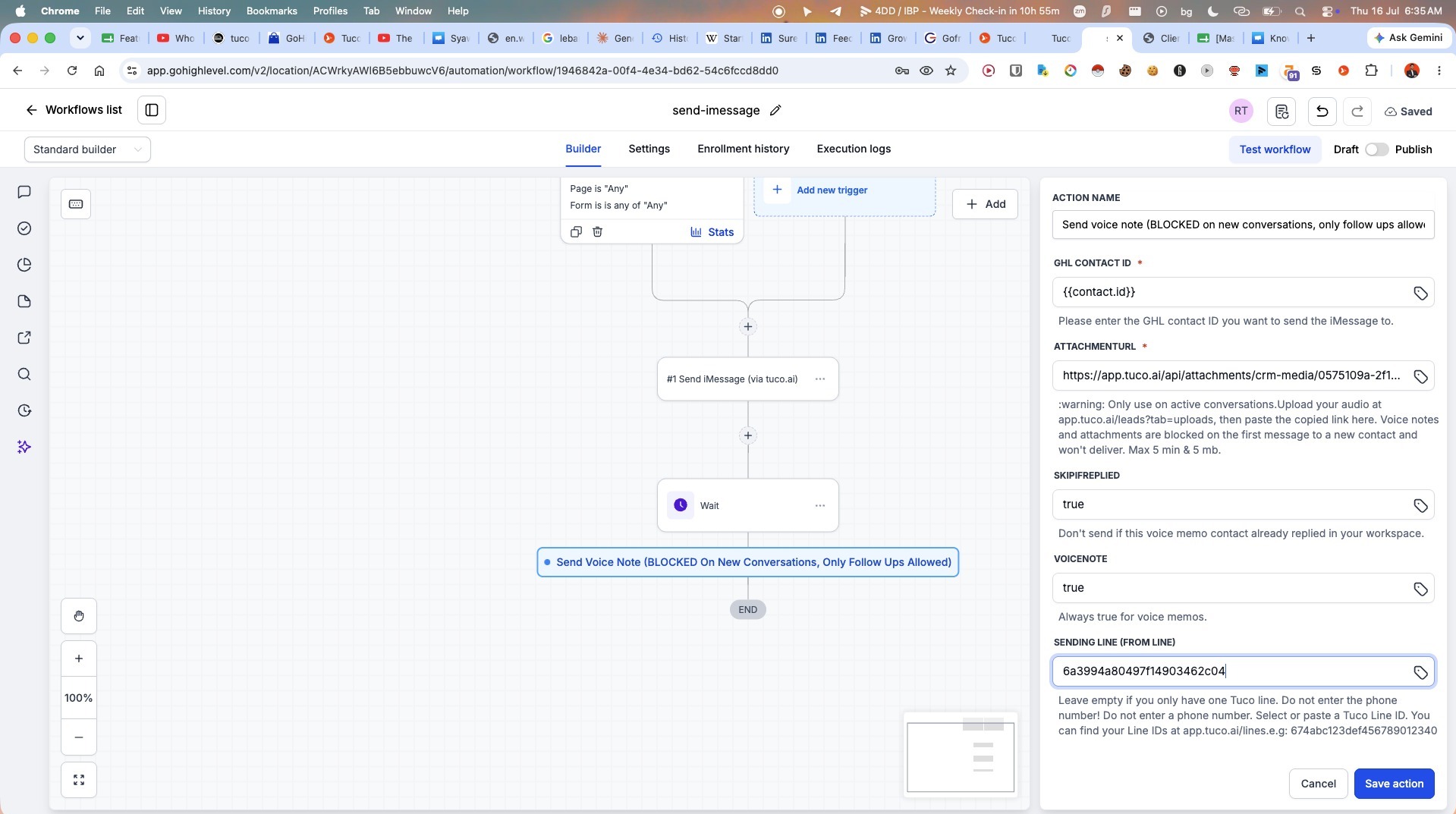
- Click "Save action" to update the workflow step.
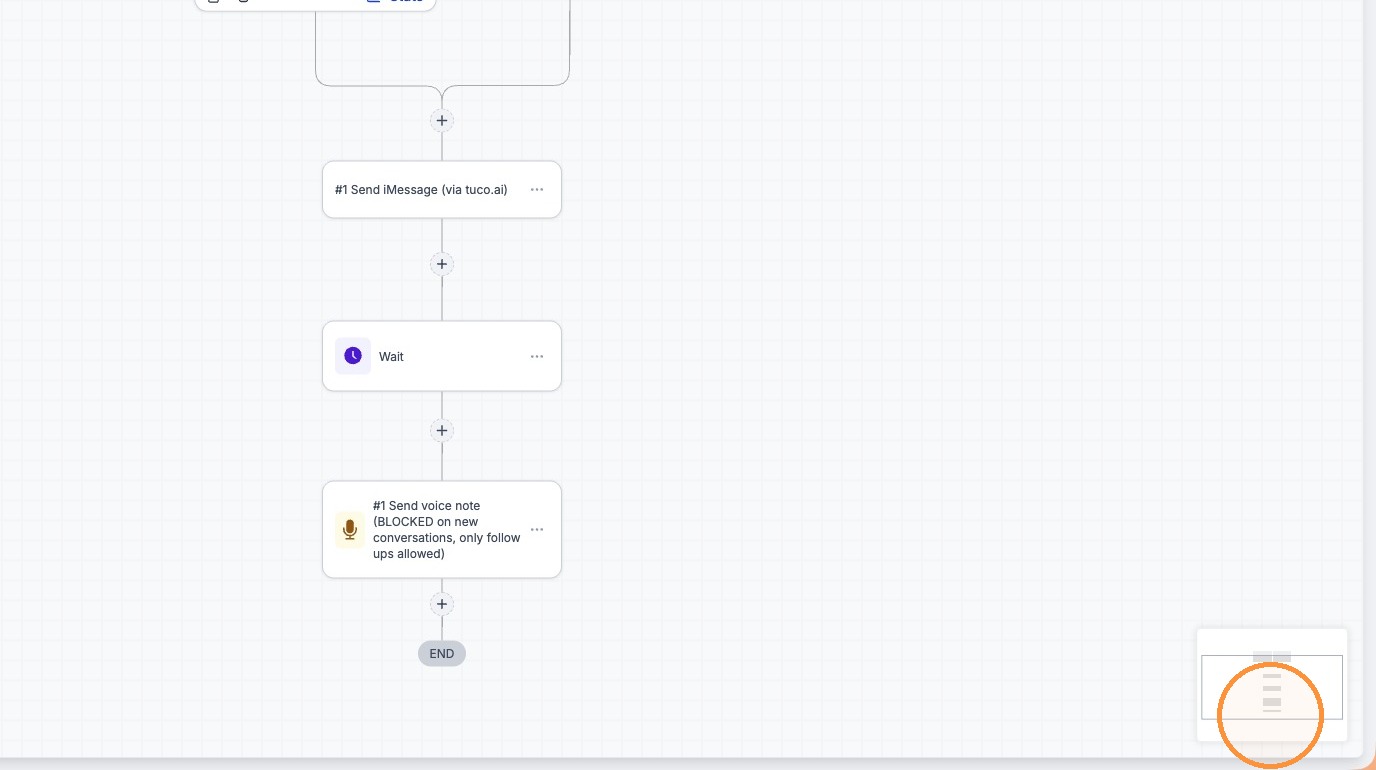
Workflow Testing
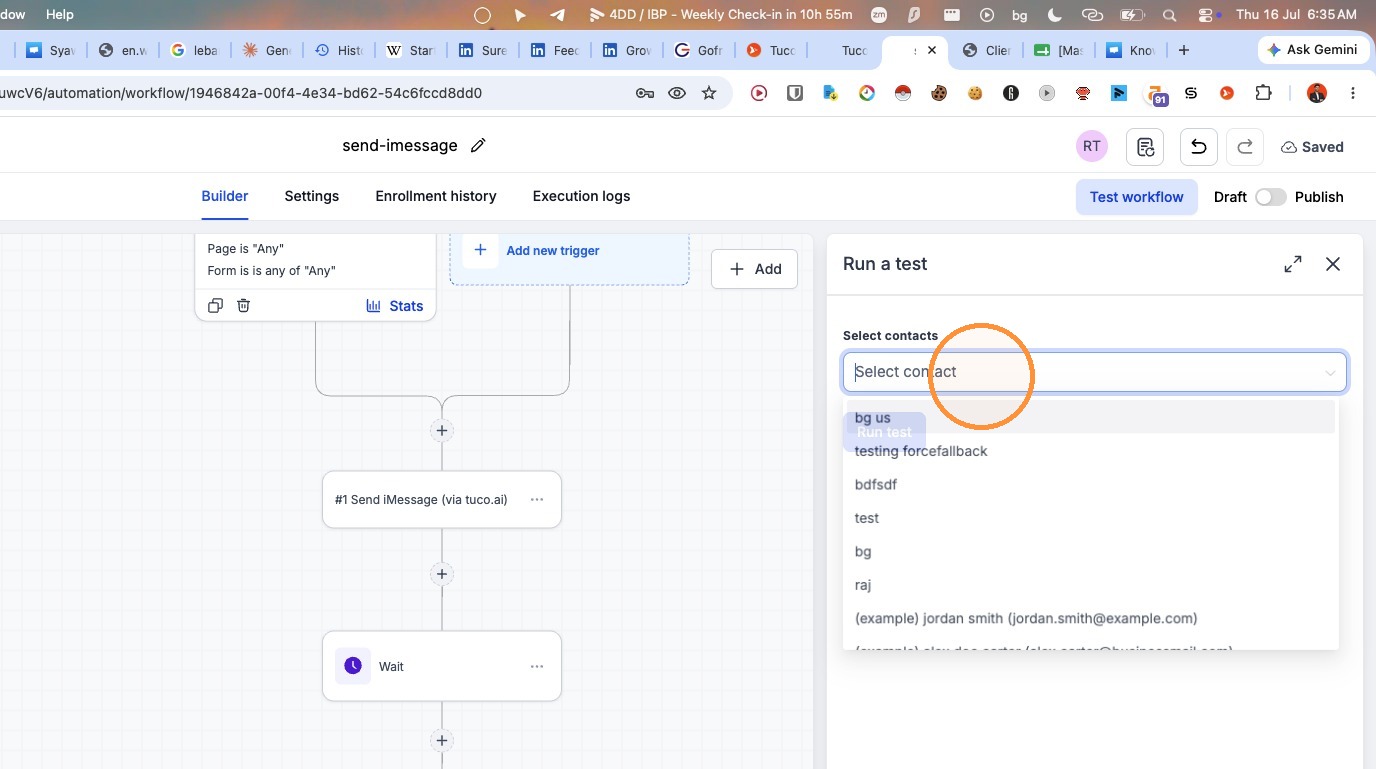
- Click "Test workflow"
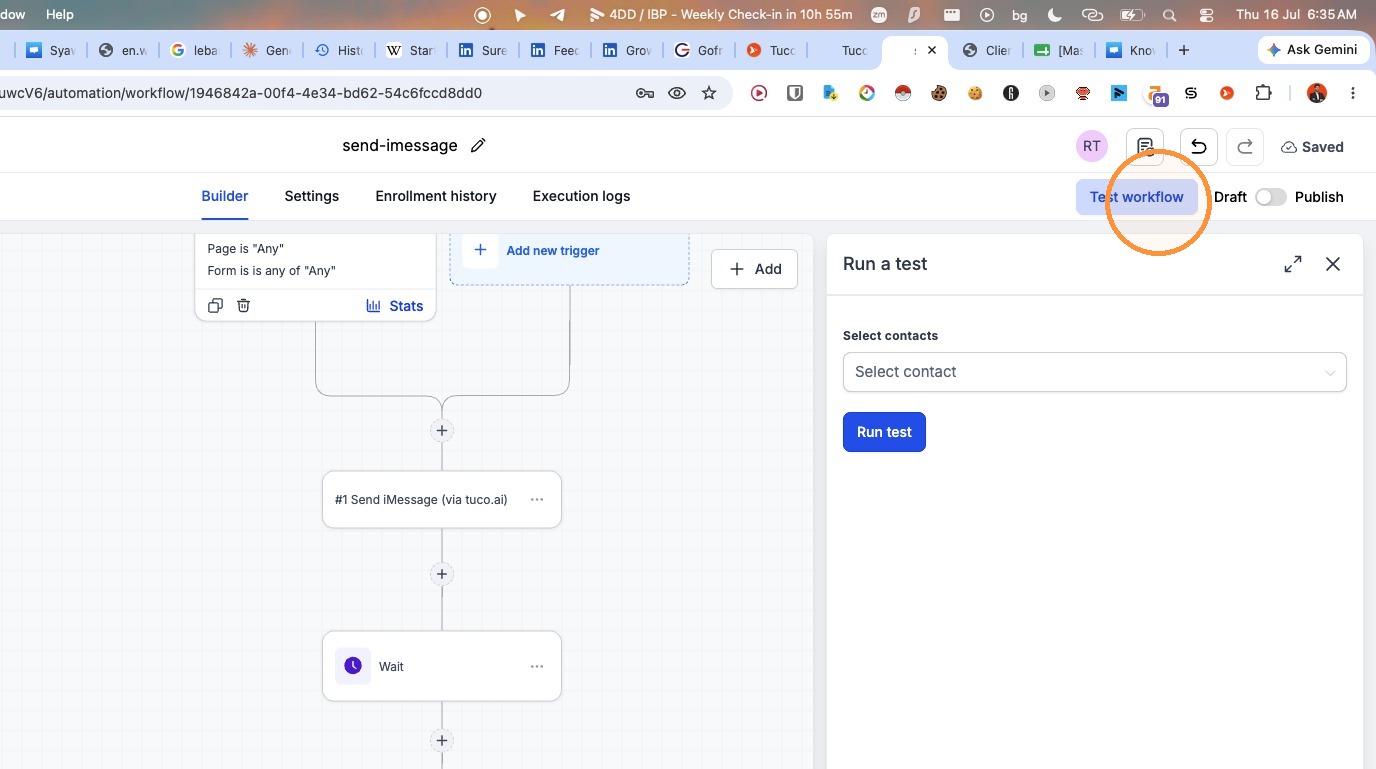
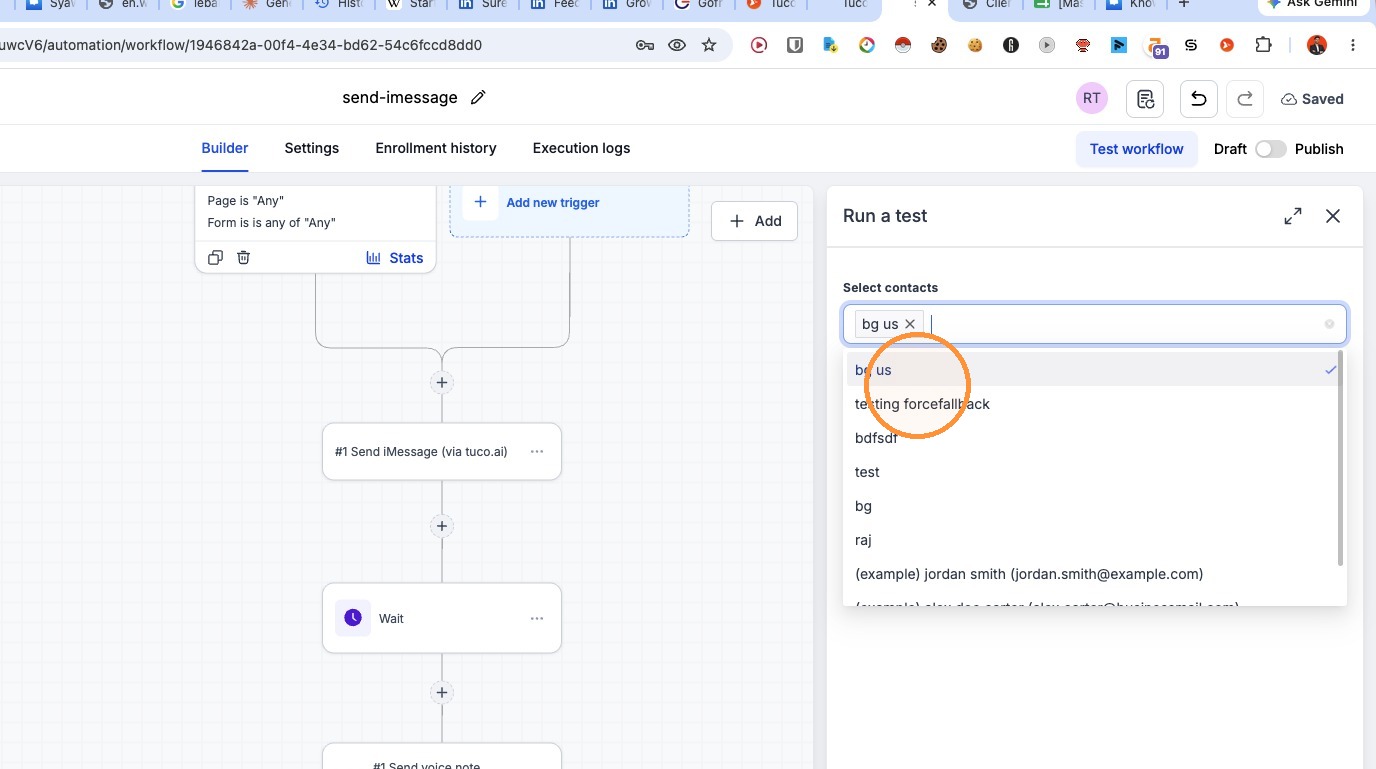
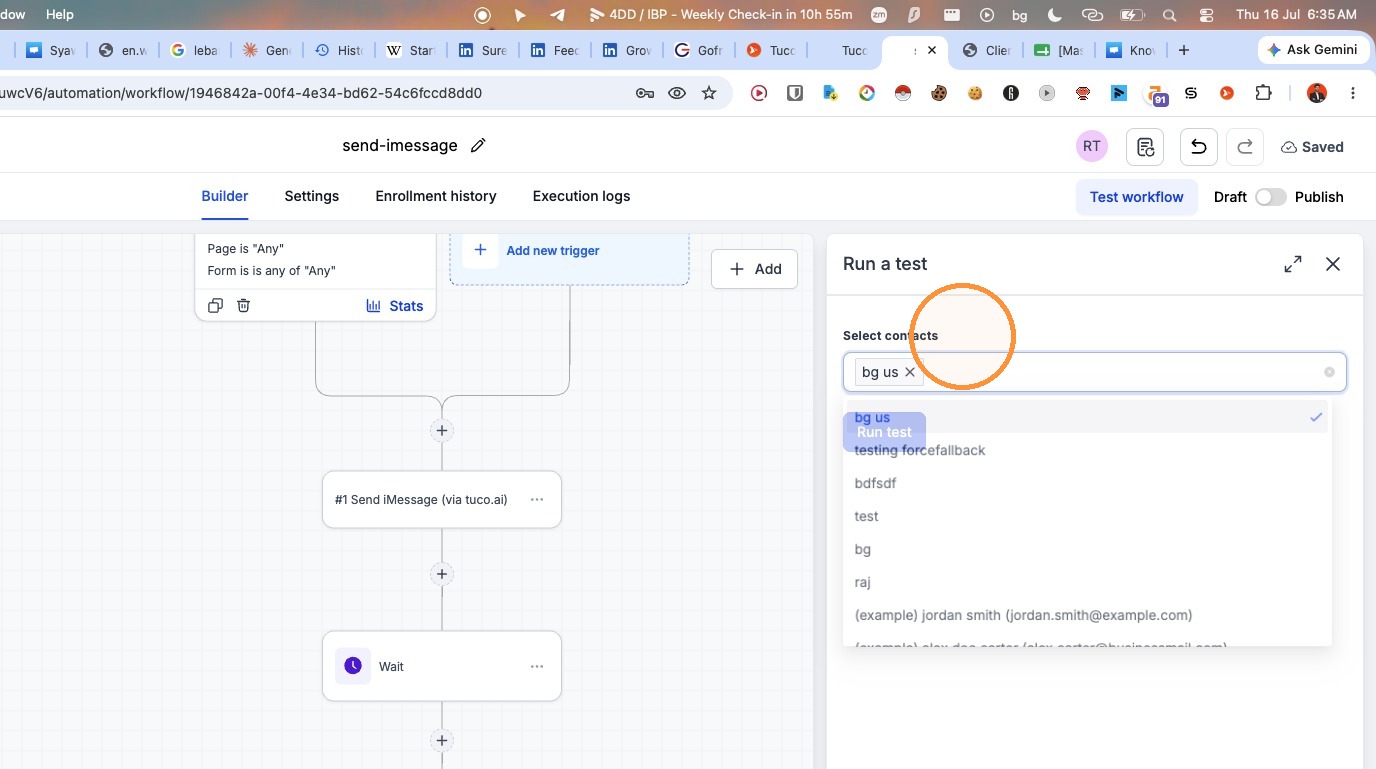
- Select a contact from the list and click "Run test".
Made by Tuco Support with Scribe
Learn how to efficiently upload your audio leads into the Tuco platform for processing. This guide walks you through the step-by-step workflow for importing data and performing a test run to ensure your system is configured correctly.
Updated on: 16/07/2026
Thank you!