How to follow up with leads using Tuco AI inside of Go High Level and skip follow ups to leads who responded (Campaigns / Templates)
How to follow up with leads using Tuco AI in Go High Level (and skip followups to leads who responded)
Made by Tuco Support with Scribe
Learn how to efficiently set up, customize, and test automated actions within your workflow. This guide walks you through navigating app menus, configuring wait periods, and verifying your workflow logic to ensure smooth execution.
Initial Message Configuration
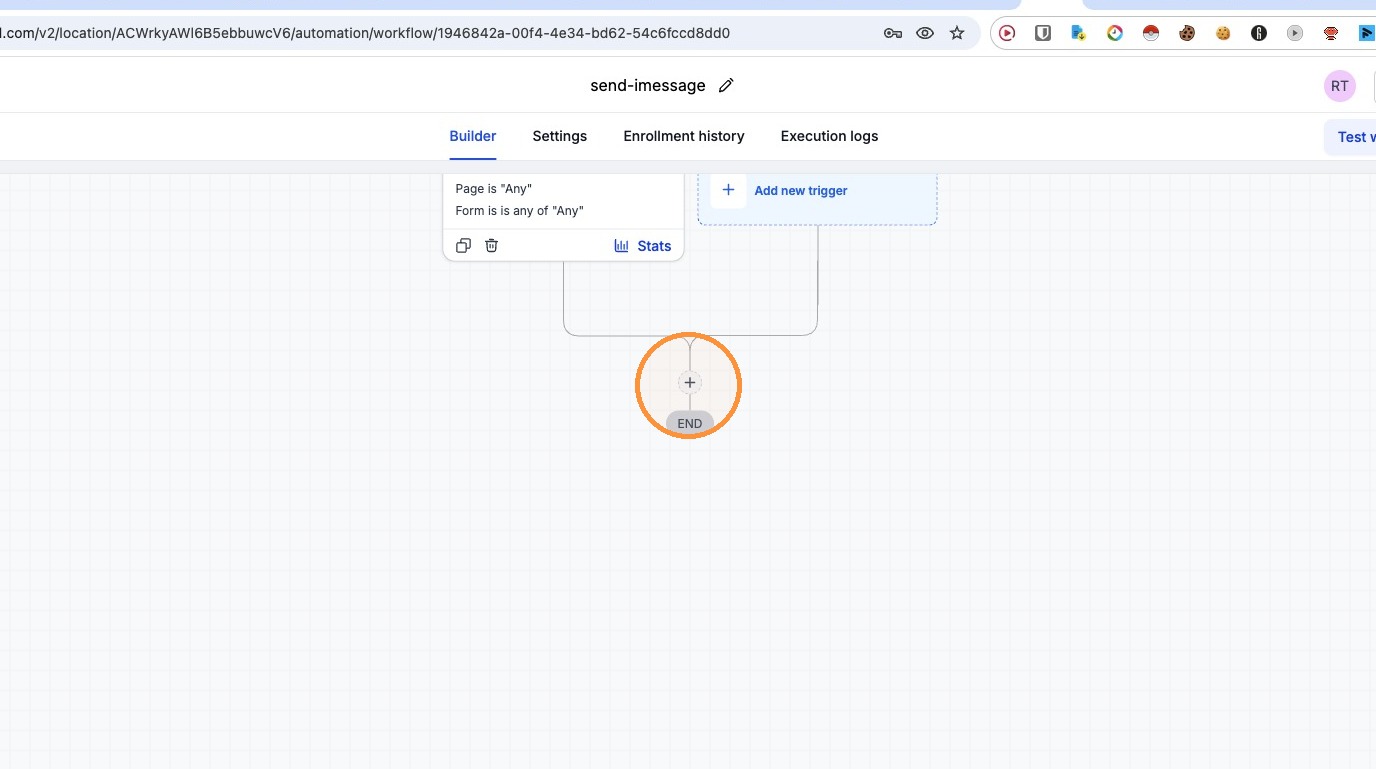
- Click the plus (+) icon to add a new action.
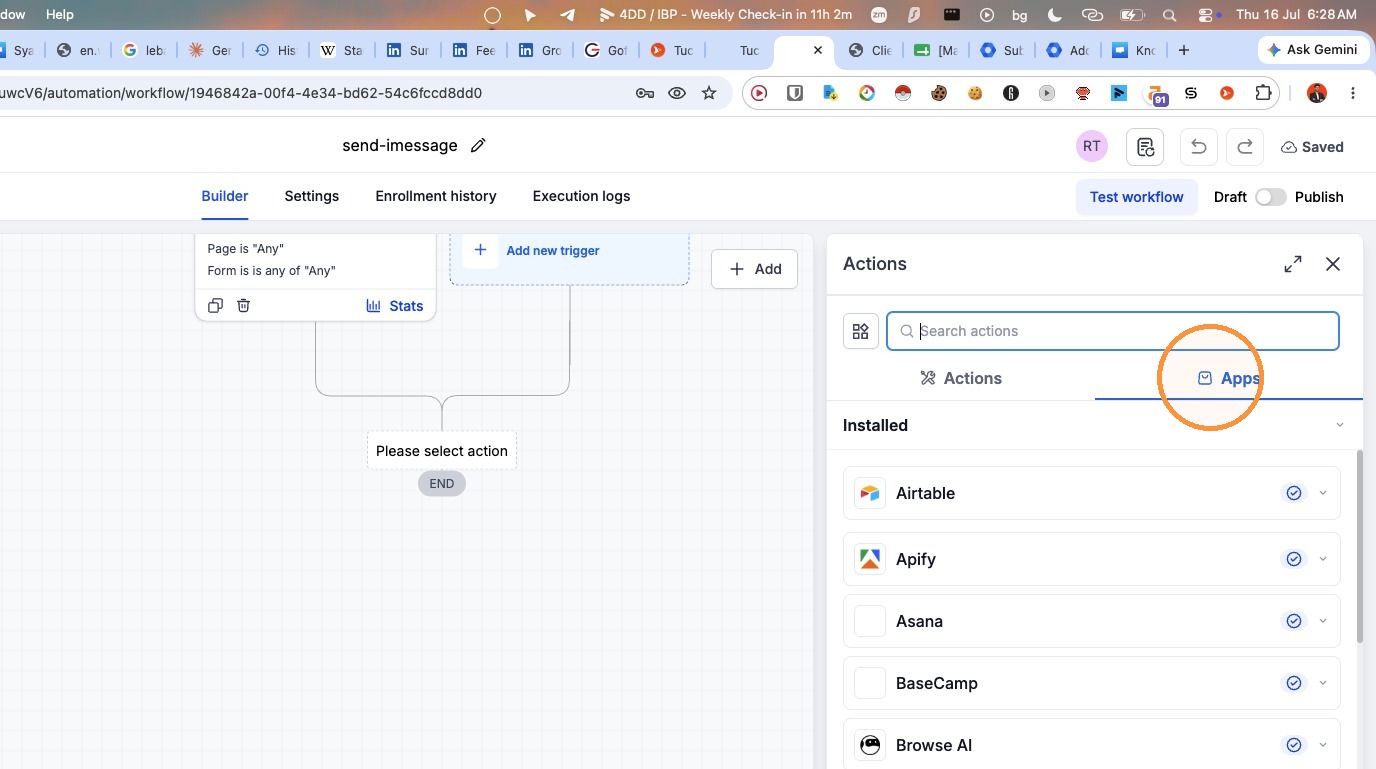
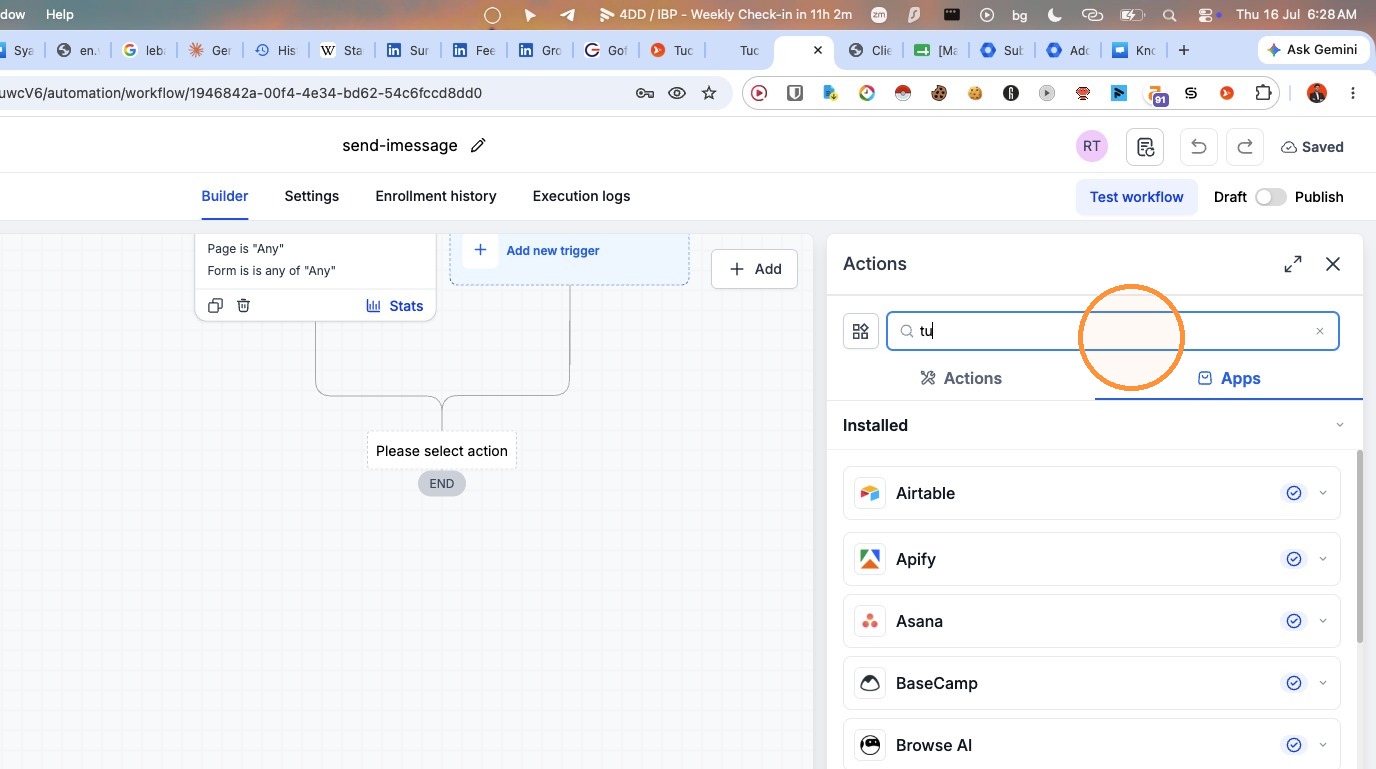
- Search for "tuco" in the Apps tab.
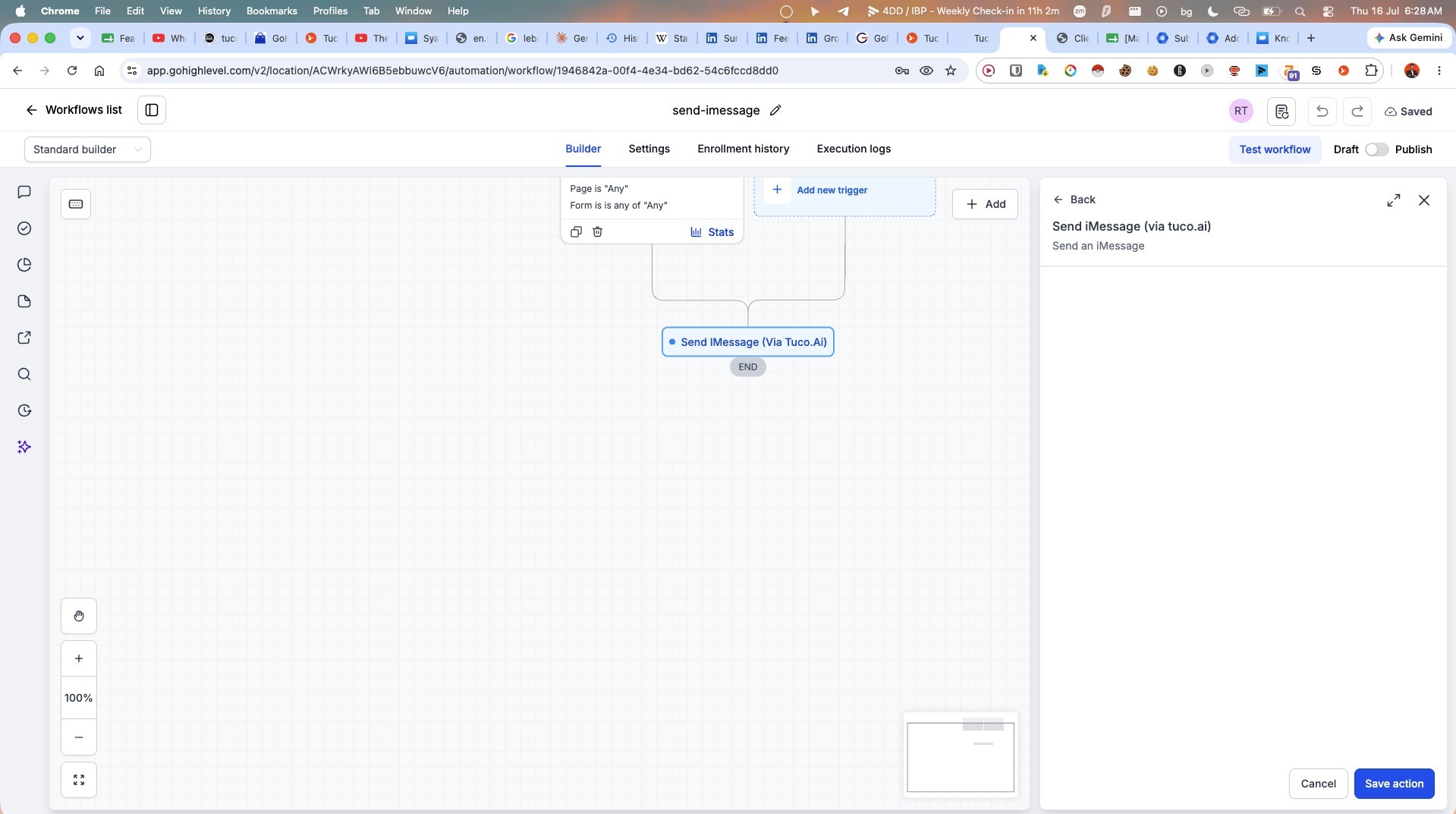
- Select "Send iMessage (via tuco.ai)" from the app list.
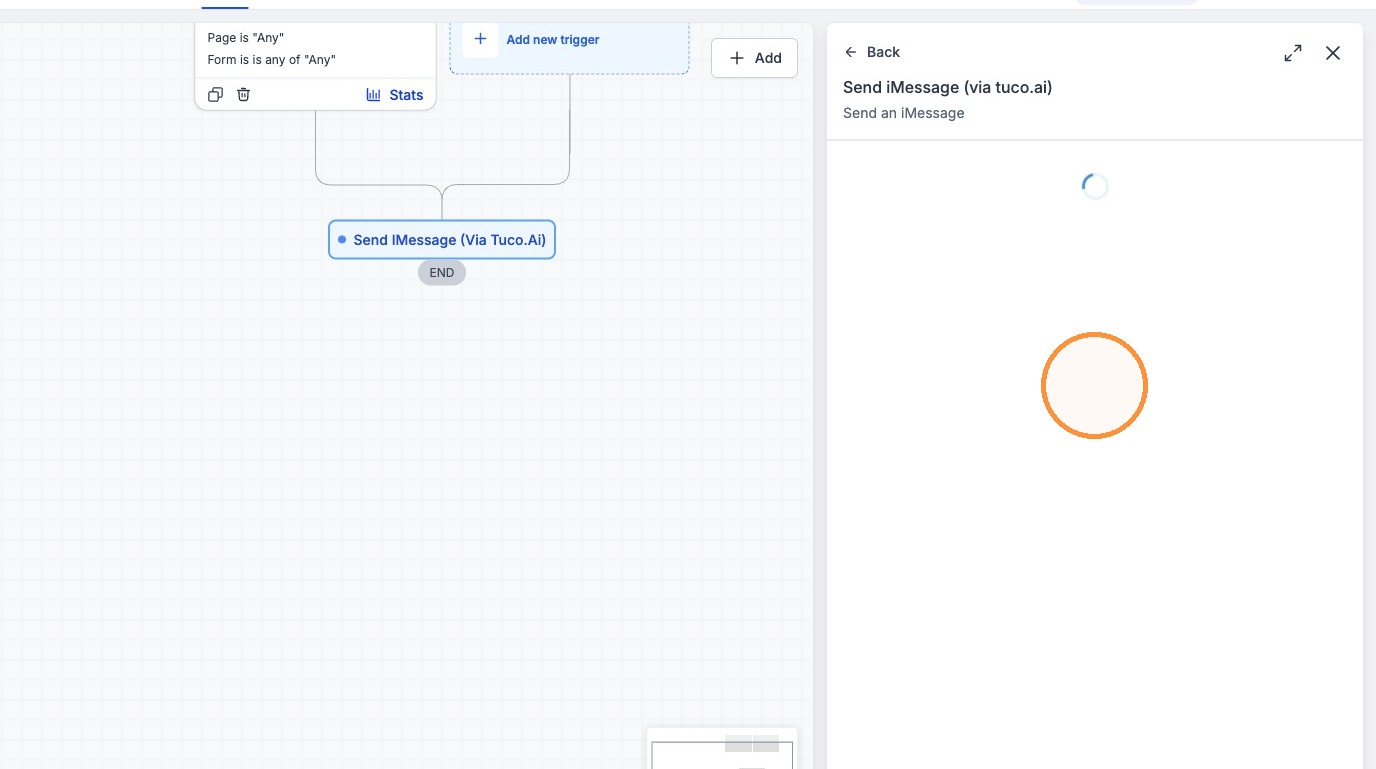
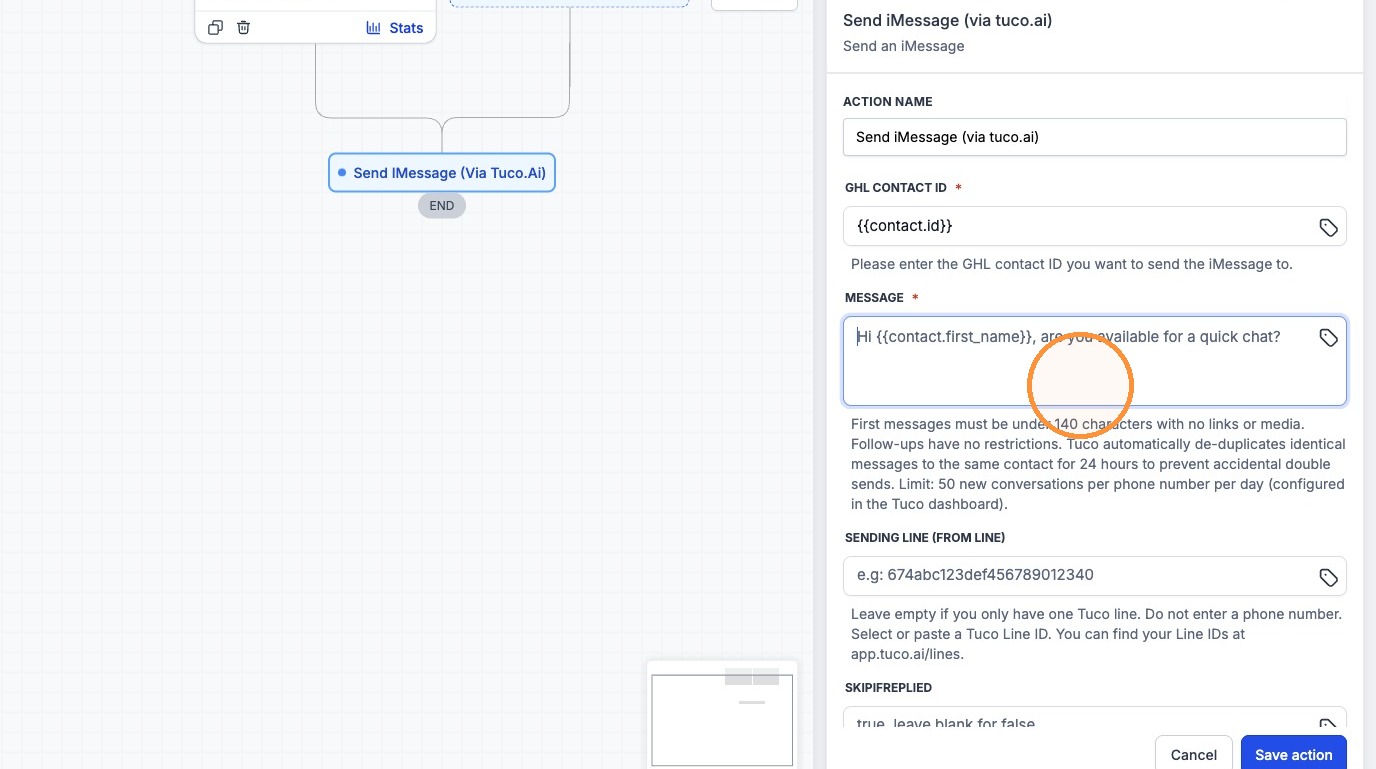
- Type "Hey!" into the Message field.
Delay Action Setup
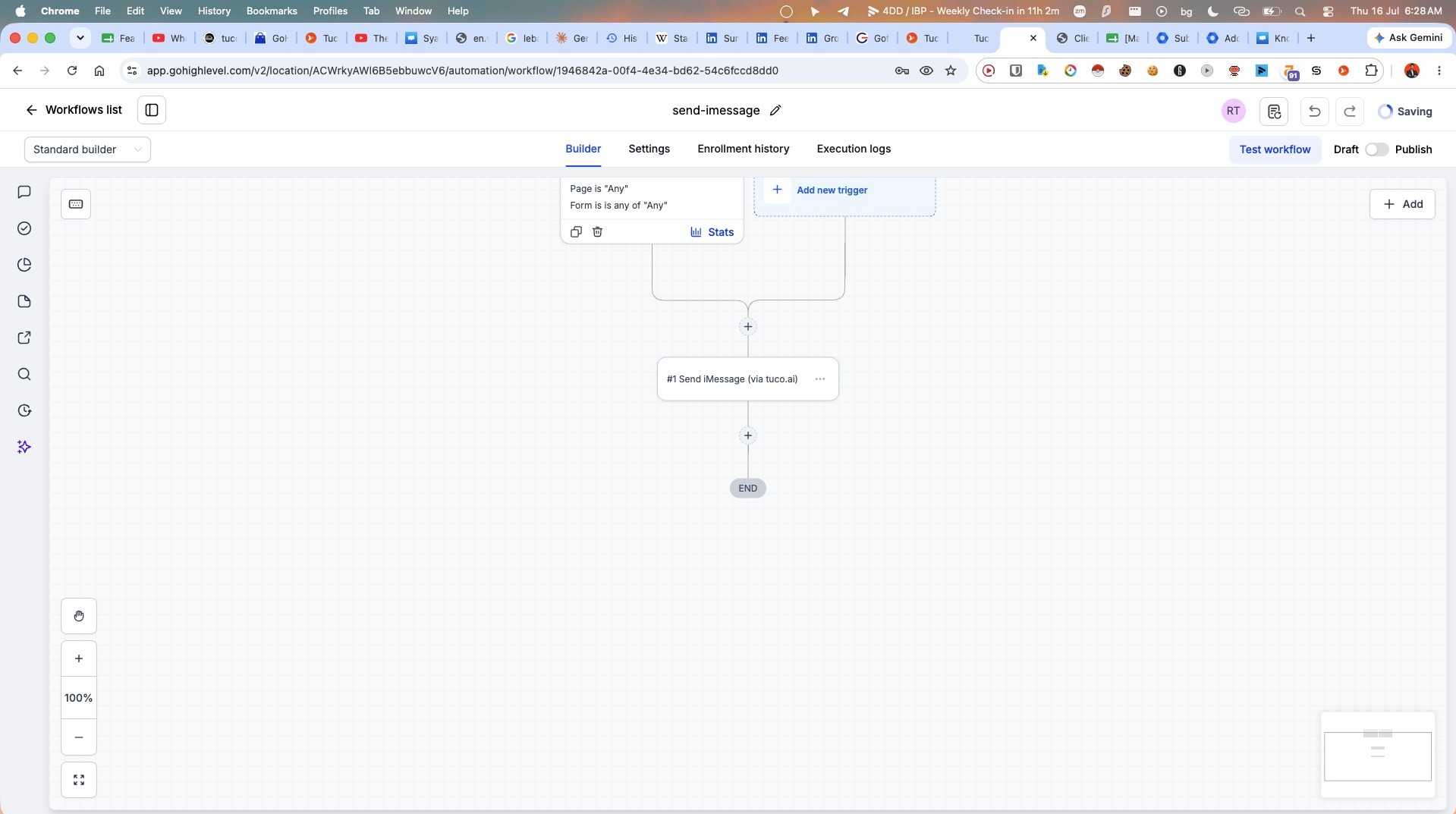
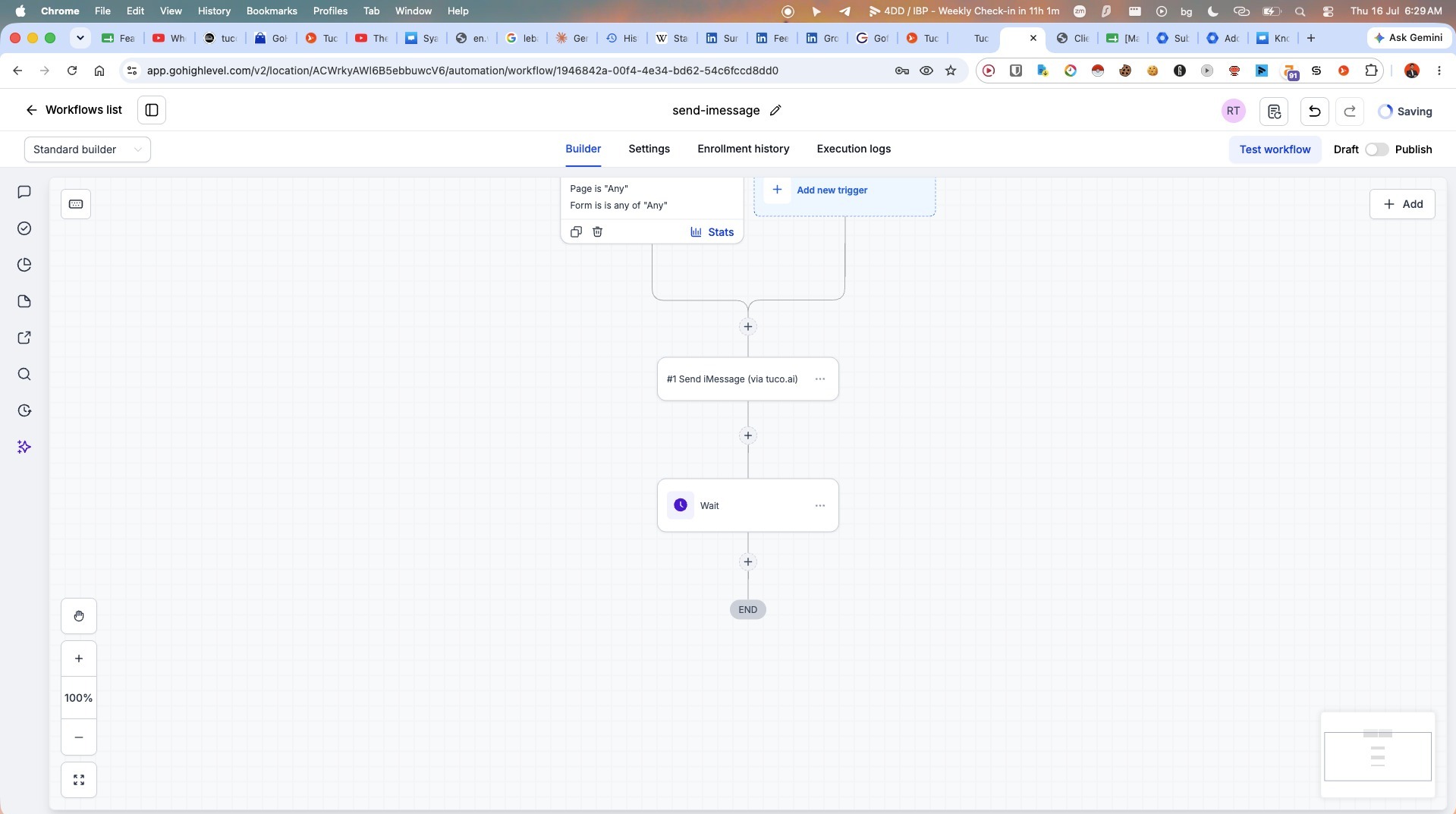
- Click the plus (+) icon to add a delay step.
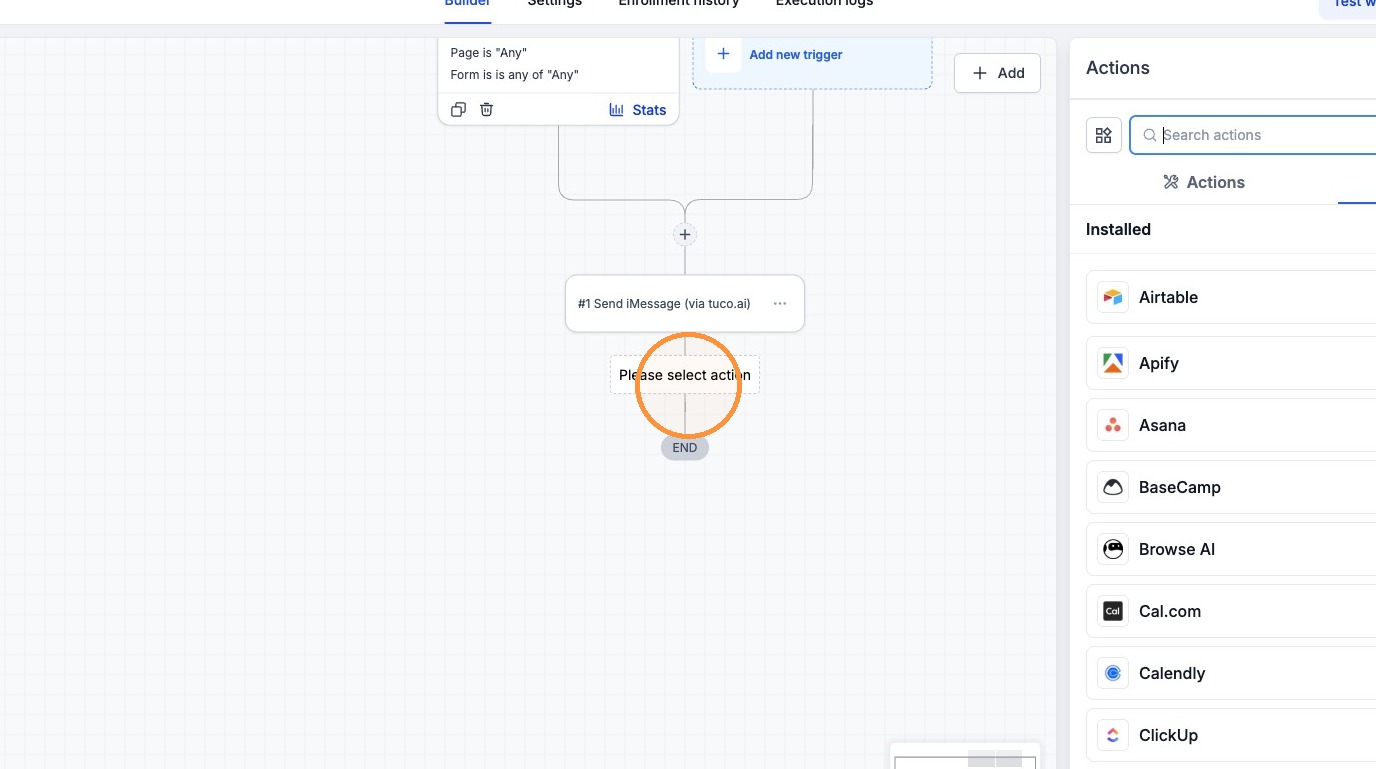
- Search for the "Wait" action.
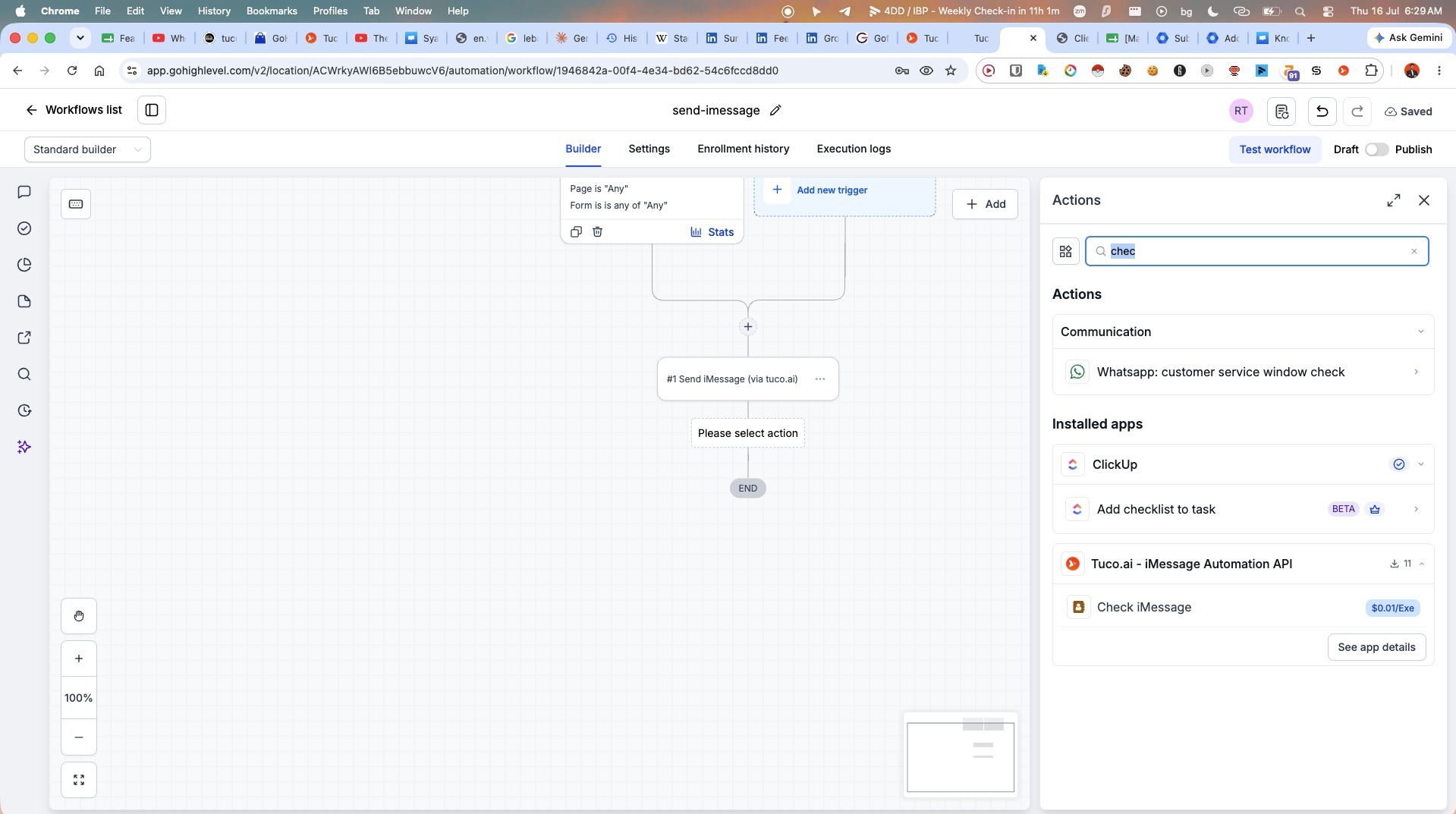
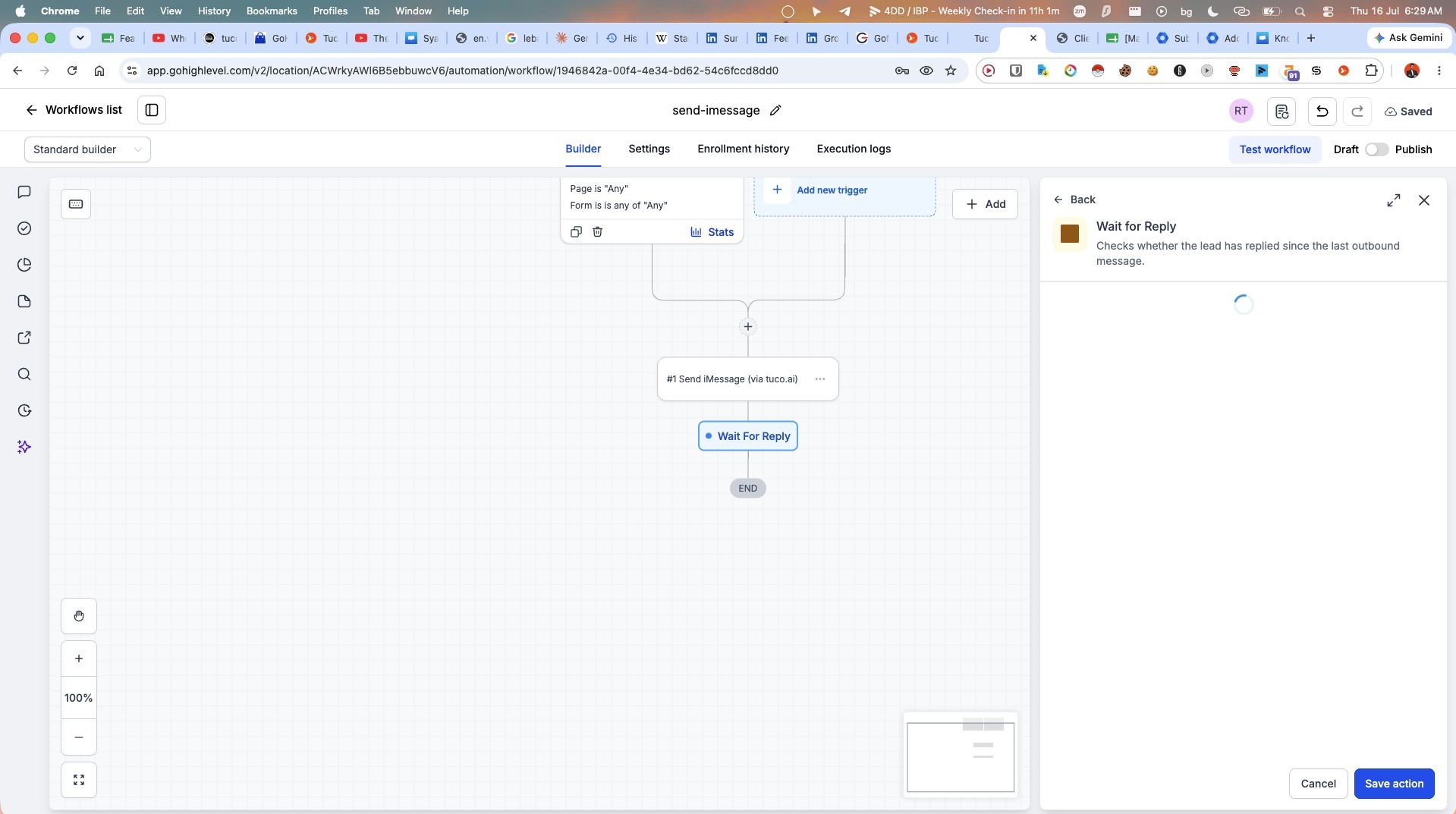
- Select the "Wait" action.
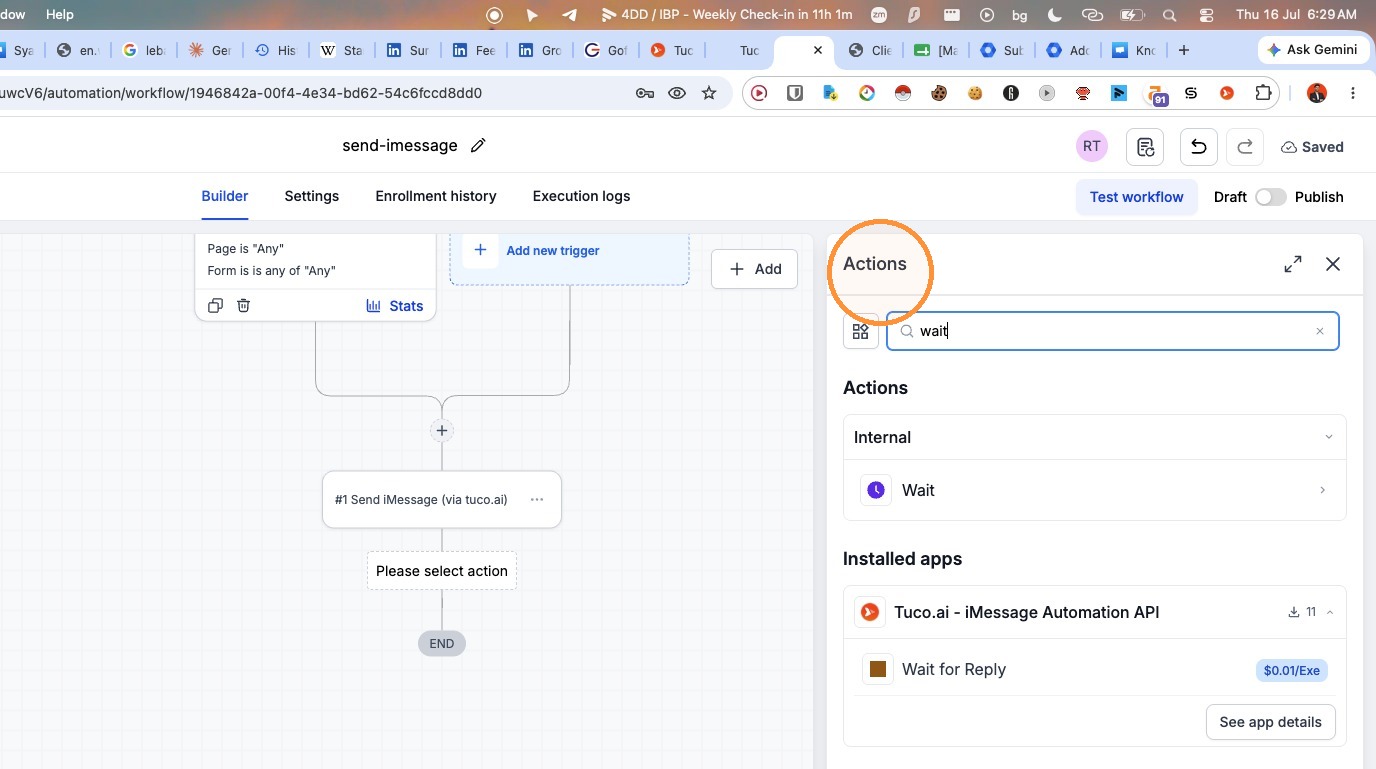
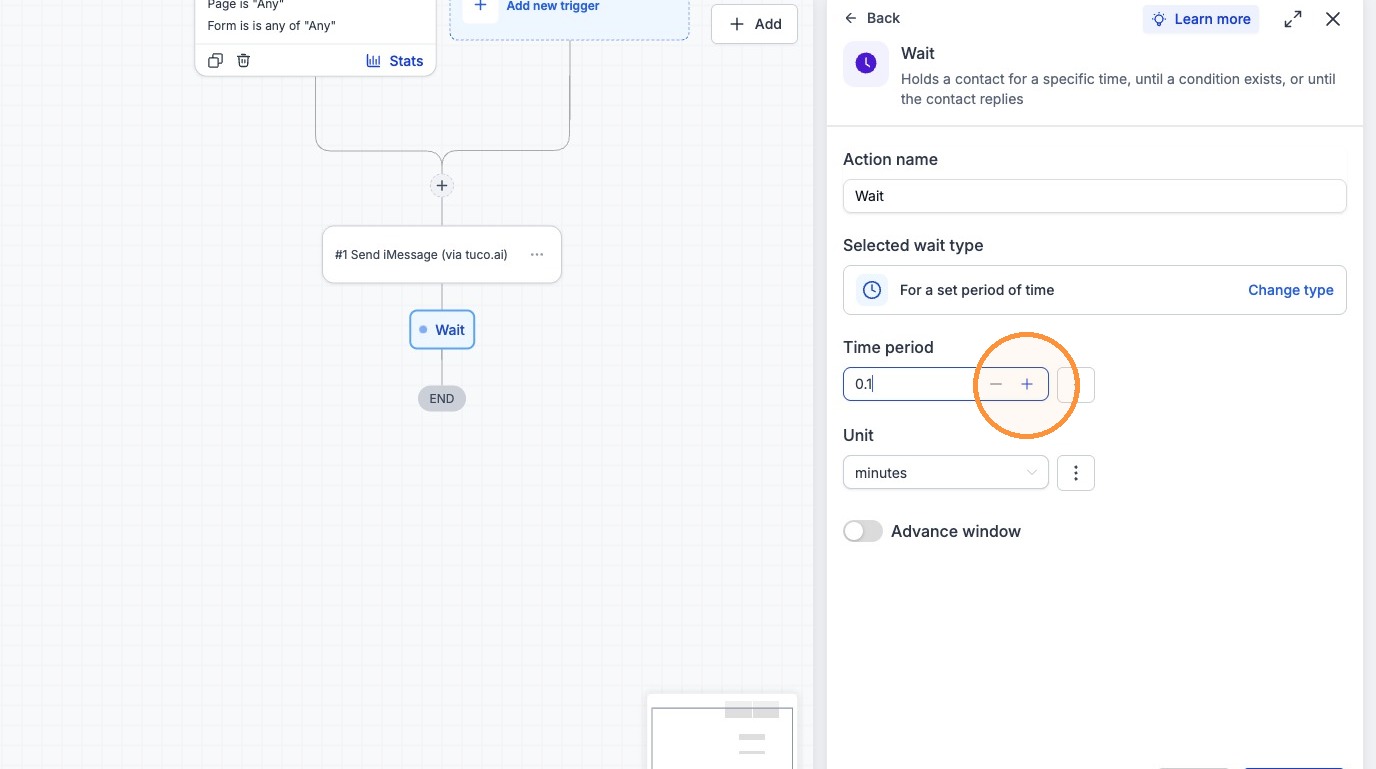
- Choose "For a set period of time" as the wait type.
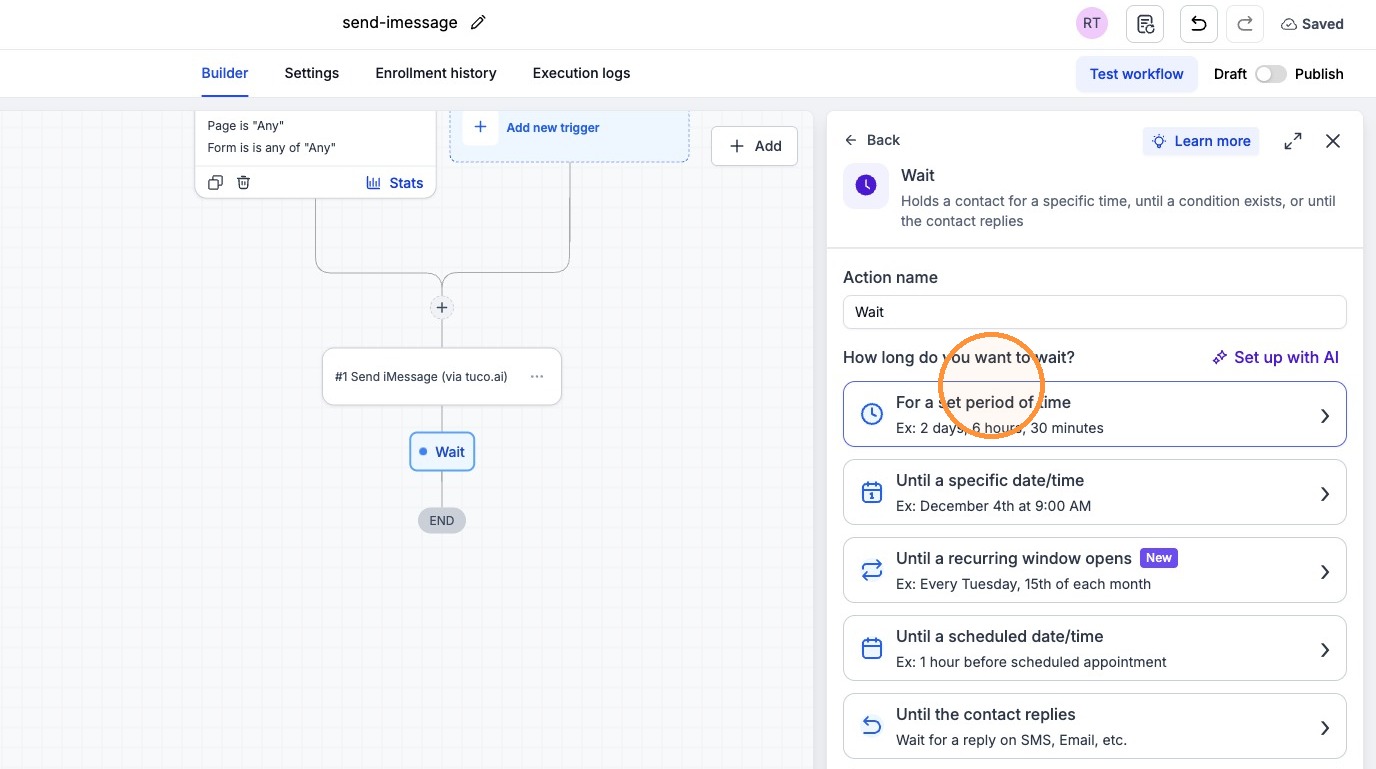
- Enter "0.40" into the Time period field.
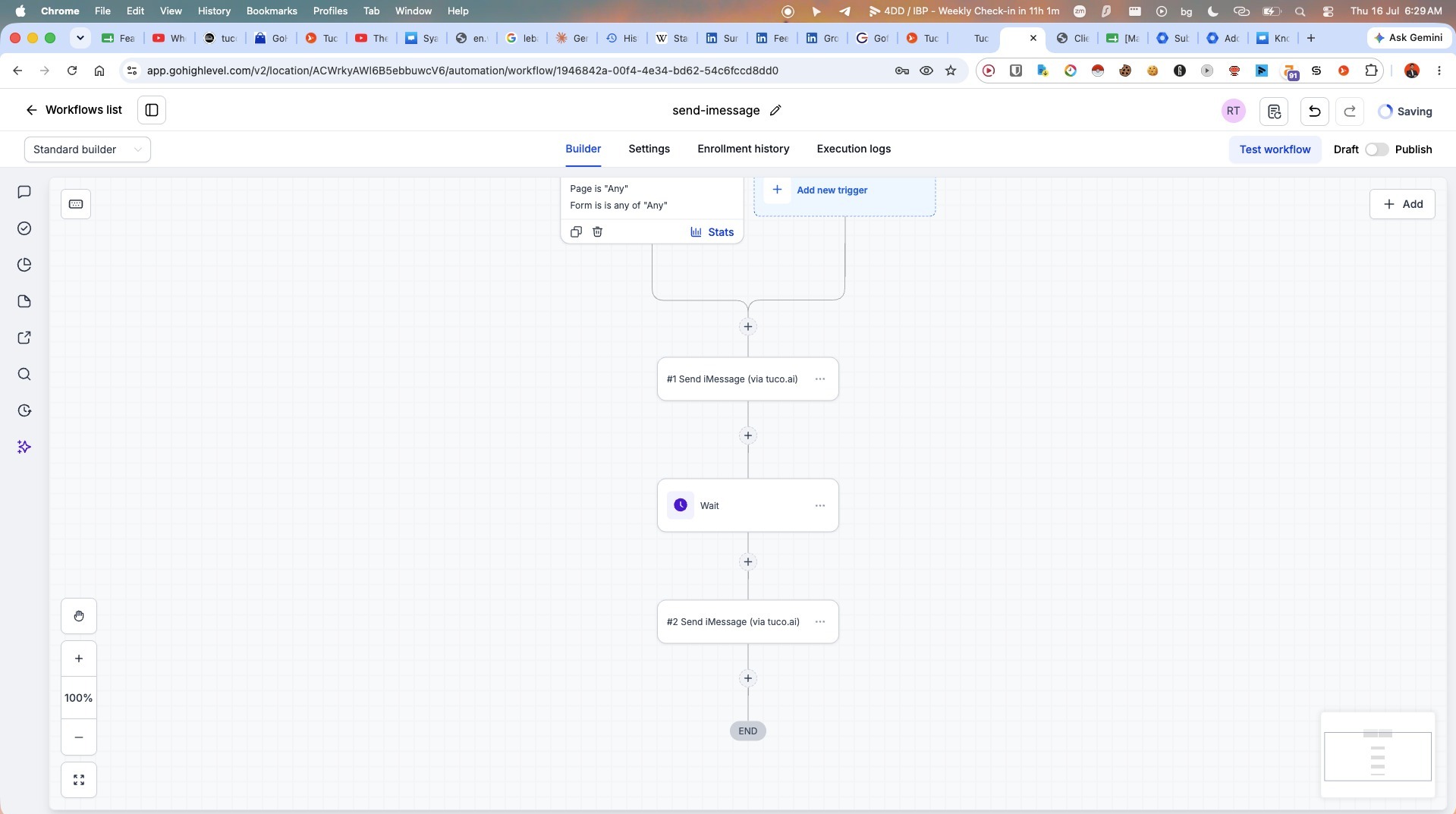
Follow-up Configuration
- Click the plus (+) icon to add a follow-up action.
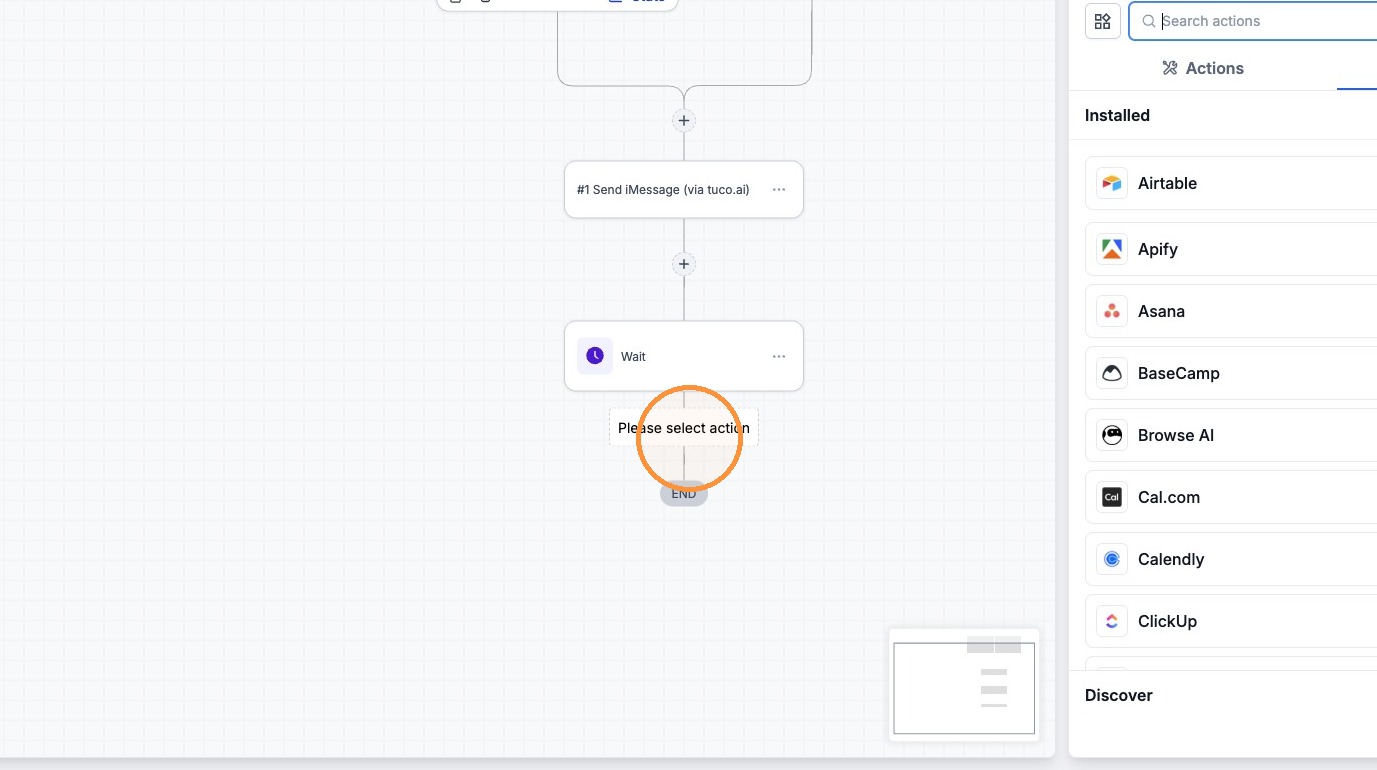
- Search for "tuco" to add a second iMessage.
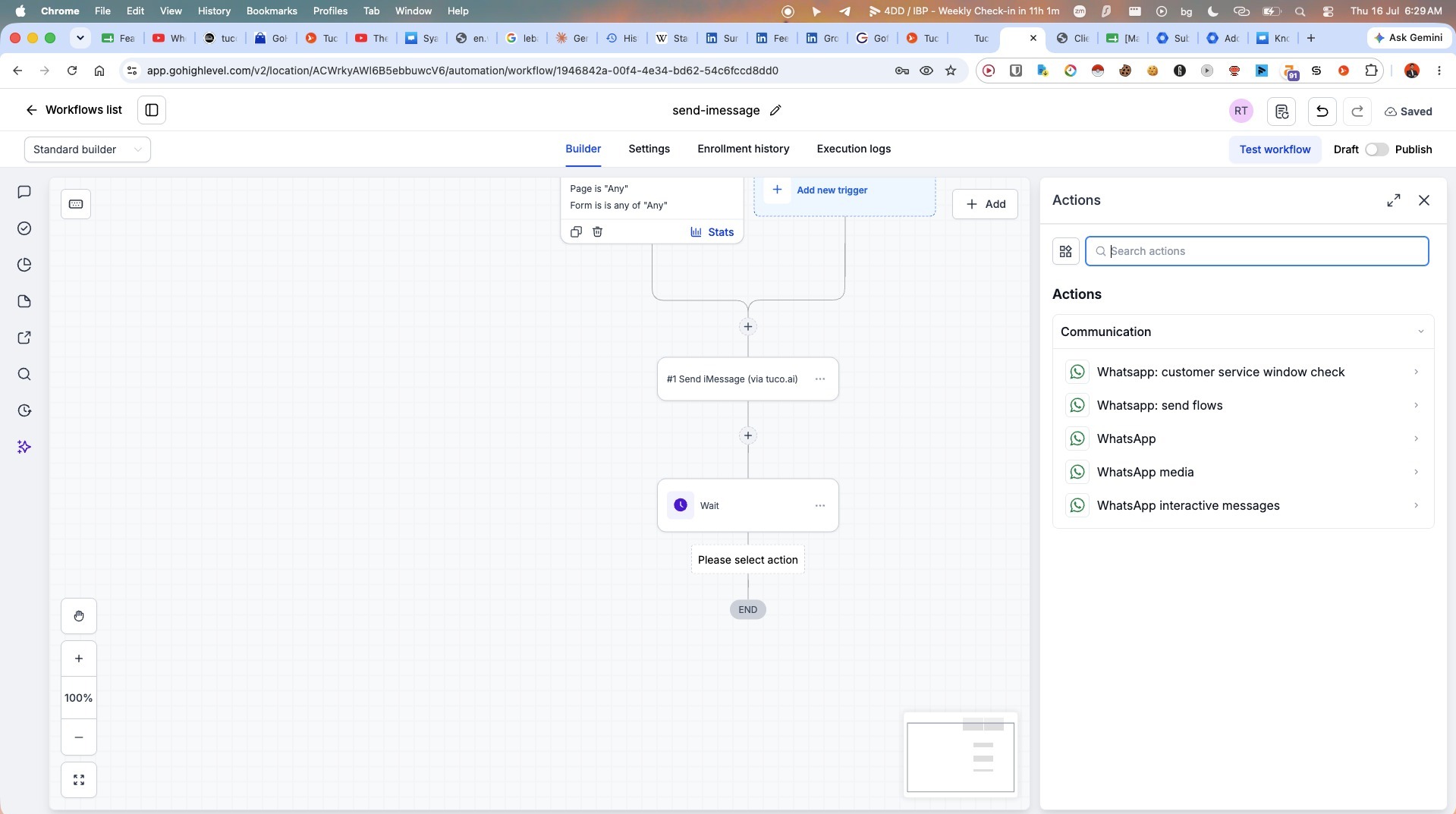
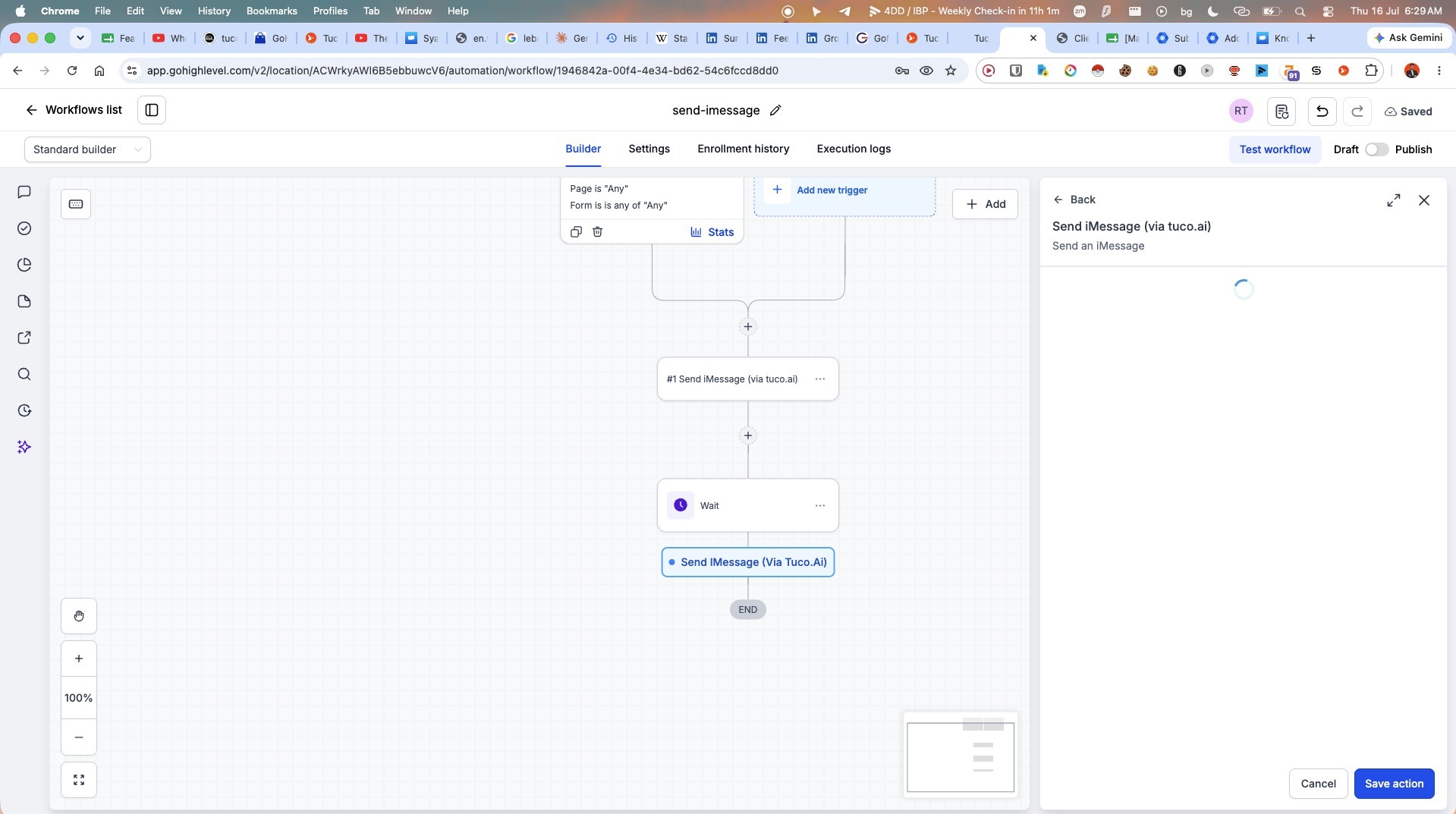
- Select "Send iMessage (via tuco.ai)" for the second message.
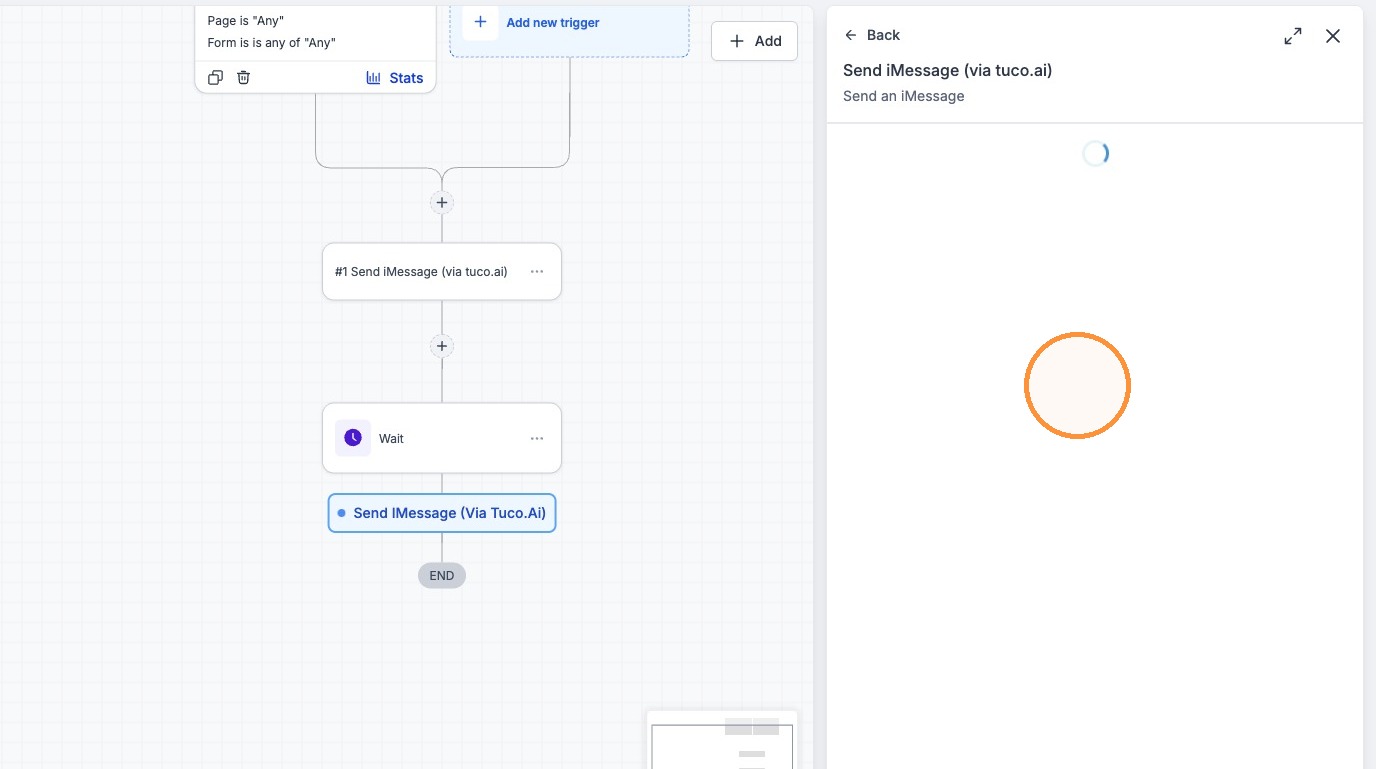
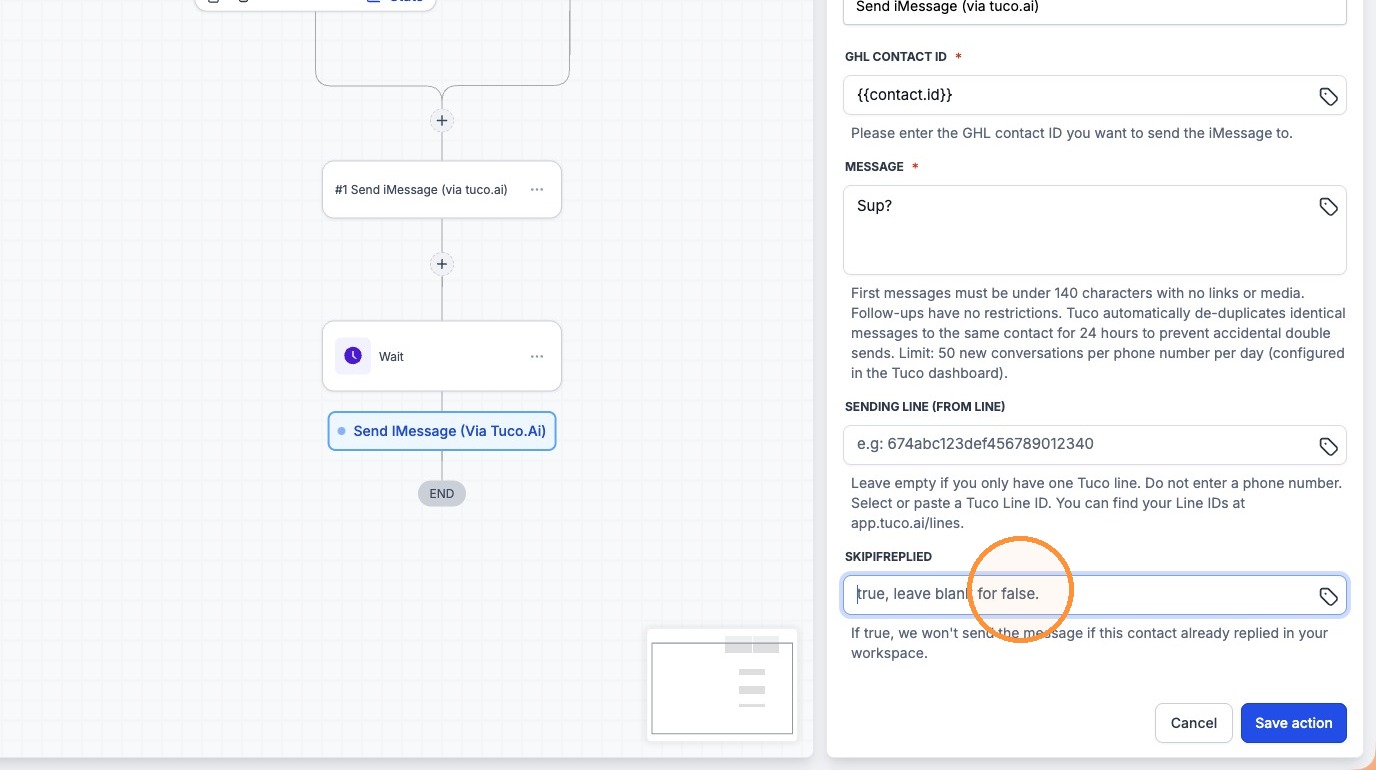
- Type "Sup?" into the Message field for the follow-up.
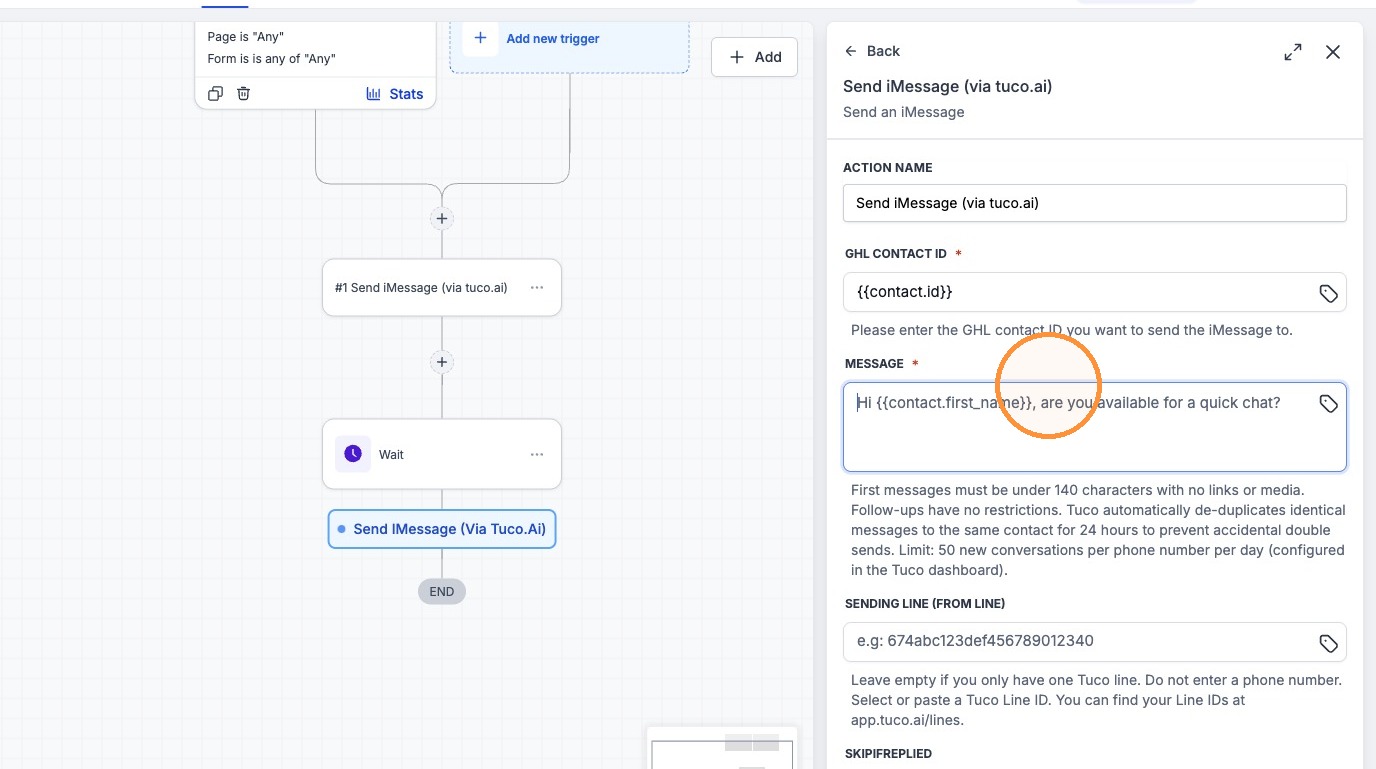
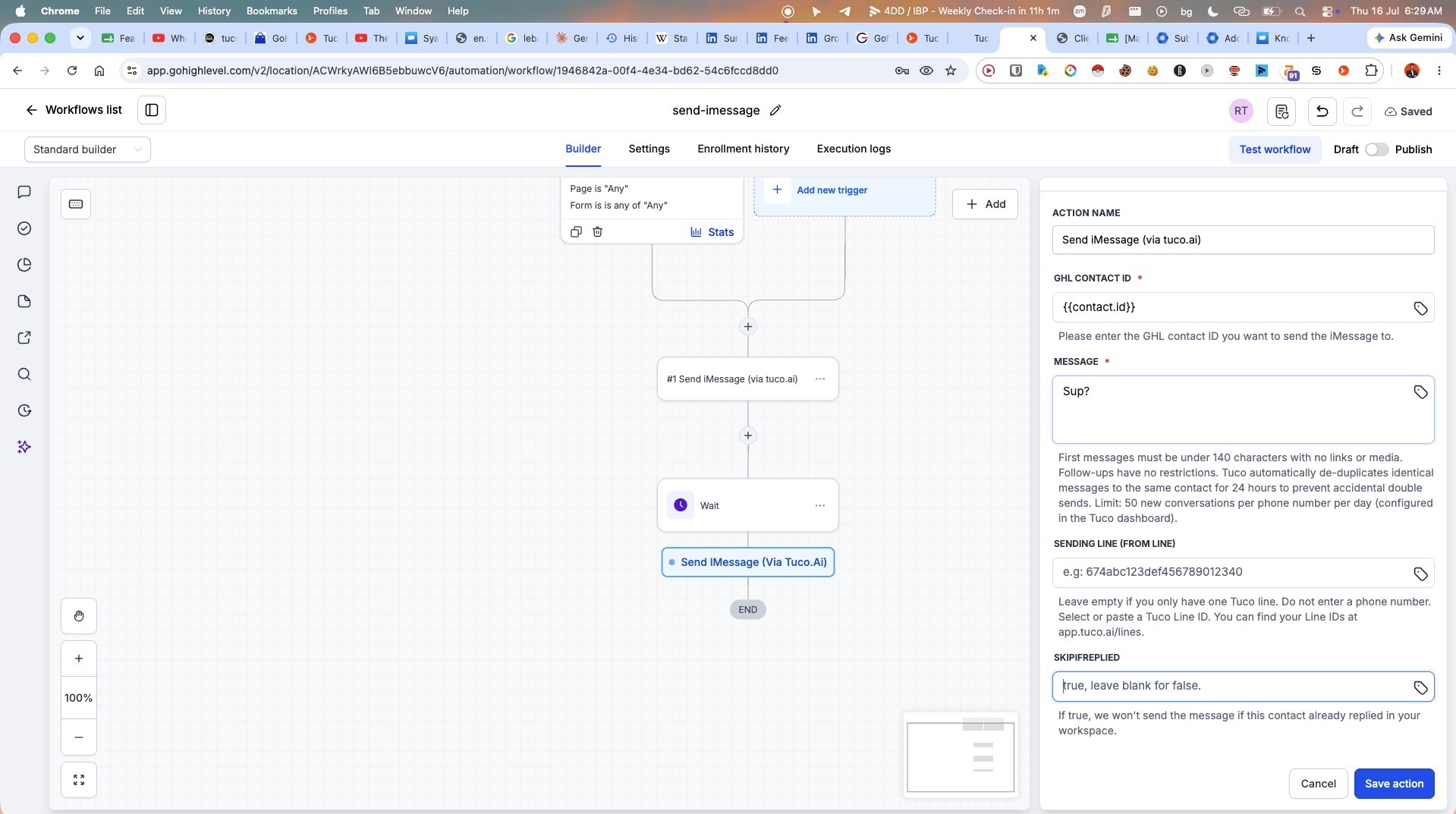
- Set the "Skip if replied" field to "true".
Workflow Testing
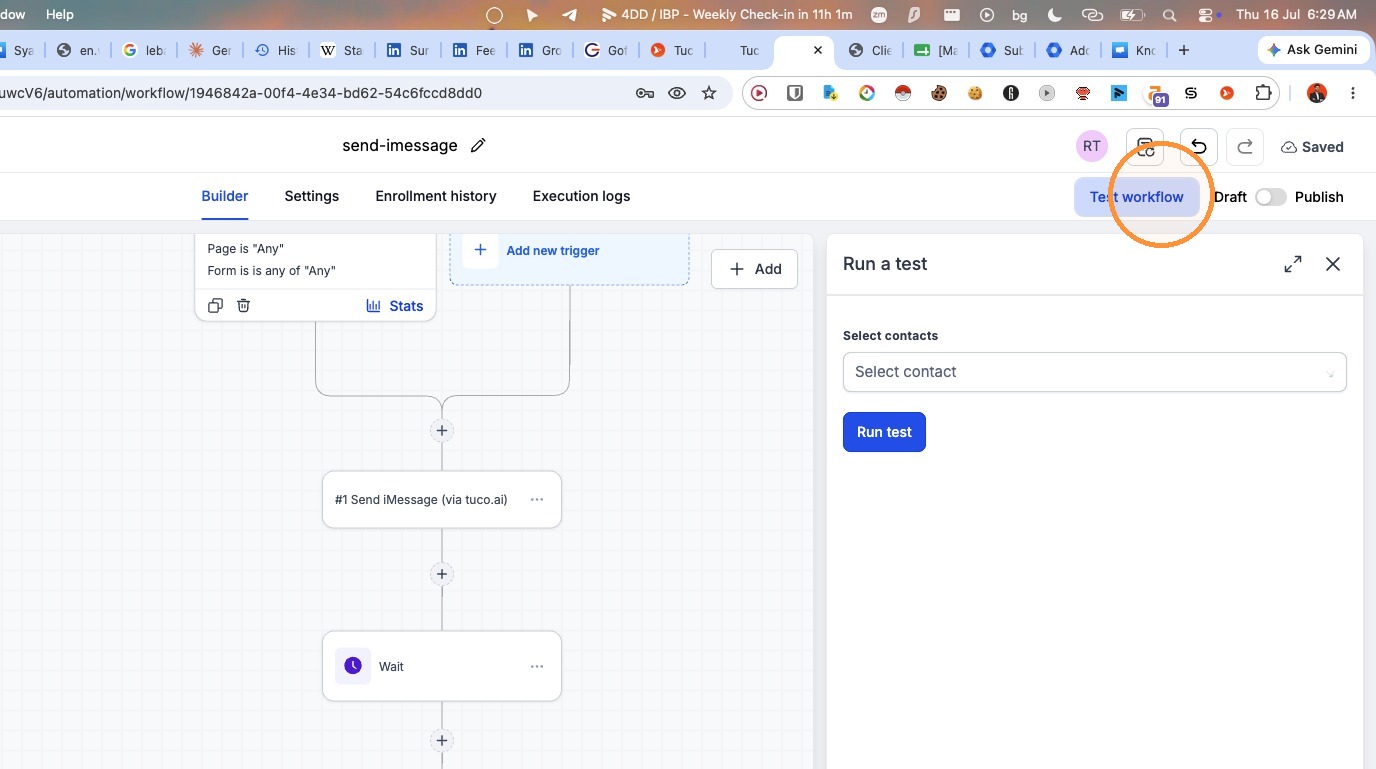
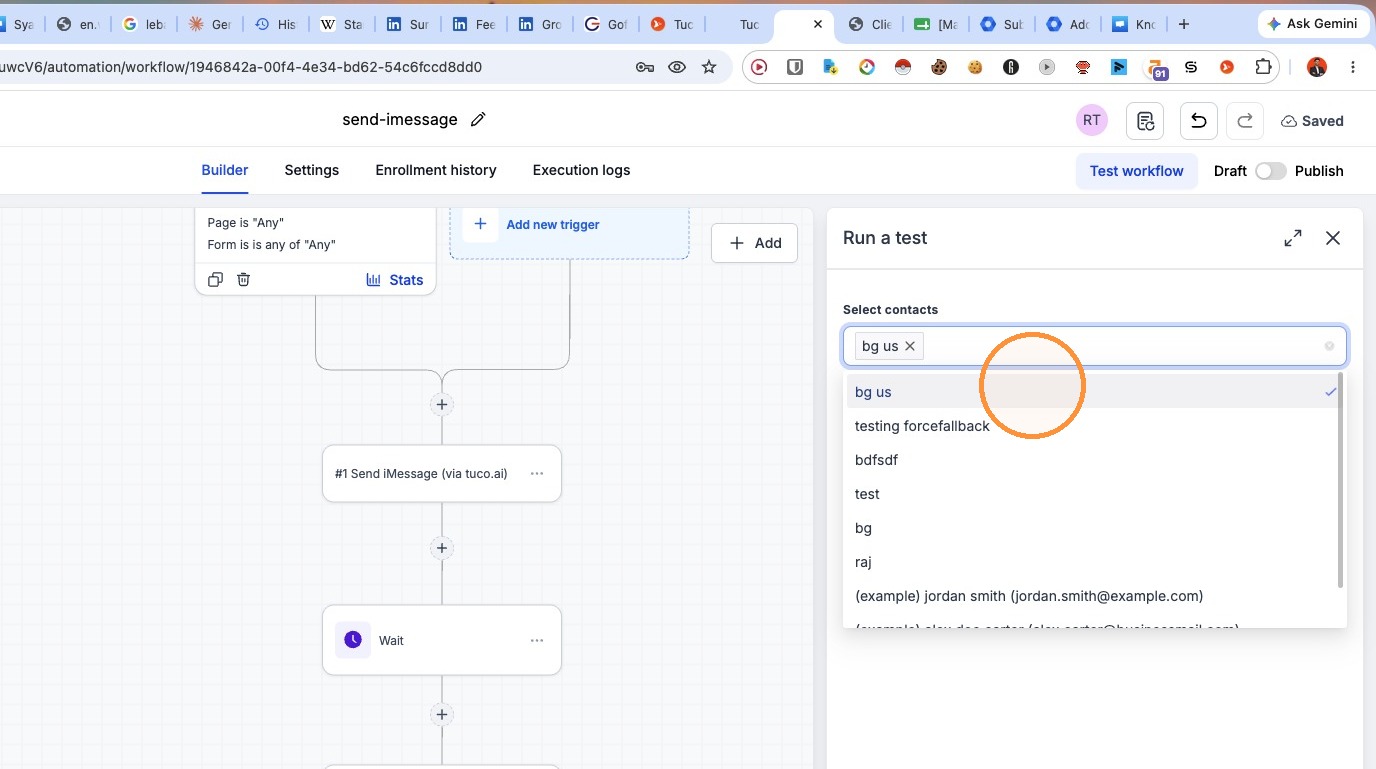
- Click "Test workflow" in the top right corner.
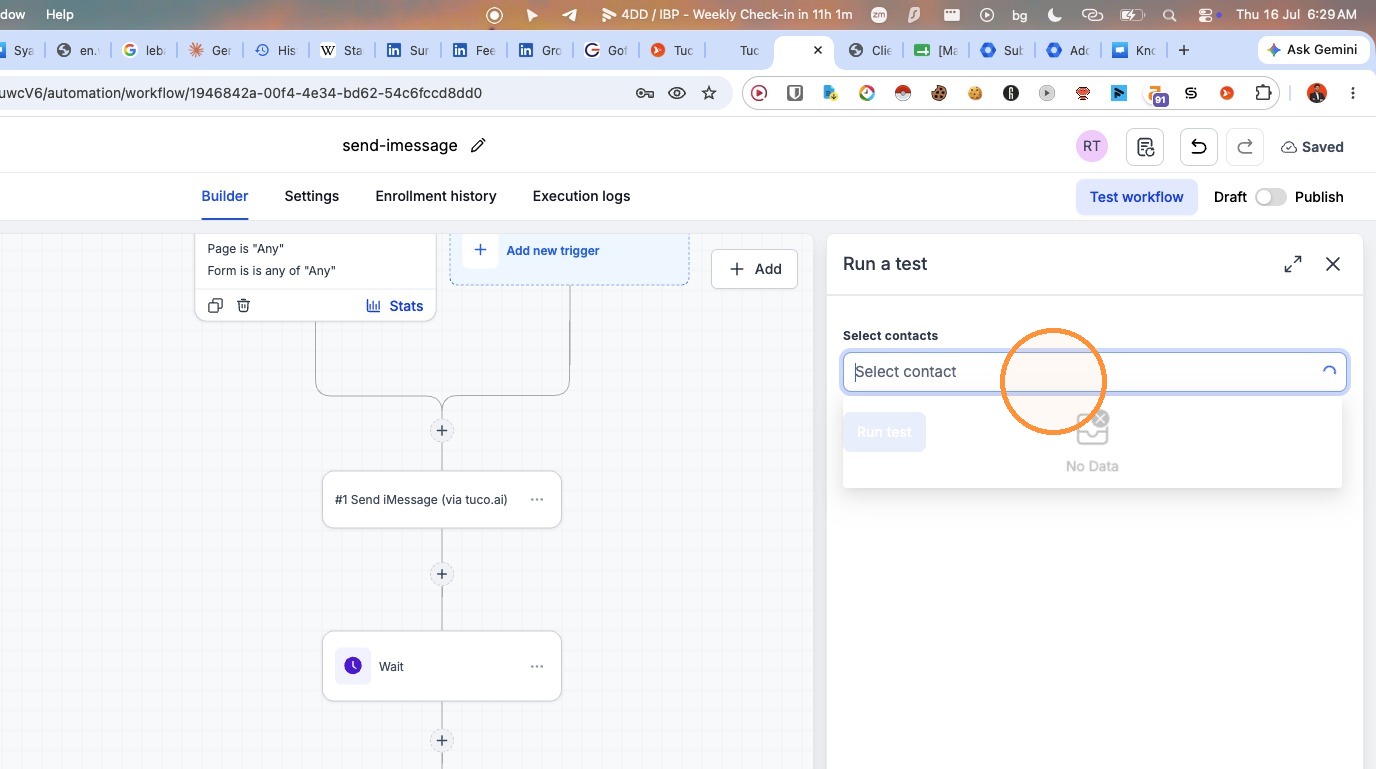
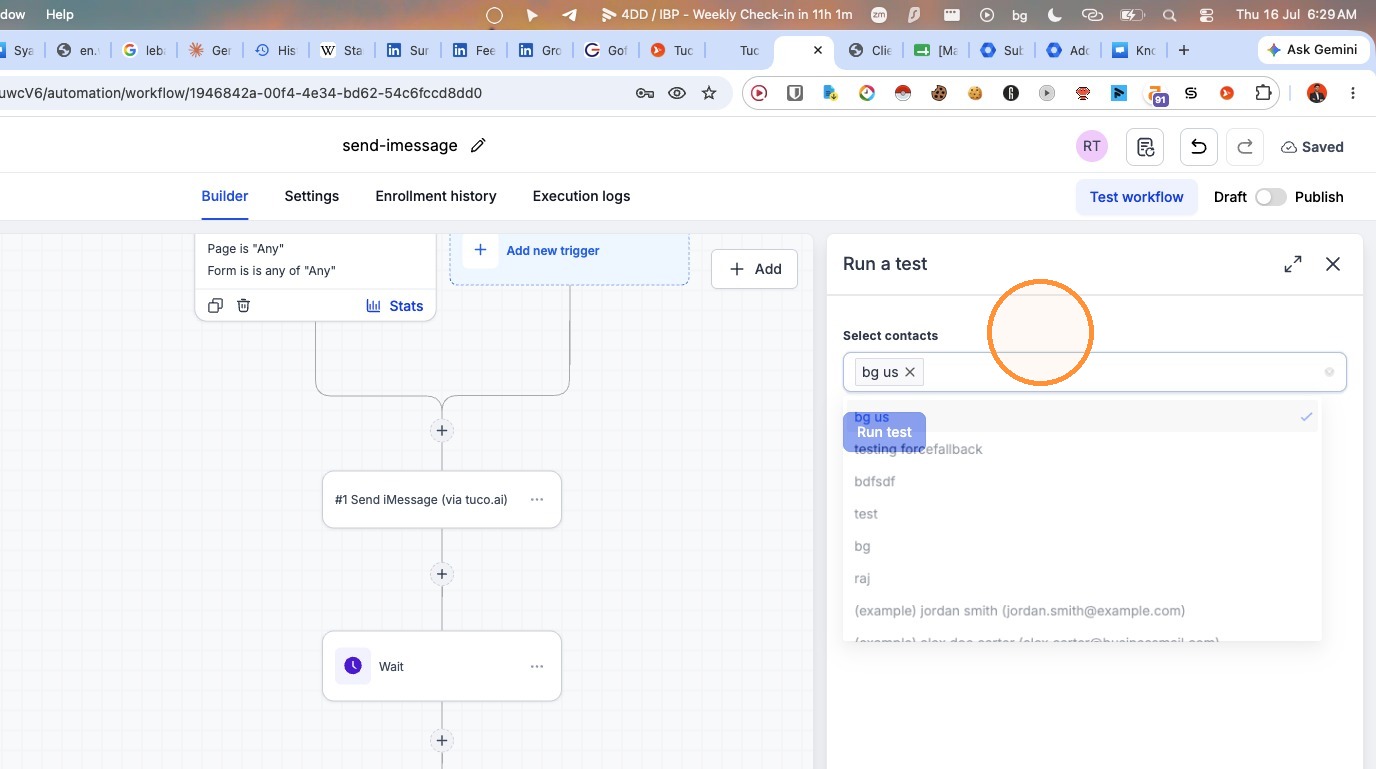
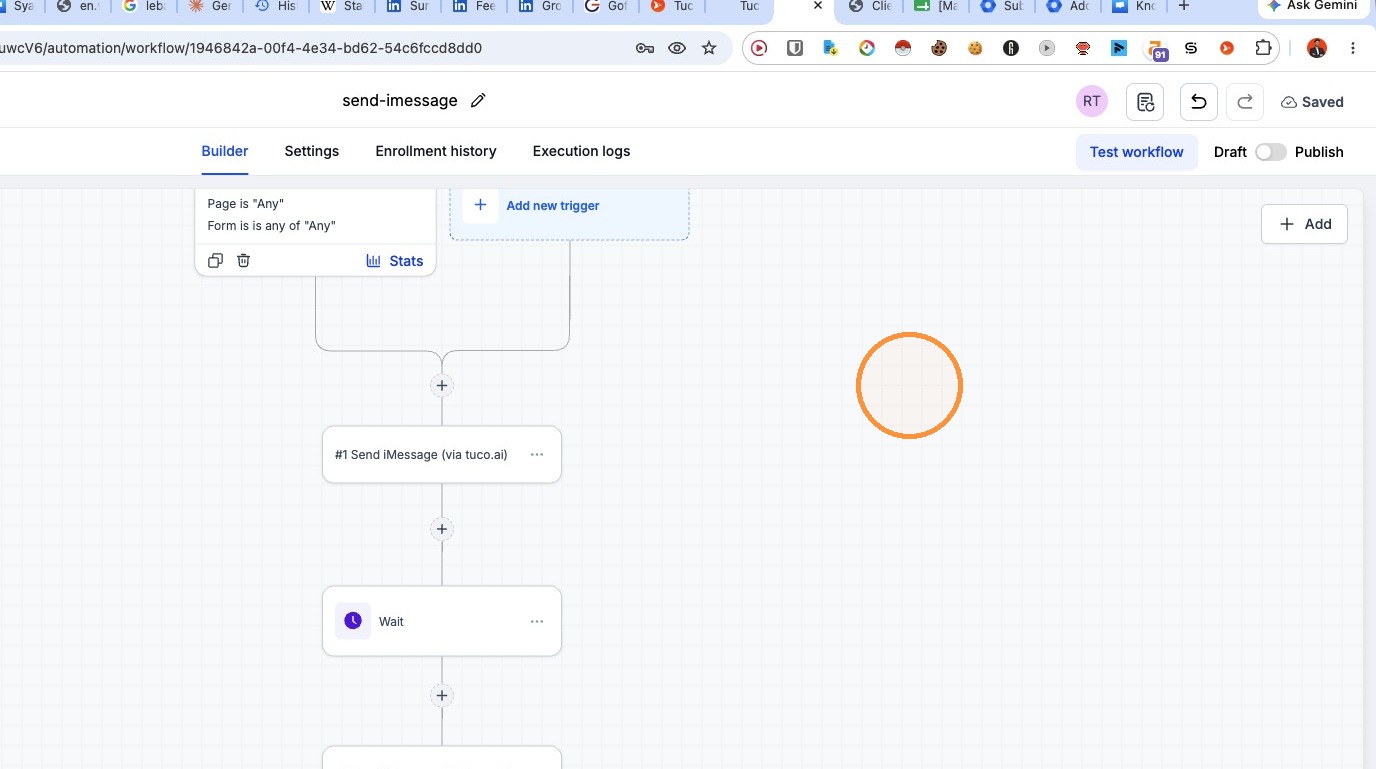
- Select a contact and click "Run test" to execute the workflow.
Made with Scribe
Updated on: 16/07/2026
Thank you!