How to send an iMessage inside Go High Level Workflow Actions using Tuco AI's Integration
How to send iMessage from Go High Level using Workflow (Using TUCO AI)
Made by Tuco Support with Scribe
Learn how to build a personalized automation workflow from scratch by utilizing custom variables and testing tools. This guide will help you streamline your communication by dynamically inserting contact information into your automated iMessages using Tuco AI - The iMessage automation tool for Go high level
Workflow Creation
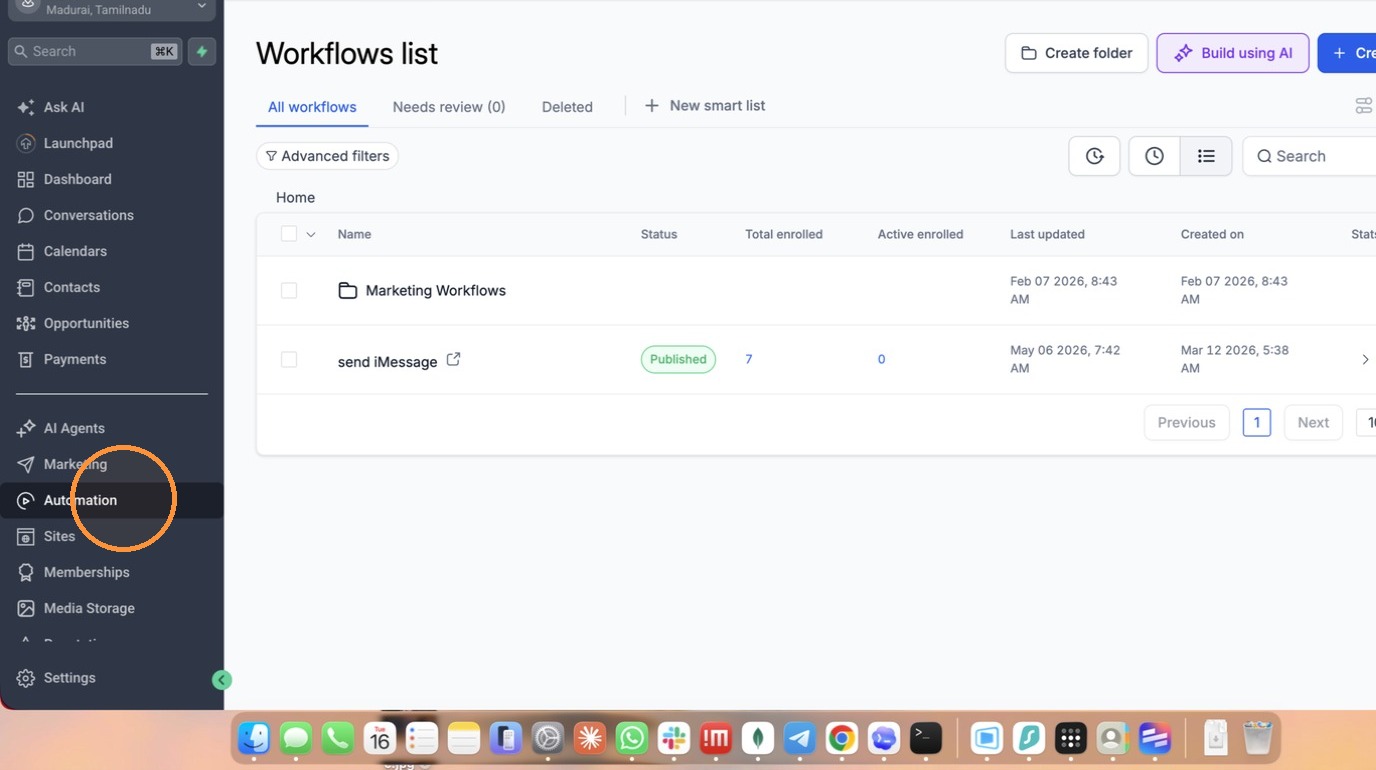
- Click "Automation" in the sidebar menu
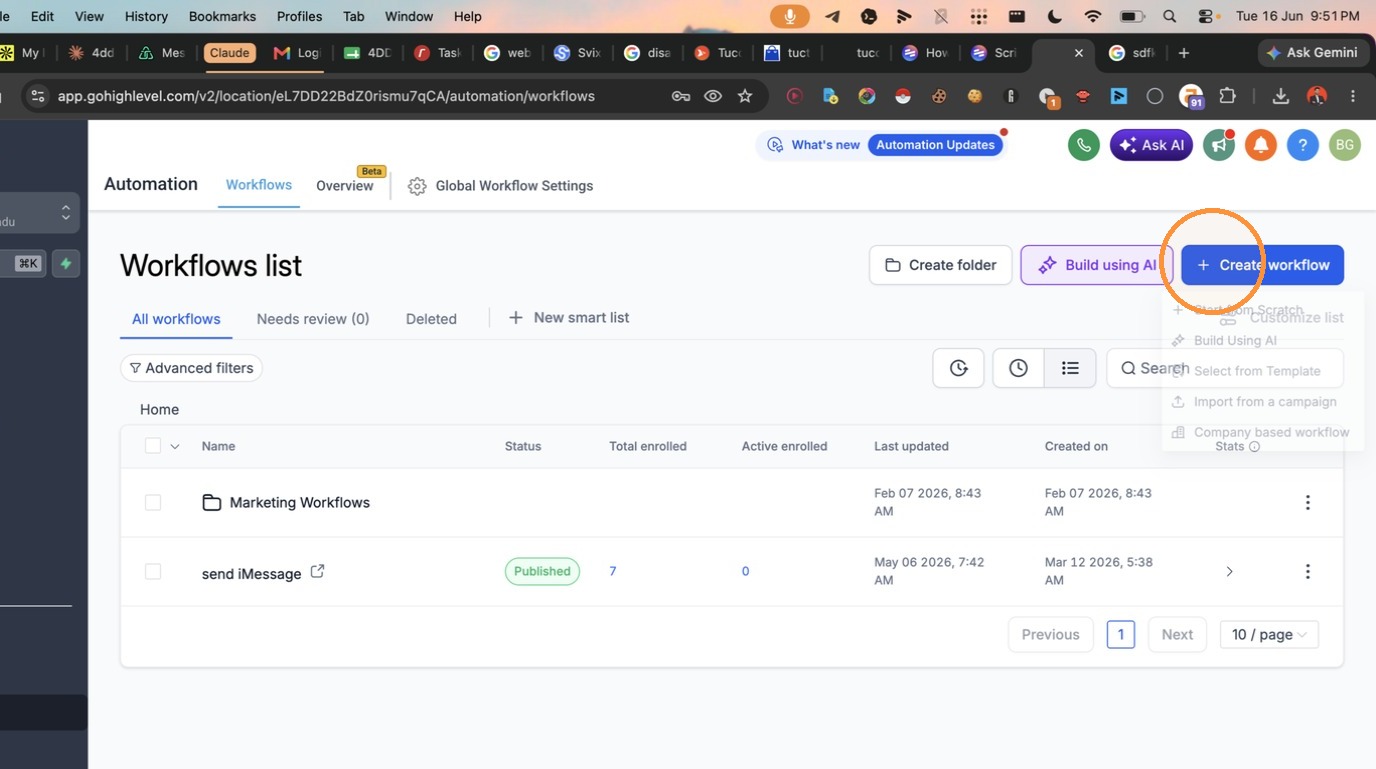
- Click "Create workflow"
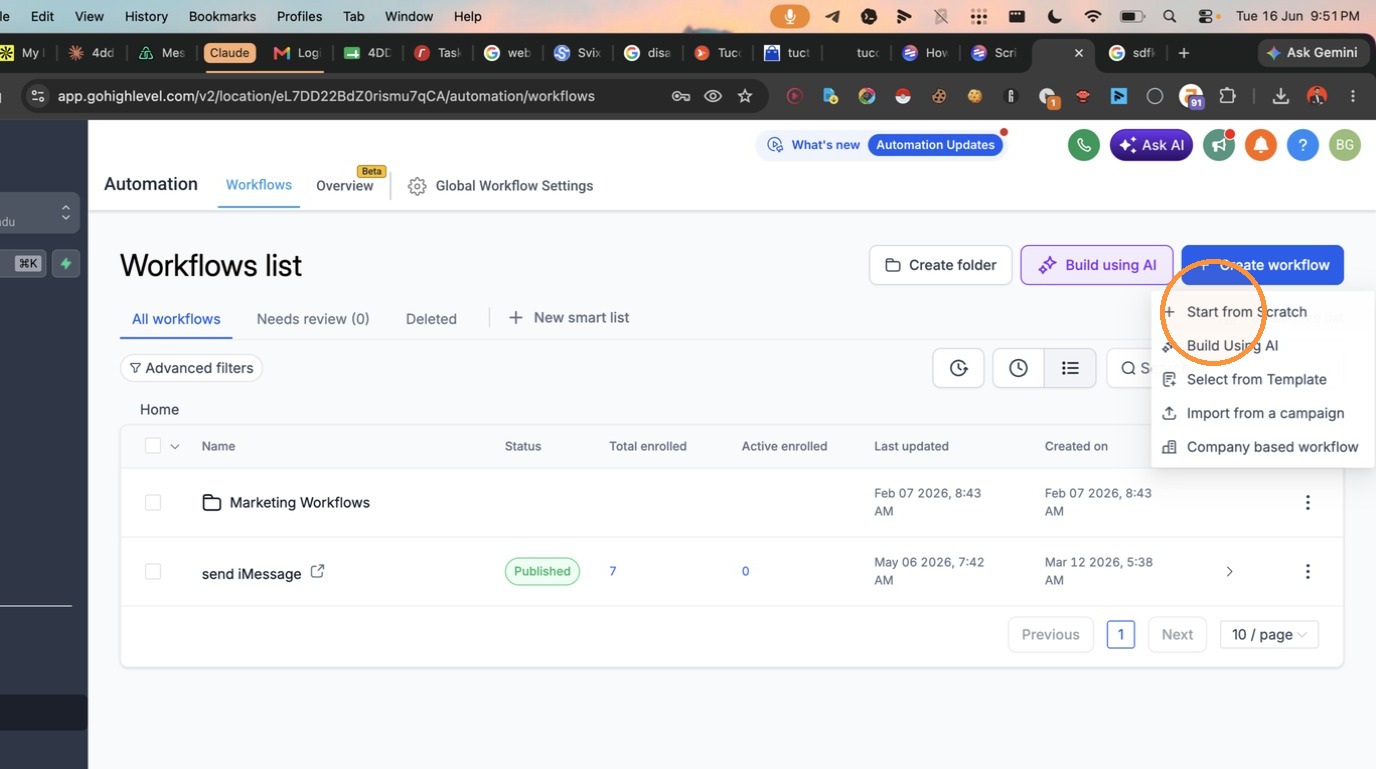
- Select "Start from Scratch"
Trigger Setup
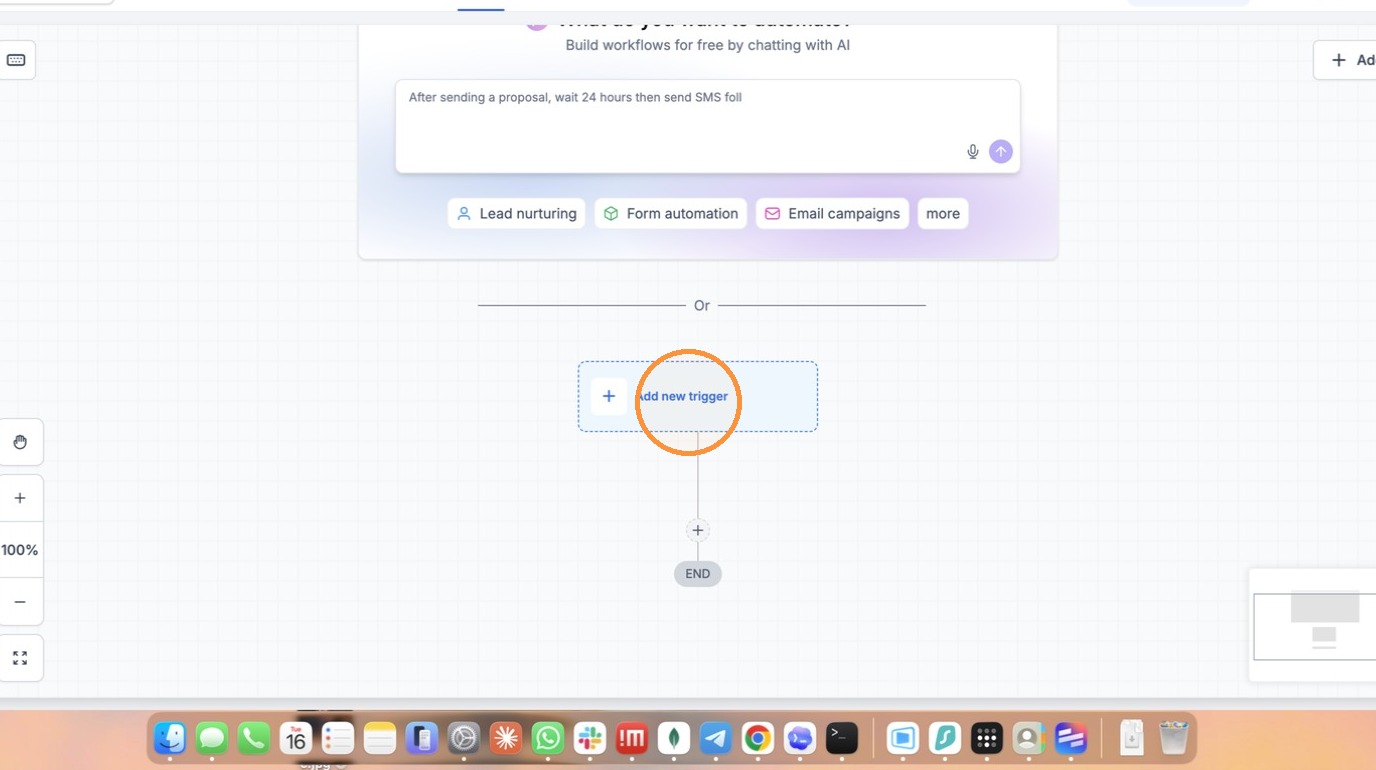
- Click "Add new trigger"
- Select "Facebook Lead Form Submitted" from the trigger list
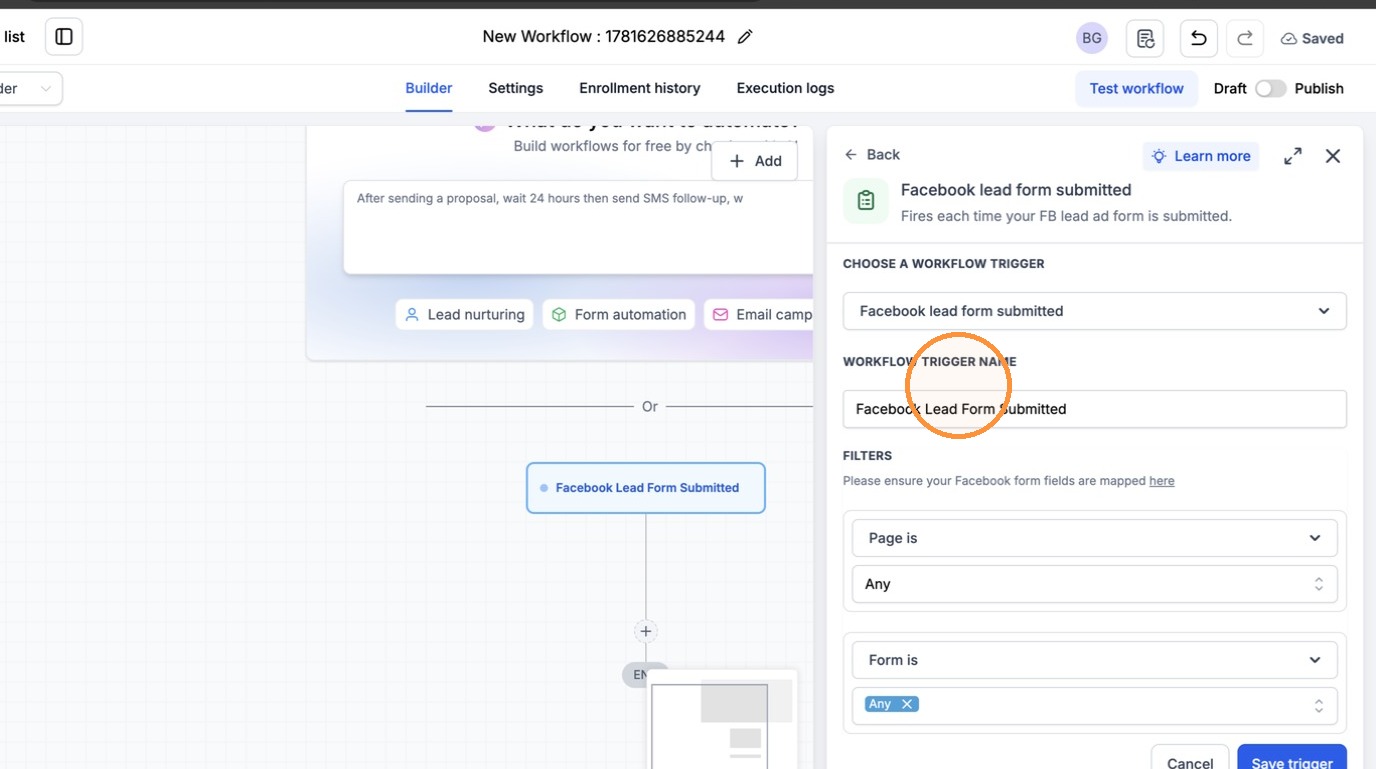
Action Configuration
- Click add action
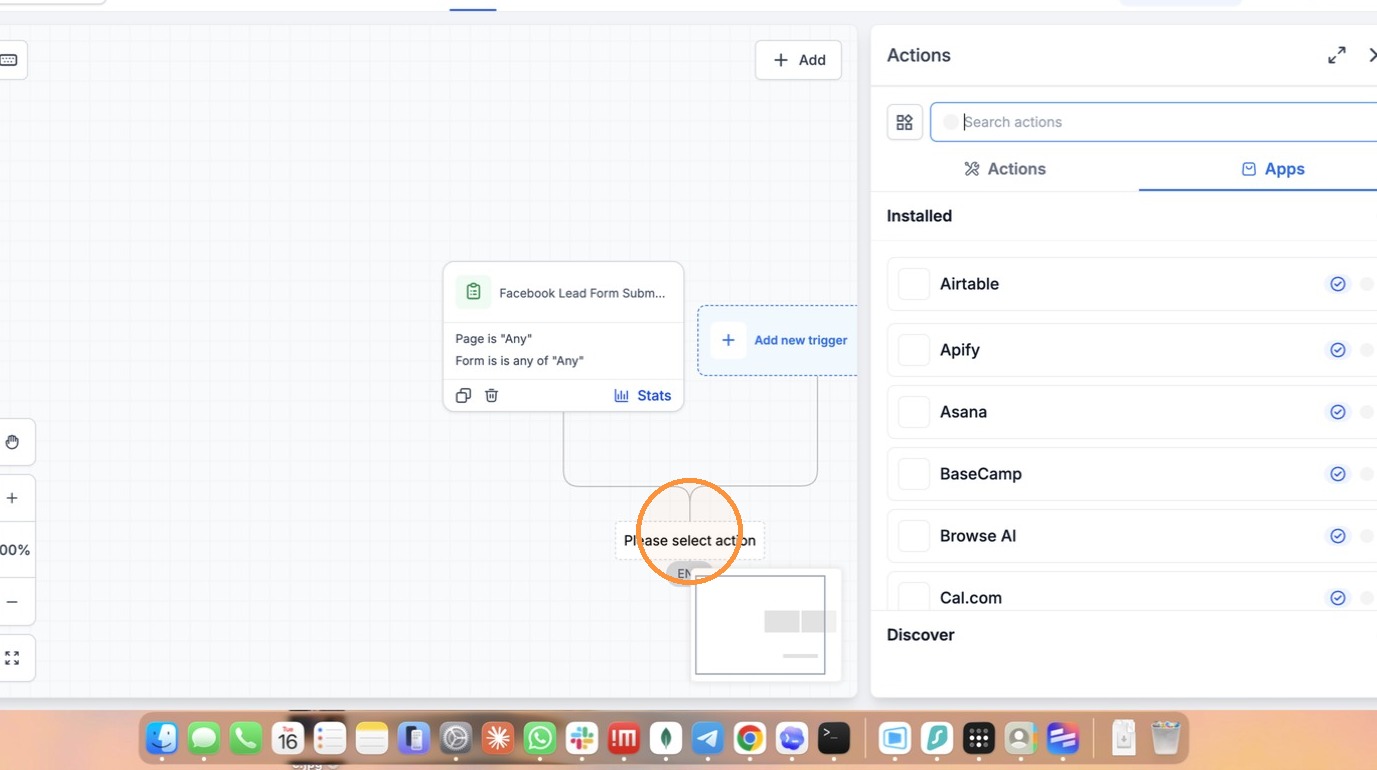
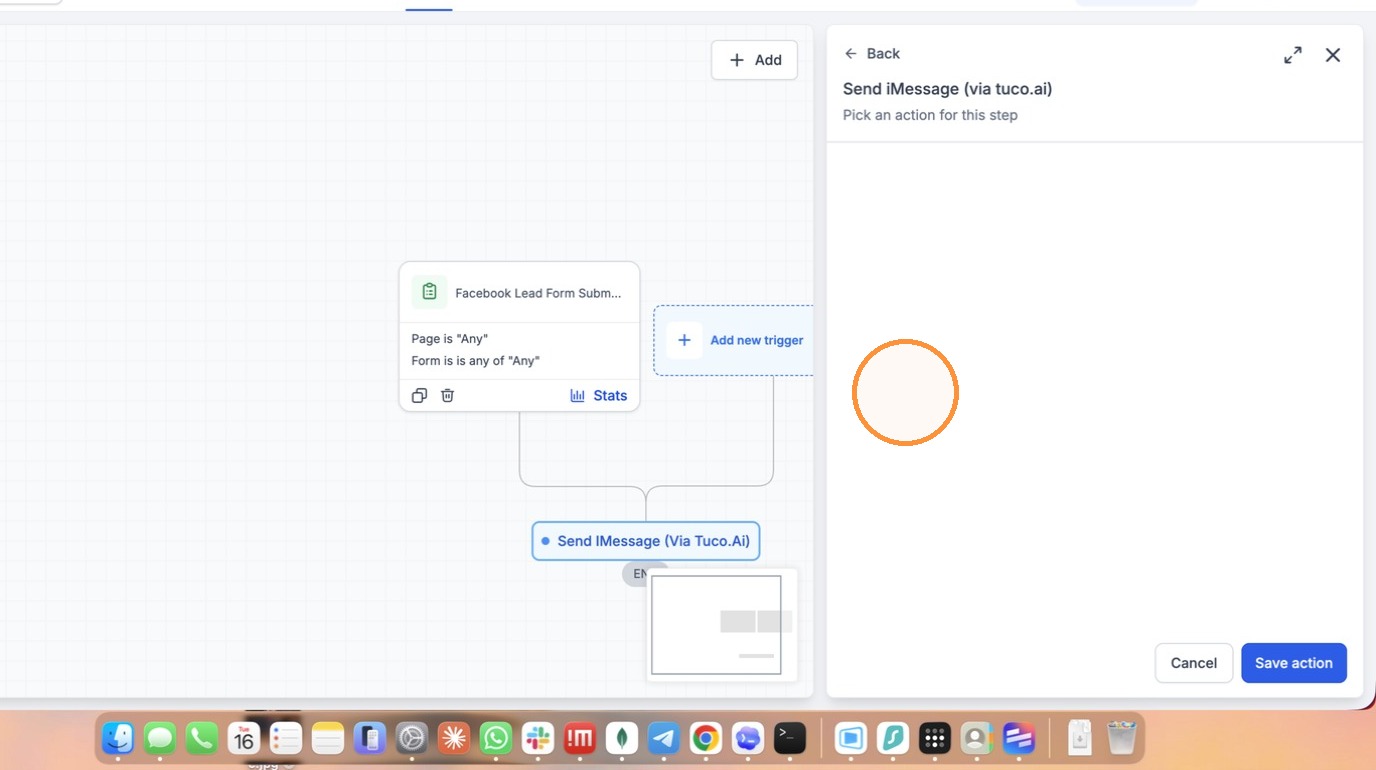
- Search for tuco and Select the "Send iMessage (via tuco.ai)" action
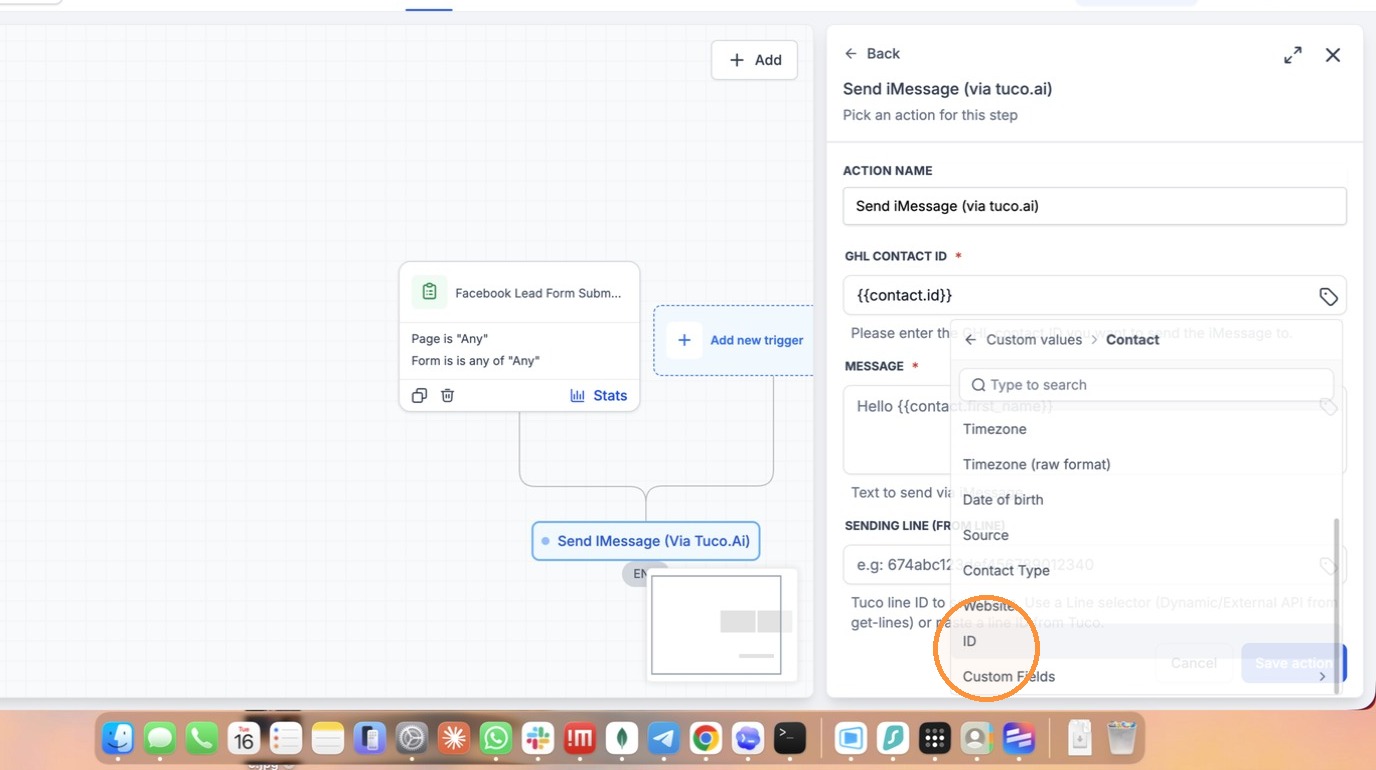
- Select the Contact ID variable for the GHL Contact ID field
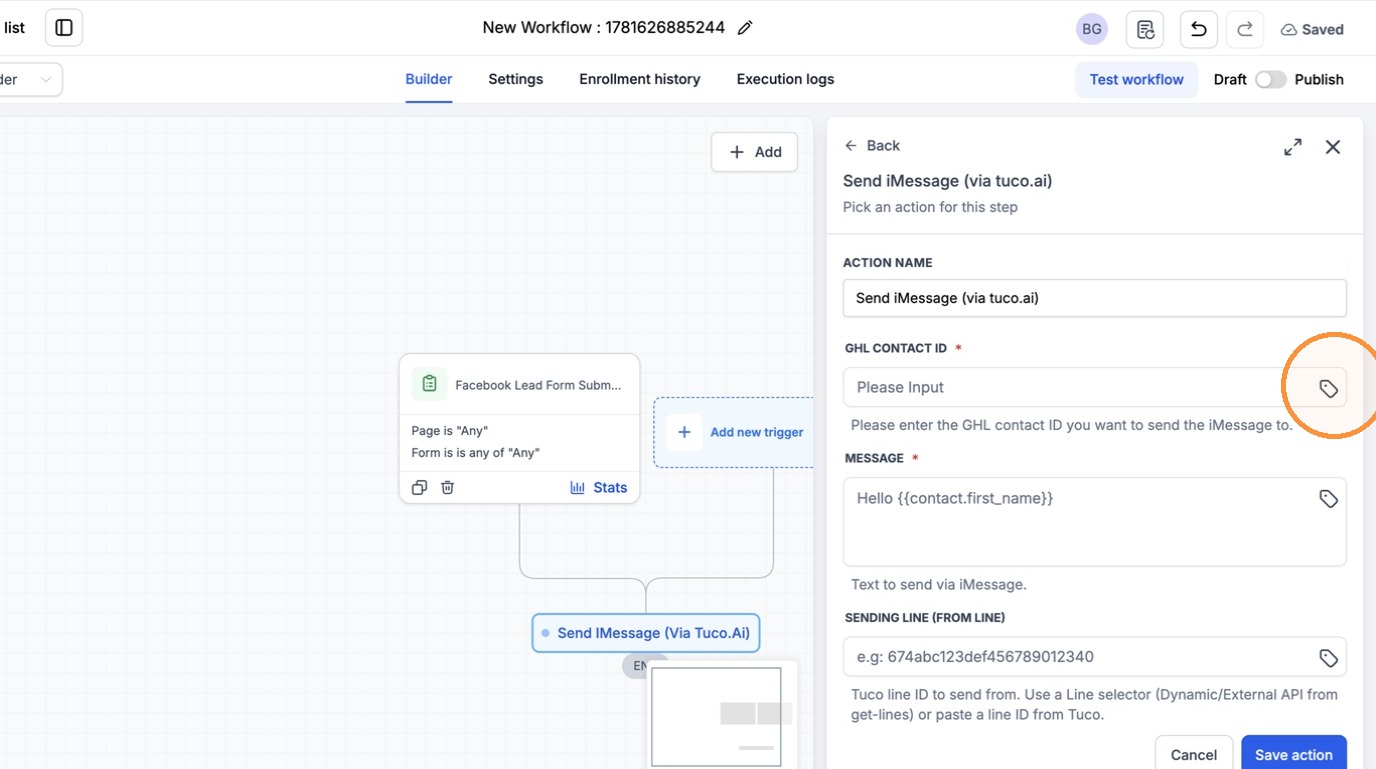
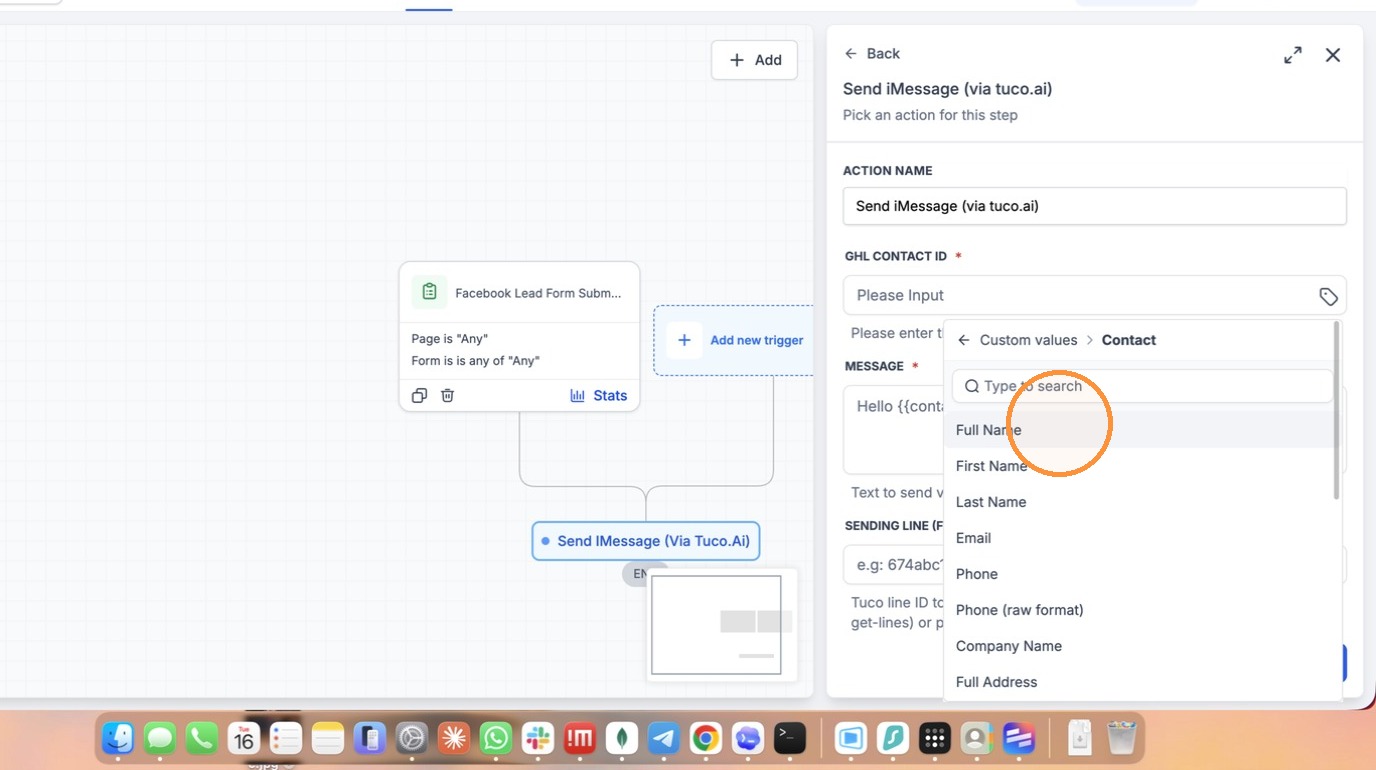
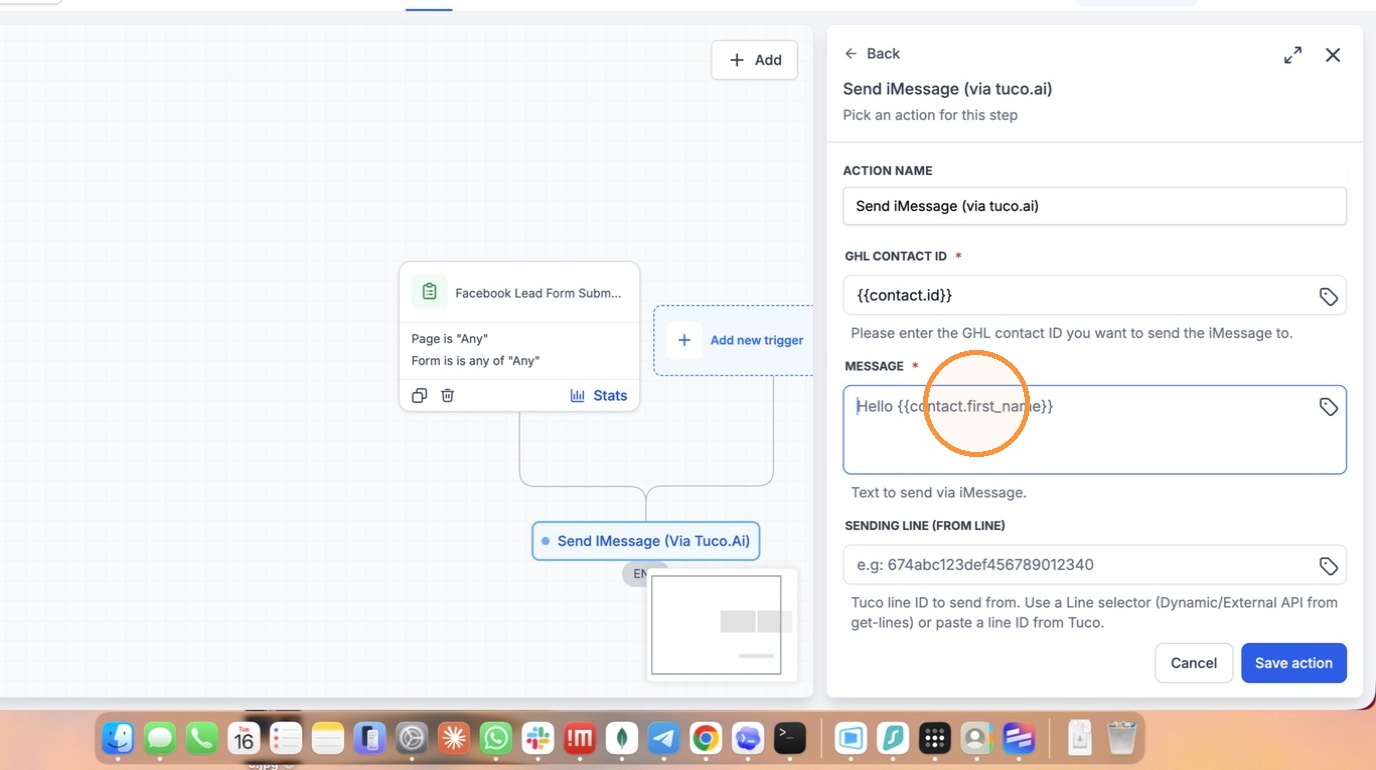
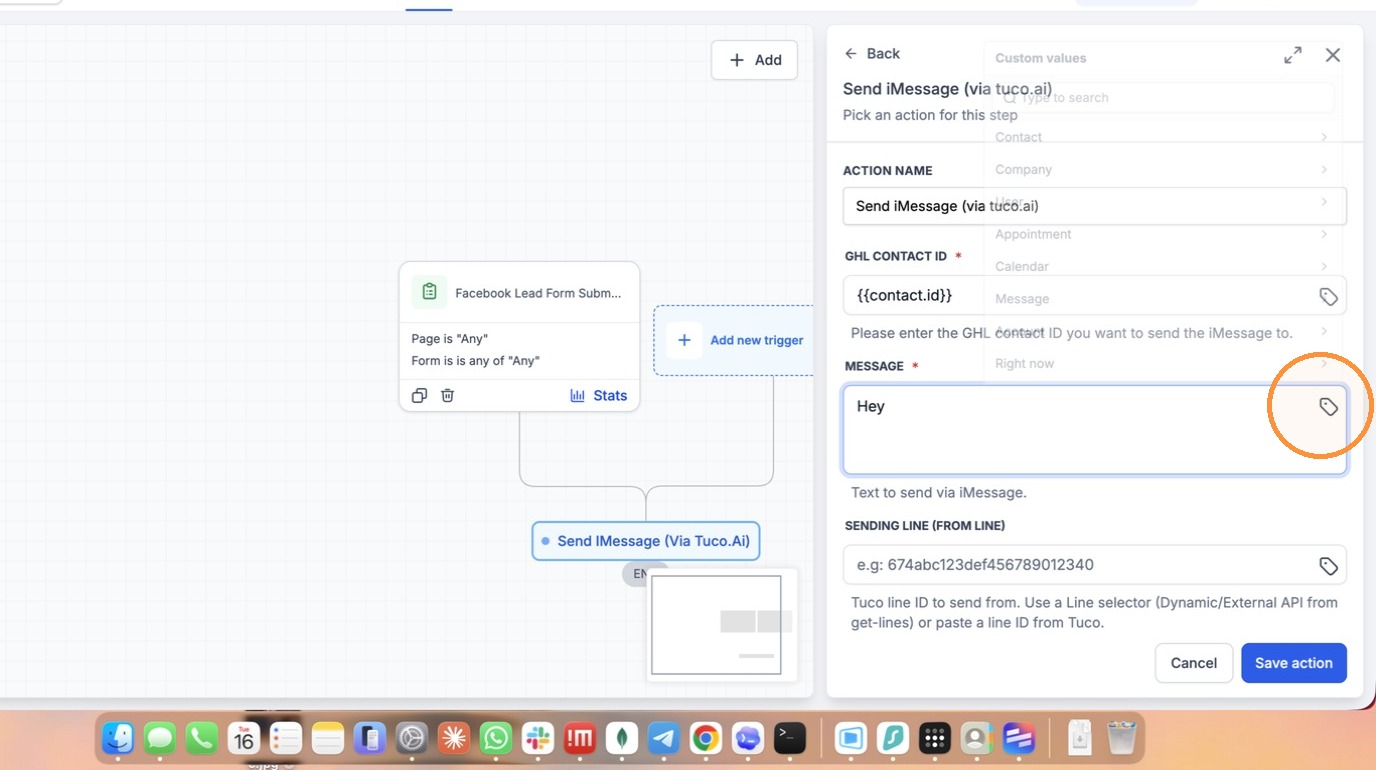
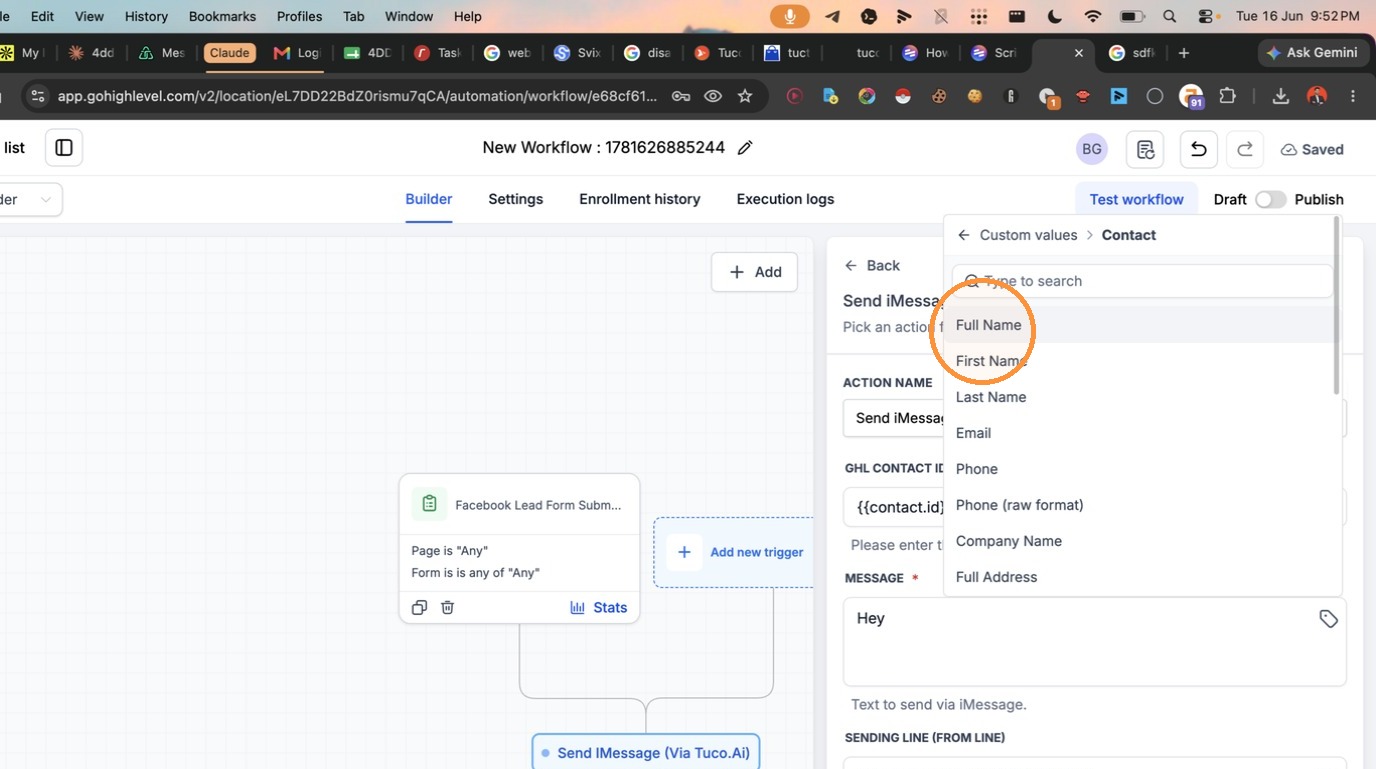
- Draft the message body using the Contact Full Name variable
Workflow Publishing
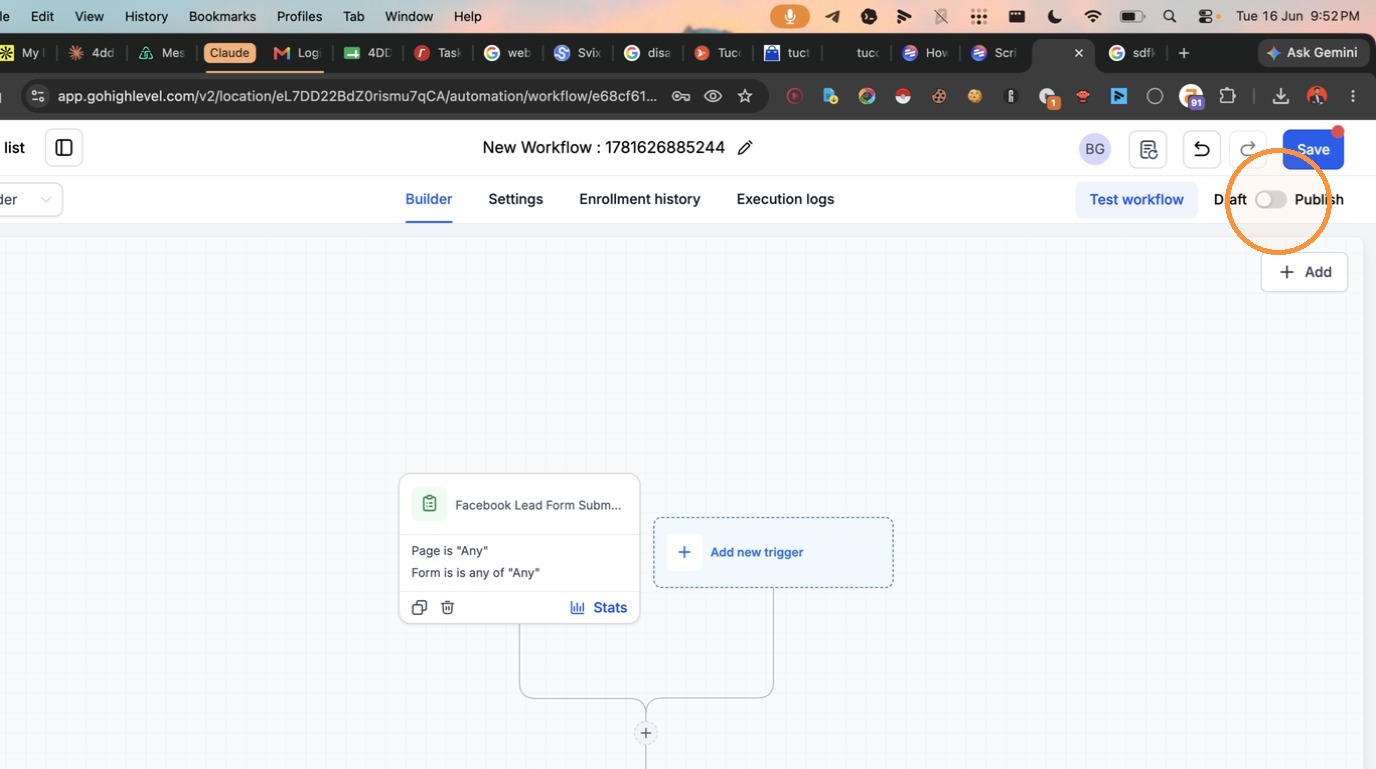
- Toggle the workflow status to "Publish"
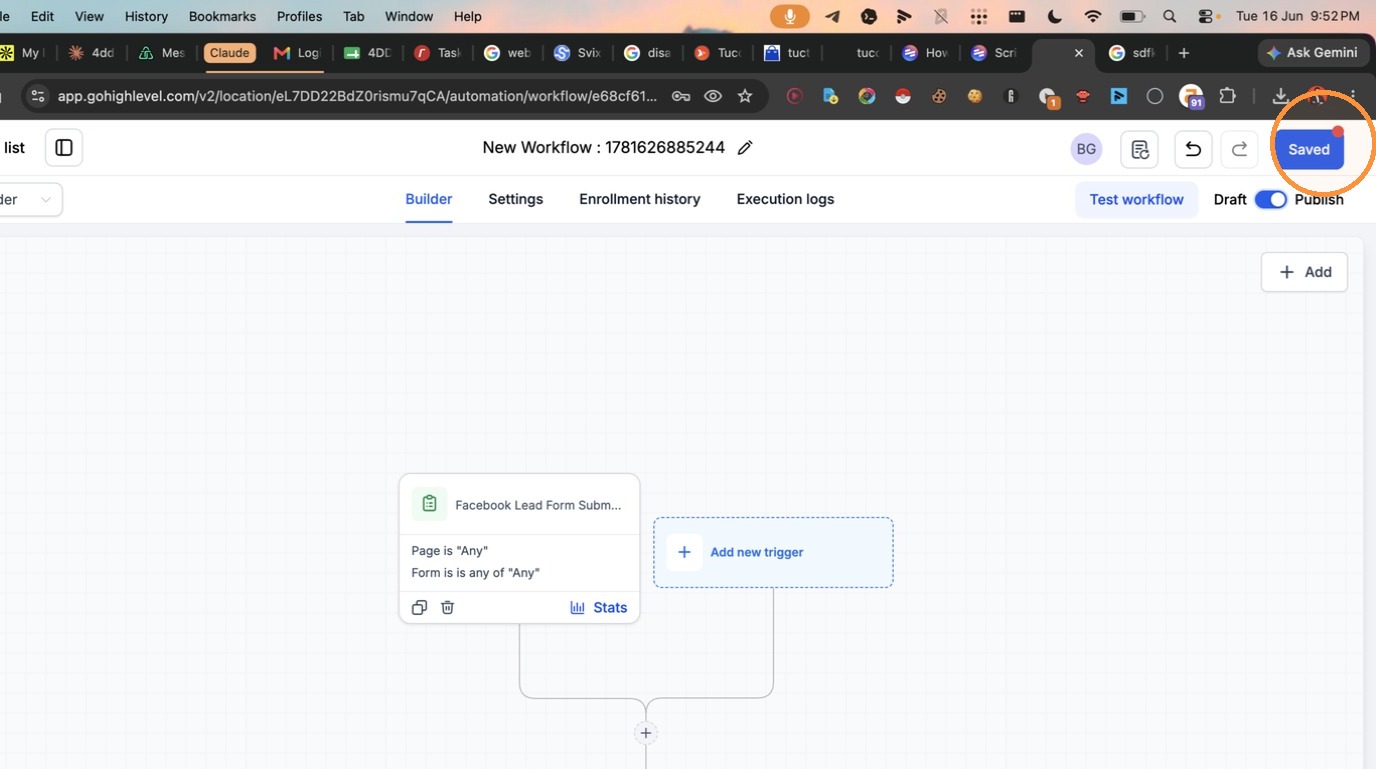
- Click "Save" to apply your changes
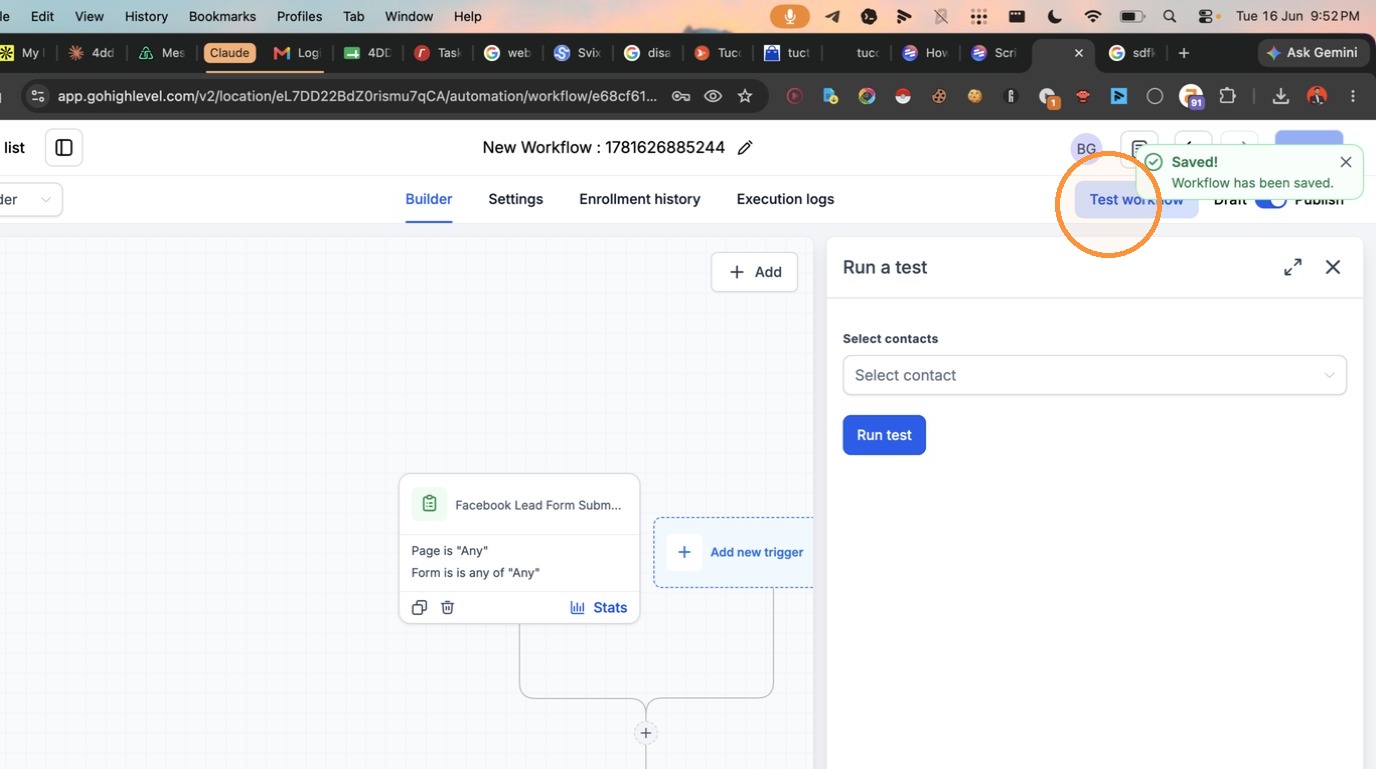
- Click "Test workflow" to verify the setup
Made with Scribe
Updated on: 14/07/2026
Thank you!