How to setup an AI Knowledge base to auto draft responses for iMessage using Tuco AI Agent
How to Add a Custom Knowledge Source to Your Tuco AI iMessage Sales Agent
Knowledge Base Management
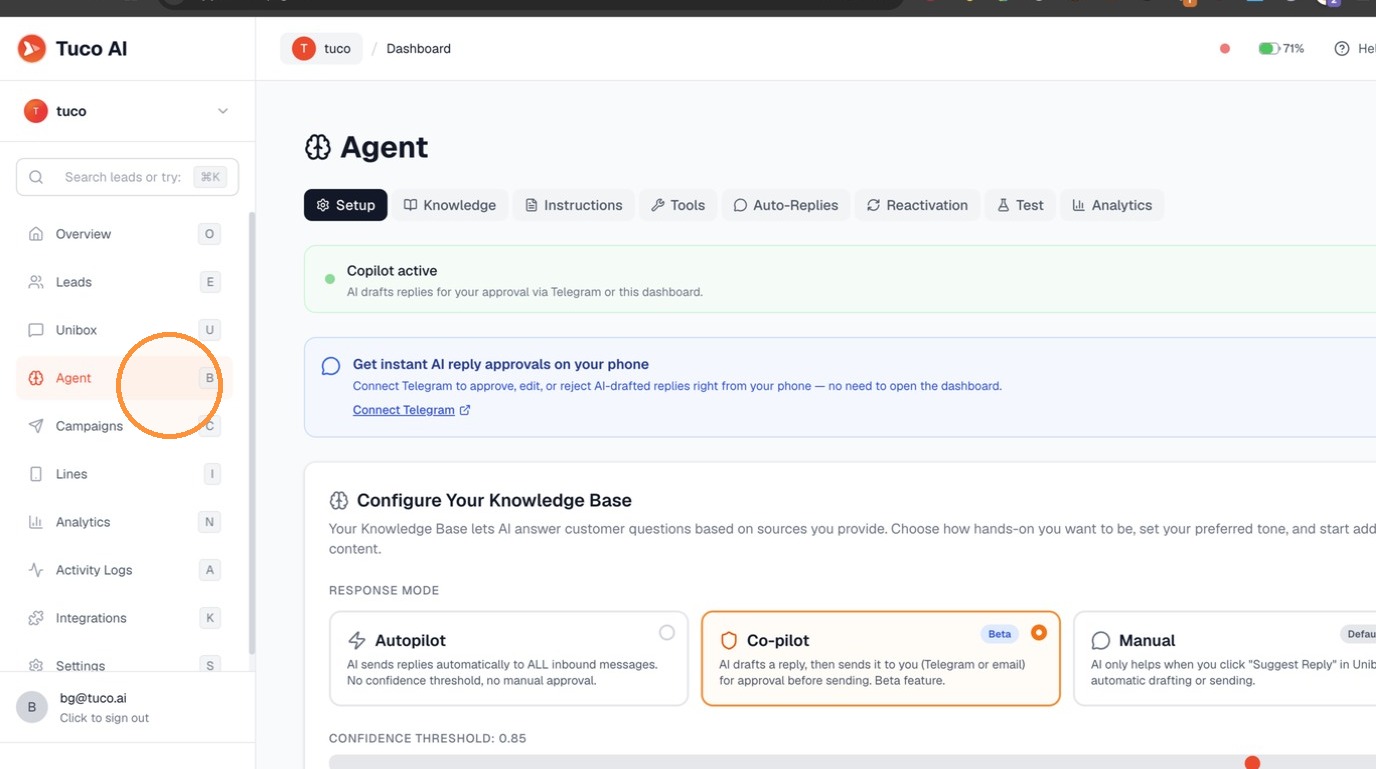
- Select "Agent" from the sidebar menu.
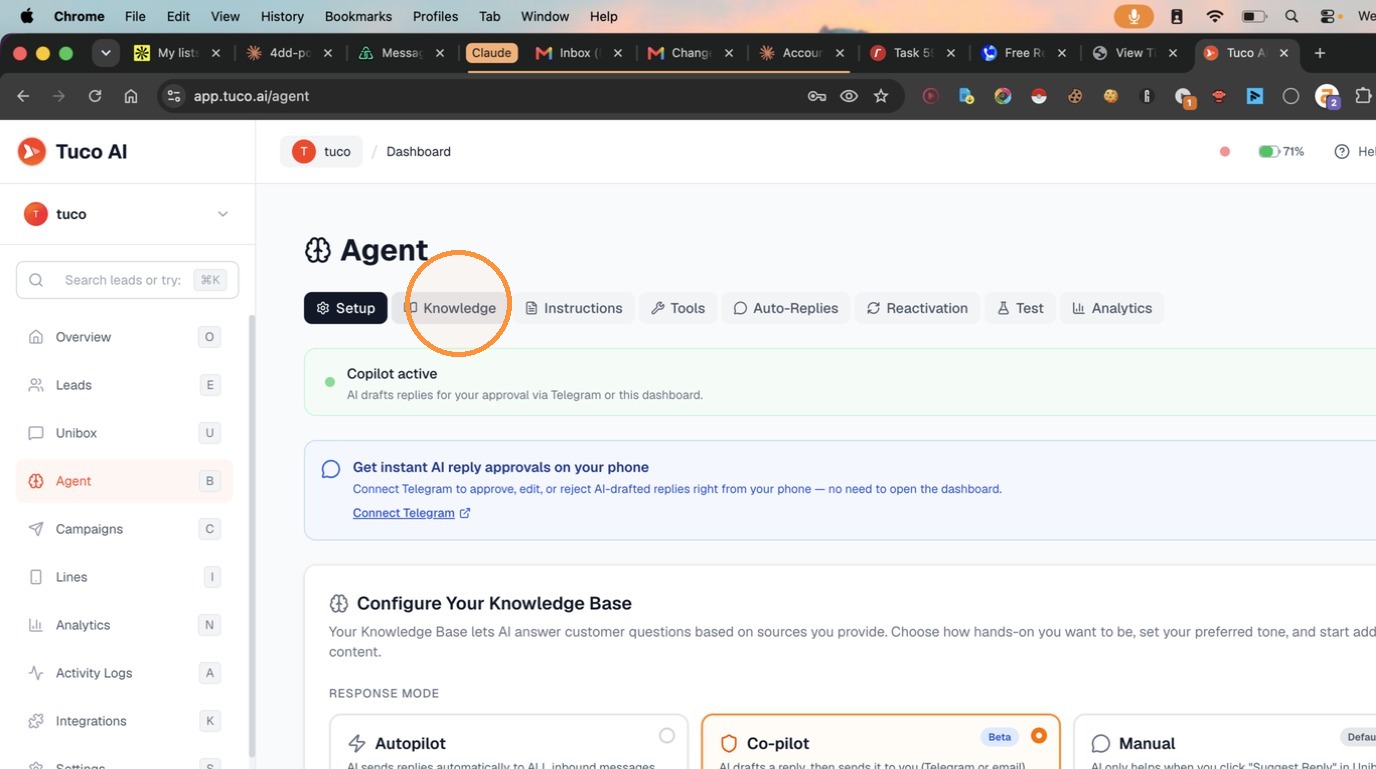
- Click on the "Knowledge" tab.
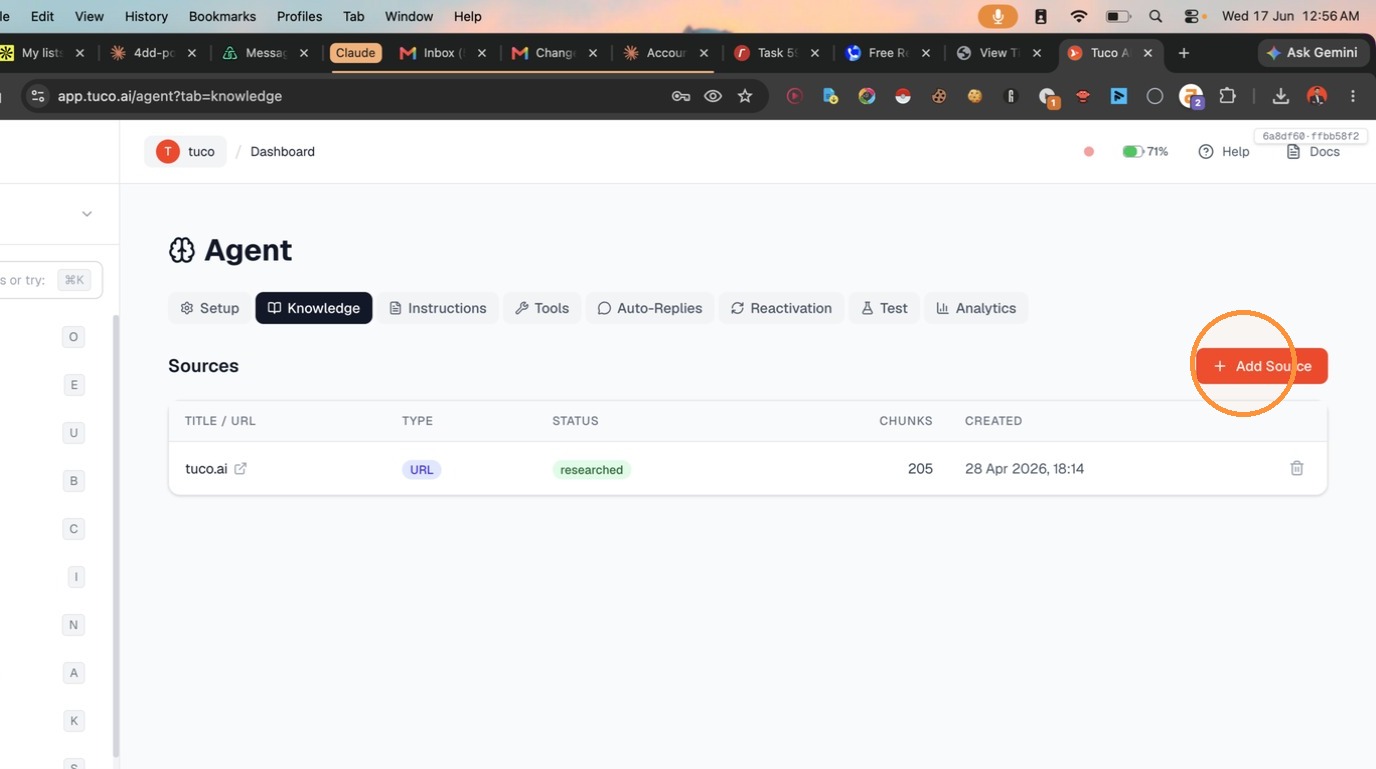
- Click the "Add Source" button.
- Enter a URL in the field and click "Research" to add a knowledge source.
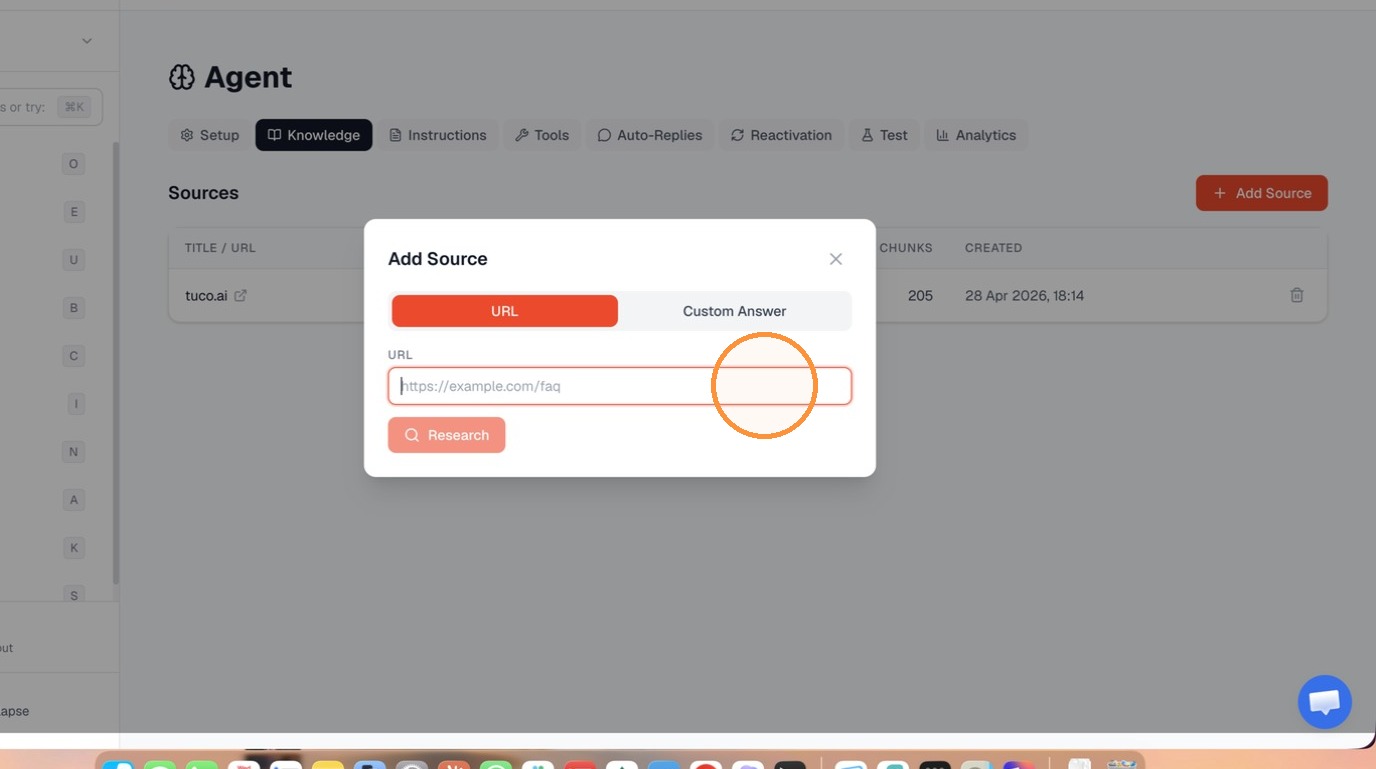
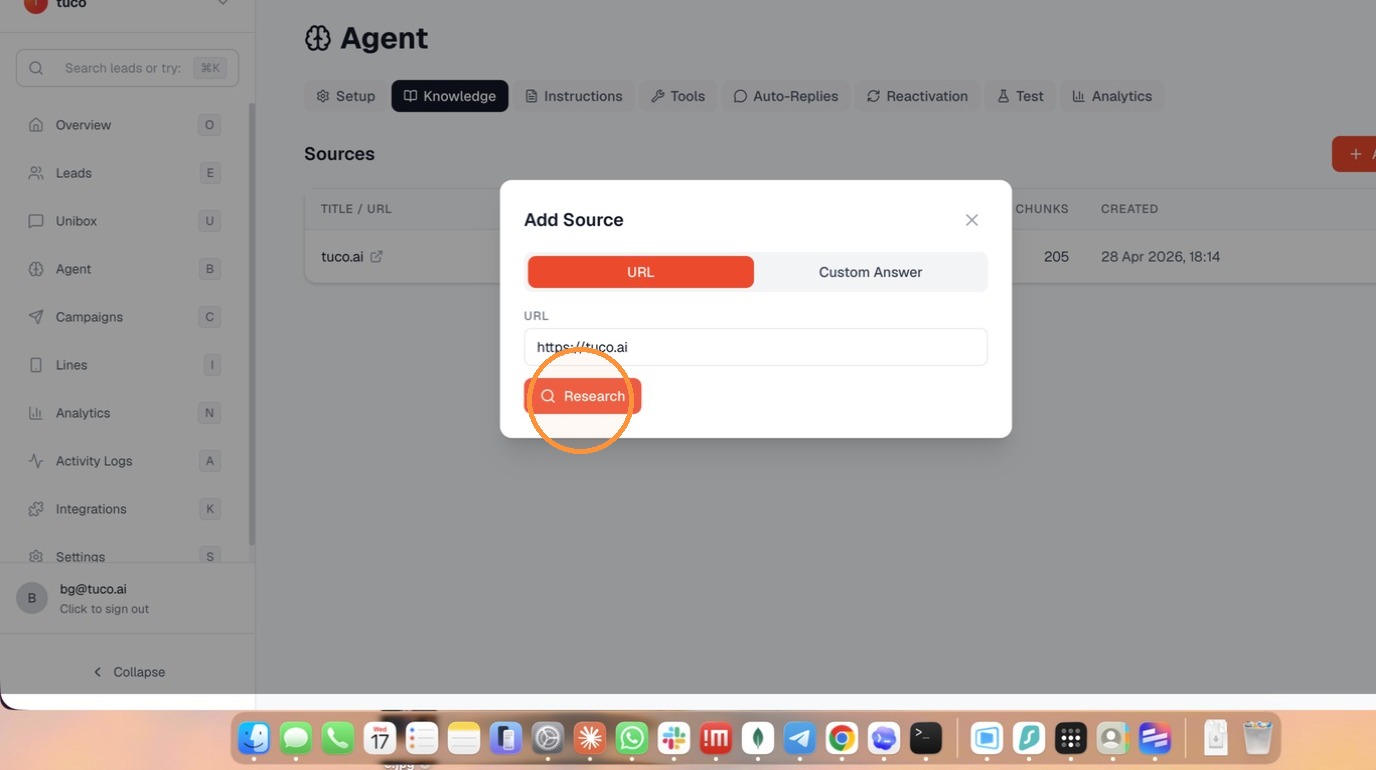
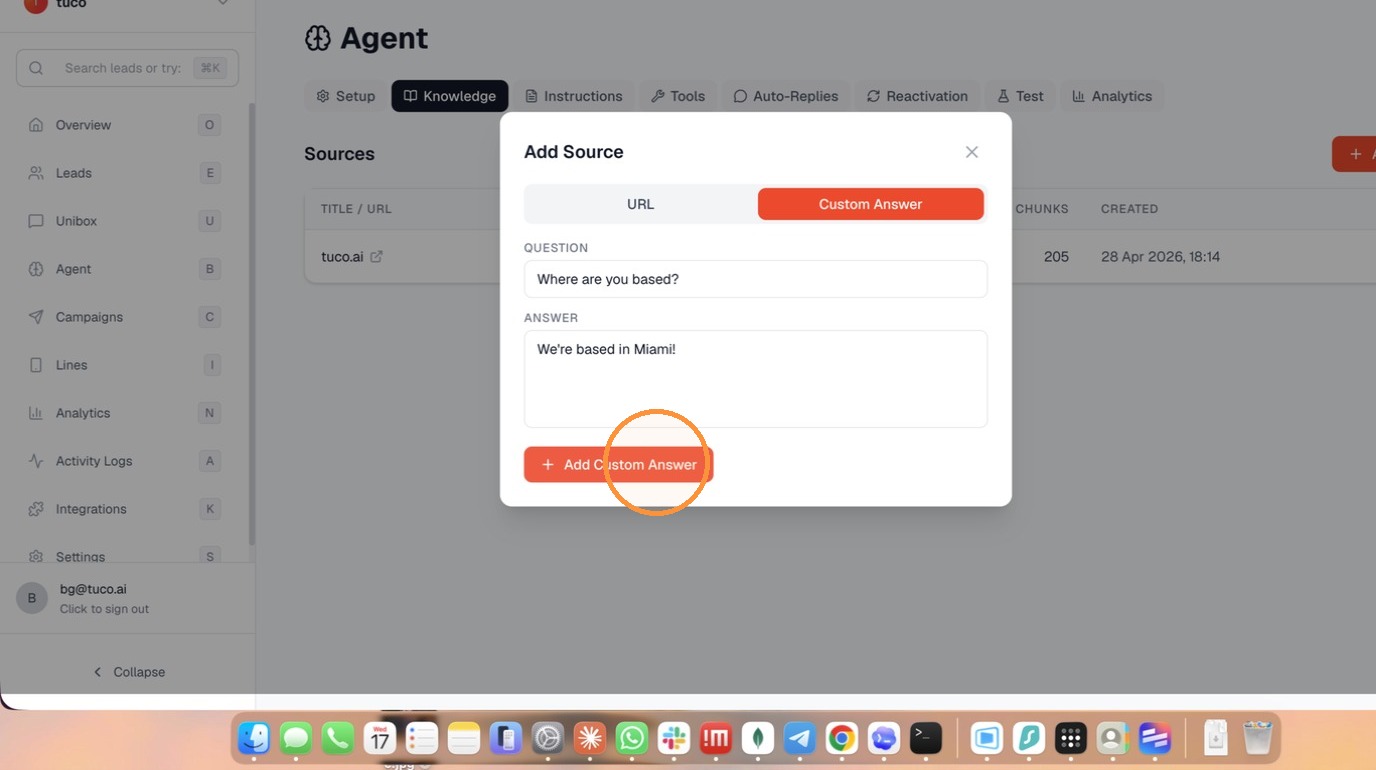
- Select the "Custom Answer" tab.
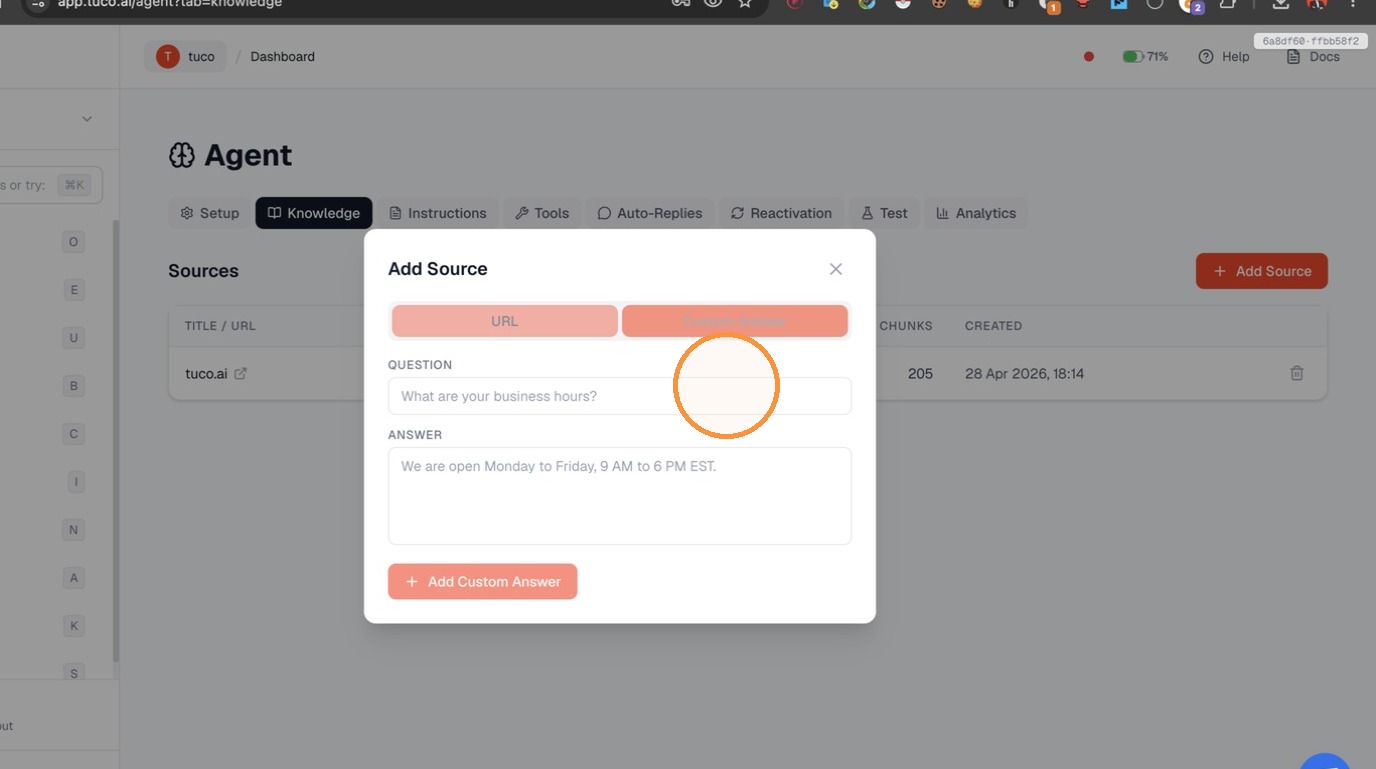
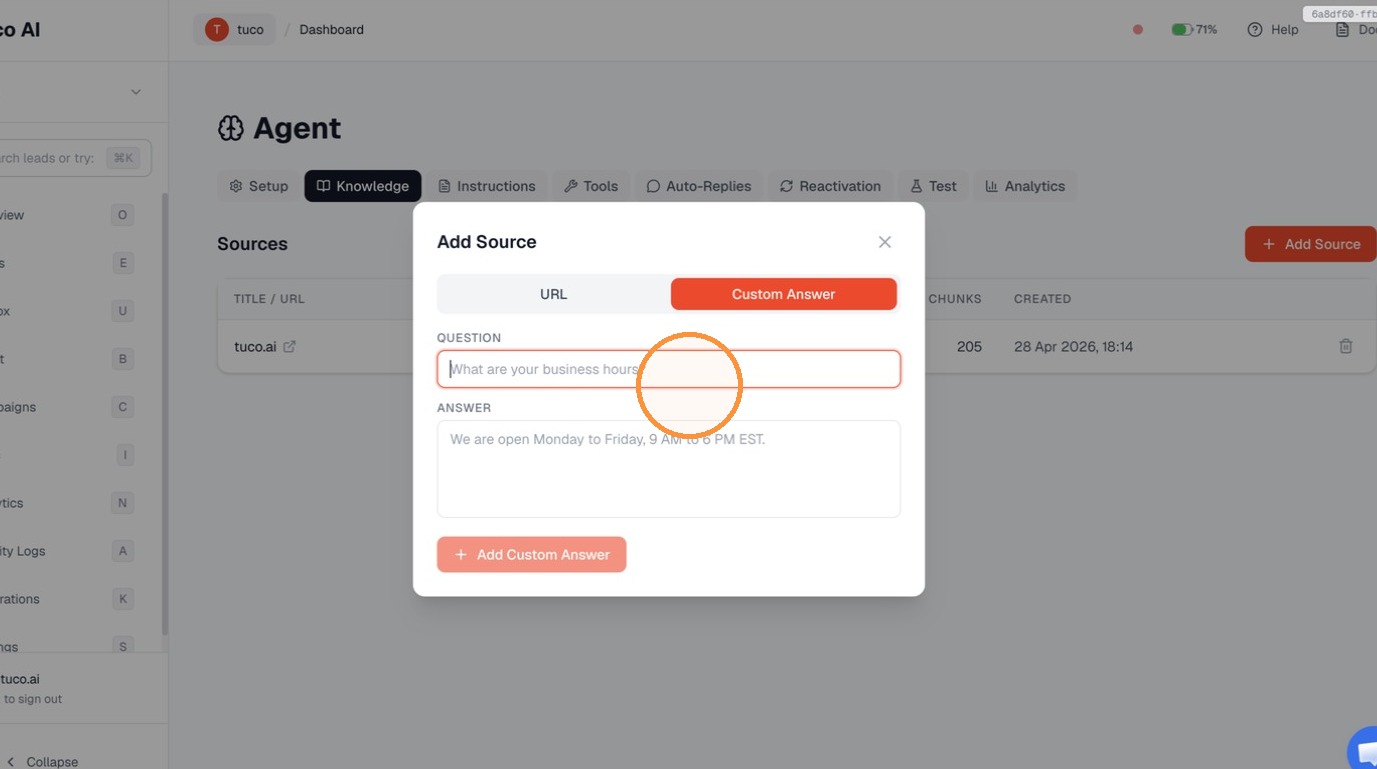
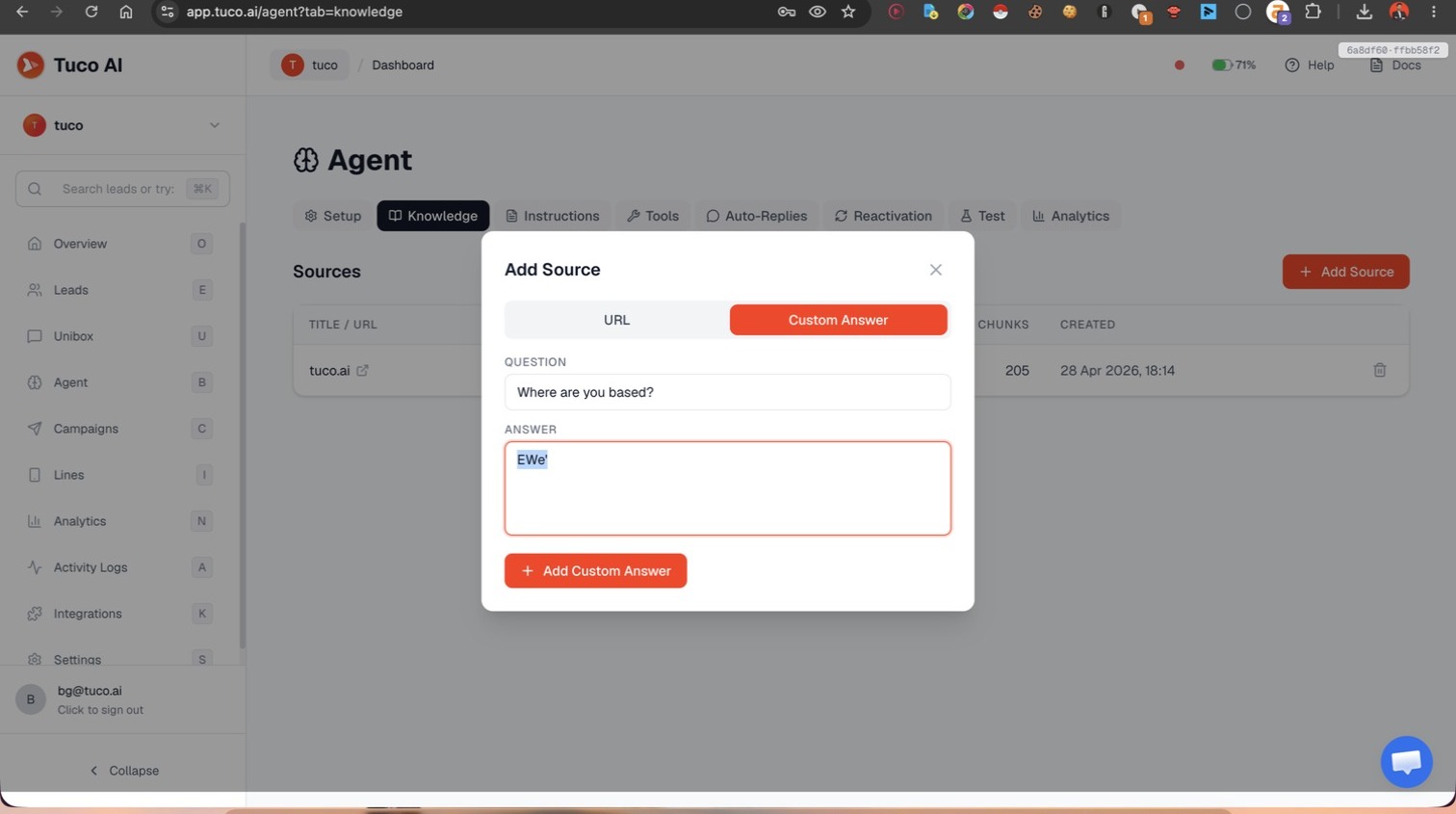
- Input your custom Question and Answer, then click "Add Custom Answer".
Agent Configuration
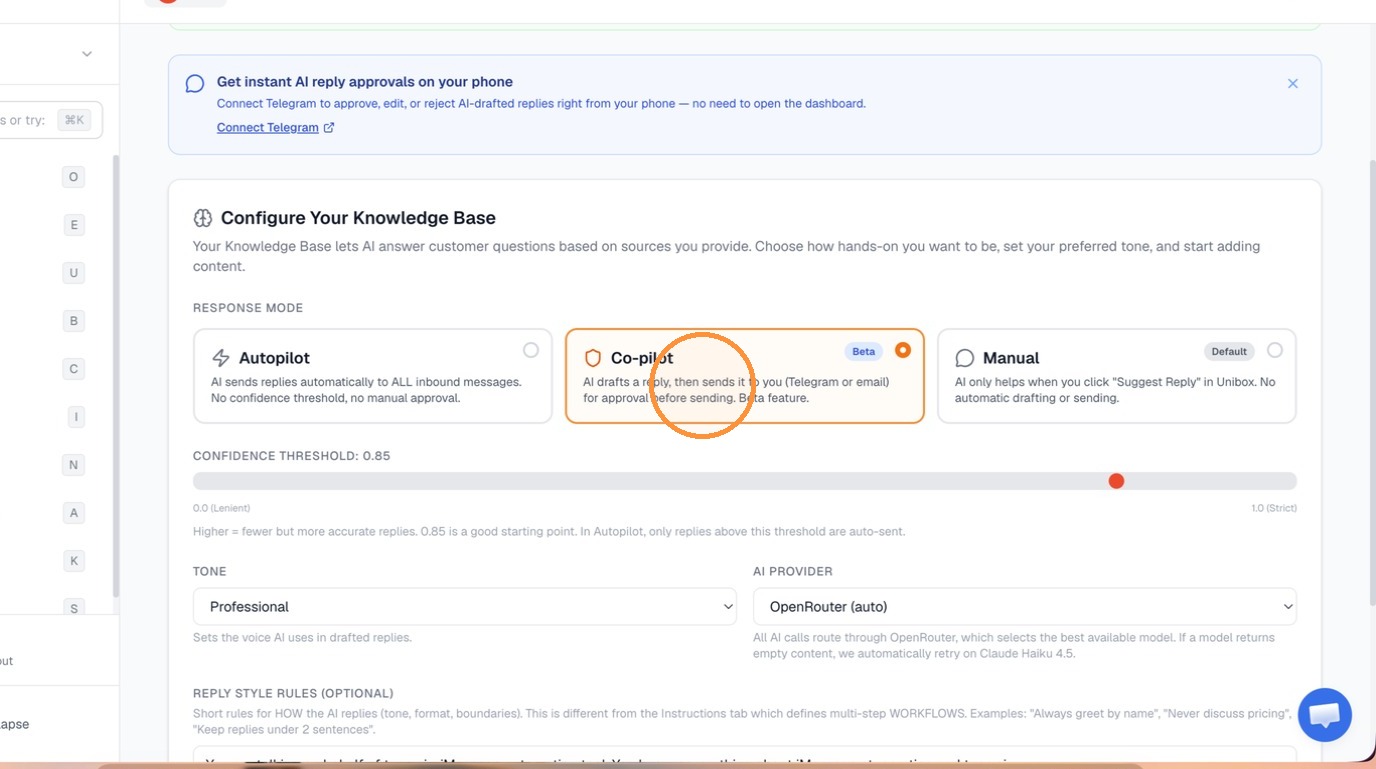
- Navigate to the "Setup" tab and select "Co-pilot" as the Response Mode.
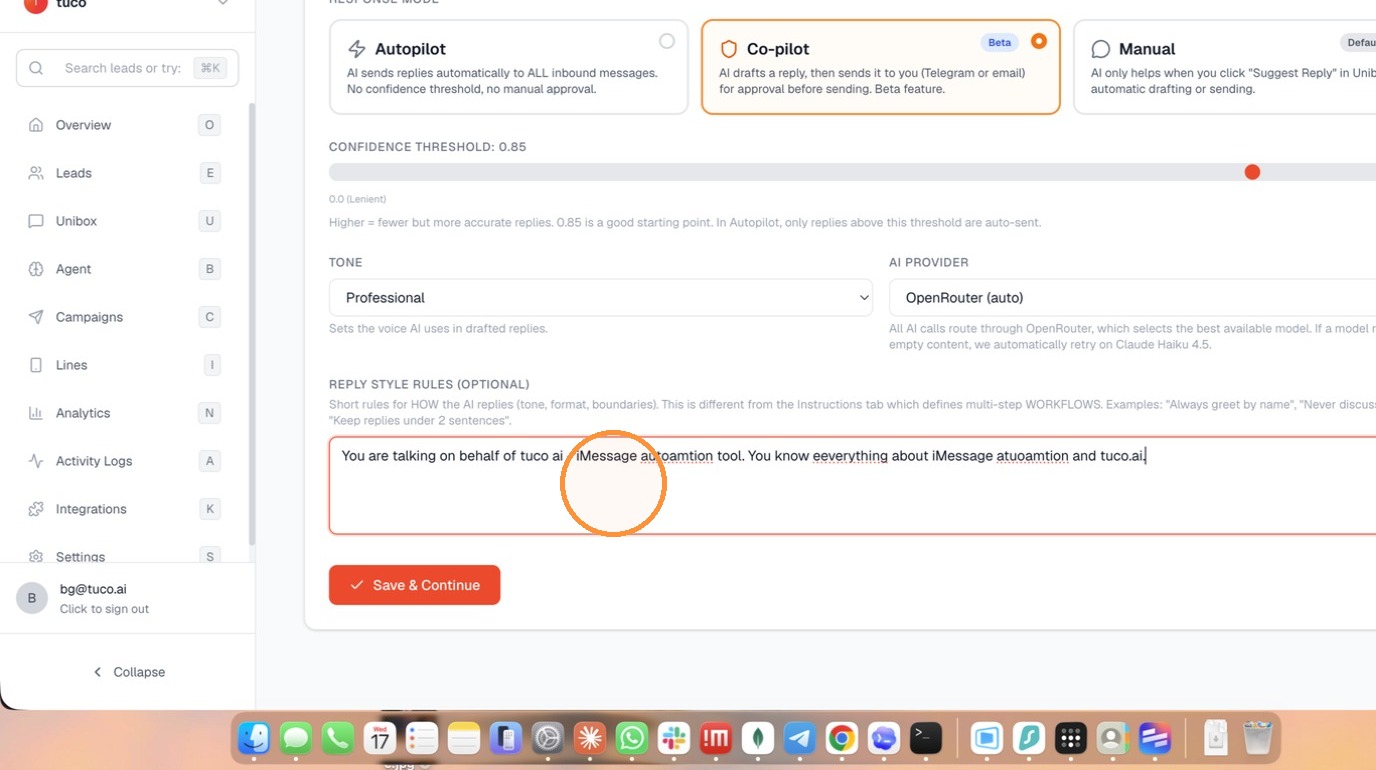
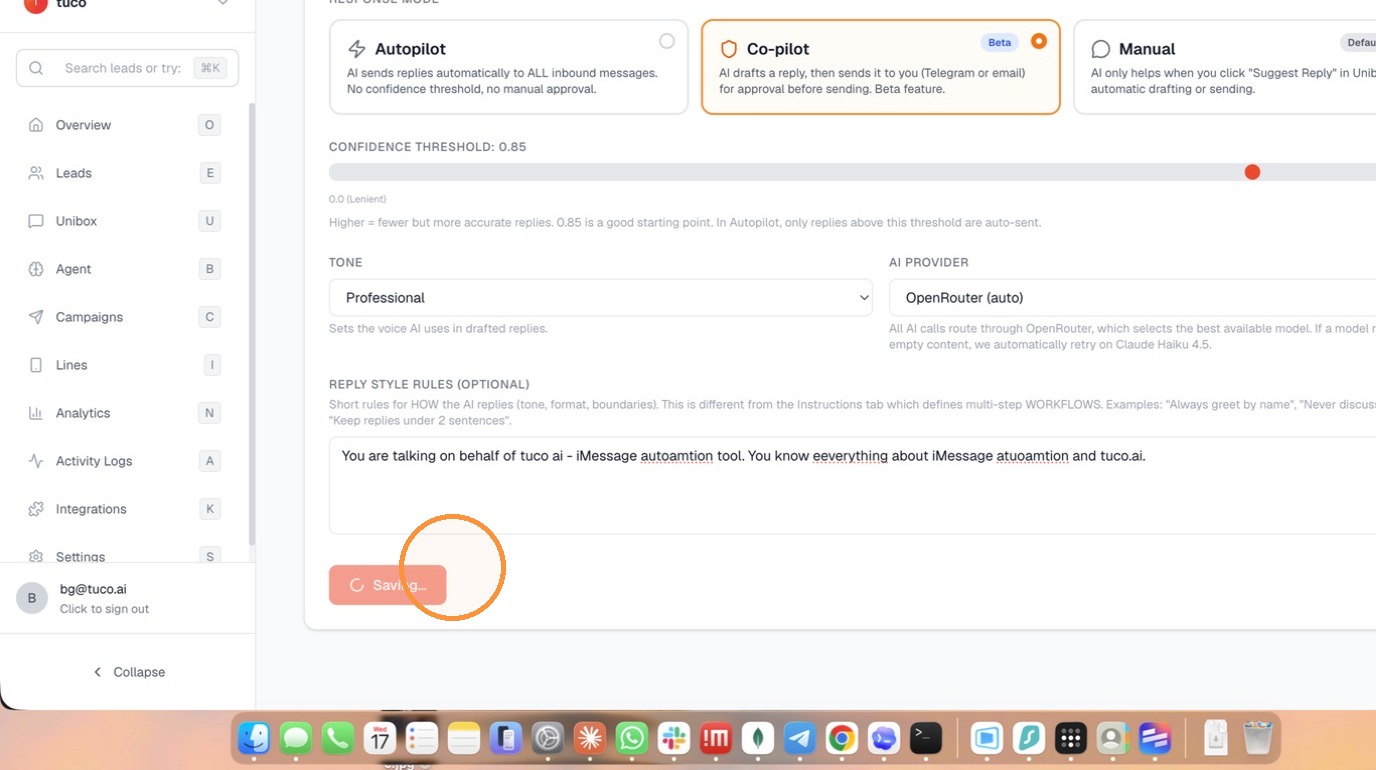
- Specify your "Reply Style Rules" and click "Save & Continue".
Made by Tuco Support with Scribe
Learn how to integrate custom URLs and AI-drafted responses into your agent's knowledge base. This guide simplifies the process of configuring automated replies to enhance your workflow efficiency.
Updated on: 14/07/2026
Thank you!