How to quickly send an iMessage using Tuco AI
How To Send A Quick Message On Tuco AI
Made by Tuco Support with Scribe
Learn how to efficiently manage your communication workflow by sending personalized messages to your leads directly through the Tuco AI dashboard. This guide streamlines the process of drafting, attaching links, and categorizing your outreach for better lead management.
Navigation
- Navigate to https://app.tuco.ai/
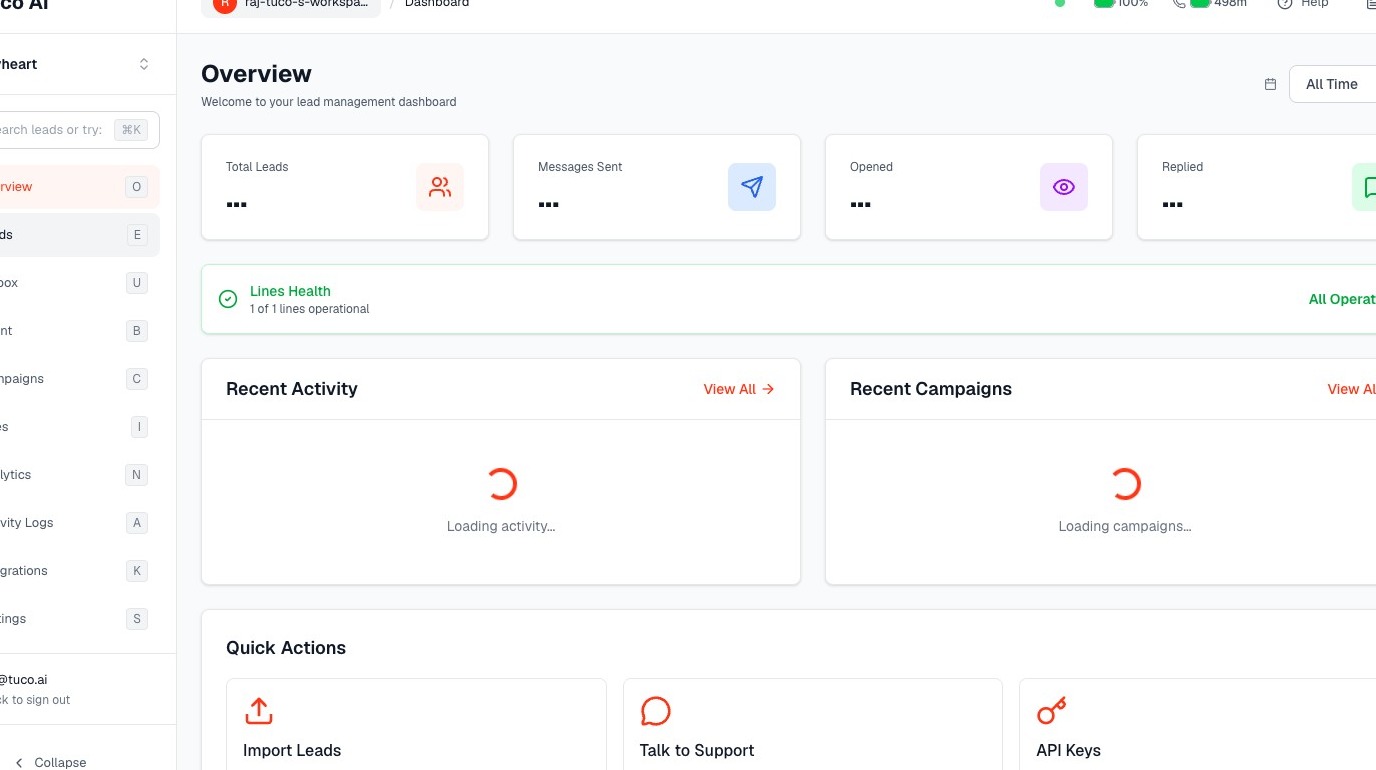
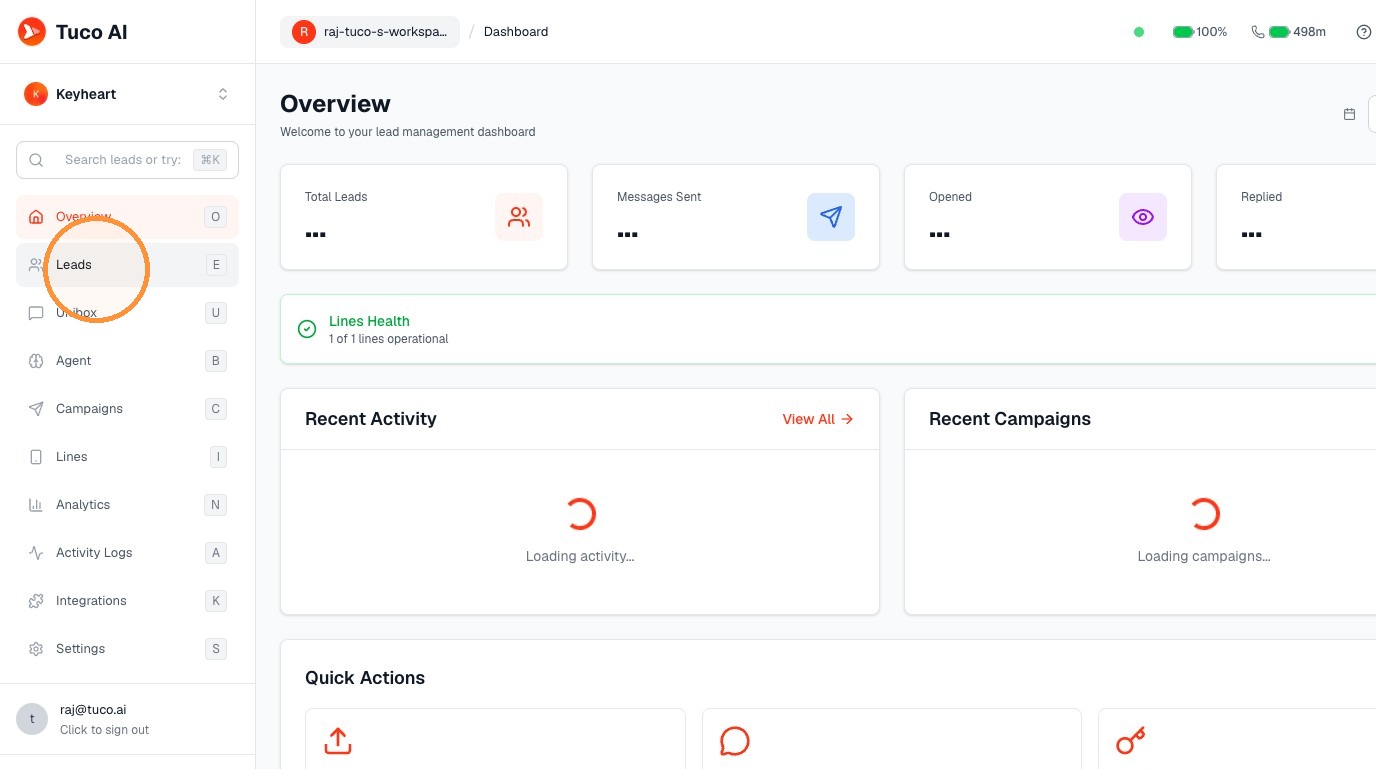
- Click "Leads"
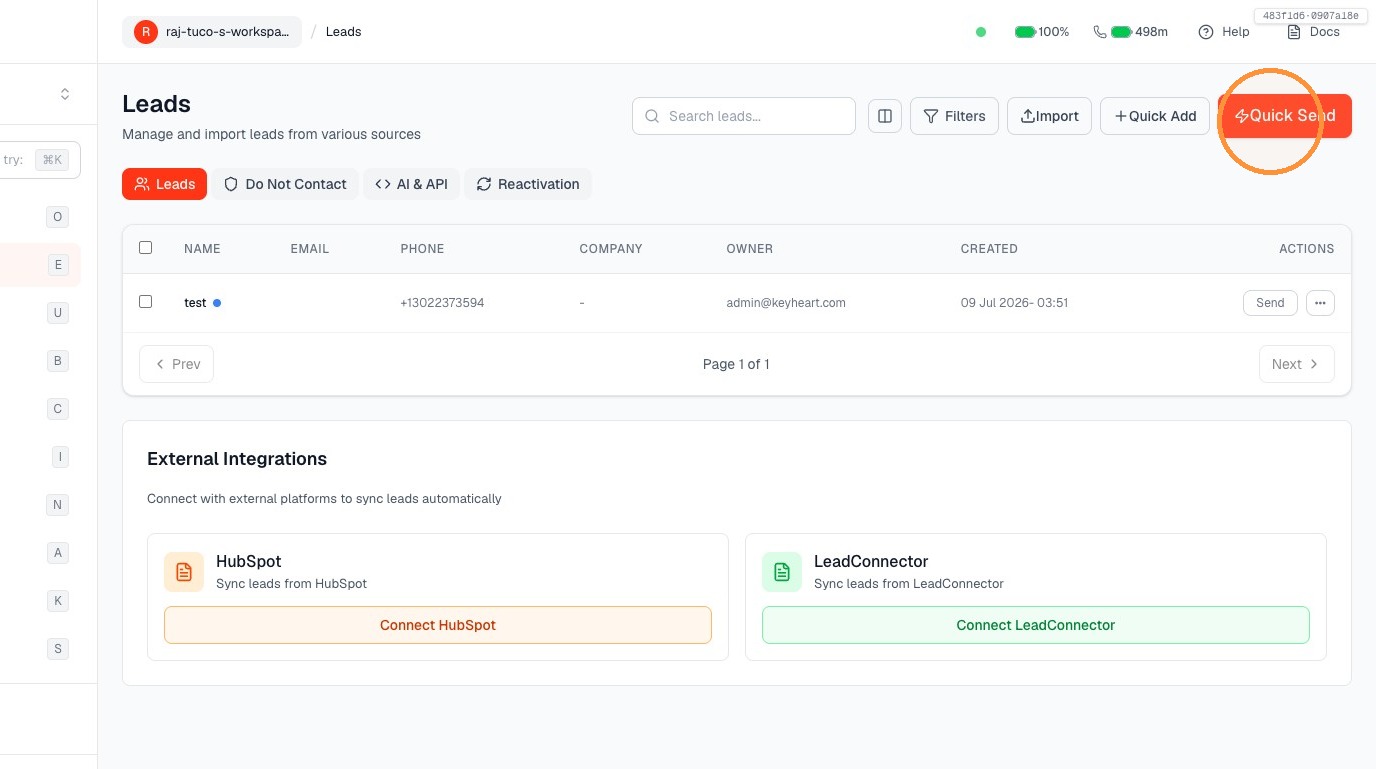
- Click "Quick Send"
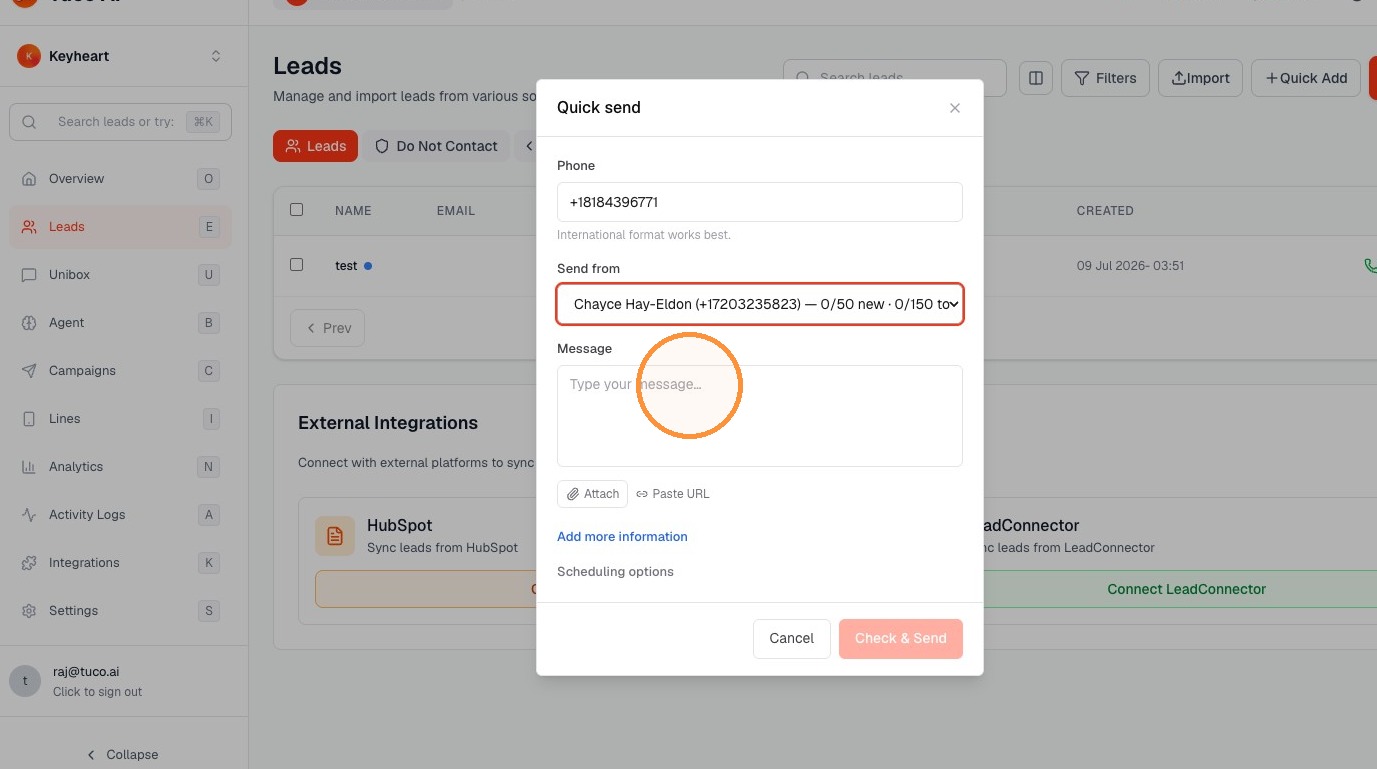
Quick Send Configuration
- Fill up the basic details like number with E164 format & select sender line
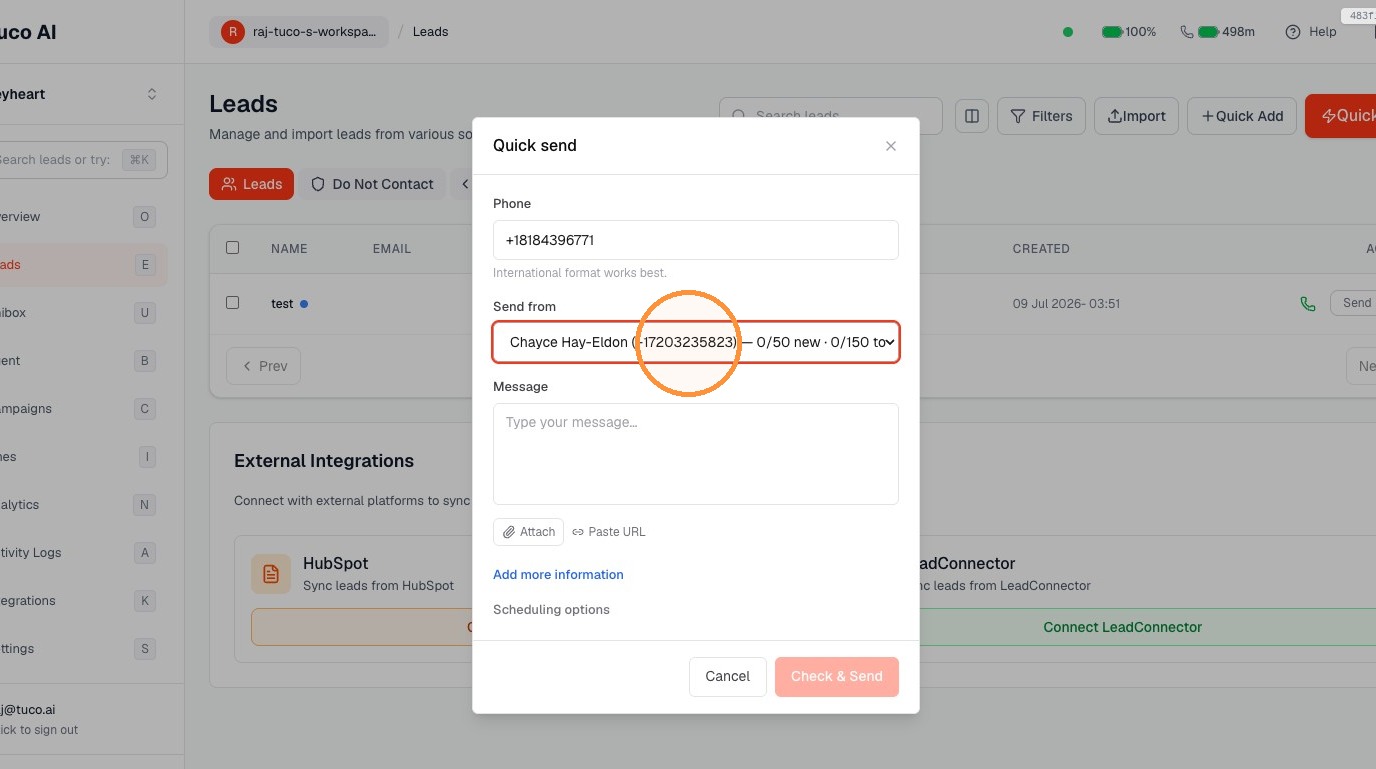
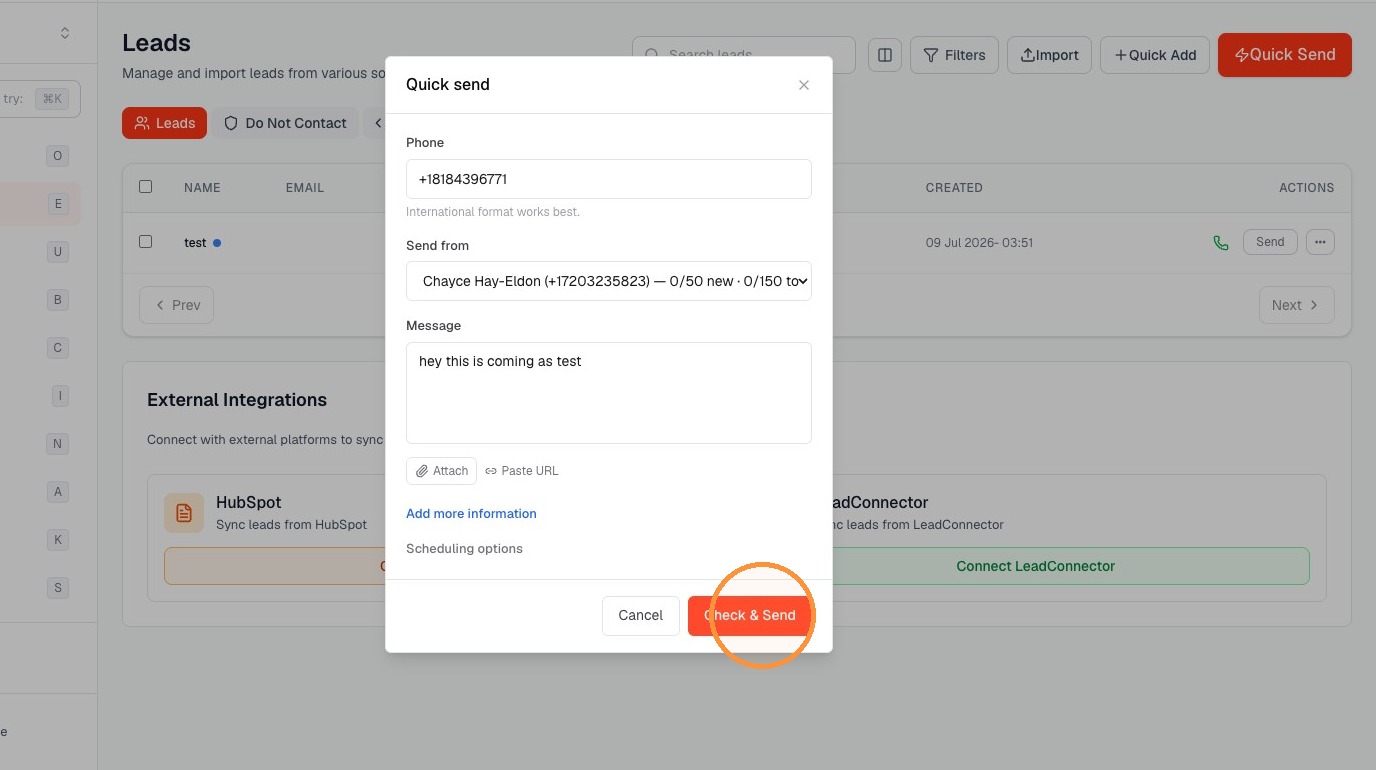
- Type message into text field
- Click "Check & Send"
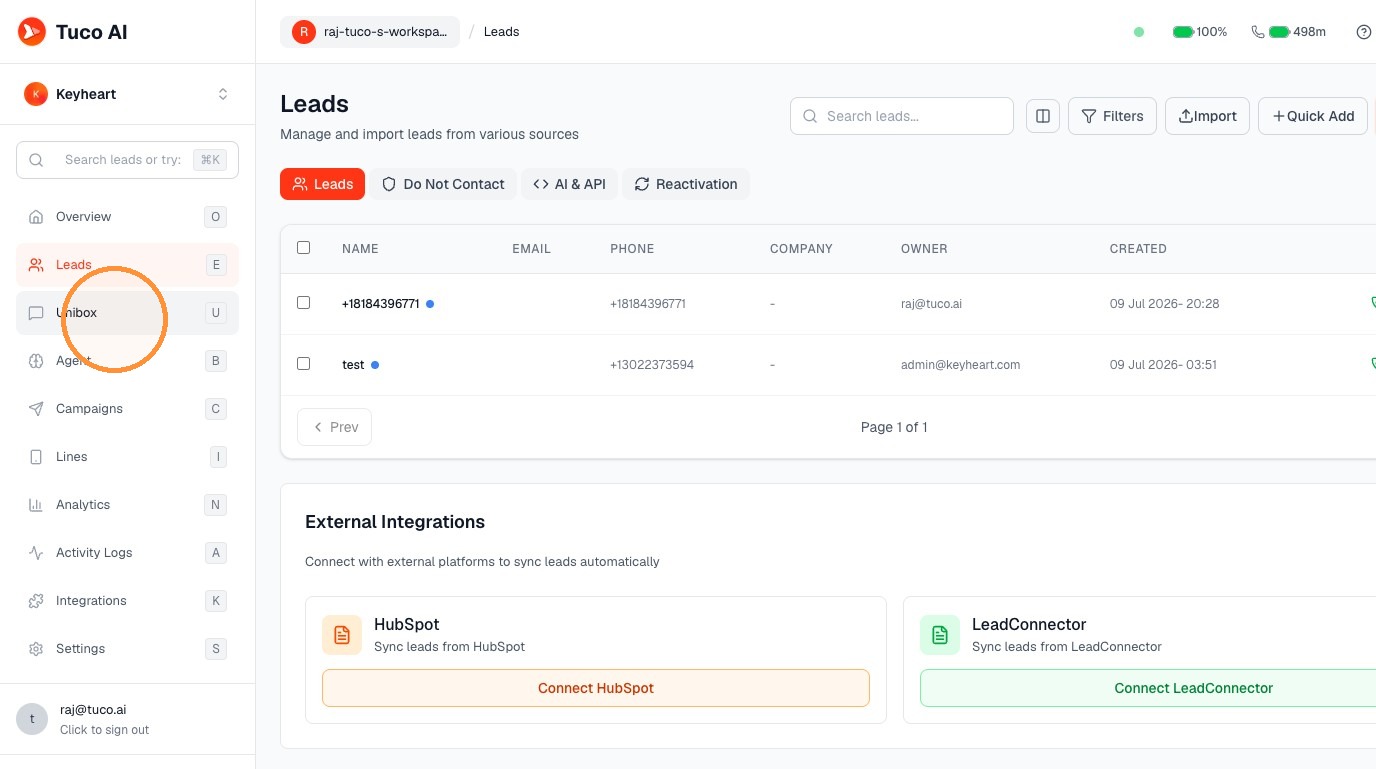
Message Verification
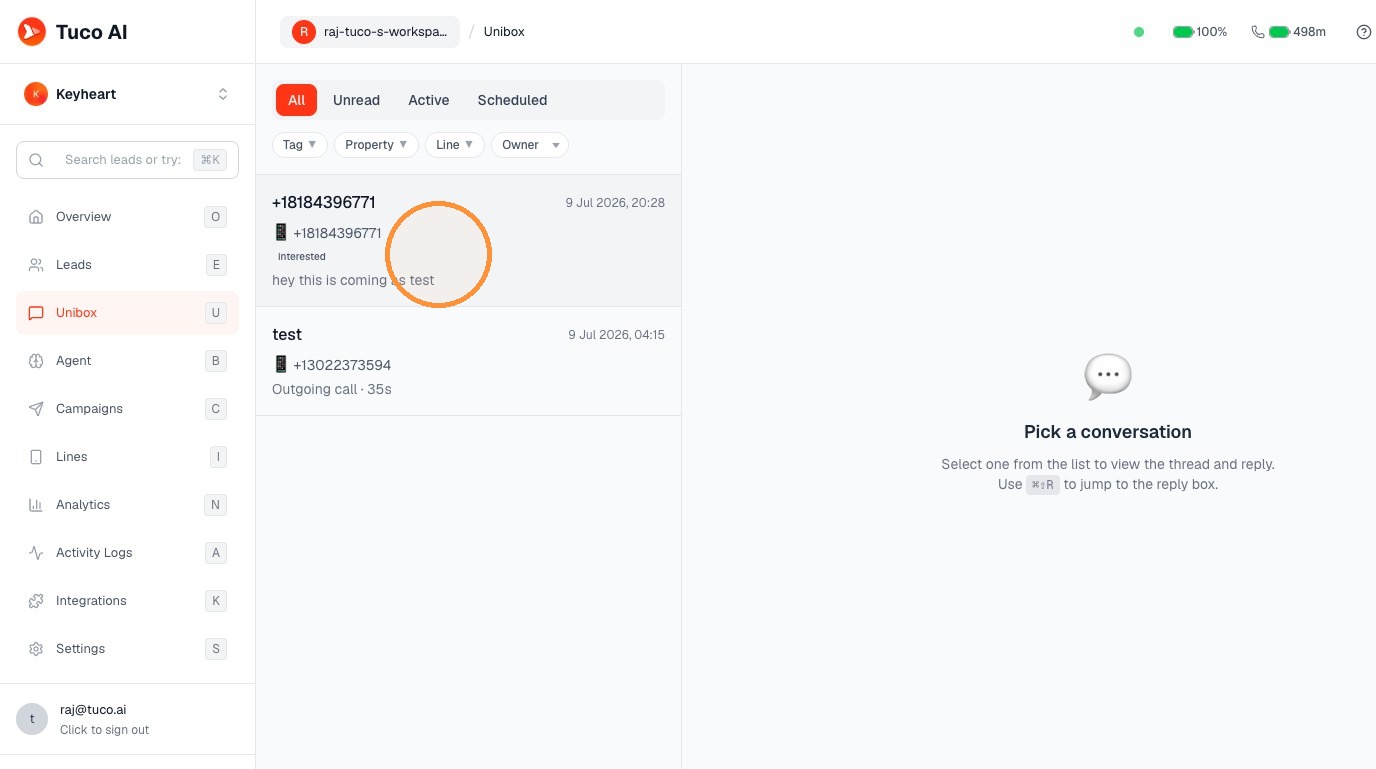
- Click "Unibox"
- 🎉 congrats you sent the first message, you can see the message here
Made with Scribe
Updated on: 14/07/2026
Thank you!