How to reply to leads faster on iMessage using Tuco AI's telegram integration
How to Connect Your Telegram Chat to Tuco AI
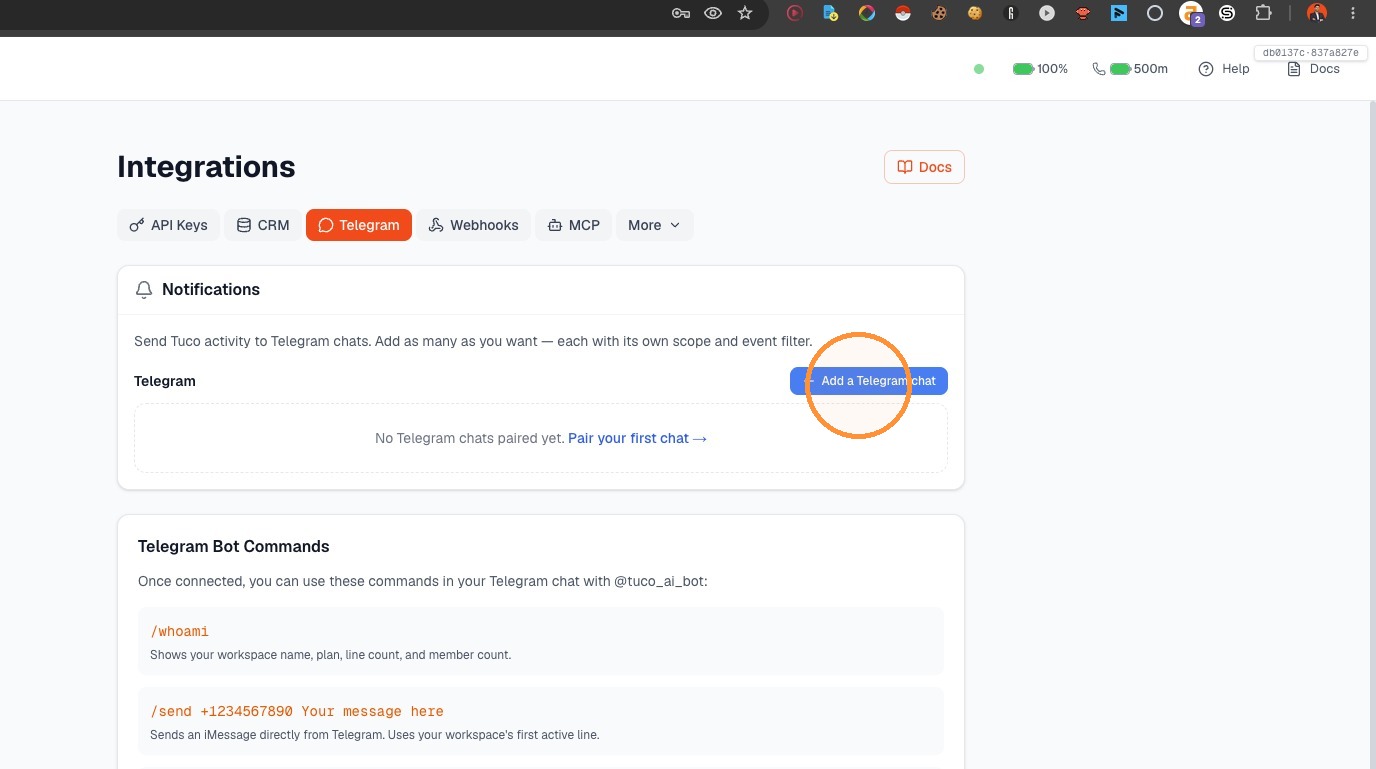
Integration Initiation
- Click "Add a Telegram chat"
- Click "Next"
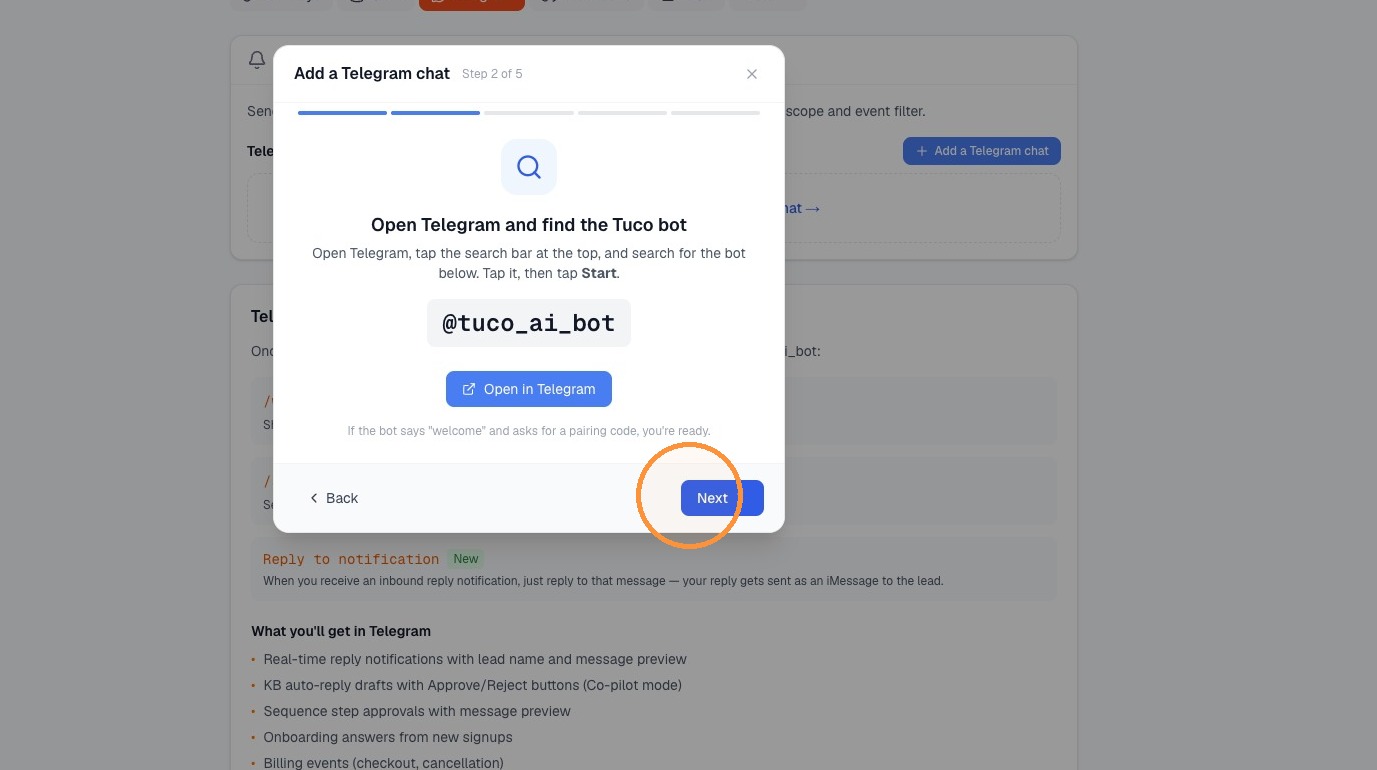
Bot Pairing
- Click "Open in Telegram"

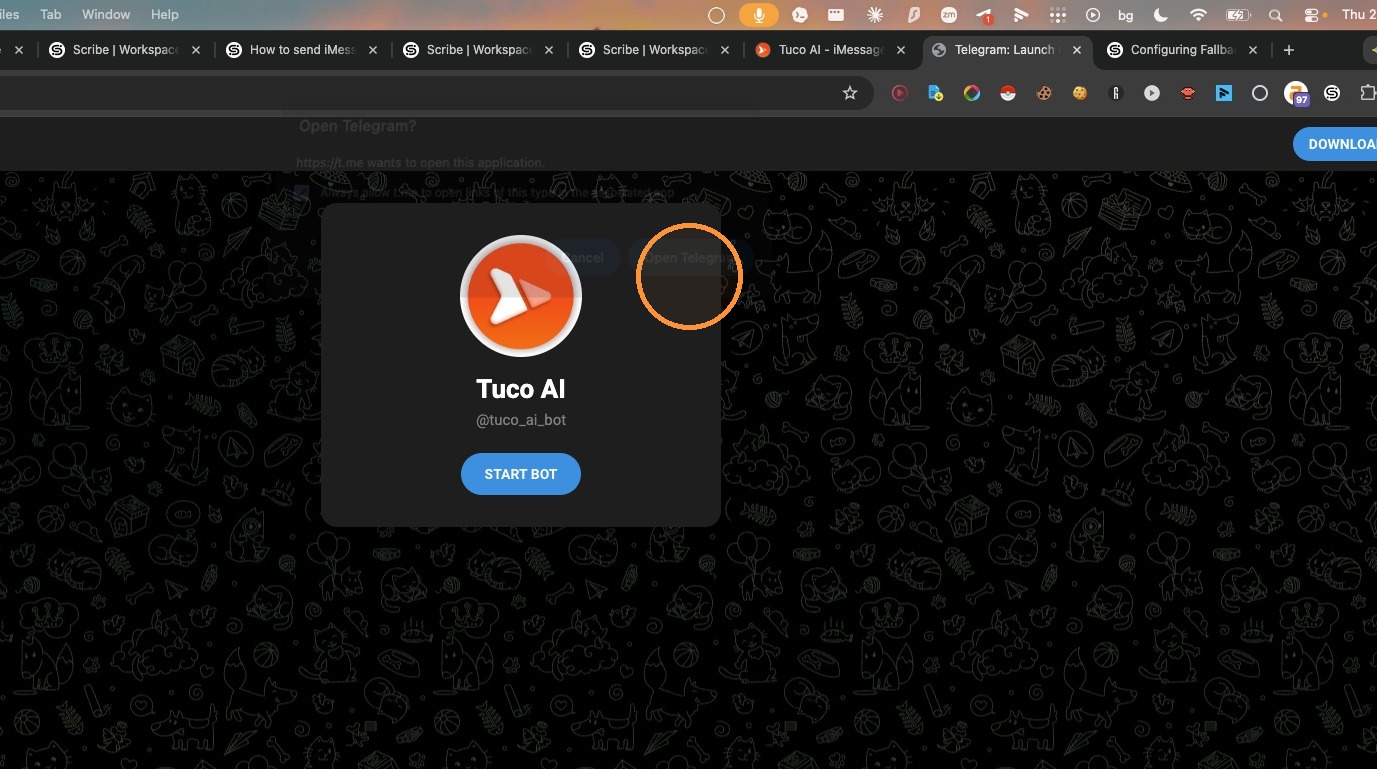
- Click "Open Telegram" in the browser prompt
- Click ALL leads! and then click next
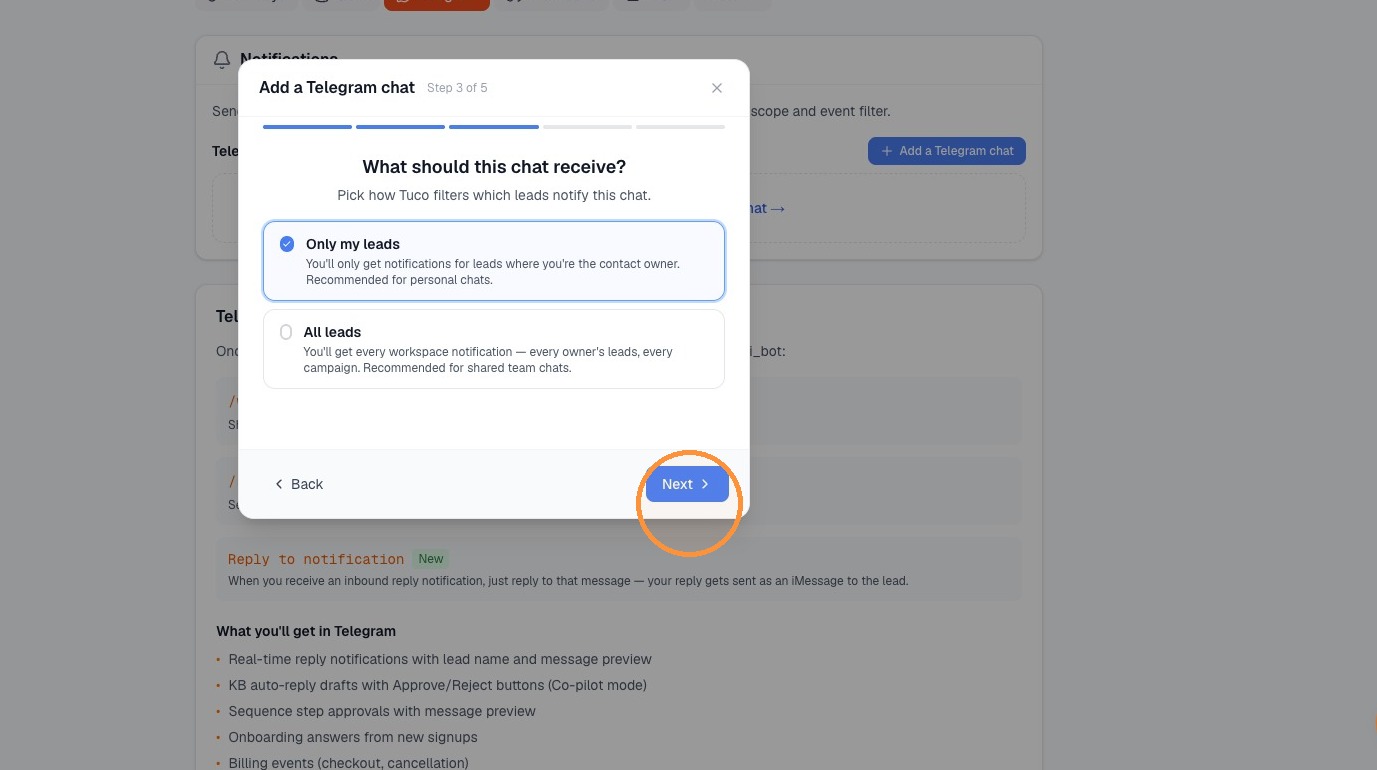
- Select "All leads" and click "Next"
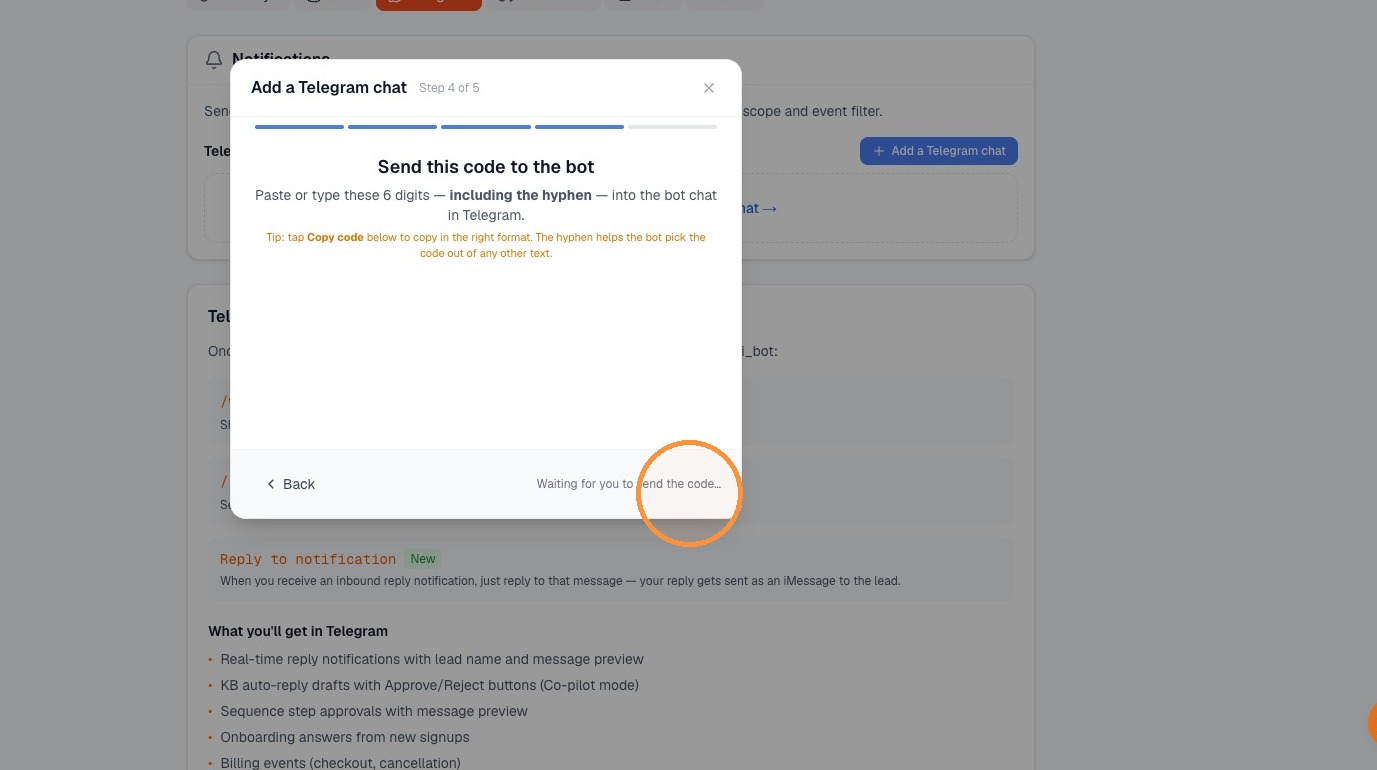
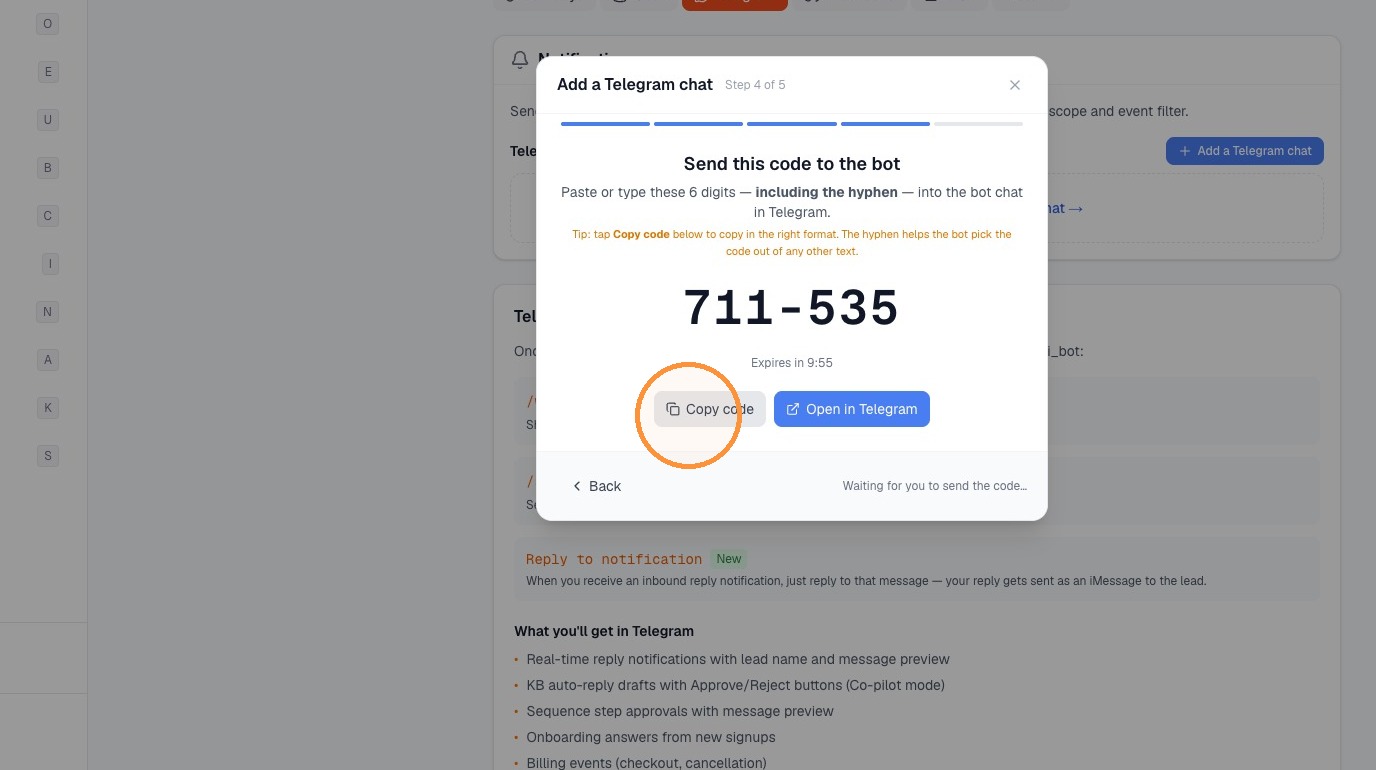
- Copy the pairing code
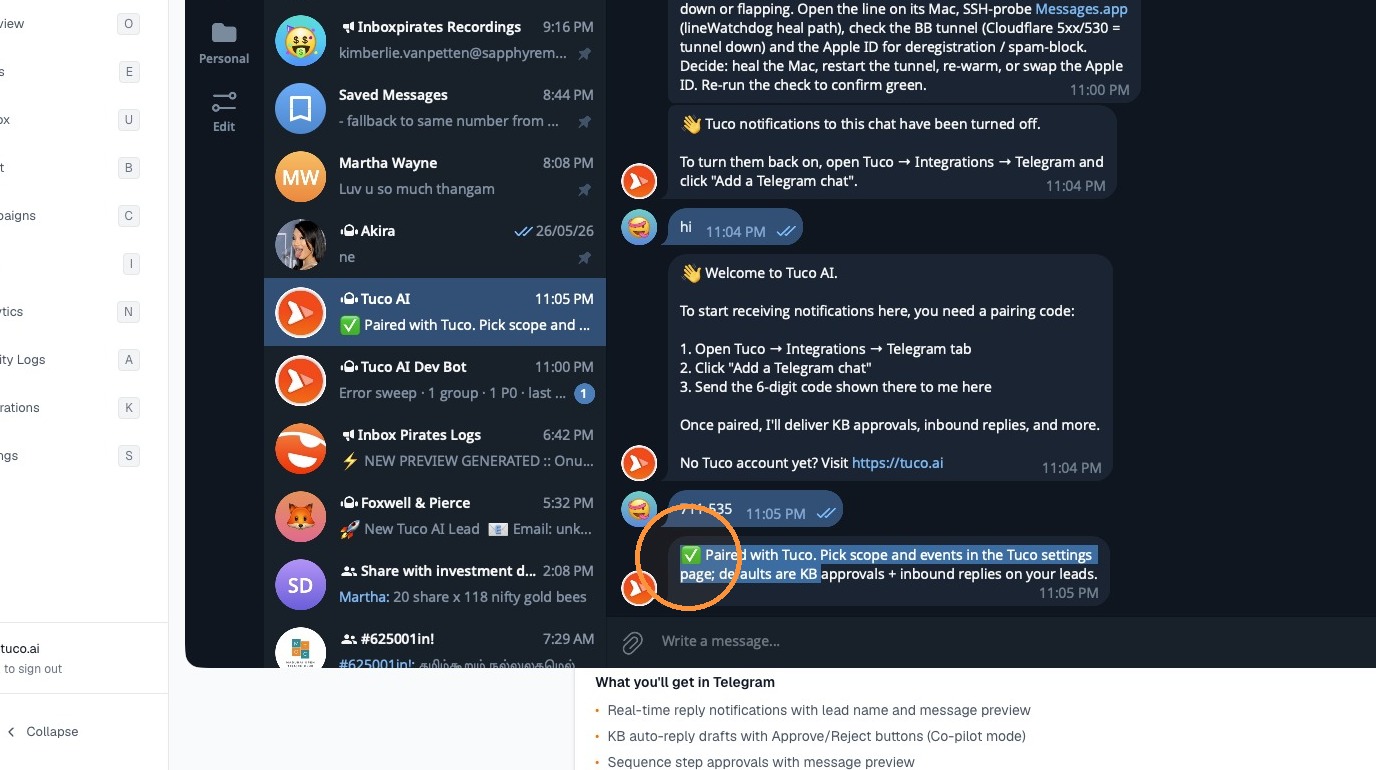
- Confirm pairing in the Telegram app
Configuration and Testing
- Select the Telegram chat from the list
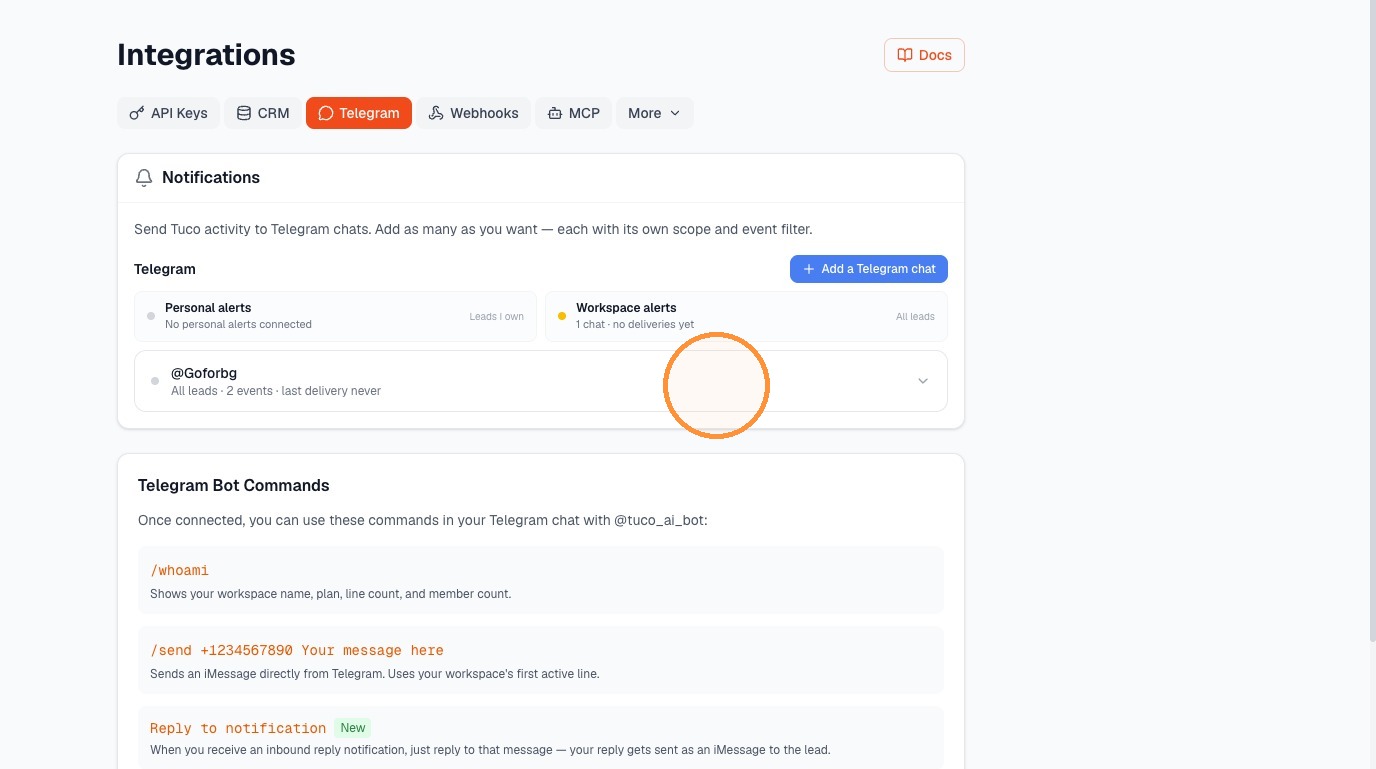
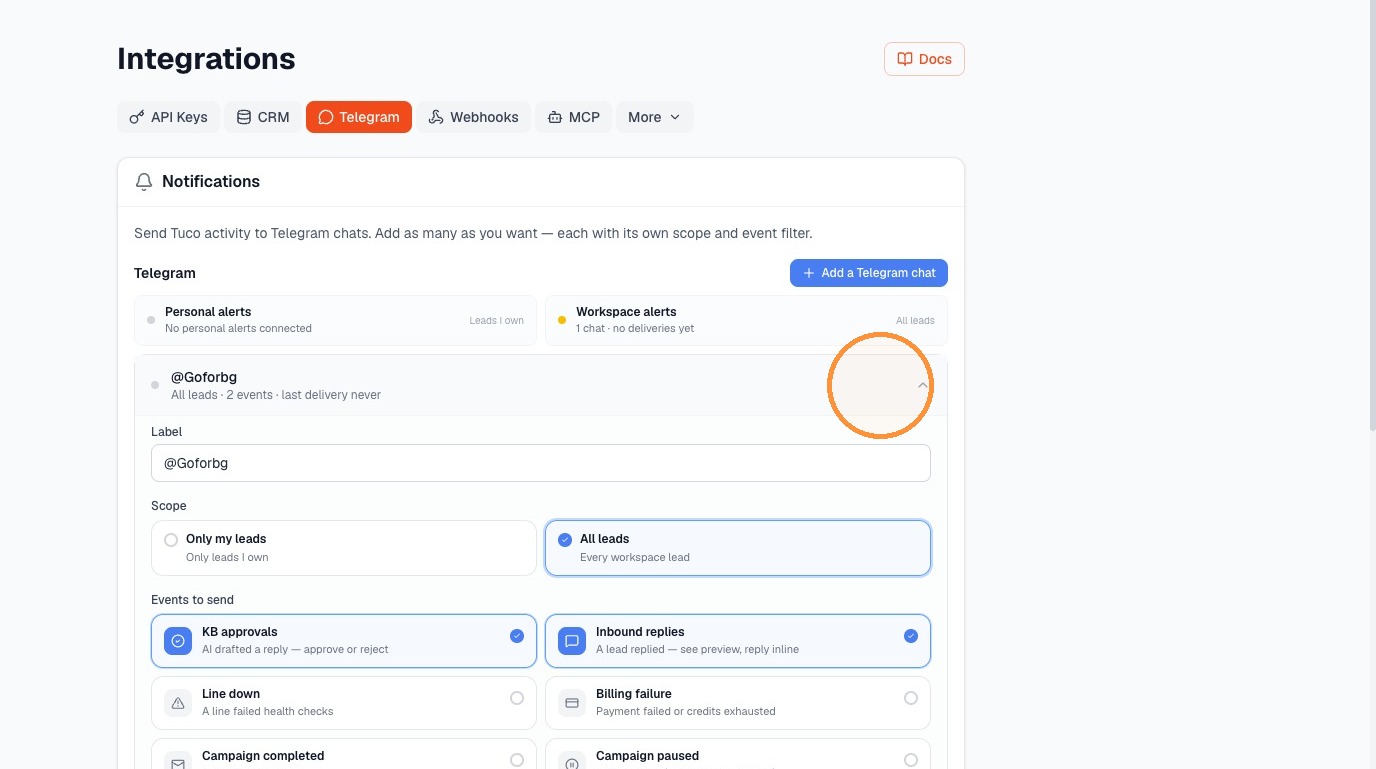
- Expand chat settings to view options
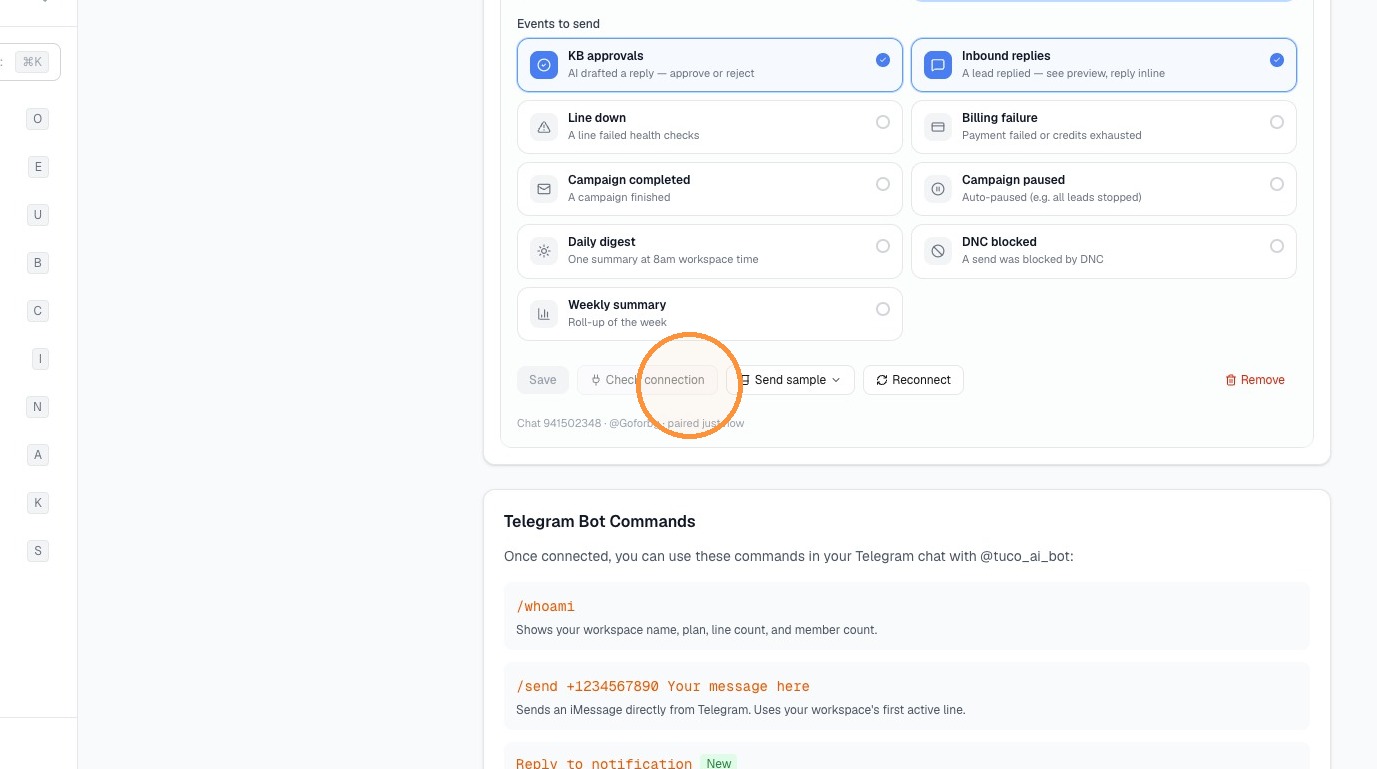
- Click "Check connection"
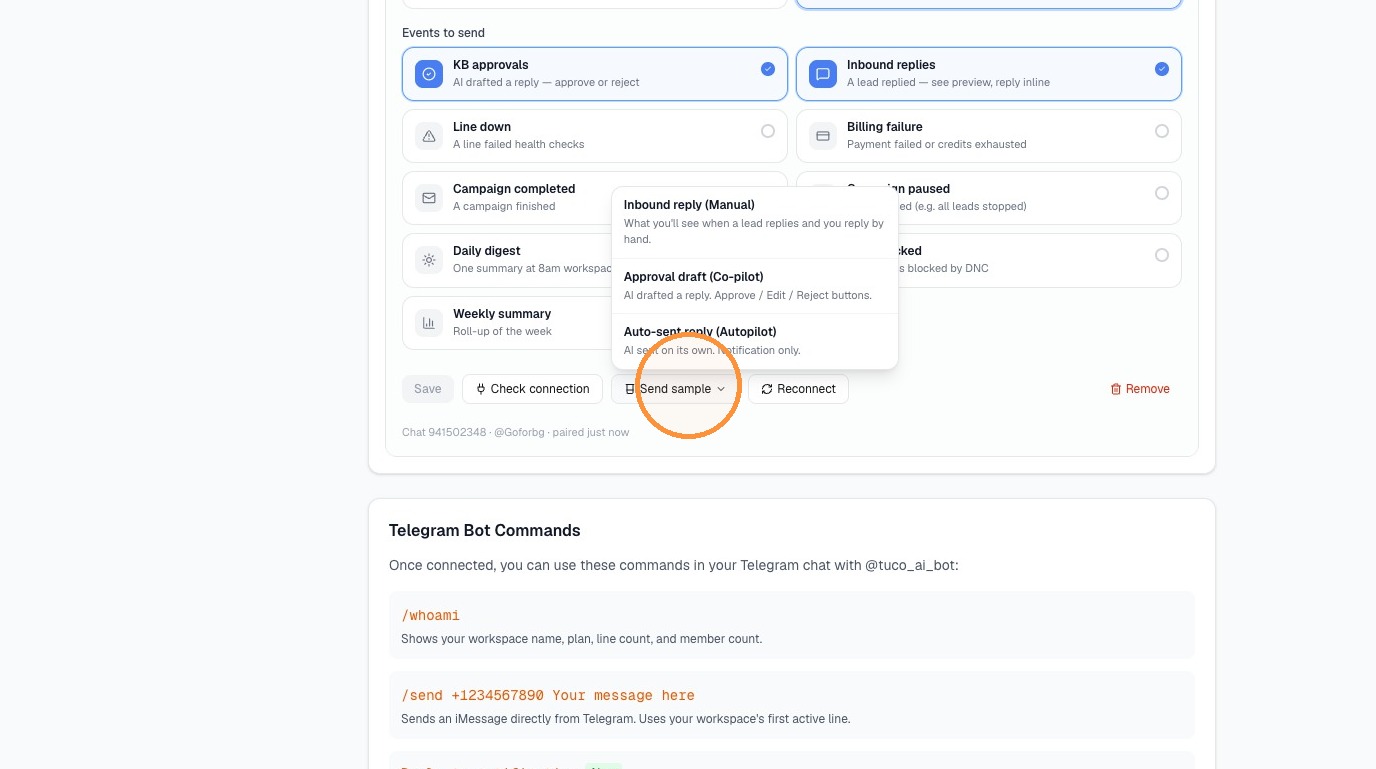
- Select "Approval draft (Co-pilot)" from the "Send sample" menu
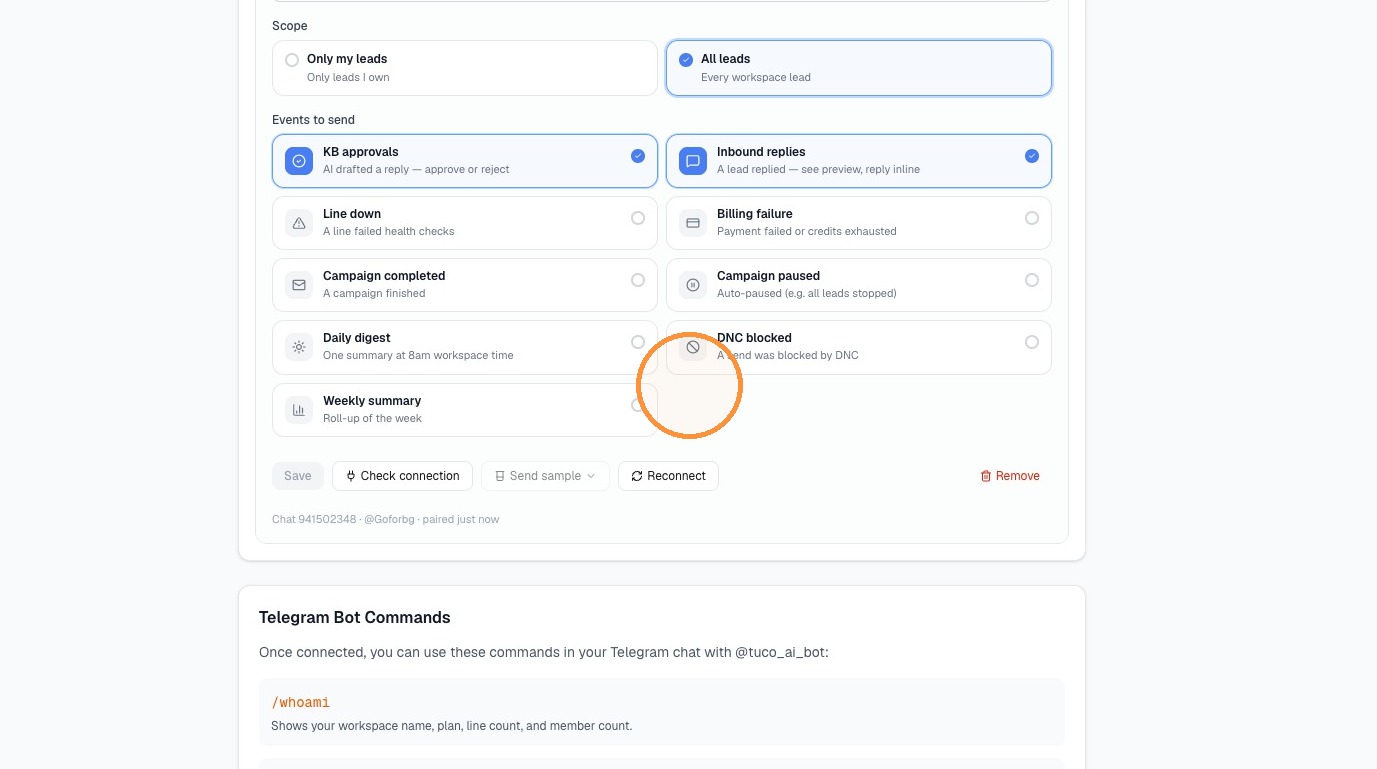
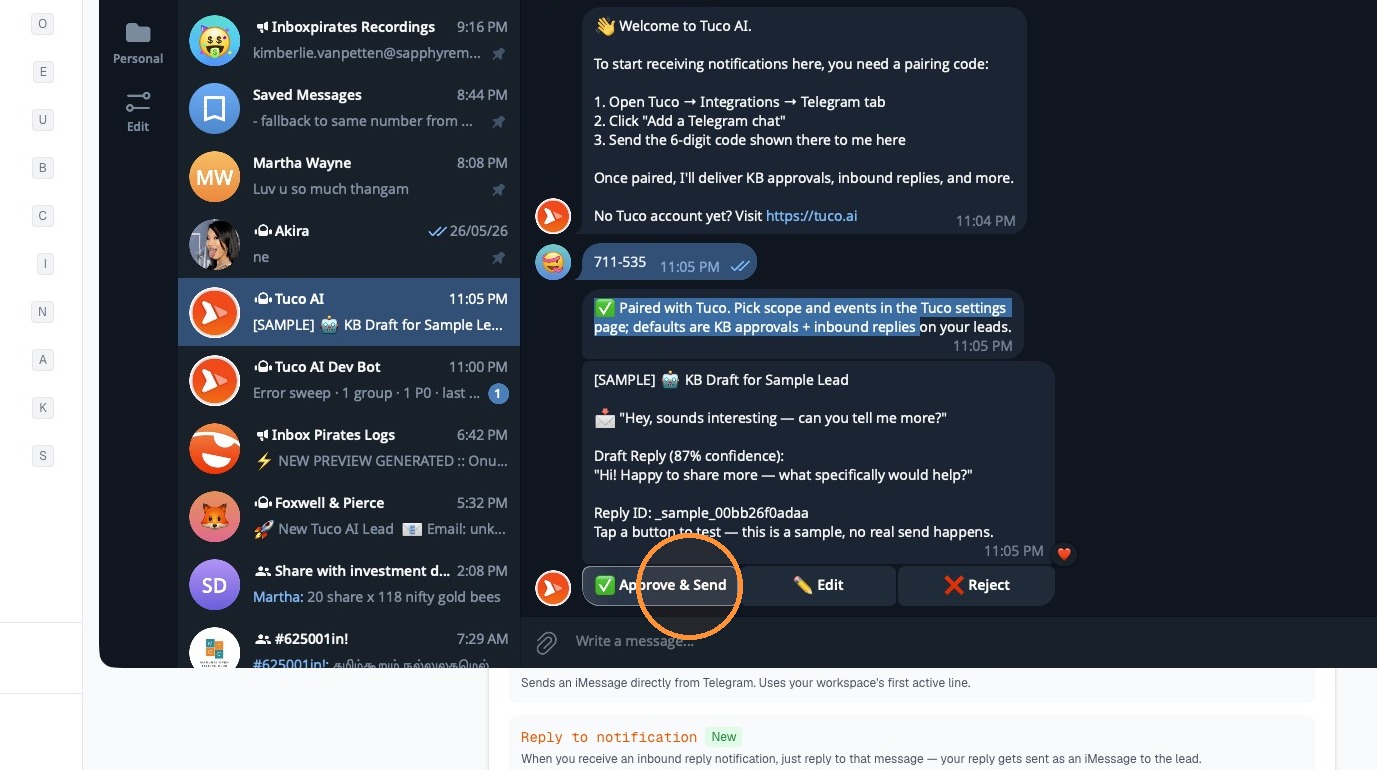
- Verify and interact with sample notification in Telegram
Made by Tuco Support with Scribe
Follow this guide to successfully link your Telegram account with Tuco AI for automated lead responses. You will learn how to configure your chat permissions, verify the connection, and run a sample test to ensure your bot is fully operational.
Updated on: 14/07/2026
Thank you!